
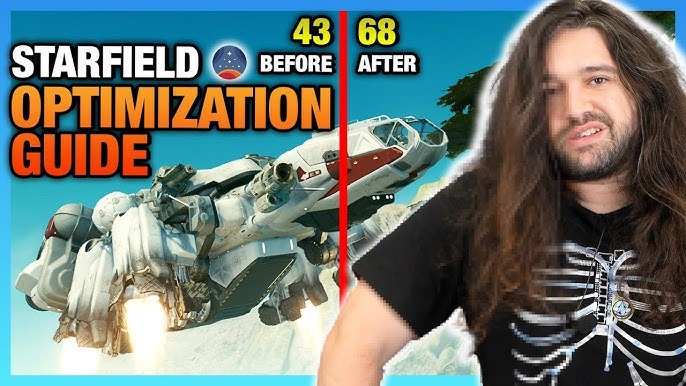
Performance mods for Starfield focus on improving frame rates and reducing stuttering by altering settings and adding community-created fixes.
Struggling with Starfield’s performance? Many players face similar challenges, encountering frame drops and stutters. This is where the Starfield performance mods guide becomes essential. We’ll explore how these modifications can significantly improve your gaming experience. These mods tweak game settings and add optimized assets, targeting areas that cause performance issues.

Starfield Performance Mods Guide
Alright, space explorers! Starfield is a big, beautiful game, but sometimes, it can feel a little slow or choppy. That’s where performance mods come in. These are like special tools that can make the game run smoother and look better, especially if your computer isn’t super powerful. Think of them as giving your spaceship a tune-up so it flies through the galaxy without any hiccups. This guide will help you understand what these mods are, how they work, and which ones might be best for you. We’ll also talk about how to install them safely.
Understanding Performance Issues in Starfield
Before we jump into mods, it’s good to know why Starfield might not run as smoothly as we want it to. Sometimes, it’s like a traffic jam in your computer! Here’s what can cause problems:
- Graphics Settings Too High: Starfield has lots of pretty details, but if you try to show all of them at once, your computer might get overloaded. It’s like trying to carry too many groceries at once.
- Old Hardware: If your computer is a few years old, it might not be able to keep up with the latest games. Think of it like trying to run a race with old sneakers.
- Software Conflicts: Sometimes, other programs running on your computer can clash with the game. It’s like having too many cooks in the kitchen.
- Game Bugs: Like any game, Starfield can have little errors that make it slow. These are like tiny glitches in the spaceship’s computer.
What Are Starfield Performance Mods?
Performance mods are special files created by players that change how the game works. They’re not official add-ons made by the game developers, but they can be super helpful. Here’s what they can do:
- Increase FPS (Frames Per Second): FPS is how many pictures the game shows you every second. More FPS makes the game look smoother. Think of it like flipping through a picture book quickly. The more pictures you flip, the smoother it looks.
- Reduce Lag or Stuttering: These mods can help get rid of those annoying pauses that can happen in the game. It’s like taking the bumps out of a bumpy road.
- Optimize Graphics: Some mods change how the game draws things, so it can look just as good but use less of your computer’s power. It’s like using a more energy-efficient lightbulb that still shines brightly.
- Improve Load Times: Waiting for the game to load can be frustrating. Mods can speed this up, so you get into the action faster.
These mods are usually shared by other players for free through websites dedicated to modding.
Types of Starfield Performance Mods
There are many different kinds of performance mods. It’s like having different tools in a toolbox for different jobs. Here are some popular types:
Texture Optimization Mods
Texture mods change the pictures used for things like rocks, plants, and walls in the game. They can make textures smaller or simpler, so the game doesn’t need as much power to show them. Think of it like using smaller pictures in a coloring book – they’re still fun, but easier to manage.
- Lower Resolution Textures: This is like using a picture that’s not as detailed. It uses less power, but it might look a tiny bit less sharp.
- Compressed Textures: It is like zipping up a file on a computer. It makes the textures smaller without losing too much detail.
Shadow and Lighting Mods
Shadows and lights are very important for how a game looks, but they also require a lot of power. These mods tweak how they’re rendered. Think of it like adjusting the lights in a room to save energy.
- Reduced Shadow Quality: Making shadows less detailed can save a lot of processing power.
- Disabling Certain Light Effects: Some light effects can be turned off to help the game run faster.
Draw Distance Mods
Draw distance refers to how far away you can see things in the game. If the game needs to draw everything far away, it uses a lot of power. These mods help with that. Think of it like how far you can see on a clear day.
- Reduced Draw Distance: This means that the game doesn’t need to show things that are very far away.
- Dynamic Draw Distance: The game only shows details when you get close to them.
Resolution Scaling Mods
Resolution is how many pixels a picture has. Higher resolution means a clearer image, but also uses more power. Resolution scaling mods change how much resolution the game uses. Think of it like changing the zoom on a camera.
- Lower Rendering Resolution: This means that the game will show a less sharp picture to save power.
- Upscaling: The game renders at a lower resolution, then uses a trick to make it look clearer on your screen.
FidelityFX Super Resolution (FSR) and Deep Learning Super Sampling (DLSS) Mods
These are special technologies from AMD (FSR) and NVIDIA (DLSS) that help games look better without using so much power. They’re like having a magic tool that makes your game look great even when it is not running at max settings.
- FSR Mods: These mods use AMD’s tech to make the game look sharper.
- DLSS Mods: These mods use NVIDIA’s tech to do a similar thing, but usually offer the best result.
Other Optimization Mods
There are many other little tweaks that mods can do to help the game run better. These are like the extra touches that make things run smoothly.
- Tweaking Game Settings: Changing game files to make them more efficient.
- Disabling Unnecessary Features: Turning off things you don’t really need.
- Memory Management: Helps the game use your computer’s memory more wisely.
Finding the Right Starfield Performance Mods
Now that we know what performance mods do, how do we find them? There are many websites and communities where modders share their creations.
- Nexus Mods: This is a very popular website where people share mods for all kinds of games, including Starfield.
- Modding Subreddits: On Reddit, you can find communities where people talk about modding and share tips.
- Gaming Forums: Many websites dedicated to gaming will have modding sections where people share tips and information.
When looking for mods, pay attention to:
- User Ratings and Comments: See what other players think about the mod. If many people like it, it’s usually a good sign.
- Compatibility: Check if the mod works with your version of Starfield and other mods you have.
- Version: Make sure the mod is up to date. Old mods might not work well with the newest versions of the game.
Installing Starfield Performance Mods: A Step-by-Step Guide
Installing mods can seem tricky, but if you follow the steps carefully, it’s not that difficult. Here’s a simple guide:
Using Mod Managers
Mod managers are special programs that help install and manage mods. They’re like having a helper who organizes all your tools.
- Download a Mod Manager: Some popular options are Vortex and Mod Organizer 2.
- Link the Mod Manager to Starfield: The mod manager will need to know where the game is installed.
- Install Mods Through the Mod Manager: The mod manager will handle the complicated parts of installing the mods.
Manual Installation
If you prefer, you can also install mods yourself, but it’s more work. Be very careful when doing this. It’s like setting up a tent without reading the instructions.
- Download the Mod Files: You will usually get a file like a .zip or .rar.
- Extract the Files: Open the file and take out the mod files.
- Place the Files in the Correct Folder: This folder is often in the same location where the game is installed and usually named “Data” folder. Make sure to check the instructions on the mod’s page.
- Enable the Mod (if necessary): Sometimes, you need to make small changes to game files to make the mod work. The mod’s page usually tells you how.
Important Considerations Before Modding Starfield
Modding can be fun, but there are some things to keep in mind to do it safely and responsibly.
Backup Your Game Files
Before you start using any mods, back up your game files. This is like having a copy of your homework, so you can always go back if something goes wrong.
- Copy the Entire Game Folder: Put this copy somewhere safe.
- Backup Saves Regularly: You should back up your game saves, too.
Read Mod Instructions Carefully
Always read the instructions that come with each mod. They usually tell you everything you need to know. It’s like reading the instruction booklet before assembling a toy.
- Check for Compatibility Issues: See if the mod has any problems with other mods you’re using or the current version of the game.
- Understand Installation Steps: Be sure you know where to put the mod files.
Start with a Few Mods
Don’t try to use too many mods at once. It’s like trying to juggle too many balls at the same time. Start with a few, make sure they work well, and then add more if you want.
- Test Each Mod Individually: Make sure that the game is working well after installing each mod.
- Avoid Conflicts: If two mods do similar things, they might cause problems.
Be Patient and Careful
Modding can sometimes cause problems, so it’s important to be patient. If something goes wrong, you can always undo the mod, or restore files from your backup. Think of it like learning a new trick on a skateboard – it takes time and practice.
Specific Starfield Performance Mod Recommendations
Here are some specific types of mods that many players find very helpful:
For Low-End Systems
If your computer is not very powerful, you might need mods that really cut down on the game’s demands.
- Lower Resolution Texture Mods: These are great for making the game run faster on older systems.
- Shadow Quality Reduction Mods: This is a must-have for people who have slow computers.
- Draw Distance Reduction Mods: A good way to make the game less demanding for the computer.
For Mid-Range Systems
If your computer is okay but not the best, these mods can help find the balance between good graphics and good performance.
- FidelityFX Super Resolution (FSR) Mods: This can make your game look better and run faster.
- Optimization Mods: These can help the game run better by making small tweaks in different areas.
- Performance Configs: These are settings shared by other players to improve the performance.
For High-End Systems
If you have a powerful computer, these mods can help the game look even better and smoother.
- Deep Learning Super Sampling (DLSS) Mods: This can improve your game’s look by adding details.
- High Resolution Texture Mods: You can use mods to add higher quality textures if you have a powerful system.
- Frame Generation Mods: This feature can generate additional frames making gameplay even smoother on high-end systems.
Remember that this is just a starting point, and every system is different. You should test out different settings to see what works the best for you. Also, it’s good to keep track of new mods as they are being developed because modding is an evolving process.
By carefully choosing the right mods, you can enjoy Starfield’s amazing worlds and stories without the frustration of lagging or slow performance. Remember to be patient, read the instructions, and always back up your game files. Happy exploring!
Starfield – Massive FPS BOOST Changing This Single Setting
Final Thoughts
Optimizing Starfield’s performance can significantly improve your gameplay. Players use various mods to achieve smoother frame rates and reduce stutters. The right selection of tweaks makes the experience better.
This Starfield performance mods guide focuses on tools that address common issues. These modifications help players make their game run well on their systems. Experimenting with them is essential.
Ultimately, a careful approach to modding leads to a much improved Starfield experience. Choosing mods that suit your PC is vital for peak performance. Remember, this Starfield performance mods guide helps you enjoy your game more smoothly.

