
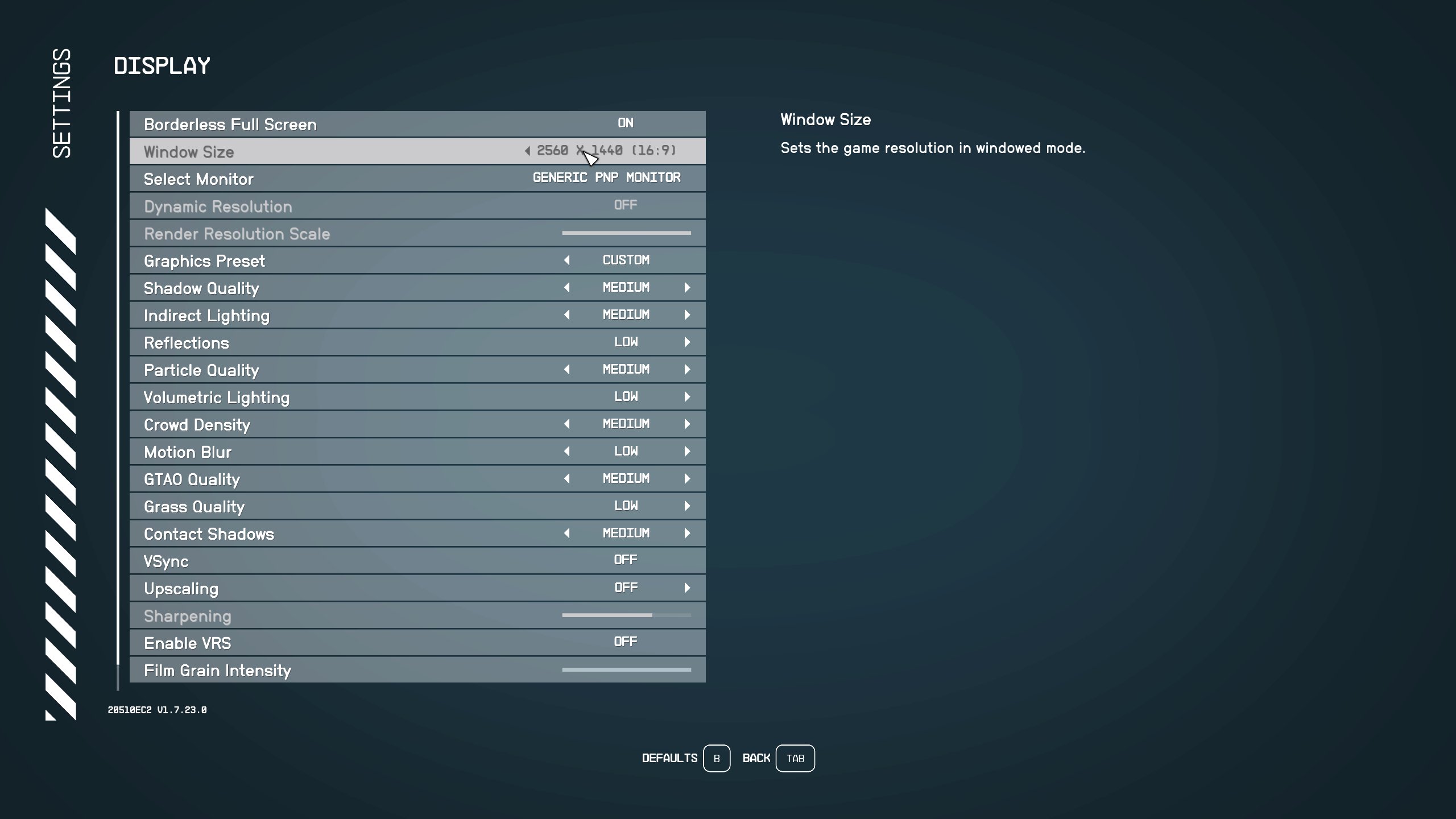
The best settings for Starfield performance typically involve lowering shadow quality, reducing volumetric lighting, and adjusting the resolution scale to find a balance between visual fidelity and frame rates.
Struggling with stuttering and low frame rates in Starfield? Many players face this issue, so finding the correct configuration is vital. We will discuss how to optimize the game to achieve smooth gameplay. Getting the most out of your hardware involves careful adjustments.
This guide tackles the frustration of poor performance in Starfield. We explain how to dial in the settings for a significant boost. Applying these tweaks will help you enjoy the game as intended. Let’s get your game running well. This guide will show you the best settings for Starfield performance.

Starfield the Best Settings for Performance
Let’s talk about getting Starfield to run smoothly! It can be a bit of a beast to run, even on good computers. The game is big, beautiful, and packed with details. That’s why it’s so important to get your settings just right. We want to see those space vistas without the game chugging along like a rusty old spaceship. So, how do we do it? Let’s dive into the best settings for performance, covering everything from graphics options to some sneaky tweaks. We’ll make sure you get the best-looking, best-playing Starfield experience possible.
Understanding Starfield’s Performance Challenges
Before we start tweaking, let’s talk a little bit about why Starfield can be hard to run. It’s not just because it’s a big game. The game has lots of things happening at once, like detailed characters, huge environments, and amazing lighting effects. All of this takes a lot of power from your computer. It’s like trying to juggle a bunch of balls at once; if you don’t have the right tools, things can get a little messy!
Here are a few key things that impact performance:
Graphics Card (GPU): This is the main muscle for games. If yours is older or not very powerful, you might have more trouble running Starfield smoothly.
Processor (CPU): The brain of your computer, it does a lot of work behind the scenes. A strong processor helps the game handle all its calculations.
Memory (RAM): This is like the short-term memory for your computer. Starfield needs a good chunk of RAM to keep everything running well.
Storage: Even the kind of hard drive can make a difference. Using a fast SSD makes loading times much quicker.
Keep these in mind as we go through the settings. Knowing what’s important helps you understand why you’re changing things.
The Core Graphics Settings: A Deep Dive
Okay, let’s get into the meat of things. We’ll be talking about the graphics settings you can change in Starfield. These are the most important for getting better performance.
Resolution
What it is: Resolution is how many tiny dots (pixels) make up the picture on your screen. A higher resolution means a sharper picture, but it also requires more power.
Why it matters for performance: Lowering the resolution can have a big impact on how smoothly Starfield runs. If you’re struggling to get a good frame rate, try lowering this first.
Recommendation: Start with your monitor’s native resolution (the one it’s designed for), then try dropping it down one step if needed. For instance, if you’re on 1920×1080 (1080p), try 1600×900, or even 1280×720 if things are really bad. You might also want to try dynamic resolution options if they are present in the game.
Graphics Quality Preset
What it is: This is a quick setting that lets you choose from low, medium, high, or ultra quality. It changes multiple graphics settings at once.
Why it matters for performance: Changing this preset is the easiest way to see big performance differences quickly.
Recommendation: Start with “Medium” or “Low” if you have an older computer, or even “High” if your machine has decent hardware and you want to test the waters first. Then, adjust the individual settings to fine-tune for your desired balance of performance and visual fidelity.
Shadow Quality
What it is: This controls the detail of shadows in the game. Higher settings make shadows look more realistic but also need more power.
Why it matters for performance: Shadows can be very taxing on your computer. Lowering this can make a noticeable difference.
Recommendation: Try “Medium” or “Low” if you are experiencing performance issues. The impact on visual quality is often not as dramatic as with other settings, while the performance boost can be great.
Texture Quality
What it is: This controls how detailed the surfaces of objects and environments look in the game. Higher settings mean sharper and more realistic surfaces.
Why it matters for performance: High-resolution textures need more video memory (VRAM). If your graphics card doesn’t have a lot of VRAM, lower this setting.
Recommendation: If you have a graphics card with 4GB of VRAM or less, start with “Low” or “Medium”. You can try increasing this to “High” with more VRAM but monitor the frame rates.
Lighting Quality
What it is: This affects how light interacts with everything in the game. It includes things like reflections and light shining through objects.
Why it matters for performance: Lighting calculations can be quite intensive for your GPU. Lowering this can reduce the workload considerably.
Recommendation: Try lowering this to “Medium” or “Low” as a good starting point for a performance boost. You may notice a slight reduction in visual flair, but performance gains can be significant.
Reflections
What it is: Reflections on surfaces like water or shiny floors. More detailed reflections look nice but require more processing.
Why it matters for performance: Detailed reflections add a lot of load, especially if there is a lot of water or shiny surfaces in the game.
Recommendation: Start with “Low” or turn it off if you want the best performance. Only increase if you have powerful hardware.
Volumetric Lighting
What it is: This adds depth and realism to light beams and light shining through things like fog or smoke.
Why it matters for performance: These effects are very demanding on the GPU.
Recommendation: Reduce this to “Low” or “Medium” for a good performance boost.
Anti-Aliasing
What it is: This smooths out jagged edges on objects, making the game look less pixelated.
Why it matters for performance: While it makes things look smoother, it takes some power.
Recommendation: The game might have different options. For the best balance between visual quality and performance, try using TAA, or FXAA, or if there are any other options, experiment with them to see which yields better performance. MSAA is usually the most demanding for your graphics card so generally avoid it.
Motion Blur
What it is: This effect makes things look blurry when they move fast, making movement seem smoother.
Why it matters for performance: It can add visual flare, but it’s a matter of preference. It also uses some processing power.
Recommendation: Many people don’t like motion blur. If it is on in game, try turning it off and see if you prefer it. This can also help with performance and reduce ghosting in fast paced scenes.
Grass and Object Detail
What it is: This setting controls how detailed the plants and other objects appear, especially at a distance.
Why it matters for performance: High levels of detail mean more things to render, which can impact performance.
Recommendation: Set this to “Medium” or “Low” if you’re having performance issues, especially in areas with lots of plants.
Advanced Tweaks for Better Performance
Sometimes, just tweaking the in-game settings isn’t enough. There are a few other things you can do to try to get the best performance out of Starfield.
Check your Graphics Drivers
Why it’s important: Graphics drivers are like the software that helps your graphics card talk to your games. Outdated drivers can cause performance problems.
How to do it: Go to the website of the company that made your graphics card (like NVIDIA or AMD) and download the latest drivers. You can also use their dedicated app. Make sure you are using the latest driver for the best performance in any game.
Close Background Applications
Why it’s important: Having too many programs running in the background can use up your computer’s resources and slow down the game.
How to do it: Close any programs you don’t need before you start Starfield. This includes web browsers, music apps, and other games.
Adjust Windows Settings
Why it’s important: Windows also has settings that can impact performance. Some of the adjustments you can make include disabling the game bar, and adjusting the performance settings of the operating system itself.
How to do it: Here are a few common ways:
Game Mode: This can make sure Windows prioritizes the game. Go to Settings -> Gaming -> Game Mode and turn it on.
Graphics Settings: Go to Settings -> System -> Display -> Graphics and select Starfield, then choose high performance from the dropdown menu. This will make windows use your dedicated GPU for the game.
Monitor your Hardware
Why it’s important: Knowing how your hardware is behaving can give you a clue about what’s causing performance problems.
How to do it: Download a program like MSI Afterburner (with RivaTuner Statistic Server) to see how your CPU, GPU, and RAM are doing while you play. Look for any resources that are getting maxed out. This will give you some insights into the weakest link in your system.
Consider Overclocking (Be Careful!)
What it is: Overclocking is making your computer components run faster than they were designed to. This can improve performance but can also cause problems.
Why it’s important: If done correctly, this can give some extra performance but proceed with caution.
How to do it: This is a bit more complex and can be risky, so it’s best to do some research and understand the risks before you try. Some graphics cards and processors come with tools to do it.
Using the Configuration files
What it is: Configuration files store the games settings and can be manually modified.
Why it’s important: These files allow to tweak the settings more than the game’s user interface allows, giving some flexibility for the user.
How to do it: Some settings, like the field of view, can be changed more precisely through configuration files. Make sure to make a copy of the configuration file prior to any change and follow some guides on the internet that go in to detail on what to change in those files.
Settings Recommendation Table
To help you easily keep track, here is a recommendation table of the settings mentioned above for different types of PC setups:
| Setting | Low-End PC | Mid-Range PC | High-End PC |
| —————— | ———————— | ————————— | ————————– |
| Resolution | 720p/900p | 1080p | 1440p/4K |
| Graphics Preset| Low/Medium | Medium/High | High/Ultra |
| Shadow Quality | Low | Medium | High |
| Texture Quality| Low/Medium | Medium/High | High |
| Lighting Quality | Low | Medium | High |
| Reflections | Low or Off | Low/Medium | High |
| Volumetric Lighting | Low | Medium | High |
| Anti-Aliasing | TAA, FXAA or similar | TAA, FXAA or similar | TAA, FXAA or similar |
| Motion Blur | Off | Optional | Optional |
| Grass and Object Detail | Low | Medium | High |
These settings are just a starting point, and you may need to adjust them further based on your own computer. Always try them out, keep an eye on your framerate, and change things as needed.
Getting Starfield to run well can take a little experimentation, but it’s worth it. By tweaking these settings and considering some of the other options, you can make sure that you are having the best experience possible, without making your computer suffer too much. Remember to start with small adjustments, test things out, and find the sweet spot for your setup. You’ll be exploring space smoothly in no time!
Starfield – Massive FPS BOOST Changing This Single Setting
Final Thoughts
Optimizing your settings in Starfield significantly improves your gaming experience. Lowering shadow quality, particle density, and reflection details will gain you substantial frame rate improvements. Adjusting these graphics settings, while maintaining visual appeal, is key for smoother gameplay.
Experimentation is crucial for finding the perfect balance with your specific hardware. Focus on the areas that impact performance most. ‘Starfield the best settings for performance’ will let you enjoy the vast universe with less stuttering.

