
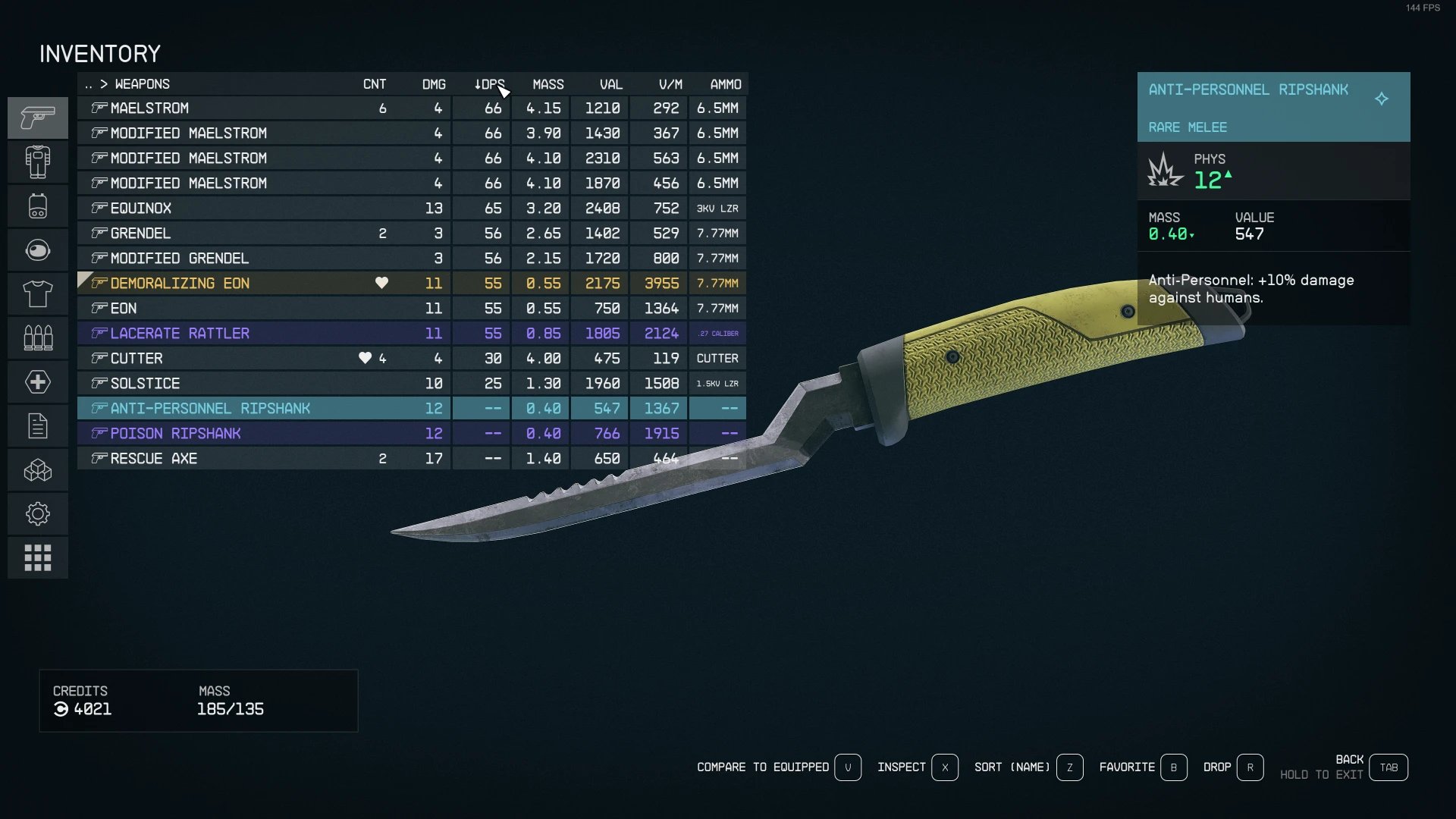
The Starfield user interface includes menus for inventory, skills, and maps, alongside an in-game HUD that displays essential information.
Navigating the vast expanse of Starfield requires a clear understanding of its user interface. This overview will help you become more familiar with its features. We’ll examine the core elements of the game’s design and their function.
The menus handle all aspects of progression and character management. You’ll be using these menus frequently as you explore different systems. The in-game HUD provides crucial data during gameplay, and we will touch on the key aspects in this Starfield user interface overview.

Starfield User Interface Overview
Let’s dive deep into the world of Starfield’s user interface (UI)! Imagine you’re piloting a spaceship, exploring strange planets, and making important decisions. The UI is your best friend, helping you do all of that without getting lost or confused. It’s like the dashboard in a car – it shows you everything you need to know. Starfield’s UI is designed to be clear and easy to use, so you can focus on the exciting parts of the game. This section is going to break down every important part of the UI, so you’ll be a pro in no time. We will go over everything, from the main menus to your inventory system, so that you can explore the vast universe of Starfield easily and comfortably.
The Main Menu: Your Gateway to the Galaxy
When you first start Starfield, you’ll see the main menu. This is like the home screen for the game. It lets you jump into the action or change your settings. Let’s take a closer look:
- New Game: This is where you start a fresh adventure. Choosing ‘New Game’ will start the story from beginning.
- Continue: If you’ve played before, you can pick up where you left off.
- Load Game: Sometimes you need to go back in time. This option lets you load an older save.
- Settings: Here, you can change how the game looks and sounds. You can also change the controls to fit your style.
- Creation Club: A place where you might find extra content that other players have made, or content made by the developers of the game.
- Credits: This is where you can see who made Starfield.
The main menu is designed to be easy to navigate. Use your controller or keyboard to highlight what you want and then press the button to make the selection. It is simple and doesn’t distract you from the game with too many fancy options.
In-Game Heads-Up Display (HUD): Information at a Glance
Once you’re in the game, the HUD gives you constant updates about your character, surroundings and objectives. The HUD is like the speedometer and fuel gauge of a car, and it provides you with critical information. Let’s see what it includes:
Health and Stamina
In the top left corner, you’ll see two bars. One is for your health. If it goes down, you are hurt and will need to heal. The other is your stamina. This shows how much energy you have to run, jump, or fight. Keep an eye on these because they are important for your survival.
Compass and Location
At the top of the screen, you’ll find a compass. This is helpful for knowing which direction you’re facing. It also helps you locate places or missions that you’re tracking. The compass also shows nearby planets and landmarks. In addition to the compass, your current location and the name of where you are located are displayed on the top center of the screen.
Weapon and Ammo
At the bottom right of the screen, you’ll see your current weapon and how much ammunition is left. This will always be visible, allowing you to know when it’s time to reload or change weapons.
Active Missions and Objectives
On the right side of the screen, you’ll find your current mission and tasks. This helps you keep track of what you’re supposed to be doing. It gives you quick access to your goals without needing to go into your menu.
Alert Indicators
If you’re near an enemy, or have taken damage, or something important happens, you might see warning symbols popping up on your screen. This helps you to stay alert about dangers and any possible threats around you.
The Starfield Menu System: Your Command Center
Pressing the menu button on your controller or keyboard will open the main menu in the game. This is where you can take control of many aspects of the game. This is the hub for managing your character, your ship, and your missions. Let’s take a look at each part:
Inventory
This is like your backpack, where you keep all your items. Here you will find weapons, armor, food, resources, and any other useful thing you’ve collected. The inventory is a crucial part of the Starfield UI. It’s not just about carrying items; it’s about managing them effectively.
- Categorization: The inventory is organized into categories, such as weapons, apparel, aid items, resources, and miscellaneous items. This helps you find what you need quickly.
- Item Details: When you select an item, you can see its name, a picture, weight, and any special stats it may have. This is important for making choices about what to use or keep.
- Equipping: From here you can equip weapons and armor. This is how you prepare your character for combat and exploration.
- Dropping or Selling Items: If you have too many items, you can drop them or sell them at shops. Managing your inventory is critical for making space for new discoveries.
Skills
Starfield has a skill tree system that lets you customize your character. As you level up, you’ll earn skill points to invest in skills that enhance your combat, crafting, science, and social skills. The skills menu is important for how your character will play.
- Skill Categories: Skills are grouped into categories like combat, science, technology, and social skills. This helps you focus on the aspects of the game you like most.
- Skill Trees: Each category has its own skill tree. As you level up, you can learn new skills and improve the ones you already have.
- Skill Effects: Each skill improves a specific ability. It might make you stronger, a better shot, a better crafter, or more persuasive. The skills menu is where you make the choices that make your character unique.
Quests
This section lists all your active missions. Here you can find the objectives you need to do and track where you need to go. The quest log is your road map in Starfield’s large world.
- Active Quests: You’ll see your current missions here. Each quest has a name, a description, and the objectives you need to complete.
- Tracking: You can choose to track a specific quest so that its objectives appear on your HUD. This makes it easier to follow along.
- Quest Details: When you select a quest, you’ll get extra information about it, and background of it. This helps you understand what the quest is about and how to complete it.
- Completed Quests: You can see all the missions you have already finished. This helps you see how far you’ve come and where you’ve been.
Map
The map helps you navigate the areas you’ve already visited. It also lets you plan your trip to new planets. It is useful for planning exploration trips.
- Local Maps: You can see detailed maps of planets, cities and space stations.
- Star Maps: You can see the larger star system, and plan travels to different planets.
- Waypoints: You can use map to set a waypoint, and a marker will appear on your HUD so you can find your way.
Ship
This part of the menu is all about your ship. You can view its stats, change its weapons and other parts. It’s also where you customize and repair your ship. The ship menu allows you to improve your space travel ability.
- Ship Stats: Here, you will see the current status of your ship, including its health, shields, and what items it’s carrying.
- Ship Parts: You can change your ship’s weapons, engine, and other parts to make it more powerful or useful.
- Ship Customization: If you like, you can change the way your ship looks.
- Ship Repair: If your ship has been damaged, you can fix it here. A fully working ship is key for space exploration.
Crew
You’ll meet many people in Starfield who might want to join your crew. Here, you can check on your crew members, what they’re good at, and where they are on the ship. Crew management is an important aspect of the game.
- Crew List: You can see who is part of your crew and their names.
- Crew Skills: Each crew member has skills that can help you on your ship and adventures.
- Crew Assignments: You can assign crew members to different parts of your ship to make it work better. A good crew is crucial to the success of your exploration.
Data
Here you can find different files you have collected. It is like the history and lore section. This gives more info about the world of Starfield.
- Collected Items: You can read data files that you found.
- Information: You can get more background info on the world of Starfield.
Settings
This takes you to the settings area where you can change how the game looks and sounds, and also change controls. This part of the menu lets you set up Starfield exactly how you want it.
- Audio Settings: Here you can change the sound levels for music, voices, and other sound effects.
- Video Settings: You can change how the game looks, including the resolution, graphics quality, and other visual options.
- Controls: You can set up your controller or keyboard controls.
User Interface During Combat
The Starfield UI also changes during combat. The HUD displays information specifically useful during battles.
Enemy Health Bars
When in combat, enemies have health bars above their heads. This helps you track how much damage you have caused them.
Crosshair
Your crosshair will change as well, and it will show your accuracy. It will change colors when you hit an enemy or ready to fire.
Combat Log
The combat log in the game shows what is happening in combat. It gives information about attacks made and damage taken.
Interactions: Talking, Trading, and More
The UI also plays a big part when you’re interacting with other characters or objects. It uses prompts, menus, and conversation options.
Dialogue Options
When you talk to someone, you’ll see a list of things you can say. The UI will let you choose what to say next.
Trading Interface
If you trade with merchants, the UI shows you what they’re selling and what you have to offer.
Object Interaction
When you are near a button or other items that you can use, the UI will show you which buttons you need to press.
Navigation and Exploration UI
Exploring in Starfield is a big part of the game, so there are helpful UI elements that will help you navigate the world
Scanning and Surveying
When you scan planets or items you will see UI elements that tell you what is nearby, and their value.
Waypoints
As you explore, you can set waypoints to help you find your way.
Location Markers
The UI puts markers on the screen so you will see important places and objectives.
The Starfield UI is well designed so that it is clear and simple. It helps you focus on your adventure. Understanding this interface is the first step toward a successful journey in Starfield. The user interface in Starfield makes the game understandable, and it improves the overall experience. With a clear and user-friendly interface, players can enjoy the game to the maximum.
Starfield The Perfect Game – #starfield UI / Inventory – Starfield Direct Breakdown
Final Thoughts
Starfield’s UI provides clear access to menus, inventory, and maps. Players will find vital information readily available during gameplay. Navigating the various options is straightforward, assisting smooth progression.
The interface facilitates a good player experience with its logical layout. The simple design is meant for easy use. Overall, the Starfield user interface overview highlights functionality and accessibility.

