
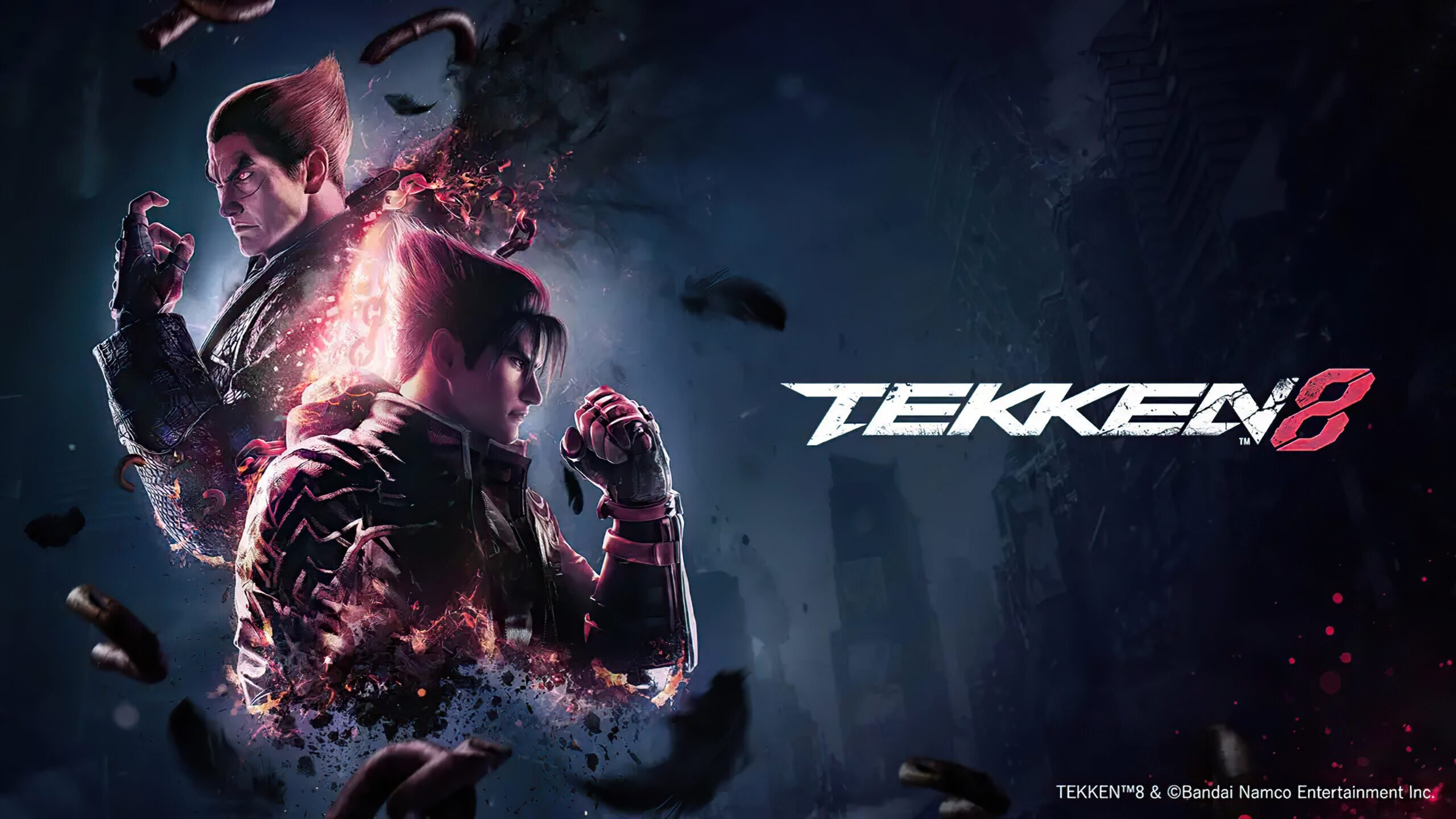
The best Tekken 8 games optimization settings depend on your PC; try lowering resolution, shadows, and anti-aliasing for smoother gameplay.
Want to make your Tekken 8 experience better? Many players struggle to get a smooth framerate. This article is going to help you understand important Tekken 8 games optimization settings.
Adjusting graphics options directly affects performance. Experiment with various settings to find the perfect balance. This will help you achieve the best possible gaming experience.

Tekken 8 Game Optimization Settings
So, you’re ready to jump into the action with Tekken 8? Awesome! It’s a fantastic fighting game with amazing graphics and intense battles. But sometimes, to get the smoothest experience, you need to tweak a few things in the settings. Don’t worry, it’s not as scary as it sounds. This guide will walk you through all the important optimization settings in Tekken 8 to help you get the best performance from your PC or console. We’ll talk about what each setting does, and how to adjust them so the game runs great for you.
Understanding the Basics: What Impacts Performance?
Before diving into specific settings, it’s good to understand what makes a game run smoothly or choppy. Three main things affect how Tekken 8 performs: your computer or console’s graphics card, its processor, and the amount of RAM it has. Think of it like a race car – you need a good engine (processor), fast wheels (graphics card), and enough gas (RAM) to run smoothly. When your system has to work too hard, the game slows down and can look jerky. This is where adjusting the settings helps.
Resolution: The Sharpness of Your Game
Resolution is how many tiny dots (pixels) your screen uses to show an image. A higher resolution means more detail, making the game look very sharp and clear. However, more pixels also means your computer or console has to work harder.
- Lowering Resolution: If your game feels slow, try lowering the resolution. This makes the picture less sharp but can significantly speed up the game. Think of it like using a smaller picture to save space, it takes less effort to show it. You can find the resolution settings in the graphics or display menu. Common settings are 1920 x 1080 (Full HD), 1280 x 720 (HD), and sometimes 3840 x 2160 (4K), if your screen supports it. A lower resolution like 720p will give the fastest performance but will look blurrier.
- Finding the Right Balance: The sweet spot is finding a resolution that looks good enough for you without slowing the game down too much. Experiment to see what works best. For most people, 1920×1080 is good for balancing quality and speed.
Graphics Settings: The Visual Details
Tekken 8 has lots of fancy graphics settings that make the game look awesome, like shadows, textures, and special effects. Each setting adds to the visual flair but also makes your system work harder. Here’s a look at some common settings:
Texture Quality
Textures are like the skin of everything you see, the details on characters and the backgrounds.
- High Quality Textures: High quality textures mean everything looks very detailed and realistic. If you have a good graphics card, it’s great!
- Medium Quality Textures: Medium quality textures means less detail. This is a good option for better performance, the game will still look good.
- Low Quality Textures: Low quality textures mean the least detail. Choose this if you need every extra bit of speed and don’t care as much about the small details.
Shadows
Shadows make the game look more real by showing how light interacts with the characters and surroundings.
- High Quality Shadows: Detailed shadows make the game look great, but they require a lot of power.
- Medium Quality Shadows: Simple shadows which provide a nice balance of look and speed.
- Low Quality Shadows: Very basic shadows. This setting can free up some resources to increase your performance. You can turn them off too for maximum performance boost.
Anti-Aliasing
Anti-aliasing makes lines and edges look smooth instead of jagged.
- High Anti-Aliasing: This setting makes lines and edges very smooth, but can slow things down a bit.
- Low Anti-Aliasing: Edges might look a little more jagged. It does help the game run faster. You can even turn off anti-aliasing for the best performance.
Effects
Special effects include things like explosions and character powers. They add a lot of visual flair.
- High Effects: Lots of fancy details in the effects. This makes the game look great!
- Medium Effects: Less details in the effects but it’s still nice and good.
- Low Effects: Effects may not look as impressive. This setting is a good option to improve the game’s performance.
Motion Blur
Motion blur makes moving things look a bit blurry, like they’re going fast. It’s good for action but may not be for everyone.
- Enabling Motion Blur: Some players like motion blur, but it can make the game look too blurry if you are trying to focus on quick movements and fighting.
- Disabling Motion Blur: You can disable motion blur to get a clearer picture and maybe gain a bit of speed. Most players prefer to have this setting off for competitive gameplay.
Ambient Occlusion
Ambient occlusion adds extra shadows in corners and where objects meet. This makes things look more realistic.
- Enabling Ambient Occlusion: Makes your game more realistic, but can slow it down.
- Disabling Ambient Occlusion: Can make the game run faster. It’s another setting that can be turned off for the sake of performance.
Display Mode: Fullscreen, Windowed, or Borderless?
How the game is shown on your screen can also affect performance.
- Fullscreen: Fullscreen makes the game the only thing on your screen. It usually gives the best performance because your system doesn’t have to worry about other windows.
- Windowed: Windowed means the game is in a box on your screen. It lets you see other things but might cause the game to run slower.
- Borderless Windowed: Borderless windowed is like fullscreen but the game runs in a window without a border. It is good if you want to quickly switch to other windows, but it may not be as fast as fullscreen mode.
Advanced Settings: Digging Deeper
Tekken 8 also has some advanced settings to further improve performance.
Frame Rate Limit
This setting controls how many pictures (frames) the game draws per second.
- 60 FPS: Most monitors have a refresh rate of 60Hz, so 60FPS is often a good target. This makes the game look smooth and play well. You could also set this higher like 120 FPS or more for screens with higher refresh rates.
- Lower FPS: If your computer or console is having trouble keeping up, you could lower this to 30fps, but the game will look less smooth.
V-Sync
V-Sync stops your screen from showing multiple frames at once (screen tearing).
- Enabling V-Sync: Makes the picture look smooth and clear but can slow things down if your system can’t keep up.
- Disabling V-Sync: This may show screen tearing, where you might see parts of two pictures on the screen at once. It can help the game run a little faster.
Render Scale
Render Scale changes the resolution the game is rendered at internally.
- Increasing Render Scale: This makes the image sharper but needs more resources.
- Decreasing Render Scale: This can increase performance, but the game might look a little blurry. This setting is different than just changing the resolution. It allows you to render the game at a lower resolution and then use the resolution of your monitor to display it at that size.
PC Specific Optimization
If you’re playing Tekken 8 on a PC, here are some tips just for you:
Driver Updates
Make sure your graphics card drivers are up to date. Drivers are like little programs that help your graphics card work. New drivers often include optimizations that make games run better. You can download new drivers from the website of your graphics card manufacturer, like NVIDIA or AMD.
Background Programs
Close any programs you’re not using when you play Tekken 8. They might be using up power your game needs. Closing things like browsers, music players, and other programs can free up resources. Programs that automatically run can slow down your PC without you realizing it.
Power Settings
On a Windows PC, make sure your power settings are set to ‘High Performance’ for gaming. To do this, open Control Panel, click ‘Power Options’ then select ‘High Performance’.
Game Mode
Windows Game Mode can give Tekken 8 priority access to your system resources, giving you an extra performance boost. This feature should be enabled automatically, but you can also check your settings to make sure that it is turned on.
Console Specific Optimization
For those on consoles, while you have fewer options, there are still some things to consider:
Console Updates
Make sure your console’s system software is up-to-date. Like PC drivers, these updates can include improvements for performance. When new updates are available you should be notified by your console.
Storage Space
Make sure you have plenty of free storage space on your console’s hard drive. Having a full drive can slow down the console, which will then impact game performance.
Cooling
Ensure your console has good airflow and isn’t overheating. A hot console can cause it to slow down or crash. Do not put it in an enclosed space that restricts airflow. Don’t let anything block the vents on the back and sides of the console.
Finding the Right Settings for You
The perfect settings for Tekken 8 depend on your system. Don’t be afraid to play with the settings and see what works best for you. It is often helpful to change one setting at a time and then see what the impact it has on performance. Here’s a simple process:
- Start with a low setting for everything.
- Increase one setting at a time to see how much of an impact it has on your games performance.
- Find the right settings that balance the graphics quality and the performance you are looking for.
- Adjust any extra options you like for gameplay and personal preference.
Remember, there’s no magic setting that will work perfectly for everyone. The key is to experiment to find your sweet spot. With a little bit of tweaking you’ll have Tekken 8 running great and ready for some epic battles.
Using these settings and optimization tips will help you enjoy Tekken 8 to the fullest. So get in there, adjust those settings, and get ready to fight!
TEKKEN 8 Graphics Enhancement and Optimization Guide✨ [UPDATED]
Final Thoughts
Fine-tuning Tekken 8 games optimization settings improves performance. Experimenting with graphics options helps you achieve smoother gameplay. Lowering resolution or shadow quality often gives a boost to framerate. Adjust settings according to your specific hardware.
Tweaking these settings leads to a better playing experience. It is essential for maximizing performance on different systems. Tekken 8 games optimization settings play a crucial part in how the game runs.

