
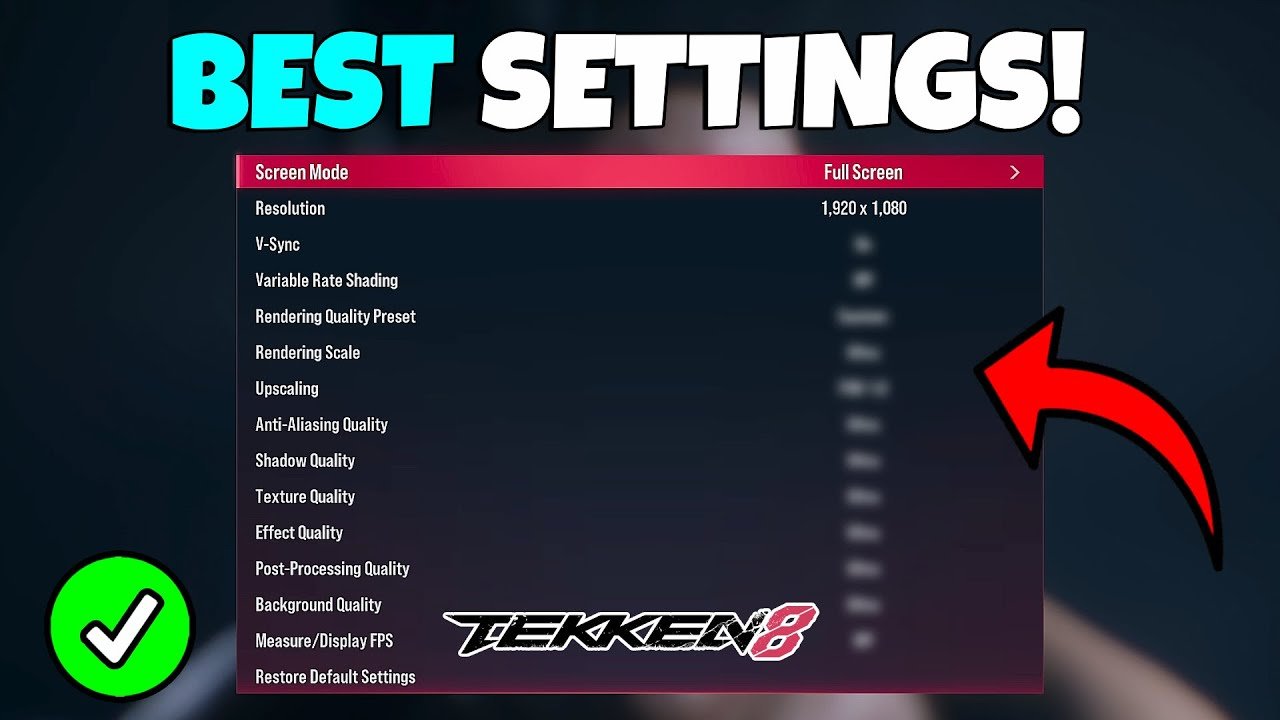
To improve performance settings in Tekken 8, lower graphics options like resolution, shadows, and effects, and ensure your drivers are updated.
Struggling with Tekken 8’s performance? Frustration is common when frame rates drop during intense matches. We’ve all been there, those crucial moments when stuttering prevents executing combos.
It is possible to optimize your game and gain a smoother experience, this article provides simple solutions to ‘Tekken 8 how to improve performance settings’. Adjusting these settings will help you get the most out of Tekken 8.

Tekken 8 How to Improve Performance Settings
Okay, you’re hyped for Tekken 8, and who wouldn’t be? The graphics are amazing, the fights are intense, but sometimes, that amazingness can come at a cost: performance. Maybe your game is stuttering, feeling slow, or just not as smooth as you’d like. Don’t worry, you’re not alone! Many players face this, and the good news is, you can often fix it by tweaking your game’s settings. This guide is all about helping you make Tekken 8 run like a dream, so you can focus on those epic combos and not frustrating lag.
Understanding the Problem: Why is My Tekken 8 Lagging?
Before diving into settings, let’s talk about why your game might be struggling. Think of it like a car – if you try to make it go too fast, it might start to sputter. Your computer is the car, and Tekken 8 is the speed. There are several reasons the game might not be running well:
- Your Computer’s Power: Just like cars have different engines, computers have different parts (CPU, graphics card, RAM). If your parts aren’t powerful enough, Tekken 8 might be too much for it.
- Graphics Settings: Turning the game’s graphics to their highest settings demands more from your computer. This is like trying to drive a car uphill in a high gear.
- Other Programs Running: Imagine your car also pulling a trailer. Programs running in the background use up your computer’s power too, making it harder for Tekken 8 to run smoothly.
- Outdated Drivers: Like your car needing regular service, your computer’s parts need updated drivers. These help your computer and game communicate better.
It’s like a puzzle, and by looking at each of these pieces, we can get your game running much better!
Essential Tekken 8 Settings for Better Performance
Now, let’s get into the nitty-gritty of the settings that make a difference. We’ll go through each one step-by-step, so you know exactly what you’re changing.
Graphics Settings: The Big Impact
These settings have the biggest impact on how your game performs. We’ll start with the big ones:
Resolution
Think of resolution like the size of the picture. A bigger picture looks nicer but needs more power. If your game is struggling, lowering the resolution will make a big difference. Here’s how:
- What it does: Resolution changes how many pixels make up the image on your screen. Higher resolutions (like 1920×1080 or 4k) look sharper and clearer, but they require more power to process. Lower resolutions (like 1280×720) are less detailed but are much easier for your computer to handle.
- How to adjust it: In Tekken 8’s video settings, you’ll see a list of resolution options. Try dropping down one step at a time to see if performance improves. The most common starting point for reducing load is 1920×1080. Consider going down to 1600×900 or 1280×720 for a noticeable boost.
Anti-Aliasing
Anti-aliasing makes the edges of things look smooth. Again, it looks nice, but it needs power. Turning it down or off can improve speed. Here’s how it works:
- What it does: Anti-aliasing smooths out jagged edges on objects, making them look less blocky. Different types of anti-aliasing (like FXAA or MSAA) have different levels of processing demand. Higher settings make things look smoother but at a cost of performance.
- How to adjust it: You’ll likely find anti-aliasing options in the graphics settings. Start by trying low settings (like FXAA) or turning it off completely.
Shadows
Shadows make the game look realistic, but they are another thing that uses a lot of computer power. Changing or turning them off can speed things up.
- What they do: Shadows add depth and realism to the game. The higher the shadow quality, the more complex calculations are required, using more computer resources.
- How to adjust them: Look for shadow settings such as shadow quality, or simply on/off switches. Start with low settings or disable shadows altogether to see a performance jump.
Texture Quality
Textures are like the wallpaper on things in the game. High-quality textures make the game look great, but they need more memory to run. You can set textures to lower quality without losing much of the overall experience.
- What it does: Texture quality determines how detailed the surfaces of objects look in the game. Higher texture quality means more detailed, sharper surfaces but this uses up more memory and processing power.
- How to adjust it: Look for Texture Quality settings in the game’s video settings. Select low or medium settings, to reduce the demand on your graphics card.
Effects
Effects are things like explosions or special moves. Turning down the quality of these effects can give your computer a bit of a rest.
- What it does: Effects include things like particle effects, explosions, and lighting effects. Higher settings look flashier and more impressive, but require more processing power.
- How to adjust it: You will find the effects settings in the graphics settings menu. If you’re having performance problems, try setting them to low or medium.
Motion Blur
Motion blur is like when you move your camera fast and things get blurry. It looks cool, but it can slow things down.
- What it does: Motion blur creates a sense of motion by blurring fast-moving objects. While it can add to the visual experience, it also comes at a performance cost.
- How to adjust it: You can usually find the option to enable or disable motion blur within the graphics options. If your game is not running smooth, turn it off.
Ambient Occlusion
Ambient Occlusion helps create realistic shadows by darkening areas where two surfaces meet. It’s a detail that makes the game look better but can affect performance.
- What it does: Ambient Occlusion adds depth and realism by adding shadows in corners and crevices. While visually appealing, it requires additional processing.
- How to adjust it: Look for Ambient Occlusion settings in the graphics options. Turn it off or lower the level of quality for a small performance boost.
Advanced Settings: Fine-Tuning for the Best Result
Beyond the core settings, there are a few extra options that can have a positive impact on performance.
Frame Rate Limit
A frame rate limit can help smooth your game out if it’s jumping up and down in speed. Try to set the frame limit in the settings to avoid unnecessary strain on your system.
- What it does: A frame rate limit caps the number of frames rendered per second. This will reduce variations in your computer’s load and can smooth out the gaming experience.
- How to adjust it: Tekken 8 may have frame rate limit settings, or you can set a limit in your graphic card’s setting. If you’re experiencing screen tearing, enabling a frame rate limit may also help with this issue. Start by capping the frame rate to 60 fps and see if this helps.
V-Sync
V-Sync is used to prevent ‘screen tearing’ but it can sometimes make your game slower. If you have an unstable frame rate, turn it off and see if that helps. If you’re not getting screen tearing, V-Sync might not be an issue, and you can keep it on.
- What it does: V-sync synchronizes your game’s frame rate with your monitor’s refresh rate to prevent screen tearing. However, it can introduce input lag if your game is not running smoothly.
- How to adjust it: Look for V-Sync option in the video or display settings. If you’re not seeing screen tearing or you are experiencing input lag, you can turn V-Sync off.
General Optimization Beyond In-Game Settings
Sometimes, making your game run better is not all about game settings. There are a few things you can do outside the game that might also help.
Update Your Graphics Drivers
Graphics drivers are like little messengers that help your game talk to your graphics card. If you update them, your game might run faster.
- Why it matters: Outdated drivers can cause problems with game performance, including stuttering and frame drops. New drivers often include optimizations for specific games, including Tekken 8.
- How to do it: Visit the websites of your graphics card manufacturer (NVIDIA, AMD, Intel) and download the latest drivers for your card. Install the drivers, and reboot your computer.
Close Background Programs
Having too many programs running can slow your computer down. Shut down any program you aren’t using when you’re playing.
- Why it matters: Programs running in the background use system resources like CPU and RAM. This can reduce the resources available for Tekken 8.
- How to do it: Before starting Tekken 8, close any unnecessary applications and processes running in your system tray (the little icons at the bottom right).
Check Your Computer’s Temperature
If your computer is getting too hot, it can start to run slower. If you think your computer is getting too warm, you may need to adjust your case fans or clean your system.
- Why it matters: When your computer gets too hot, it will start to slow down to protect itself.
- How to do it: You can use software to check your computer’s internal temperatures. If it is running very hot, give your computer time to cool down, then make sure that your computer’s cooling solutions are working as intended. You may also want to consider moving your computer to a cooler space if possible.
Optimize Your Power Plan
Your computer’s power plan can impact how much power it gives to your games. Setting it to ‘high performance’ can help give Tekken 8 more resources.
- Why it matters: Windows has different power plans that can affect performance. The default plans might limit the power provided to your system.
- How to do it: Go to your Windows power settings (usually by searching “Power Options” in the start menu) and select High Performance. This plan prioritizes performance but will use more power.
Testing Your Changes
After making changes, it’s always a good idea to see if they actually helped. Here’s how you can test:
- Play a Match: Jump into an online or offline game and see if it feels smoother. Pay attention to the response of your commands and how much lag you feel.
- Try Practice Mode: Practice mode is a great place to test your game because it always runs at a stable frame rate. Try using combos and see if they’re easier to do than before.
- Monitor Your Frame Rate: Some games, including Tekken 8 may have a built-in setting to show the frame rate. This is the most effective way to measure performance. If you notice that the game is maintaining a consistent frame rate in the test scenarios, you can be sure that your optimizations have been effective.
It’s like testing to see if you improved your speed after changing your car. If the game is running better, you’re ready to go! If not, go back and try another set of adjustments.
Finding the perfect settings can take a bit of time, but it’s well worth it. When your game runs smoothly, you can concentrate on what’s important: winning!
Remember, not every computer is the same, and what works for one person might not work for another. You may need to try some different adjustments to find the perfect mix for you.
TEKKEN 8 BEST GRAPHICS SETTINGS + FAST RESPONSE TIME
Final Thoughts
In short, adjusting resolution, shadow quality, and anti-aliasing greatly impacts Tekken 8’s smoothness. Lowering these visuals can improve framerate significantly. Experiment to find your system’s sweet spot.
Prioritizing framerate over graphics is often essential for a competitive experience. Consider background detail and effects if you need more performance. Remember, optimal “Tekken 8 how to improve performance settings” varies.

