
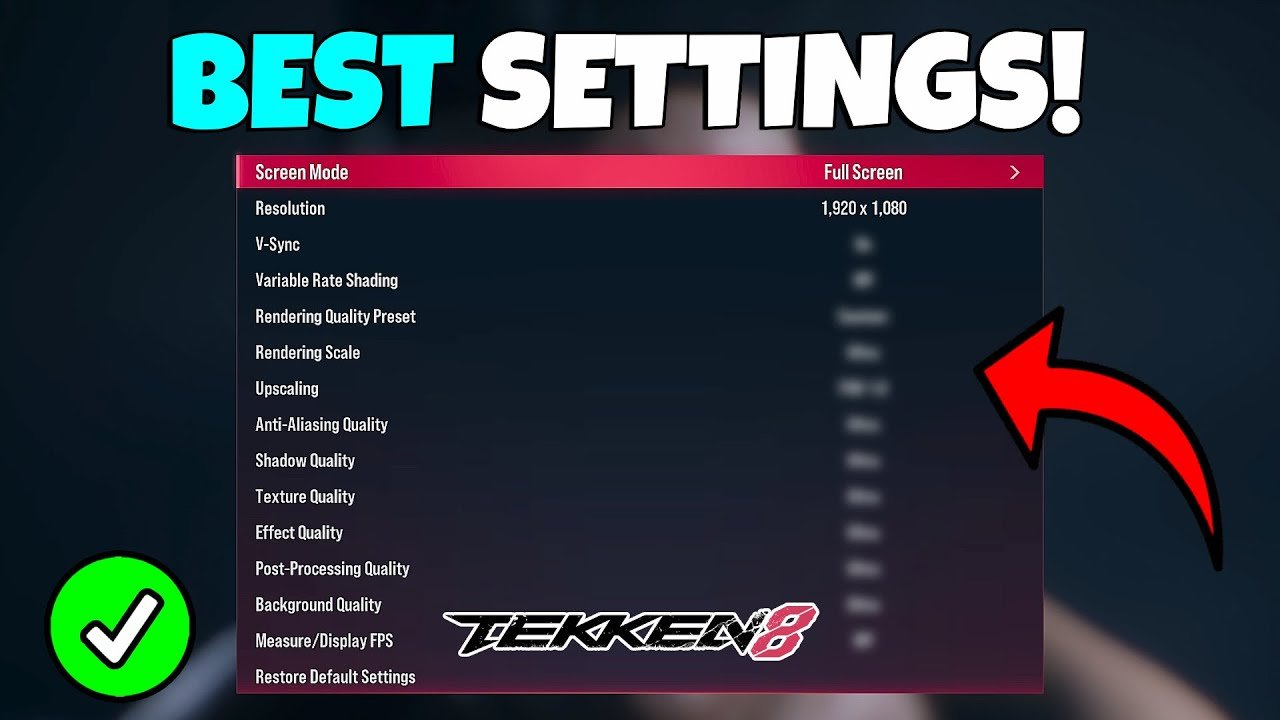
‘To improve Tekken 8 performance, reduce graphics settings like resolution and texture quality, disable motion blur, and ensure your drivers are updated. These adjustments can result in smoother gameplay.’
Experiencing lag in Tekken 8? It’s frustrating when your inputs don’t translate into on-screen action. Many players search for ways to improve their game experience and delve into Tekken 8 performance enhancing settings. Adjusting these settings can dramatically affect how smoothly the game runs.
By tweaking specific graphic options, you can achieve faster framerates.
Lowering visual fidelity might seem like a compromise, but it often means the difference between a sluggish experience and a fluid, responsive one. This allows you to react better and improve overall gameplay.

Tekken 8 Performance Enhancing Settings
Ready to make Tekken 8 run like a dream? It’s super frustrating when your game stutters or lags, especially during intense matches! Luckily, there are lots of ways you can tweak the settings to get the smoothest, fastest gameplay possible. This guide will show you exactly how to make adjustments to get the best experience in Tekken 8, no matter what kind of computer or console you’re using.
Understanding the Basics
Before we dive into the settings, let’s talk about what makes a game run well. Your computer or console uses two main things to display games: the CPU (Central Processing Unit) and the GPU (Graphics Processing Unit). The CPU is like the brain of your system, handling calculations, while the GPU is like the artist, drawing the images on your screen. When these two work together smoothly, you get great game performance. When one or both struggle, you’ll see lag, stuttering, or slow frame rates, which is bad. Also, your RAM (Random Access Memory) which is like short term memory of your computer, also plays a crucial role to game performance. Now let’s look at the settings we can change in Tekken 8 to improve how it works!
Graphics Settings Deep Dive
Resolution
Resolution is the size of the picture on your screen. Think of it like a photograph – a high-resolution photo has lots of tiny details, while a low-resolution photo has fewer details and can look blurry. In Tekken 8, higher resolutions look sharper, but they require more work from your GPU, and could slow the game down. Lower resolutions are easier to draw, but they look less clear. If you have a powerful computer, you can play at higher resolutions. But if your game seems slow, try lowering the resolution for a smoother experience.
Here’s what you might find in the settings:
- 1920×1080 (1080p): This is a common resolution for many monitors, considered a good balance between looks and speed.
- 2560×1440 (1440p): A step up from 1080p, it provides a sharper image but needs a more capable GPU.
- 3840×2160 (4K): The highest resolution on many displays. It looks incredibly detailed but requires a very powerful machine to perform well.
- Lower Resolutions (e.g., 1280×720): These are useful for less powerful systems. They might look a little less detailed but the game runs smoother.
Anti-Aliasing
Anti-aliasing smooths out jagged edges on lines and objects in the game. Without it, diagonal lines can appear stair-stepped or pixelated. Think of it like this: If you draw a diagonal line using building blocks, you’ll see the edges of each block. Anti-aliasing makes it look more like a smooth, continuous line. There are a few different types of anti-aliasing, and here’s what each one means:
- FXAA (Fast Approximate Anti-Aliasing): This method is light on your system and smooths out those edges.
- TAA (Temporal Anti-Aliasing): It uses information from previous frames to provide a smoother image, but it can sometimes make things look a little blurry, depending on its intensity.
- MSAA (Multi-Sample Anti-Aliasing): This provides very high quality smoothing but needs more resources.
- Off: Turns off anti-aliasing, may have jaggies but it will be fast and light.
If you want the best looks but the game struggles, try FXAA first, then try turning it off if things still lag.
Texture Quality
Textures are like the “skin” of the objects in the game. High texture quality means the surfaces of characters, backgrounds, and props will have much more detail. Lower texture quality means less detail, which could look less pretty but use less resources. Usually, the impact of texture quality on performance isn’t as big as resolution or anti-aliasing. If you have a decent graphics card, keep this setting at medium or high. If your system is struggling, try going lower.
Shadows
Shadows in games make the world seem more realistic. There can be many shadows that are cast dynamically in real time which can be resource intensive. However, rendering shadows can take a lot of processing power. Tekken 8 will have a setting for shadow quality. If you are struggling for performance, set this to low. If your machine is handling it then go for high to make the visuals better.
Effects Quality
This setting controls the quality of things like explosions, fire, special moves, and particle effects. When set to High, these effects look impressive but use more power. If you want a faster game with less detail, try lower settings.
Advanced Graphics Options
Motion Blur
Motion blur makes fast-moving objects look more smooth and natural. It can help with smoothness, but it can also look blurry for some people. If you find it distracting or if it’s slowing down your game, turn it off.
Depth of Field
Depth of field is like when you focus on something close, and the background looks blurry. It adds realism, but it can slow things down if your system isn’t powerful enough. Try turning this off if you are struggling for performance. If your machine can handle it, keep it on because it adds a nice touch to the game visuals.
V-Sync
V-Sync (Vertical Synchronization) makes sure the game’s frame rate matches your monitor’s refresh rate. When these aren’t in sync, the screen can tear (show a horizontal line on screen). With V-Sync on, the game looks smoother and avoids tearing. But it can sometimes cause a slight input lag. If you see screen tearing, turn it on. If you do not have screen tearing, it’s better to keep it off to reduce the chances of input lag.
Gameplay Settings for Better Experience
Input Buffering
Input buffering can help make your moves feel more responsive. It stores up your button presses for a small time, to help make up for lag or connection issues. If you do have connection problems, it helps to keep this setting on, but it can sometimes add a tiny bit of input delay if you are playing offline or in a perfect connection. Most of the time, it’s better to keep this option on for a smoother online play.
Sound Settings
While not as impactful as graphics settings, sound quality can sometimes have an effect on performance. For better performance, try reducing the sound quality level or turning off some of the more intensive audio effects.
Optimizing your System Outside the Game
Update Graphics Drivers
Graphics drivers are like the instructions for your GPU. New drivers often include performance improvements and fixes for new games like Tekken 8. Make sure you have the latest drivers installed from the manufacturer’s website (NVIDIA, AMD, or Intel) for the best performance.
Close Unnecessary Programs
Programs running in the background can use up your system’s resources. Close any apps you don’t need before starting Tekken 8. This will give the game more power to work with. This includes things like web browsers, streaming services, or other games that might be running.
Check for Overheating
If your computer gets too hot, it can slow down to prevent damage. Make sure your computer has good ventilation, that the fans are working, and that any cooling mechanisms that you have are functional. Overheating can cause your machine to dramatically slow down performance of Tekken 8.
Console Specific Performance Tips
Storage Space
Make sure your console has enough free space. Sometimes if storage is almost full, it can impact performance. Deleting games that are not used can improve performance of the game, and your console.
Console Updates
Make sure your console has the latest updates. These updates often include performance improvements for games. A good habit would be to keep your console up to date to keep it running well.
Tweaking Tekken 8’s settings can seem like a lot of work, but it’s a good effort to make if you want to have a great experience. Experiment with the options we have talked about, and try to find what settings work the best for your machine. Remember that the best settings will always depend on your specific hardware and preferences. Don’t be afraid to try things out and make your game run smoother. Now get in the game, and have fun playing Tekken 8!
TEKKEN 8 BEST GRAPHICS SETTINGS + FAST RESPONSE TIME
Final Thoughts
Adjusting graphics options significantly boosts frame rates. Lowering shadow quality and anti-aliasing improves performance. These changes reduce the processing load.
Experiment with resolution scaling to find the right balance between visual clarity and speed. Remember to test changes gradually to observe their impact. Prioritize settings that yield the most notable improvements.
Ultimately, tweaking these ‘Tekken 8 performance enhancing settings’ leads to smoother gameplay. Players can enjoy the action more fluidly with optimized settings.

