
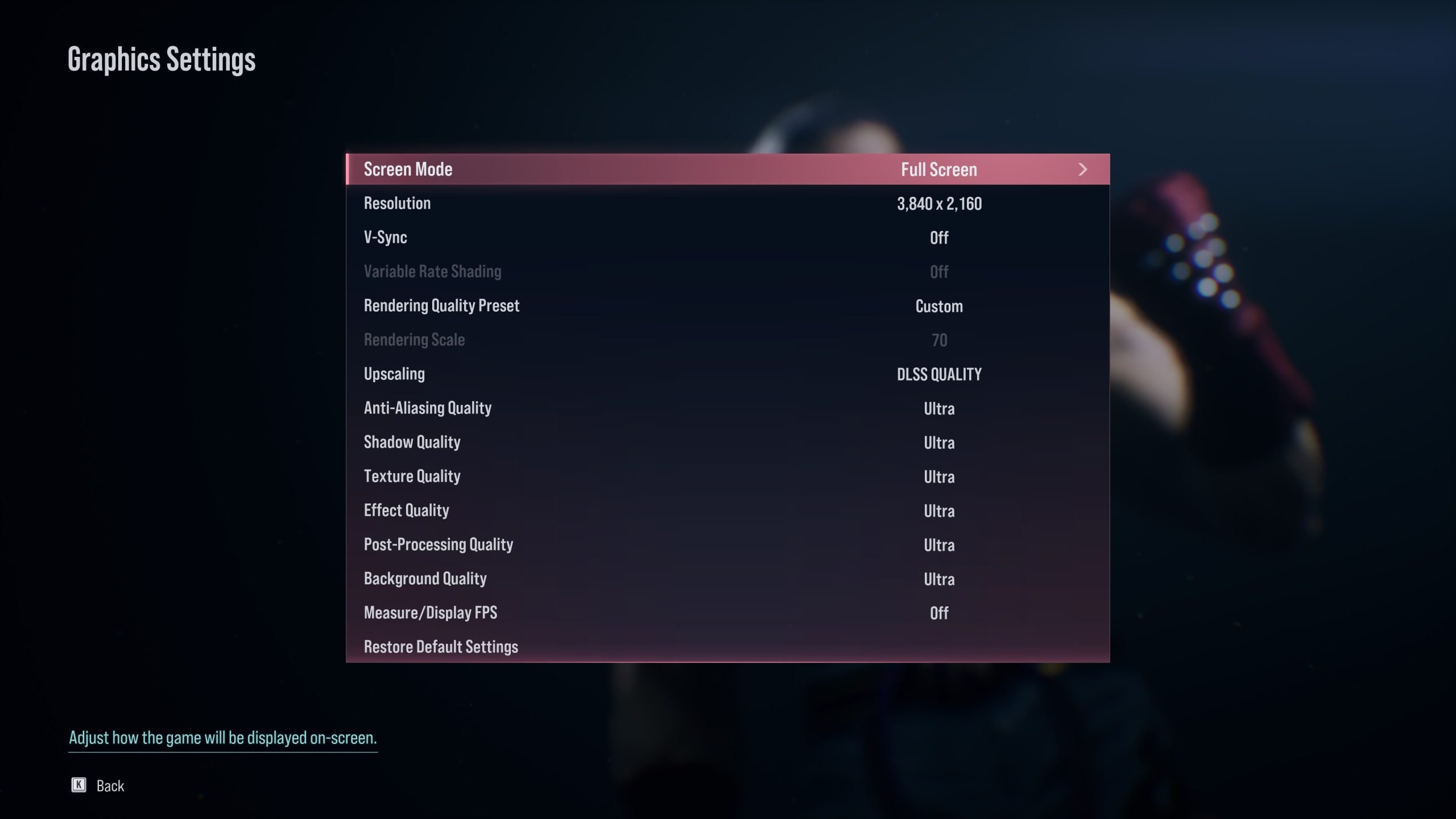
Tekken 8 visual quality options allow players to adjust graphics settings for performance or fidelity, including resolution, texture quality, and effects.
Getting the perfect visual experience in a fighting game is important. Tekken 8 allows players to fine-tune its graphics. These changes lets you optimize for either a high framerate or crisper visuals.
Understanding how these different settings interact with the game, we will quickly break down the Tekken 8 visual quality options. This will ensure you get the best gaming experience.

Tekken 8 Visual Quality Options: A Deep Dive
Alright, fighting game fans! Let’s talk about something super important when you’re diving into a new game like Tekken 8: how it looks! We all want our matches to be smooth and beautiful, right? Tekken 8 gives you tons of ways to tweak how the game appears on your screen. It’s not just about making it pretty; it’s about making it play its best too. We will explore everything about graphics settings in this article so that you can adjust graphics to your liking, and get the best performance as you want.
Understanding the Basics of Graphics Settings
Before we get into the nitty-gritty, let’s cover the core ideas. Graphics settings change how detailed the game’s world appears. Think of it like this: a drawing can be simple with just a few lines or super detailed with lots of shading and colors. The same goes for games. Settings can change things like the detail of character models, the shininess of surfaces, and how clear things are in the distance. It also affects how smoothly the game runs. If you have a really powerful gaming computer or console, you can probably crank all the settings to the max and get amazing-looking graphics. But, if your machine isn’t super strong, you’ll need to adjust things so that the game is playable and doesn’t slow down. Tekken 8 lets you find that sweet spot for the perfect balance between visual beauty and a great frame rate.
Resolution: The Size of Your Game Window
The first big thing to consider is resolution. Resolution is basically the size of the picture on your screen. It’s measured in pixels, little dots that make up the whole image. The higher the resolution, the more pixels you have, and the clearer and more detailed the game looks.
Common Resolution Options
- 720p (1280×720): This is a lower resolution, sometimes called “HD”. It’s good for older machines or when you really need the game to run fast. Things will look a little less sharp.
- 1080p (1920×1080): Also known as “Full HD”. This is a very common resolution for gaming. It looks pretty good on most screens and doesn’t require super powerful hardware to run well.
- 1440p (2560×1440): Often called “Quad HD” or “2K”. This is a step up from 1080p and provides a noticeable boost in detail and clarity.
- 4K (3840×2160): This is the highest resolution most gamers use. It looks super sharp and detailed, but you’ll need a powerful PC or a console with 4K support.
If you have a powerful gaming PC or a PlayStation 5, you can usually run Tekken 8 at 1080p or even 4K. If you’re on a less powerful PC or Xbox Series S, you might want to stick with 720p or 1080p for better performance. Experimenting with these options is key to finding the right balance.
Frame Rate: How Smooth the Game Runs
Frame rate, measured in frames per second (FPS), is how many pictures the game shows on the screen each second. The higher the FPS, the smoother the game will look and feel. If the FPS is too low, the game will look choppy and slow, making it hard to play. A good frame rate helps you react quickly and accurately, which is super important in a fast-paced fighting game like Tekken 8.
Target Frame Rates
- 30 FPS: This is generally considered the minimum frame rate for a game to be playable. It will not look as smooth as higher frame rates.
- 60 FPS: This is a good target for fighting games. It looks and feels smooth, making it easier to pull off combos and react to your opponent. Most competitive players aim for this.
- 120 FPS or Higher: If you have a monitor and a system that supports it, this is the smoothest experience possible. It will have better responsiveness too.
Tekken 8 gives you settings to try to keep the game at your desired FPS. The game itself has its own framerate target, with the main gameplay being 60fps. On consoles, if you have an option for a performance or quality mode, the performance mode typically focuses on getting as close to that 60 FPS goal as possible. On PC, adjusting other graphics settings will help you manage frame rate. Aiming for at least 60FPS is optimal. Remember if the game has frame rate drops, it will affect your gameplay.
Graphics Presets: Easy Settings for Beginners
If you’re not comfortable fiddling with all the detailed graphics options, Tekken 8 has some handy presets. These are like ready-made packages of settings that you can choose from to quickly set up your game.
Common Presets
- Low: This setting will prioritize performance. The game will look less detailed but will run smoothly on weaker machines. It reduces effects, resolution, and shadow details.
- Medium: This setting balances performance and visual quality. It’s a good starting point for most players.
- High: This setting provides a good quality game experience. Most modern consoles and PCs can handle it. It will increase textures details, shadow details, and effects details compared to medium.
- Ultra: This setting cranks everything up to the max for the highest graphical fidelity. If you have a very powerful gaming PC, try using it.
These presets are a great way to get the game running well quickly. You can always tweak the individual settings later if you want to make it look exactly how you want. They can be a base line to test and go from there.
Advanced Graphics Settings: For the Detailed Tweakers
For those who want to really fine-tune the graphics, Tekken 8 offers a bunch of advanced options. Let’s break them down. These settings are more impactful on performance than you may think.
Texture Quality
Texture quality determines how detailed the surfaces in the game look. Characters, clothing, and environments all have textures, like the skin of a character, or brick in the background. Higher texture settings look more realistic, but they can also use more memory and reduce the performance. If you have a good graphics card, you can try for High. If you need better performance, try Medium, or low if you need to.
Shadow Quality
Shadows add depth and realism to the game’s world. Higher shadow settings will make the shadows look sharper and more detailed. The downside is that very high shadow details can cause performance drops. Try low, medium, or high and see what works best for you. Experiment with this setting to see what best fits your computer or consoles.
Anti-Aliasing
Anti-aliasing makes the edges of objects look smoother and less jagged. It reduces those stair-step edges around characters. It helps get rid of jagged or pixelated look around characters and objects. There are different types of Anti-Aliasing. MSAA, FXAA, and TAA. MSAA is the most demanding on your system, and TAA is typically the least, but they all have their own benefits and downsides. Usually games these days use TAA. Try turning it off to see if you notice a difference. if you don’t notice it, you can turn it off for performance gains.
Effects Quality
The effects quality setting controls the detail of visual effects like explosions, particles, and special move effects. If you like the effects being high, set it to High, but if your performance is suffering, you can turn this down. In Tekken, effects aren’t too intensive, so even on Low this won’t change the way the game looks too much.
Motion Blur
Motion blur makes fast-moving objects look blurred. This can make the game look smoother, but it can also make things harder to see clearly. Some players don’t like it, and prefer to turn it off. Many find it distracting and prefer to turn it off for that reason. If you feel like things are blurry, or you want a clearer image, turn it off and see if that improves your experience.
Ambient Occlusion
Ambient occlusion adds more realistic shadows and shading around objects, particularly in corners and crevices. This can make the game look more detailed, but like shadows, it can decrease the game’s speed if it’s set too high. Experiment to see if it improves visual quality for you, and if it doesn’t, you can turn it off for a boost in performance.
Post Processing Effects
Post processing are effects applied after the game renders an image, things like bloom and color correction. Turning this off might slightly improve performance but might make the game appear less vibrant. If you don’t like some of these effects, you can try turning them off.
Platform Specific Settings
The way settings are laid out and their availability can vary on PC versus PlayStation 5 or Xbox Series consoles. Generally, the options are the same, but in different places, and some setting may be locked or only have certain options available on consoles. PC also has more options, as consoles typically try to make the experience as easy as possible.
PC Graphics Settings
- More Detailed Controls: On PC, you have finer control over individual settings.
- Customization Options: You can directly control the resolution, refresh rate, and many more of the detailed settings.
- Mod Support: PC versions may have mods that can change the graphics. Tekken 8 has not yet received support for that, but it may in the future.
Console Graphics Settings
- Simplified Menus: Consoles usually have simpler menus for graphics settings.
- Preset Modes: They often have presets (like performance and quality modes).
- Limited Customization: You have less control over specific settings than on PC.
Finding the Right Balance
The best graphics settings are the ones that let you play the game comfortably and make it look good. There’s no “one size fits all” setting. Some key things to remember while you figure out the best settings for you are:
- Prioritize Frame Rate: If your game is choppy, drop some settings so that you can get closer to 60 FPS.
- Experiment: Try changing one setting at a time to see what looks the best and gives you the best performance.
- Consider Your Hardware: If your PC or console isn’t the newest, you may have to turn down some settings.
Playing fighting games is all about being fast and accurate, so a smooth game play is very important. Once you figure out the best settings for you, the matches can look and feel even more amazing.
Take the time to test the settings. This way you can be sure that you have the best possible visual experience without the game slowing down.
And there you have it! Everything you need to know about graphics options in Tekken 8. Adjusting the settings is all about finding the sweet spot for your game. Play around, experiment, and get ready to enjoy those awesome fighting matches at their best!
TEKKEN 8 BEST GRAPHICS SETTINGS + FAST RESPONSE TIME
Final Thoughts
In short, Tekken 8 offers various graphical settings, allowing players to adjust visuals based on their hardware. You can fine-tune things like resolution, shadows, and effects for optimal performance. This gives more control over the gaming experience.
Therefore, experimenting with the different Tekken 8 visual quality options proves beneficial. Players can then find the ideal balance between visual fidelity and smooth gameplay. This ensures the best possible experience.

