
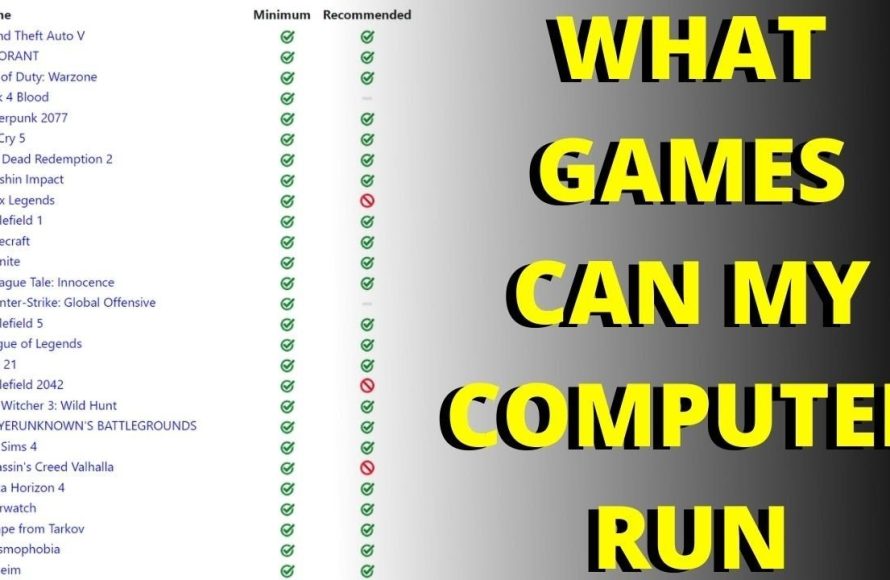
Determining what your PC can run games requires checking its specifications against the minimum and recommended requirements of each game.
Ever wondered, “what can my PC run games?” It’s a common question for gamers. Finding out is key before you purchase and download the latest release. You don’t want to face disappointment with a game your computer can’t handle smoothly.
The first step involves understanding your computer’s components. Things like the graphics card, CPU, and RAM determine which games will perform well. Comparing these specs to game requirements is vital. This information is usually listed on the game’s store page.

What Can My PC Run Games?
Ever stared at a cool new game and wondered, “Can my computer even handle this?” It’s a question every gamer asks, whether you’ve got a brand-new powerhouse or a trusty old desktop. Figuring out what games your PC can play doesn’t have to be a mystery. Let’s break it down and see how you can get the answer. This way, you can jump into the fun without worrying about lag, crashes, or choppy graphics. It’s about making sure your setup is ready for the games you want to enjoy.
Understanding PC Specifications
Before diving into games, it’s good to know what makes your computer tick. These are your PC’s specifications or “specs.” Think of them like the engine, wheels, and seats of a car – they all work together to make everything go. Understanding the main components will give you a clear picture of your computer’s gaming ability.
The Central Processing Unit (CPU)
The CPU is like the brain of your computer. It handles all the instructions and calculations needed for the game to run. Think of it as the main chef in a kitchen – it takes all the ingredients and creates the final dish. A faster CPU means your computer can process information more quickly. When looking at CPUs, consider:
- Clock Speed: Measured in GHz (gigahertz), this shows how many operations the CPU can do per second. Higher is generally better.
- Number of Cores: Imagine having multiple chefs in the kitchen. Each core can handle different parts of the game at the same time, speeding things up. Modern games often benefit from having more cores.
- Model Name: For example, Intel Core i5 or AMD Ryzen 7. Different models have different performance capabilities. Pay attention to the generation of processor like Intel Core i7 14700k, this 14th generation processor is more powerful than 13th generation processor, likewise check the generations of the processor.
The Graphics Processing Unit (GPU)
The GPU, or graphics card, is all about pictures. It’s the artist of your PC, drawing all the visuals you see on the screen. A strong GPU is really important for good-looking games. When researching GPUs, pay attention to these:
- Model Name: Such as NVIDIA GeForce RTX 4060 or AMD Radeon RX 7700 XT. Different models have different performance capabilities.
- Video RAM (VRAM): This is like the artist’s sketchbook. More VRAM means the GPU can handle more detailed graphics.
- Clock Speed: Similar to the CPU, but it measures how quickly the GPU can process graphics.
Random Access Memory (RAM)
RAM is like your computer’s short-term memory. It’s where the computer keeps data it’s currently using. The more RAM you have, the more information the computer can access quickly, which helps prevent slowdowns when playing games. Generally, 8GB is often considered a minimum for modern games, while 16GB is much better and preferred for demanding titles.
Storage
Your storage is where games and all other files live on your computer. There are a few main types of storage, such as :
- Hard Disk Drive (HDD): These are older and generally slower, but they can hold a lot of information.
- Solid State Drive (SSD): SSDs are much faster than HDDs, which means games will load quicker. Consider using SSD to install game.
- NVMe SSD: The fastest type of storage you can get. If your computer supports it, these will make a huge difference in load times and responsiveness.
Finding Your PC Specs
Okay, so now that you know what to look for, where do you find this information? Don’t worry, it’s not hidden away! There are a few easy ways to find out your computer’s specs.
System Information on Windows
Windows provides a quick view of your key hardware. Here’s how to access it:
- Press the Windows key and type “System Information”
- Click on “System Information” to open the application.
- Here, you’ll see a lot of useful information including:
- Operating System
- Processor (CPU)
- Installed Physical Memory (RAM)
DirectX Diagnostic Tool
For details about your graphics card, use the DirectX Diagnostic Tool:
- Press the Windows key and type “dxdiag” and press enter.
- Click on the “Display” tab.
- Here, you’ll see details about your graphics card like the name, VRAM and other useful details.
Checking Your Devices Through Device Manager
Device Manager provides a detailed look at all the hardware components present in your system. You can view different devices and their model number, version and driver details. Here’s how you can open device manager:
- Press the Windows key and type “Device Manager”
- Click on “Device Manager” to open the application.
- Explore various categories like “Display adapters”, “Processors” etc. for in-depth information about the respective hardware.
Game System Requirements
Alright, you’ve figured out your computer’s specs. Now let’s look at game requirements. Every game has a list of minimum and recommended specifications. These tell you what your PC needs to run the game.
Minimum Requirements
These are the absolute lowest specs needed to run the game, but this doesn’t mean you’ll get the best gaming experience. You might have to play at the lowest graphics settings and the game could be a little choppy. Consider this the ‘bare minimum’ to start the game.
Recommended Requirements
These are the specs that developers suggest for a much smoother and better gaming experience, usually at medium to high settings. If your PC meets or exceeds these requirements, you’ll get a much more fluid game with better visual quality.
Where to Find System Requirements?
You’ll typically find the requirements on the game’s store page. If you are purchasing the game on digital stores like Steam, Epic Games, GOG or the official game website.
- Game Store Pages: Look for a “System Requirements” section on the game’s page on Steam, Epic Games, or other game stores.
- Official Game Websites: Often, the game’s official website will have the required specs.
- Google Search: Simply Google “game name system requirements” to find the information.
Comparing Specs and Requirements
This is the key step! Once you have both your PC’s specs and the game requirements, it’s time to compare. Match your CPU, GPU, RAM, and other specs against the game’s minimum and recommended needs. If your PC specs are at or above the minimum for a game, it is likely playable. If your specs meet the recommended requirements, you’ll experience better performance and visuals.
What Happens if My PC Is Below the Minimum Requirements?
If your PC doesn’t meet the minimum requirements, the game may not run at all. In some cases, it may run very poorly, with low frame rates, severe stuttering and frequent crashes. You might need to upgrade your PC or choose other less demanding games. Sometimes, there may be a trick to run your game even on low requirements. You may search on youtube for specific tutorial on how to run this game in low end PC. If someone is successful, it can help you too.
What Happens if My PC Meets or Exceeds Minimum Requirements?
If your PC hits the minimum specs, you’ll probably get a playable experience, but it might not be super smooth. You might have to lower graphics settings to get an acceptable frame rate.
What Happens if My PC Meets or Exceeds Recommended Requirements?
Awesome! If your computer meets the recommended settings, you’re in good shape for a very smooth and high-quality gaming experience. You’ll likely be able to turn the graphics settings up to medium or high, enjoy great frame rates, and have a good time.
Using Websites and Tools for Easier Checks
Checking each individual spec can be a bit much, especially if you have a lot of games in mind. Luckily, there are some tools that can help simplify this process.
“Can You Run It?” Websites
There are websites designed to make this process very easy. These websites allow you to choose a game from their large library and then they compare the system requirements with your PC. They usually have a tool that scans your computer to gather your specs. These tools include “System Requirements Lab”, “Game Debate” and many others. Be careful when using websites of this nature and never enter your private or confidential information. Here is how you use the ‘Can You Run It’ type of tools.
- Go to the website.
- Search for the game you want to check.
- The website will ask to scan your PC (it might require downloading a small tool).
- Run the scan.
- The website then provides the result, showing if your PC meets or exceeds minimum or recommended settings.
Game-Specific Performance Guides
Many times, after a new game release, many individuals and websites make very specific performance guides. This is also a great way to determine if the game will run smoothly on your computer. You may search online, “[game name] performance guide” and can find lots of material made for gamers like you. This performance guide will cover which graphic options affect the performance the most, which ones are negligible. You can change graphic options based on the advice of such guides.
Game Genres and PC Requirements
Not all games are created equal. Different types of games have different demands on your computer. Some games are graphically simple and can be played on older computers. Some are visually demanding and require a high end computer to run smoothly. Here is a quick look at how different genres impact your PC requirements:
Indie Games
Indie games are often less demanding because they tend to have lower graphic fidelity. Many of these titles can run smoothly on older hardware. Many times, you can find great indie titles which can run perfectly even in very old computers.
Esports Titles
Esports games, such as League of Legends, Counter-Strike 2, or Valorant, are designed to be accessible to as many players as possible. They are often well optimized and not very taxing on system hardware. You can run such games even on mid range computers with decent graphical settings. In these types of games, higher FPS is very important than graphics, so you should keep a balance between graphic fidelity and frame rates.
First-Person Shooters (FPS)
High end FPS games, such as Cyberpunk 2077, Call of Duty, Battlefield series, and others often need higher CPU and GPU power. These games often have stunning visuals and fast action, which needs a good system to run them smoothly. Pay close attention to system requirements when trying to run these games.
Open World Games
Open world games have very large maps with high details, these games, often have complex systems in the background, making them demanding on both the CPU and GPU. Games like The Witcher 3, Grand Theft Auto V, Red Dead Redemption 2 can push your computer to its limits.
Simulation Games
Simulation games that simulates the world or specific thing, such as racing games or simulators, can be very demanding on a system, depending on the level of details. Games with lots of entities, like Cities: Skylines can often make the CPU bottleneck on your system.
Tips for Improving Performance
So, your game is running, but it’s a little slow? Here are some things you can try to improve the gaming experience without upgrading your PC.
Lowering In-Game Graphics Settings
The easiest way to improve performance is to turn down the graphic options. Usually, games offer many options. Options like shadows, ambient occlusion, texture quality, and other parameters can increase or decrease the load on your hardware. Try setting these options to a lower setting and see if it improves your performance.
Closing Unnecessary Programs
Other apps running in the background can eat up resources like RAM and CPU power. Before launching the game, close any unnecessary programs. It’s also good to check your background processes and close any apps running without any user interaction.
Updating Your Drivers
Drivers are like a translator between your hardware and your software. Make sure that your graphics drivers are up to date. The latest drivers can often help with performance and stability. You can download the latest drivers from your graphic card manufacturer’s official website like NVIDIA and AMD.
Adjusting Your Power Settings
Your computer might be set to a “balanced” power plan, which might limit performance to save energy. In Windows, you can switch to “high performance” power plan. Although this might consume more energy, it can make a difference during gameplay by providing more power to your components like CPU and GPU.
Cleaning up your PC
Make sure there is enough free space on your storage device, this can improve system responsiveness. A fragmented hard drive can cause slowdowns. You can defragment your hard drive or use Windows built in disk clean up to delete temporary files and free up some space, but if you have an SSD drive, it’s not recommended to defragment.
By understanding your computer’s specs, checking game requirements and applying some performance optimization tips, you will have a good gaming experience. Whether you are a seasoned gamer or someone new to gaming, you can enjoy a game based on the hardware you have. It’s about making sure your games play smoothly and giving you the best experience. Always check the specific system requirements of every game you want to play to make sure they fit with your system, and have fun!
How To Find Out If Your PC Can Run A Specific Game [Simple]
Final Thoughts
Knowing your PC’s specifications is crucial. Matching them with game requirements is key. You can use system requirements websites to find compatible titles.
Therefore, you must check your hardware before purchasing any game. This process helps manage your expectations. Finally, this all boils down to the big question: what can my pc run games?

