
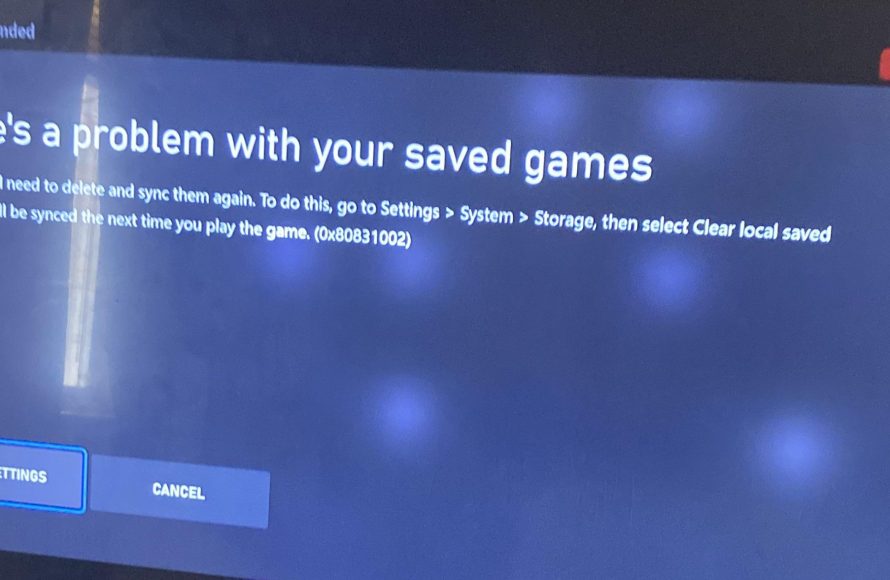
Clearing local saved games deletes game progress and settings stored on your device.
Ever wondered what happens when you see that “clear local saved games” option? It sounds a bit ominous, doesn’t it? Well, the function simply removes game data stored directly on your computer or console. This action effectively resets your progress in the game. So, what does clear local saved games do? It removes that saved data.
It’s important to consider the implications before proceeding with this action. Your game progress, custom settings, and any locally stored progress will be gone. Make sure cloud saves are enabled if you want to avoid losing your game progress.

What Does Clear Local Saved Games Do?
Have you ever been playing a super fun video game and then something goes wrong? Maybe your character is stuck, or a glitch is making it impossible to win? Sometimes, the answer is to “clear local saved games.” But what exactly does that mean? Don’t worry, we’re going to explore everything about this important topic today!
Understanding Saved Games
Before we jump into clearing saved data, let’s talk about what saved games actually are. When you play a game, your progress, achievements, and settings get stored somewhere. This allows you to stop playing, come back later, and pick up right where you left off. Think of it like a bookmark in a book, but instead of a book, it’s your video game adventure. This data is normally kept in two places: on the game console or computer itself (local), and sometimes on a cloud server (like the internet’s storage). We are mainly going to focus on the local saved data.
Where Are Saved Games Stored?
The exact location where games save their data can vary depending on what you’re playing on.
Here’s a general idea:
- Consoles (PlayStation, Xbox, Nintendo Switch): Game saves are usually stored on the console’s internal hard drive or a storage device like an external hard drive. The consoles keep the saves in a special place that you can access via the system menus, not just the game itself.
- Computers (PC): On computers, game saves are stored in various locations. They might be in the game’s installation folder, in a specific folder for saved games in your “Documents” or “Appdata” folder, or even in the cloud. The location can change depending on the game and the game platform you are using, like Steam or Epic Games.
- Mobile Devices (Phones, Tablets): Saved games on these devices are often stored in the game’s data folder, which is usually hidden from direct access. You typically access it through the game or by the device’s settings.
Remember that each game might store the saves a bit differently, so if you really need to know, you can check the game’s manual or online forums for specific instructions.
Why Clear Local Saved Games?
So, why would you ever need to get rid of all your hard-earned progress? Well, there are a few good reasons. Let’s explore them:
Fixing Game Errors and Glitches
Sometimes, saved data can become corrupted, which leads to unexpected problems. This can cause the game to crash, freeze, have strange visual errors, or even keep you from being able to play the game at all. Clearing the local save data can remove the problematic information and lets the game start fresh, often correcting the issue. It is like giving your game a clean start. Think of it like cleaning a whiteboard that got messy; sometimes you have to completely erase it before you can start again.
Starting a New Game with a Clean Slate
Have you ever finished a game and wanted to start from the very beginning? While some games offer a “new game” option, sometimes clearing the local saved game will make sure that every single bit of previous progress gets removed. This makes a truly clean start, with no lingering progress from a previous playthough. This is especially useful if you are sharing the device with a family or friends, and their progress gets mixed with your games.
Troubleshooting Game Issues
If a game isn’t working quite right, or is behaving strangely, clearing the local saves is a common troubleshooting step. It helps determine if the problem lies within the saved data or if the issue is with the game itself. If clearing the saves fixes the game, you know the problem was related to the saved files. If the game still doesn’t work correctly, you know you might have to investigate deeper in the game or with your device.
Dealing with Corrupted Save Files
Just like any other type of computer file, game saves can become corrupted. This might happen if there’s a problem with the device, an unexpected power outage, or issues with the game software itself. Corrupted save files can cause different types of problems, from preventing the game from loading to the game crashing while you are in middle of a play. Clearing the corrupted save data is a quick way to remove the problematic file and allow a game to run properly. It’s like clearing a clogged pipe.
What Happens When You Clear Local Saved Games?
Now that we know the why, let’s focus on the what. When you choose to clear local saved games, here is what usually happens:
- Game Progress Reset: All of your progress within the game gets erased. This includes your character’s level, progress in the story, completed missions, collected items, and any in-game customizations you’ve made. It’s back to the starting point.
- Game Settings Reset: Sometimes, the game settings such as graphics, audio, or controls will return to their default settings. You might have to adjust them again, which are typically easy to do.
- Achievement Reset (Potentially): Sometimes, but not always, game progress such as unlocks and achievements might also reset. It really depends on how the game saves achievements. Some achievements are only stored online, and those are not usually affected by clearing the local saved data.
- Data Loss Warning: Most games or consoles will give you a warning before you clear local saves, as it is an irreversible action. Pay careful attention to these warnings so that you don’t accidentally delete important data.
It is really important to know the consequences, as this is generally not a reversible action. If a game is using cloud saves, you will have to go to the game’s option to clear cloud saved data. Sometimes, it is not that simple.
How to Clear Local Saved Games
The exact steps to clear local saved games vary based on the system you are using. Let’s look at common systems:
On Consoles (PlayStation, Xbox, Nintendo Switch)
On most consoles, you don’t delete game saves from within the game itself. You do it from the main console settings. Here is the process:
- Go to Settings: Find the settings section on your console’s main menu.
- Storage or Save Data: Look for a menu option about storage or save data management. It might be called “Storage,” “Data Management,” or “Application Saved Data.”
- Select Your Game: Find the game you want to clear the saved games from.
- Delete: Choose the option to delete the save data for that game.
Remember that console menus may slightly differ, so if you get lost, check your console’s manual or search for your specific model online. Here is a table for specific consoles:
| Console | Menu Option |
|---|---|
| PlayStation 5 | Settings > Storage > Saved Data (PS5) |
| Xbox Series X/S | Settings > System > Storage > Manage Storage |
| Nintendo Switch | System Settings > Data Management > Save Data |
On Computers (PC)
Clearing save data on a PC can be a little trickier, as game save locations can be different. Here’s how to handle this:
- Find the Save Location: Start by finding out where the game stores its saves. You can check the game settings, look in your documents folder, or search online for the game name and “save location.”
- Navigate to the Folder: Once you know the location, navigate there using file explorer.
- Delete the Save Files: Select the save files and delete them. Be careful not to delete any other file that you don’t know about.
For PC gaming platforms like Steam or Epic Games, you can sometimes manage local saves within the platform, but they usually don’t provide an easy option to delete save files. You may have to resort to the manual process outlined above.
On Mobile Devices (Phones, Tablets)
Clearing saved game data on mobile devices usually involves going through the device settings or the game settings itself:
- Through the Game: Many games will have an option to clear or reset game progress in their settings menu. Look for something along the lines of “reset progress” or “clear data.”
- Through Device Settings: Go to your device’s settings, find the “Apps” or “Applications” section, find the game in the list, and you may find a “storage” area where you can clear data. This can delete all the local saved data from the game.
Backing Up Your Saved Games
Before you decide to clear your game saves, you might think about creating a backup. It is a way to keep a copy of your progress in case you need it later. Here is how you can back up saves for different platforms:
Console Backups
Most modern consoles offer cloud backup options for game saves. This is a good idea to keep your progress safe:
- PlayStation: PlayStation Plus subscribers can automatically back up their saves to the cloud.
- Xbox: Xbox Live Gold or Game Pass subscribers can also back up their saves to the cloud automatically.
- Nintendo Switch: Nintendo Switch Online subscribers can back up their saves to the cloud for most games. However, some games do not have this option, so always check carefully before clearing saves.
Remember that cloud saves may not be possible for all games on a Nintendo Switch. Check to make sure that cloud saves are active for your specific game before deleting local saves.
PC Backups
Backing up PC game saves can be more involved. Here are some methods:
- Manual Backup: Copy the save game folder to a different location on your computer or on a flash drive. This works for almost all PC games.
- Cloud Platforms: Some PC game platforms like Steam offer cloud saves. Check your game settings to see if this option is available.
- Dedicated Software: You can use third-party backup software to back up the save game folder.
Mobile Backups
Many mobile games offer in-game cloud saves. If they don’t have cloud saves, the option to back up local saves can vary greatly. Sometimes your mobile platform provides backup options, sometimes not. Check the app settings or your phone settings to find this information.
When Should You Avoid Clearing Local Saved Games?
While clearing local saved games can fix problems, you should be careful when using this solution. Here are some situations where you might want to think twice before clearing local saves:
- If You Have Important Progress: Unless you have no other option to fix a problem, avoid clearing local saves if you have significant game progress. Think about backing it up first, if possible.
- If There are Other Troubleshooting Options: Before clearing save data, try other methods such as restarting the game or restarting your device.
- Without Understanding Cloud Saves: If your game has cloud save options, be careful with deleting local saves as you may run into conflicts with your cloud saved data. Make sure you understand exactly what you are deleting, so you don’t make a situation worse.
If you are not sure, it’s always a good idea to search online for solutions specific to your game or device. You can often find help in game forums or online communities.
Clearing local save data is a useful method for fixing game issues. However, you should also be very careful before deleting them, as most of the time the deleted data is gone forever. If possible, always create backups.
How to Delete Local Saved Games on Xbox Series X|S (For Beginners!)
Final Thoughts
Clearing local saved games deletes game progress files stored on your device. This action typically removes single-player data. You may lose in-game items, level progression and story progress.
The main keyword must understand is, what does clear local saved games do? It essentially resets your local game data. Use it cautiously, since it is irreversible action.

