
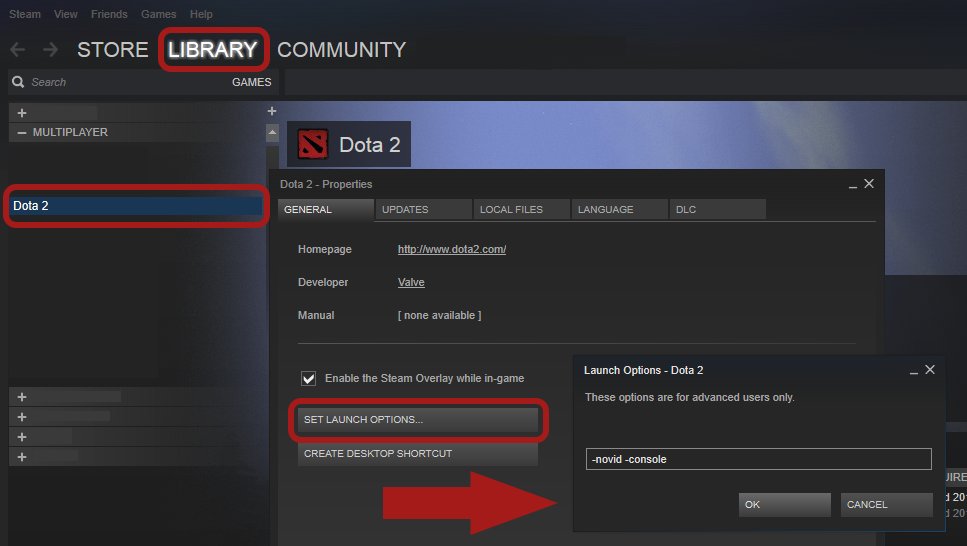
Launching a game with advanced settings means you can adjust specific game parameters beyond the basic defaults, like graphics quality, audio levels, or gameplay mechanics, before you start playing.
Ever found yourself wondering what does launch game with advanced settings mean? It’s a common phrase in gaming, and it refers to the ability to fine-tune your experience. Many games offer this option, allowing you to customize aspects to your specific preferences.
These advanced settings often include graphics options, audio controls and even gameplay related parameters. This means you get control over how the game runs and plays. Understanding these settings can greatly enhance your gaming sessions.

What Does Launch Game with Advanced Settings Mean?
Ever wondered what it means when a game lets you “launch with advanced settings”? It’s like having a secret menu for your game, giving you more control over how it looks, sounds, and plays. Instead of just hitting “play,” these settings allow you to tweak things to get the best experience possible. Let’s explore what this really means and why it’s super helpful.
Understanding Basic Game Launching
Before diving into advanced settings, it’s important to know what happens when you launch a game normally. Usually, when you click the “play” button, the game starts with its default settings. The developers of the game have already picked these settings based on what they think most people will like. These settings include things like the resolution, graphics quality, and volume. This is designed to be a simple, straightforward approach. For many players, these default settings work perfectly. But for those who crave a bit more control or have specific needs, advanced settings come into play.
What are Advanced Settings?
Advanced settings are the game’s version of the control panel. They provide detailed options beyond the basic defaults, and let you personalize various aspects of the gameplay. They are not just for tech experts. Advanced settings are designed to cater to different players, allowing them to change many visual, audio, and performance aspects of the game. Think of it as a way to tailor the game to your specific computer and preferences.
Visual Settings: Making the Game Look Just Right
Visual settings allow you to change how the game appears on your screen. This can greatly affect how much you enjoy the game. Some popular visual settings include:
- Resolution: This is the size of the game image, measured in pixels. Higher resolutions mean sharper images, but they can require more processing power from your computer. If your computer is not that strong, lower resolutions can help the game run smoothly, even if it looks less detailed. Common resolutions are 1920×1080 (also known as 1080p), 2560×1440 (1440p), and 3840×2160 (4K).
- Graphics Quality: This setting controls the level of detail in the game’s graphics. There are usually options like “Low,” “Medium,” “High,” and “Ultra.” Higher settings make the game look more beautiful but can slow it down if your computer isn’t powerful enough. Lower settings prioritize performance, making the game run better but with less detail.
- Anti-Aliasing: This makes edges of objects look smoother. Without anti-aliasing, they might appear jagged or pixelated. There are different types of anti-aliasing, such as MSAA, FXAA, and TXAA. Each has different effects on the visual quality and performance of the game.
- Texture Quality: This controls the detail of the surfaces of objects in the game, like walls, characters, and items. Higher texture quality makes surfaces appear more realistic and detailed, but also can put more demands on your computer’s memory.
- Shadow Quality: This affects the detail and accuracy of shadows in the game. Higher shadow quality can add a lot to the visual realism, but they can also be very intensive to render, causing frame rate slowdowns on slower machines.
- Effects Quality: This setting manages how impressive special effects like explosions, smoke, and particle effects look. If you turn them up, the effects become more realistic and complicated, which can slow down less powerful computers.
Audio Settings: Fine-Tuning the Sound
Audio settings allow you to control how you hear the game. This can be important for both enjoyment and gameplay. Here are some common audio settings:
- Master Volume: This controls the overall loudness of the game. It’s the main setting for adjusting all the audio.
- Music Volume: This adjusts the loudness of the background music in the game. You might want to turn this down or off if you prefer to focus more on other sounds.
- Sound Effects Volume: This controls the loudness of in-game sounds like gunshots, footsteps, and explosions. It can help to balance the different sound elements in a game.
- Voice Volume: This adjusts how loud the characters’ voices are. It can be very useful if you have a hard time hearing dialogue during intense gaming moments.
- Output Device: This lets you select which speaker or headphones the game uses for sound. This is very useful for multiple audio setups.
- Audio Quality: Some games let you choose between different levels of audio quality. Higher quality sound offers more details, but this requires more processing power from your system.
Performance Settings: Optimizing Gameplay
Performance settings are all about how smoothly the game runs. They let you adjust the game to your computer’s capabilities, ensuring a fun and playable experience.
- Frame Rate: This is how many times the game updates the screen each second, measured in frames per second (FPS). Higher FPS means smoother gameplay, while lower FPS can make the game feel choppy. You can often cap the frame rate to maintain consistency or prevent issues with screen tearing.
- Vertical Sync (V-Sync): This setting synchronizes the game’s frame rate with your monitor’s refresh rate. It can help reduce screen tearing, but it can also introduce input lag.
- Motion Blur: This setting adds a blurring effect to moving objects. It can make the game appear smoother, but some people find it distracting or it may impact performance. Turning it off can increase clarity.
- Field of View (FOV): This controls how wide your view is in the game. A wider FOV allows you to see more of your surroundings, which can be useful in fast-paced games but might lower FPS.
- Render Scaling: This lets you set the game to render at a lower resolution than your screen and then upscale it. You can get a performance improvement from the downscaling.
- DirectX Version: Some games let you choose between different versions of DirectX, a group of technologies used for graphics. Older versions of DirectX might work better for older systems or lower-end hardware.
Why Use Advanced Settings?
There are many reasons why you might want to use advanced settings, lets discuss them in more detail:
Improving Performance on Lower-End PCs
If your computer isn’t super powerful, advanced settings can be a lifesaver. Lowering the graphics quality, resolution, and other visual settings can make the game run smoother, even if it doesn’t look quite as pretty. This helps ensure that the game is still fun and playable on older hardware.
Customizing the Visuals
Sometimes, you might not like the default settings. Maybe you prefer a sharper image or want to reduce the brightness. Advanced settings allow you to adjust the visuals exactly to your liking, making the game more enjoyable for you. You might have your own preferred graphic style and prefer a high level of detail, and then again, you might prefer smooth performance over higher graphic details.
Optimizing Audio Preferences
Just like visuals, sound preferences can vary from person to person. Maybe you have a hard time hearing the character dialogue, or prefer to enjoy the game music more than the sound effects. Advanced settings allow you to adjust all these and find the perfect balance for your hearing needs.
Fixing Technical Issues
Sometimes, games might have unexpected issues. Advanced settings can help fix things such as stuttering, lag, or screen tearing. By tweaking the settings, you can often find a configuration that works best for your system, even if the default settings have problems.
Achieving Competitive Edge
In competitive games, advanced settings can give players an edge. For example, turning off certain visual effects can make it easier to see enemies. Adjusting FOV can improve situational awareness. Fine tuning performance can lead to lower input lags and allow players to respond faster in-game.
How to Access Advanced Settings
The way you access advanced settings can vary depending on the game. Here are the two most common methods:
Through the Game Launcher
Many games have their own launchers – a separate program that starts before the game itself. These launchers often include a “Settings” or “Options” button. Clicking this will open a window where you can tweak the advanced settings. Some launchers even automatically detect your computer specs and suggest initial settings.
Through the In-Game Menu
Most games also allow you to access advanced settings directly from the in-game menu. Look for options labeled “Settings,” “Options,” or “Graphics.” This method lets you adjust the settings and see the effect they have on the game right away. You usually have to restart the game for some settings to apply.
Examples of Advanced Settings in Popular Games
Let’s see how some of these settings are used in real-world games:
In a Fast-Paced First-Person Shooter (FPS)
In games like Call of Duty or Overwatch, you might lower your texture detail to ensure a smoother framerate. Competitive players may turn off or reduce post-processing effects such as motion blur or depth of field, as these effects can hinder visibility and create distractions during fast-paced gameplay. You can also adjust the field of view (FOV) to see more of the environment, making it easier to spot enemies. The game’s audio settings are crucial to hear footsteps or gunfire, to know where other players are. You might increase specific sound effect volumes to highlight these sounds, while lowering the music to help with concentration.
In an Open-World Adventure Game
In games like The Witcher 3 or Red Dead Redemption 2, visual detail is very important. You can choose higher settings, such as texture quality and shadow detail, to make the game world look more beautiful. Players with lower-end PCs might lower these graphics settings to make sure the game is playable and doesn’t cause too many slowdowns. Audio settings might be adjusted to highlight the epic music score or the detailed environmental sounds. You may also want to set the volume of character dialogues higher, so you can easily follow the story and conversations.
In a Strategy Game
In strategy games like Civilization or StarCraft, performance is essential, especially in late game situations with larger armies. You can reduce visual effects like shadows or reflections that are not crucial to gameplay, in order to maximize smooth performance. You might also want to fine-tune the audio levels to ensure that important in-game alerts are audible and clear, especially if you listen to your own music in the background. The user interface settings may also be quite important in strategy games, as players can alter UI elements sizes and transparency. In these kind of games, getting the proper audio balance can help the player play even more efficiently.
Tips for Using Advanced Settings
Here are some useful tips to keep in mind when using advanced settings:
- Start with the Presets: Most games have presets like “Low,” “Medium,” “High,” and “Ultra.” Start with one of these, and then make small adjustments based on how the game performs.
- Change One Setting at a Time: Don’t change multiple settings at once. This will make it difficult to know which one caused an improvement or problem. Make one change, test, and then repeat the process for other settings.
- Monitor Performance: Most games show you your frame rate (FPS). Monitor this number to see if changes are improving performance. You want to aim for a high and consistent FPS for smooth gameplay.
- Consult the Community: Look at forums or communities for the game. Players often share their ideal settings based on various hardware configurations and game performance experiences.
- Experiment: Don’t be afraid to try different settings. There is no single right answer, it really depends on your computer and your preferences.
Using advanced settings might seem confusing at first, but it’s all about finding the sweet spot between performance and how you prefer your games to look and sound. Take the time to play with them and you’ll find the best setup for you.
In conclusion, launching a game with advanced settings isn’t about being a tech whiz; it’s about having the power to make your gaming experience just right. You get the chance to fine-tune visuals, sound, and performance to match your own computer and tastes, ensuring that the game works perfectly for you. Whether you’re playing on a high-end gaming PC or an older machine, these settings offer the flexibility to have the best gaming experience possible. So, next time you see the option to tweak advanced settings, don’t be shy. Dive in and discover how these adjustments can improve your game!
How to Use Steam Launch Options when Starting a Game (2023 Updated)
Final Thoughts
Launching a game with advanced settings lets you customize various aspects before starting. These options usually include graphics, audio, and control configurations. You can adjust resolution, volume levels, or even rebind keys for a more personalized experience.
This flexibility enables you to fine-tune the game to better match your computer’s capabilities or personal preferences. Therefore, “what does lanch game with advanced settings mean” is about tailoring the game environment to your specific needs.

