
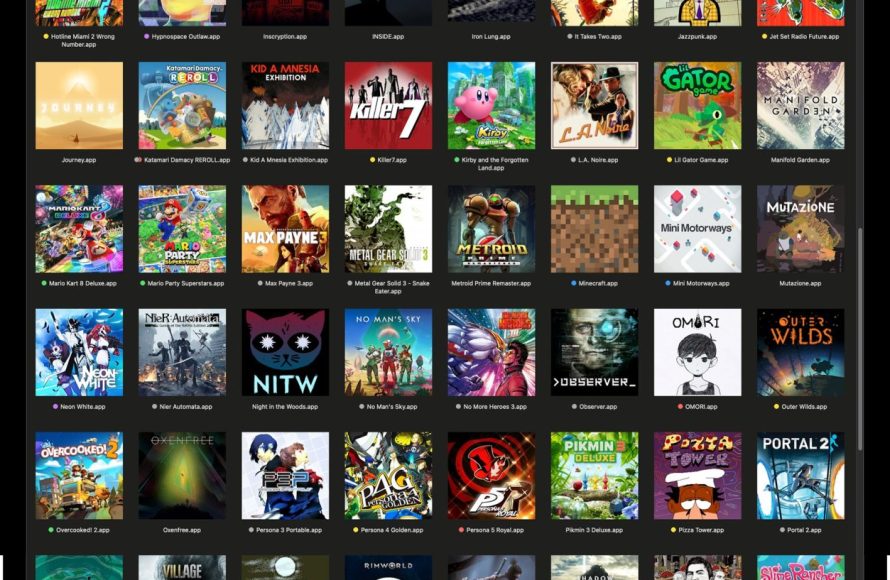
You can play games natively available on the Mac App Store, games that run through services like Steam or GOG, and games playable via cloud gaming platforms.
So, you’re asking yourself, “what games can I play on macbook?” It’s a great question! The gaming landscape on macOS has evolved, and there are more options than ever before.
Gone are the days when Macs were considered gaming deserts. While not every title is available, the selection is surprisingly diverse.
From indie gems to AAA titles, there’s a game out there waiting for you to enjoy on your Macbook.

What Games Can I Play on MacBook?
MacBooks are known for their sleek design and user-friendly interface. But what about gaming? Can you actually enjoy playing games on a MacBook?
The answer is yes! While not traditionally considered gaming powerhouses, MacBooks are increasingly capable of running a wide variety of games.
Gaming on Mac: A Landscape Overview
The gaming landscape on macOS has evolved significantly. Apple’s commitment to improving graphics capabilities and support for gaming technologies is making MacBooks a more viable option for gamers.
Game availability and performance vary depending on your specific MacBook model. Newer models with dedicated graphics cards will offer a better gaming experience.
Consider the game’s requirements before purchasing. This ensures smooth gameplay.
Native macOS Games
Many games are specifically designed for macOS. These are optimized to run natively on your MacBook without the need for compatibility layers or emulators.
Popular Native Mac Games
- Minecraft: This sandbox game is a classic for a reason.
- Fortnite: The massively popular battle royale game runs well on many MacBooks.
- League of Legends: This MOBA title is available for macOS.
- World of Warcraft: This MMORPG has a dedicated macOS client.
- Diablo III: Another popular Blizzard title available on Mac.
The Mac App Store also offers a selection of casual and indie games. Explore the store to discover hidden gems.
Gaming via Steam on Mac
Steam is a popular platform for buying and playing games. It offers a vast library of titles compatible with macOS.
Exploring the Steam Library
Steam makes it easy to filter games by operating system. Ensure the games you’re interested in support macOS.
Many popular AAA titles are available on Steam for Mac. These often include optimized settings for Mac hardware.
Using Boot Camp for Windows Gaming
Boot Camp allows you to install Windows on your Mac. This opens up a much larger library of games that are not available for macOS.
Setting up Boot Camp
Boot Camp Assistant guides you through the process of installing Windows. You’ll need a Windows installation ISO file.
Partition your hard drive to allocate space for Windows. This can be adjusted later if needed.
Benefits of Boot Camp
Access to a wider range of games is the main advantage. Games that don’t run well on macOS may perform better on Windows via Boot Camp.
Keep in mind that you’ll need a valid Windows license. You must purchase a license from Microsoft to avoid any issues.
Cloud Gaming Services
Cloud gaming services stream games to your MacBook over the internet. This allows you to play graphically demanding games without needing a powerful machine.
Popular Cloud Gaming Platforms
- GeForce NOW: NVIDIA’s cloud gaming service offers a wide selection of games.
- Xbox Cloud Gaming (xCloud): Microsoft’s cloud gaming service is available through a web browser.
- Google Stadia: (Note: Stadia is discontinued, so mention it with that context.) Although Google Stadia is no longer active, it demonstrated the potential of cloud gaming.
These services require a stable and fast internet connection. Latency can impact gameplay experience.
Gaming on M1/M2 MacBooks
Apple’s M1 and M2 chips have significantly improved the gaming performance of MacBooks. These chips offer integrated graphics that rival some discrete graphics cards.
Optimized Performance
Games optimized for Apple Silicon run exceptionally well. Look for games that specifically support M1/M2 chips.
Rosetta 2, Apple’s translation layer, allows you to run Intel-based games on M1/M2 MacBooks. However, performance may be reduced compared to native Apple Silicon games.
Apple Arcade
Apple Arcade is a subscription service that offers a library of exclusive games for Mac, iPad, iPhone, and Apple TV. These games are designed to run well on Apple devices.
Understanding Game Compatibility
Not all games are created equal. Consider the following factors when determining if a game will run well on your MacBook.
System Requirements
Check the game’s minimum and recommended system requirements. Ensure your MacBook meets these requirements.
Pay attention to the graphics card, processor, and RAM requirements. These are critical for smooth gameplay.
macOS Version Compatibility
Some games may only be compatible with specific versions of macOS. Check the game’s compatibility information before purchasing.
Older games may not be compatible with the latest versions of macOS. Newer games might require the newest OS.
Game Engine and Technology
Some game engines are better optimized for macOS than others. Games built with Metal, Apple’s graphics API, tend to perform better.
Games using older OpenGL APIs might have performance issues. These games may require additional configuration or tweaking.
Optimizing Your MacBook for Gaming
There are several steps you can take to optimize your MacBook for gaming. These can help improve performance and reduce lag.
Closing Unnecessary Applications
Close any applications that are running in the background. This frees up system resources for the game.
Avoid running multiple applications simultaneously. This can strain your MacBook’s resources.
Adjusting Graphics Settings
Lower the graphics settings in the game. This can improve performance, especially on older MacBooks.
Experiment with different settings to find the optimal balance between performance and visual quality. Lowering resolution can help.
Updating Drivers and macOS
Ensure your macOS is up to date. Apple releases updates that include performance improvements and bug fixes.
Check for driver updates for your graphics card. These updates can improve gaming performance.
Using an External Monitor
An external monitor can improve your gaming experience. Choose a monitor with a high refresh rate and low response time.
Consider a monitor with FreeSync or G-Sync support. These technologies can reduce screen tearing.
Recommended Gaming Accessories for MacBooks
Gaming accessories can enhance your gaming experience on a MacBook.
Gaming Mouse
A gaming mouse offers more precise control. Look for a mouse with adjustable DPI and programmable buttons.
A good gaming mouse can improve your aim and responsiveness. It can also be more comfortable for long gaming sessions.
Gaming Keyboard
A mechanical gaming keyboard provides a tactile and responsive typing experience. Look for a keyboard with anti-ghosting and N-key rollover.
A gaming keyboard can improve your accuracy and speed. It also enhances the overall gaming experience.
Gaming Headset
A gaming headset provides immersive audio. Look for a headset with surround sound and a noise-canceling microphone.
A good gaming headset can help you hear footsteps and other important sounds. It also allows you to communicate with your teammates effectively.
External Graphics Card (eGPU)
An eGPU can significantly boost your MacBook’s graphics performance. Connect the eGPU via Thunderbolt.
This is an expensive upgrade, but it can make a huge difference for demanding games. Research compatibility carefully.
Troubleshooting Common Gaming Issues on Mac
Even with optimizations, you may encounter issues when gaming on a MacBook. Here are some common problems and how to fix them.
Lag and Performance Issues
Check your internet connection if you’re playing online games. High ping can cause lag.
Close unnecessary applications and lower the graphics settings. This can improve performance.
Crashing Games
Ensure your macOS and drivers are up to date. Outdated software can cause crashes.
Verify the game files through Steam or the Mac App Store. Corrupted files can lead to crashes.
Overheating
MacBooks can overheat when playing demanding games. Ensure your MacBook has adequate ventilation.
Use a cooling pad to help keep your MacBook cool. Avoid playing games in direct sunlight.
Controller Compatibility Issues
Some controllers may not be fully compatible with macOS. Check the game’s controller settings.
Use a controller adapter if necessary. Some games require specific controller configurations.
Examples of Games Playable on Different MacBooks
Gaming performance is heavily dependent on the MacBook model. Let’s look at examples of games you can expect to play on various MacBooks.
MacBook Air (M1/M2)
Suitable Games: Minecraft, Fortnite (with adjusted settings), League of Legends, Among Us, Stardew Valley, Apple Arcade games.
Expectations: These games should run smoothly at medium to high settings. Demanding AAA titles might require cloud gaming.
13-inch MacBook Pro (M1/M2)
Suitable Games: All games listed for the MacBook Air, plus some less graphically intense AAA games.
Expectations: Better sustained performance than the MacBook Air due to improved cooling.
14-inch/16-inch MacBook Pro (M1 Pro/Max/M2 Pro/Max)
Suitable Games: Most AAA games (some at lower settings), a vast Steam library, games through Boot Camp.
Expectations: The best gaming experience on a MacBook. Can handle demanding titles at reasonable settings.
Older Intel-Based MacBooks
Suitable Games: Older games, indie titles, and cloud gaming are good options.
Expectations: Performance will vary significantly based on the specific Intel chip and graphics card.
The Future of Gaming on Mac
Apple is increasingly focusing on gaming. MetalFX Upscaling and advancements in Apple Silicon pave the way for better gaming experiences.
Game developers are starting to take macOS more seriously. More native Mac games are on the horizon.
The combination of powerful hardware and optimized software promises a brighter future for gaming on MacBooks.
Can you game on Macbook?
Final Thoughts
Ultimately, a MacBook offers a surprisingly diverse gaming experience. You can enjoy titles directly from the Mac App Store and Steam, including many indie games and some AAA titles optimized for macOS.
Furthermore, cloud gaming services provide access to a vast library of games playable on your MacBook through a web browser. This is a must for accessing titles not natively available.
So, what games can I play on Macbook? The answer includes native Mac games, cloud-streamed games, and even some older PC games via emulation.

