
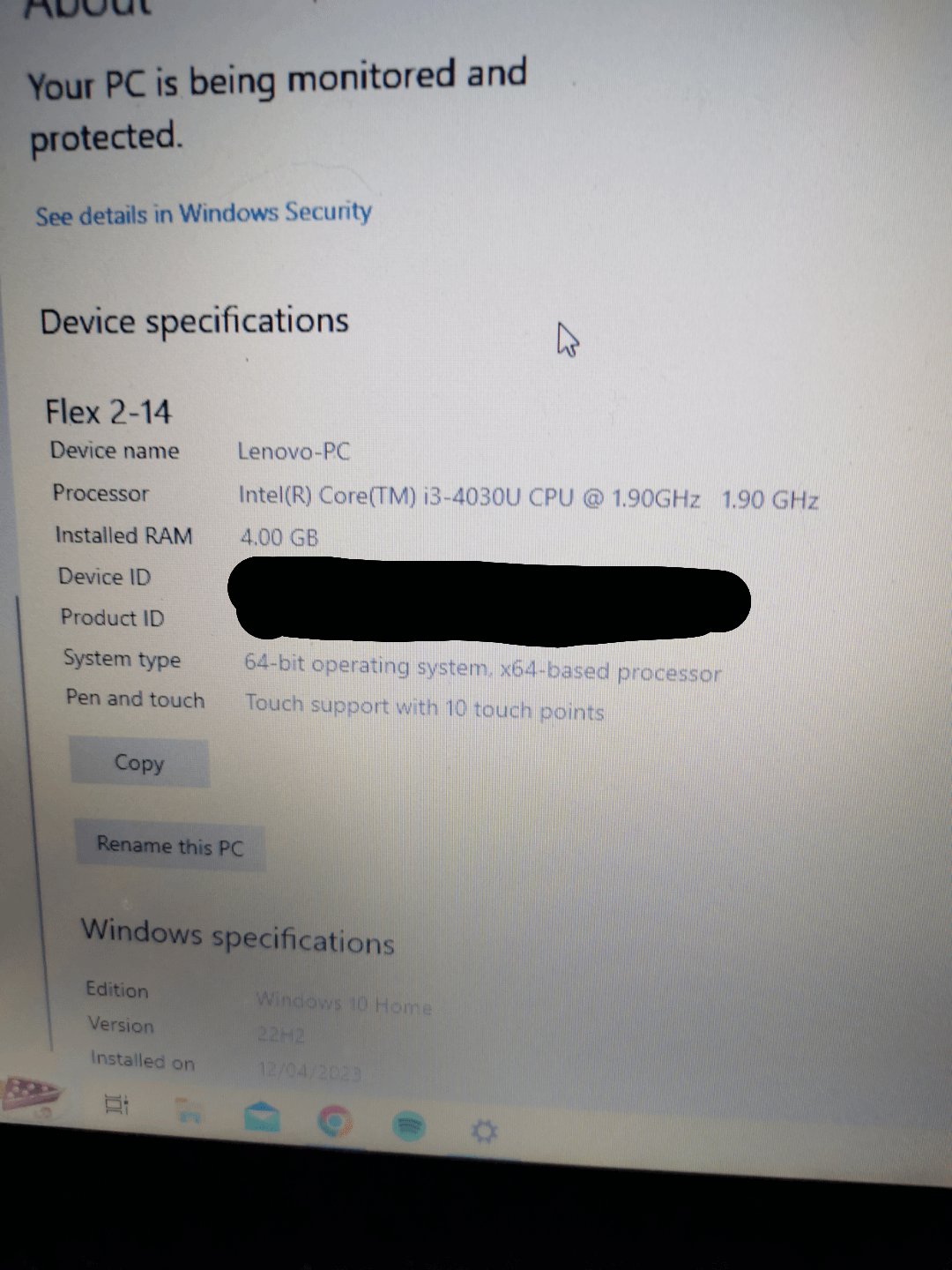
Here’s how to figure out what games can my laptop play: Check your laptop’s specs (CPU, GPU, RAM) and compare them against the minimum and recommended requirements listed on the game’s store page (like Steam or Epic Games).
Ever wondered what games can my laptop play without turning into a slideshow? We’ve all been there, excitedly eyeing the latest release only to wonder if our trusty laptop can handle it.
It’s not always about buying the most expensive gaming rig. Many fantastic games run well on less powerful machines. Knowing how to assess your laptop’s capabilities is key.
We’ll show you how to determine if your laptop meets the requirements and point you toward resources that simplify the process. Let’s get started and find your next favorite game!

What Games Can My Laptop Play?
Determining what games your laptop can handle depends on its specifications. Let’s explore the key components.
Consider your processor, graphics card (or integrated graphics), and RAM. These dictate gaming performance.
Understanding Laptop Specifications for Gaming
Knowing your laptop’s specs is the first step. Let’s break down the important ones.
Processor (CPU)
The processor is the brain of your laptop. It handles game logic and calculations.
A faster processor generally means better performance. Intel Core i5 or AMD Ryzen 5 processors are decent starting points for gaming.
Graphics Card (GPU)
The graphics card renders the visuals you see on screen. This is often the most crucial component for gaming.
A dedicated graphics card (like an NVIDIA GeForce or AMD Radeon) is far superior to integrated graphics. Integrated graphics use the CPU and system memory for graphics processing, which limits performance.
RAM (Memory)
RAM provides temporary storage for running programs. Games need enough RAM to operate smoothly.
8GB of RAM is the bare minimum for modern games. 16GB is recommended for a better experience.
Storage (HDD/SSD)
Your hard drive or solid-state drive stores the game files. SSDs are much faster than HDDs.
SSDs significantly reduce loading times. Consider installing your games on an SSD if possible.
Matching Games to Your Laptop’s Capabilities
Once you know your specs, you can start figuring out what games will work.
Use websites and tools that provide system requirements. These tell you the minimum and recommended specs for a game.
Minimum vs. Recommended Specs
Minimum Specifications: These are the absolute lowest specs required to run the game at all. You’ll likely experience low frame rates and graphical settings.
Recommended Specifications: These are the specs for running the game at a good balance of graphical settings and frame rates. This will usually mean medium or high settings at a playable framerate.
Using “Can You Run It?” Websites
Several websites, like System Requirements Lab (“Can You Run It?”) can analyze your system. They will tell you if your laptop meets the minimum or recommended specs for specific games.
These sites require you to download a small program that scans your system. Always be cautious about downloading programs from unknown sources.
Game Genres and Their Hardware Demands
Different game genres demand different levels of hardware. Let’s look at some examples.
Indie Games and Retro Titles
These games often have simple graphics. They typically run well on lower-end laptops.
Examples include Stardew Valley, Terraria, and older games from the 90s and early 2000s. These are often a great way to experience a wide variety of gaming experiences even on less powerful machines.
Strategy Games
Strategy games, like Civilization VI or Starcraft II, require a decent processor. The CPU handles complex calculations.
A dedicated graphics card isn’t always necessary for strategy games. However, more recent titles will benefit from it.
First-Person Shooters (FPS)
FPS games are often graphically demanding. A good graphics card is essential for smooth gameplay.
Games like Counter-Strike: Global Offensive are relatively lightweight and can run on many laptops. However, more demanding titles like Call of Duty: Warzone require powerful hardware.
MMORPGs (Massively Multiplayer Online Role-Playing Games)
MMORPGs can be demanding due to the large number of players and environments rendered. A decent CPU and GPU are important.
Games like World of Warcraft can scale to run on lower-end systems, but higher settings require better hardware. Other examples include Final Fantasy XIV, Elder Scrolls Online, and Guild Wars 2.
Racing Games
Racing games often need a good balance of CPU and GPU power. High frame rates are important for a smooth experience.
Titles like Forza Horizon 5 can be demanding. Other options like older Need for Speed games, or less visually impressive indie racers, may run better on less powerful laptops.
Specific Game Recommendations for Different Laptop Types
Let’s explore some specific game recommendations based on general laptop categories.
Gaming Laptops
Gaming laptops are designed for high performance. They usually have powerful CPUs, dedicated GPUs, and plenty of RAM.
Modern AAA titles at high settings are usually playable on gaming laptops. Consider games like Cyberpunk 2077, Assassin’s Creed Valhalla, or Elden Ring.
Business Laptops with Integrated Graphics
Business laptops prioritize portability and battery life. They often have integrated graphics.
Lightweight games and older titles are the best options for these laptops. Examples include indie games, strategy games with low graphical settings, and emulated retro games.
Budget Laptops
Budget laptops offer a compromise between price and performance. They might have a dedicated GPU, but it’s likely to be a lower-end model.
Older AAA titles, esports games, and some modern games at low settings may be playable. Try games like Fortnite, League of Legends, or Rocket League.
Optimizing Game Performance on Your Laptop
Even if your laptop meets the minimum specs, you may need to tweak settings for better performance.
Consider these optimization tips to improve your gaming experience.
Lowering Graphics Settings
Reducing graphical settings can significantly improve frame rates. Lower the resolution, texture quality, and shadow detail.
Experiment with different settings to find the best balance between visuals and performance. Check the game’s graphic settings for this.
Updating Graphics Drivers
Keep your graphics drivers up to date. Driver updates often include performance improvements for specific games.
NVIDIA and AMD release new drivers regularly. You can download them from their respective websites.
Closing Background Applications
Close unnecessary applications running in the background. These can consume system resources and impact game performance.
Use Task Manager (Windows) or Activity Monitor (macOS) to identify and close resource-intensive applications.
Managing Power Settings
Adjust your laptop’s power settings for optimal performance. Select the “High Performance” power plan.
This will allow your laptop to use more power, but it may reduce battery life.
Cleaning Your Laptop
Dust buildup can cause overheating. This leads to reduced performance.
Clean your laptop’s vents regularly with compressed air. This helps maintain optimal cooling.
Cloud Gaming Services
Cloud gaming services allow you to stream games to your laptop. The game runs on a remote server.
This can be a great option for playing demanding games on less powerful laptops. A stable internet connection is required.
NVIDIA GeForce Now
NVIDIA GeForce Now streams games from NVIDIA’s servers. It supports a wide range of games.
You need to purchase a subscription to access the service. It also requires a good internet connection.
Xbox Cloud Gaming
Xbox Cloud Gaming is part of Xbox Game Pass Ultimate. It allows you to stream Xbox games to your laptop.
This provides access to a large library of games. You can play them without needing to download them.
Google Stadia (Discontinued)
Google Stadia was a cloud gaming service. It has been discontinued.
Emulation for Older Games
Emulation allows you to play games from older consoles and computers. This can be a great way to experience classic games.
Many emulators are available for free. However, you’ll need to obtain ROMs (game files) legally.
Popular Emulators
RetroArch: A frontend for various emulators. It supports many consoles and platforms.
Dolphin: An emulator for GameCube and Wii games. It allows you to play these games on your laptop with enhanced graphics.
PCSX2: A PlayStation 2 emulator. It can be demanding, but it allows you to play PS2 games on your laptop.
Legal Considerations for Emulation
Make sure you own the physical game before downloading a ROM. Downloading ROMs of games you don’t own is illegal.
Understanding Resolution and Aspect Ratio
Resolution and aspect ratio affect how the game looks on your screen.
Higher resolutions provide sharper images. However, they also require more processing power.
Common Resolutions
720p (1280×720): A lower resolution that’s less demanding on hardware.
1080p (1920×1080): A common resolution that provides a good balance of visuals and performance.
1440p (2560×1440): A higher resolution that offers sharper images. This requires a more powerful system.
4K (3840×2160): A very high resolution that provides the best image quality. Only high-end gaming laptops can handle 4K gaming.
Aspect Ratio
Aspect ratio is the ratio of the width to the height of the screen. 16:9 is the most common aspect ratio.
Some games support ultrawide monitors (21:9 or 32:9). These provide a wider field of view.
Future-Proofing Your Laptop
Consider upgradability when buying a laptop. Some laptops allow you to upgrade the RAM or storage.
However, upgrading the graphics card or processor is usually not possible. Plan for the future by purchasing a laptop with sufficient power for your needs.
Troubleshooting Common Gaming Issues
Encountering problems is common when gaming on a laptop. Let’s look at some common issues.
Low Frame Rates
Low frame rates can make games feel choppy. Try lowering graphics settings or closing background applications.
Also, make sure your graphics drivers are up to date. Check for driver updates using NVIDIA Geforce Experience or AMD Adrenalin software.
Overheating
Overheating can cause performance throttling. This can lead to low frame rates and crashes.
Clean your laptop’s vents and ensure proper cooling. Consider using a laptop cooling pad.
Game Crashes
Game crashes can be caused by various factors. These include driver issues, corrupted game files, or insufficient system resources.
Verify the integrity of game files through Steam or other platforms. Reinstall the game if necessary. Also, check Windows Event Viewer to see if a specific error message relates to the crashes.
Driver Conflicts
Conflicting drivers can cause issues. Consider performing a clean driver installation.
Use Display Driver Uninstaller (DDU) to remove old drivers completely before installing new ones.
Resources for Finding Game Recommendations
Many websites and communities offer game recommendations based on hardware specifications.
Explore these resources to find games that are suitable for your laptop.
Steam
Steam is a popular platform for buying and playing games. It provides system requirements for each game.
You can also read user reviews to see how well a game runs on different systems.
Reddit has several gaming communities. These communities can offer advice and recommendations.
Subreddits like r/lowendgaming and r/suggestmeagame are good resources.
YouTube
YouTube is a great resource for watching gameplay videos and performance tests. Search for gameplay footage of specific games running on similar laptops.
Look for channels that specialize in low-end gaming. These channels often provide helpful tips and recommendations.
Final Game Recommendation Categories
To summarize and further clarify, let’s break down game recommendations by general laptop capabilities.
High-End Gaming Laptops (RTX 3000/4000 Series, Ryzen 7/Intel i7 or better)
These laptops can handle almost any game at high or ultra settings, often at 1440p or even 4k.
AAA Titles: Cyberpunk 2077, Red Dead Redemption 2, Elden Ring, Assassin’s Creed Valhalla, Forza Horizon 5
VR Games: Half-Life: Alyx, Boneworks, Beat Saber
Demanding Simulators: Microsoft Flight Simulator, Assetto Corsa Competizione
Mid-Range Gaming Laptops (GTX 1660 Ti/RTX 2060/3050 Series, Ryzen 5/Intel i5 or better)
These laptops can handle most games at 1080p with medium to high settings.
Popular AAA Titles: God of War, Horizon Zero Dawn, Spider-Man, Dying Light 2 (with adjusted settings)
Esports Games: Counter-Strike: Global Offensive, Valorant, League of Legends, Dota 2
Less Demanding Simulators: Euro Truck Simulator 2, Farming Simulator
Entry-Level Gaming Laptops/Laptops with Integrated Graphics (Ryzen 3/Intel i3 or equivalent integrated graphics)
These laptops are best suited for older titles, indie games, and esports games at low settings.
Indie Games: Stardew Valley, Terraria, Minecraft, Undertale, Hollow Knight
Classic Games: Half-Life series, Portal series, older Grand Theft Auto titles
Light Esports Games: League of Legends, Valorant (low settings), Rocket League
How to Download Games on PC for FREE
Final Thoughts
Ultimately, your laptop’s capabilities depend on its specifications. Integrated graphics limit you to less demanding titles or older games.
A dedicated graphics card opens doors to a wider variety of games, even newer ones at lower settings. You must consider the CPU and RAM as well.
To figure out what games can my laptop play, check websites like “Can You Run It.” They analyze your system and compare it against game requirements. This helps you determine which titles will run smoothly.

