
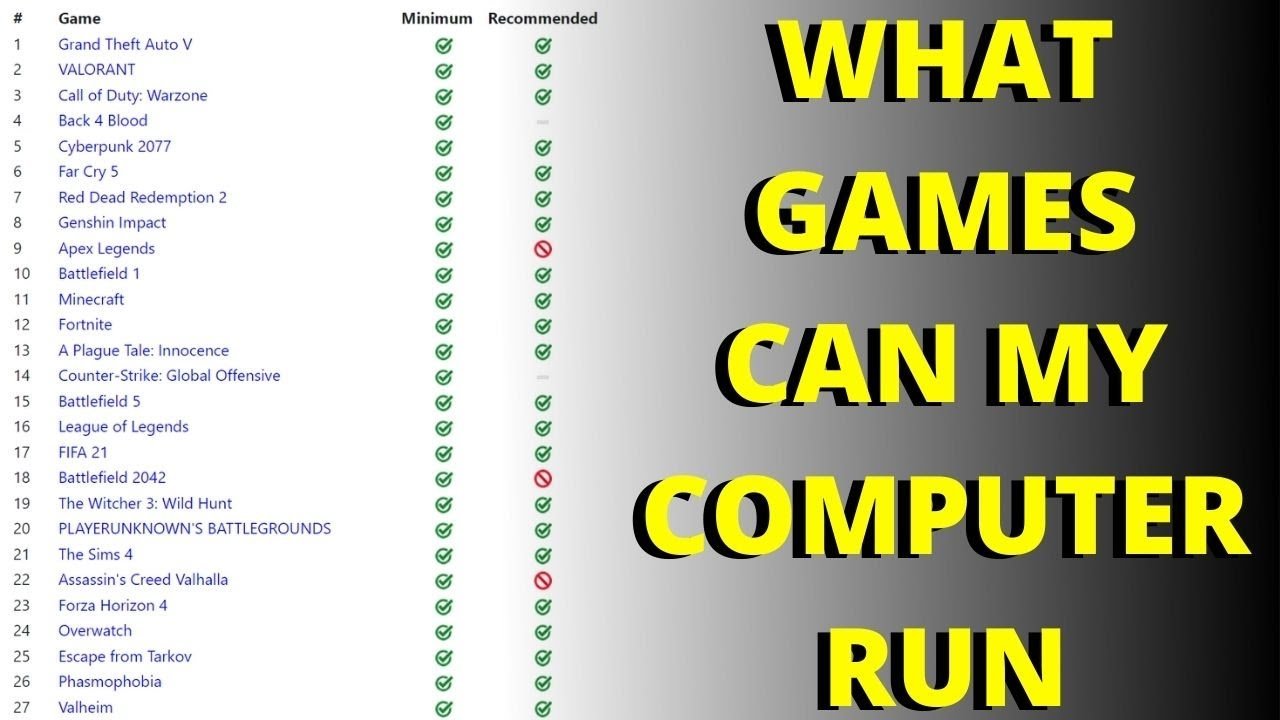
The specific games your laptop can run depend on its hardware specifications, primarily the CPU, GPU, and RAM.
Ever wondered about the gaming potential of your trusty laptop? It’s a common question, we all ask, “what games my laptop can run?”. The answer isn’t always straightforward, as it depends on many factors.
Different laptops have different internal components, which directly impacts their gaming capability. Knowing your hardware is the first step towards understanding what experiences await you.

What Games My Laptop Can Run
Figuring out what games your laptop can play can sometimes feel like solving a puzzle. You might have seen amazing gameplay videos online and wondered, “Can my computer handle that?”. It’s a common question, and luckily, we can break it down so it’s easy to understand. Think of your laptop like a car – some cars are built for speed and racing, while others are better for everyday driving. Similarly, some laptops are designed for super-intensive gaming, while others are better for schoolwork and browsing the internet. We’re going to explore the different things that make a laptop good for games, and how to check what games your laptop can actually play.
Understanding Your Laptop’s Specs: The Key to Gaming
Before we dive into specific games, it’s important to know the key components inside your laptop. These parts work together like a team to make games run smoothly. Knowing these specifications will make it a lot easier to figure out what your laptop is capable of. Let’s look at the important parts:
The Central Processing Unit (CPU)
The CPU is like the brain of your computer. It handles all the important calculations needed to run a game. Think of it as the main chef in a kitchen; it makes sure all the ingredients and cooking steps are done right. CPUs have different speeds, measured in GHz (Gigahertz). The higher the GHz, the more calculations it can do per second. You’ll often see CPUs from companies like Intel and AMD. The name of the CPU, like an Intel Core i5 or an AMD Ryzen 5, is really important. Newer and more powerful CPUs can handle more complex games.
- What to Look For: When checking your CPU, note the brand (Intel or AMD), series (like i5, i7, Ryzen 5, Ryzen 7), and generation (e.g., 12th generation, 13th generation). A higher number generally means better performance.
- Why it Matters: A weak CPU can make even simple games run slowly, and it might cause stuttering or freezing.
Graphics Processing Unit (GPU)
The GPU is all about the visuals. It’s like the artist who paints the pictures on your screen. It takes the information the CPU calculates and turns it into the beautiful images you see in games. Just like CPUs, GPUs come from companies like NVIDIA and AMD. These are often called graphics cards, and they’re super important for gaming. If you have a dedicated GPU, that means you have a separate card just for graphics. This is much better for gaming than using the graphics built into the CPU (called “integrated graphics”).
- What to Look For: Note the brand (NVIDIA or AMD) and the specific model of the GPU (e.g., NVIDIA GeForce RTX 3060 or AMD Radeon RX 6600). The higher the model number, generally, the better the performance.
- Why it Matters: A powerful GPU will let you play games at higher resolutions with more detail and smoothness. Without a good GPU, you might see blurry textures, slow frame rates (how smoothly things move on the screen), and low resolution which make game looks bad.
Random Access Memory (RAM)
RAM is your laptop’s short-term memory. It’s where your computer keeps the information it’s actively using. Think of it as a desk where you keep the papers you are currently working with. If you have enough space on your desk, you can keep lots of things close at hand. The same is true for RAM. If your laptop has enough RAM, it can handle more tasks at once, and games will run more smoothly. RAM is measured in gigabytes (GB).
- What to Look For: The amount of RAM your laptop has (e.g., 8GB, 16GB, 32GB).
- Why it Matters: Too little RAM can cause games to lag or even crash. Having more RAM allows you to run multiple applications without a big drop in performance.
Storage
This is where all your files, including games, are stored on your laptop. There are two main types: Hard Disk Drives (HDDs) and Solid State Drives (SSDs). SSDs are much faster than HDDs, which means games load quicker and run smoother. It is like having a race car versus a regular car. A fast SSD will make a big difference in game loading time and general laptop responsiveness.
- What to Look For: The type of storage (SSD or HDD) and how much space you have (e.g., 512GB SSD, 1TB HDD).
- Why it Matters: A fast SSD will drastically reduce game loading times. You’ll also need enough space for the game itself.
How to Find Your Laptop’s Specs
Now that you know what to look for, how do you actually find this information on your laptop? Don’t worry, it’s not too tricky!
For Windows Computers
- Click the Start button: It’s usually in the bottom-left corner of your screen.
- Type “System Information”: Start typing these words, and the option will appear. Click on it.
- Look for the information: A window will open. Look for the following:
- Processor: This tells you about your CPU (e.g., Intel Core i5-12400).
- Installed Physical Memory (RAM): This is how much RAM you have (e.g., 16.0 GB).
- For the GPU: Click “Components,” then “Display”. Here, you’ll see the information about your graphics card (e.g., NVIDIA GeForce RTX 3060).
For Apple Computers (Mac)
- Click the Apple menu: It’s in the top-left corner of your screen.
- Click “About This Mac”: A new window will pop up.
- Look for the information: You will see details like:
- Processor: Your CPU is listed here (e.g., Apple M1).
- Memory: This is your RAM (e.g., 16 GB).
- Graphics: This will show your GPU (e.g., Apple M1 Graphics).
Understanding Game Requirements
Every game has its own set of requirements. The game developers will usually say “minimum requirements” and “recommended requirements”. These are the computer parts the game needs to run properly. If your laptop meets or exceeds the minimum requirements, then the game will at least start and will be playable. But, if your laptop matches the recommended requirements then the game should run smoothly and with better visual quality.
Minimum Requirements
The minimum requirements are like the bare minimum your computer needs to run the game. This doesn’t mean you’ll have the best experience – you might need to play with the graphics on low settings and there still might be lag and other issues. However, it means you can technically play the game. If your laptop fails these requirements, the game will likely not run at all, or it might be too glitchy to enjoy.
Recommended Requirements
Recommended requirements, on the other hand, are what your laptop should have to run the game at its full potential. If your laptop meets the recommended specifications, you’ll be able to run the game smoothly, with higher graphics settings, and without much lag. This means you’ll see the game as the developers intended you to.
Where to Find Game Requirements
You can usually find game requirements in a few places:
- On the game’s store page: Websites like Steam, the Epic Games Store, and the game’s official website will list the requirements. Just look for a section that says “System Requirements” or “Specs.”
- On the game’s physical box: If you buy a game in a store (if you still find any today!), the minimum and recommended specifications should be printed on the box.
- By searching online: You can also search for “game title system requirements” on Google, and usually, there will be multiple websites that will list the necessary specifications.
Matching Your Laptop to Games
Now that you know what your laptop can do, let’s talk about putting it together with games. The goal is to see if the parts in your computer are good enough for the games you like to play.
The “Can I Run It” Websites
There are great online websites that can help you figure out if you can play a certain game. They analyze your computer specs and compare them to the game requirements. They usually just use your browser, so you don’t have to download anything to check. You can go to the website, find the game you’re curious about, and it will tell you if your computer is good enough to play it or not. It’s very convenient and helpful.
Examples of Popular Games and Their Needs
Let’s look at some example games and what they need to run well. This will give you a better idea of what your laptop is capable of, and help you make comparisons to your laptop’s capabilities:
Minecraft
Minecraft is a very popular game that many computers can run. Its requirements are generally pretty low, so it’s great for most laptop users.
- Minimum requirements: Intel Core i3 or AMD A8, 4GB of RAM, integrated graphics.
- Recommended Requirements: Intel Core i5 or AMD Ryzen 5, 8GB of RAM, dedicated graphics (like a GTX 750 or an RX 260).
Fortnite
Fortnite is a bit more demanding than Minecraft. It’s important to have a decent graphics card to play this one without issues.
- Minimum Requirements: Intel Core i3 or AMD Ryzen 3, 8GB of RAM, Intel HD 4000 graphics or AMD Radeon Vega 8 graphics
- Recommended Requirements: Intel Core i5 or AMD Ryzen 5, 8 GB of RAM, NVIDIA GeForce GTX 960 or AMD Radeon R9 280.
Grand Theft Auto V
GTA V is an older but very popular game. It requires a decent computer to play smoothly.
- Minimum Requirements: Intel Core 2 Quad CPU Q6600 @ 2.40GHz (4 CPUs) / AMD Phenom 9850 Quad-Core Processor (4 CPUs) @ 2.5GHz, 4GB RAM, NVIDIA 9800 GT 1GB / AMD HD4870 1GB (DX 10, 10.1, 11).
- Recommended Requirements: Intel Core i5 3470 @ 3.2GHZ (4 CPUs) / AMD X8 FX-8350 @ 4GHZ (8 CPUs), 8GB RAM, NVIDIA GTX 660 2GB / AMD HD7870 2GB.
Cyberpunk 2077
Cyberpunk 2077 is a very beautiful and graphically demanding game. It requires a good gaming computer to run well.
- Minimum Requirements: Intel Core i7-4790 or AMD Ryzen 3 3200G, 8GB RAM, NVIDIA GTX 1060 6GB or AMD Radeon RX 580 8GB
- Recommended Requirements: Intel Core i7-12700 or AMD Ryzen 7 5700X, 16GB RAM, NVIDIA RTX 2060 or AMD Radeon RX 5700 XT.
Adjusting Game Settings for Better Performance
If your laptop can run a game, but you’re having problems with slowdowns or stuttering, there are some settings you can tweak. By making some changes, you can make the game more playable.
Lowering Graphics Settings
The first and most effective step is to reduce the graphics settings within the game menu. Usually you’ll find settings like “Texture Quality,” “Shadows,” “Anti-Aliasing,” and “Effects”. Lowering these can make a big difference in game performance. Changing from “High” to “Medium” or even “Low” can greatly reduce how much work your computer has to do and improve your experience.
Reducing Resolution
The resolution is how many pixels your screen shows. Lowering the resolution (like from 1920×1080 to 1280×720) can significantly speed up your game, and it might also make the game run smoother, with less stuttering.
Closing Other Applications
Before you start a game, it’s a good idea to close any other programs you’re not using. Things like web browsers, music players, and word processors use up some of your laptop’s resources. Closing them frees up RAM and CPU power, giving your game more room to run smoothly.
Updating Drivers
Drivers are like the instructions that tell your laptop how to use its parts. Make sure you have the latest drivers for your graphics card. You can find these drivers on the NVIDIA or AMD websites, depending on which graphics card you have. They usually have software that will help you find and install the latest drivers.
What if My Laptop Can’t Handle My Favorite Games?
Sometimes, even after doing all these things, your laptop just won’t run certain games smoothly. If that’s the case, don’t worry. There are other options you can consider.
Cloud Gaming Services
Cloud gaming is like streaming movies, but for games. Instead of running the game on your laptop, you connect to a powerful computer on the internet, and that computer runs the game and streams the gameplay to your computer. This means you can play games that your laptop normally couldn’t handle, as long as you have a good internet connection.
Upgrading Your Laptop
Another option is to get a new laptop or upgrade your current one. Some laptops allow you to upgrade parts like RAM or the hard drive. A new laptop with a better CPU and GPU can be a big investment but may be the best way to play all the games that you like. If you are planning to get new computer, make sure you do enough research and get a laptop that suits your gaming needs.
Exploring Other Types of Games
If your laptop has low specs, there are so many great games that will work perfectly well with it. Many older games can run well on less powerful computers, and there are lots of fun indie games that have lower requirements. Even simple puzzle games can give you a lot of enjoyment.
In the end, understanding your laptop’s components and the game’s requirements will help you figure out what games your computer can play well. Don’t forget to check requirements, tweak settings, and explore all your options. Have fun playing!
Best Laptop-Friendly Games [Gaming On The Go]
Final Thoughts
Okay, here’s the concise conclusion you requested:
Essentially, my laptop handles less demanding titles smoothly, like indie games and older classics. It can also run some newer games at lower settings. Therefore, what games my laptop can run mostly falls in casual or less graphic intensive categories.
Performance varies depending on the game, but it’s generally good for lighter experiences. Keep expectations realistic based on hardware capabilities. This way you can manage your expectations.

