
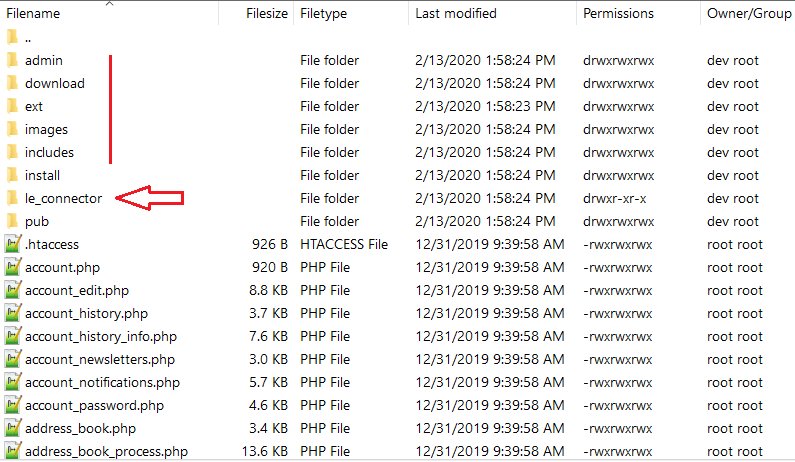
The game’s root folder is the main directory where all the game files are stored, including executable files, game data, and configurations.
Ever wondered where your favorite games keep all their important stuff? It’s not just a random jumble of files, it’s neatly organized in a specific place. That place is what is known as a games root folder.
This folder acts like the central hub for everything that makes the game function. It’s where the main game application resides along with textures, sounds, and saved progress information.

What is a Games Root Folder?
Okay, imagine you have a really big toy box, right? That toy box is like your computer’s hard drive, where it keeps all your games. Now, inside that toy box, you have different smaller boxes for each game – like a box for your race car game, one for your puzzle game, and another for your adventure game. The games root folder is like that special box for each of your games. It’s the main place where all the important stuff about that game lives, like its program files, saved games, and other things that help it run. Think of it as the heart of each game on your computer.
Why is the Games Root Folder Important?
The root folder is super important because without it, your game simply wouldn’t work. It’s like the control center for all the game’s parts. Without a proper root folder, your computer wouldn’t know where to find the instructions to start the game, how to draw the pictures you see on the screen, or where to save your progress. It holds all the necessary information needed for you to play, enjoy and continue playing the game. Think of it this way: if you want to play a board game, you need the board, the pieces, and the instructions all in one place. The root folder is that place for video games.
Understanding the Structure of a Games Root Folder
Games root folders might seem a little confusing at first, but they all follow a similar pattern. Usually, you’ll find different types of files and subfolders inside. Let’s explore some common things you’ll find in there:
- Executable Files (.exe): This is like the main switch that starts the game. It’s the file that you click to launch the game.
- Data Files: These files hold all the game’s content such as the graphics (pictures, characters, and worlds), sound effects, and music.
- Configuration Files: These files store the game settings, like your chosen graphics options, sound volume, or keyboard controls. They help the game remember your preferences.
- Save Files: These are the files that hold your game progress. So you don’t have to start from the beginning each time.
- Libraries (DLLs): These are special helper files that give the game access to the specific tools it needs.
- Subfolders: The root folder also has smaller boxes (subfolders) inside to organize things further, like different folders for the game’s music, the textures it uses, and save game files.
Where to Find Your Game’s Root Folder
Finding the root folder is pretty easy. You might see the game’s root folder when you install the game on your computer. Usually, it shows you the path of where it’s installing or you can change the install path location as well. But if you need to find it later, here’s how you do it on Windows, which is the most common Operating System for gamers:
- Locate the game’s shortcut: Find the icon you click to start the game, either on your desktop or in the start menu.
- Right-click: Right-click on the game’s icon or shortcut and a menu will appear.
- Select ‘Open file location’: Look for “Open file location” or something similar in the menu and click it. This will open a window showing the folder where the game’s main program file lives. That’s usually the root folder.
- Alternatively, check the install path : If the shortcut method doesn’t work, check where you installed the game. The default install path for games is normally in C drive inside a “Program Files” folder or a “Program Files(x86)” folder. Game platforms like Steam or Epic have specific folders where games are installed. Check the platform settings to see where games are installed and go to that location.
For MacOS, the general steps are the same. Usually, the games are installed in /Applications. You may find game applications directly in the folder, or in another folder within the applications folder. You can also usually right click the application and click “Show Package Contents” which will show you the root folder.
Modifying Files in the Root Folder: A Word of Caution
Sometimes, you may want to change some files in the root folder. This is sometimes done to install “mods” which changes how a game looks, feels, or plays. It is tempting to change files inside the root folder, as it can be used to customize your game or fix certain problems, but you should be careful about what you change. It’s important to know that changing or deleting files from the root folder could cause your game to not work correctly or not even start. You should always be careful about what you add and be sure that you are doing the modifications correctly.
Examples of Root Folder Modifications
- Graphics Mods: You can replace existing textures and models in data files to alter the look of the game.
- Gameplay Mods: You might change a script file or other data files to adjust game mechanics, like difficulty, characters behavior, or weapon statistics.
- Fixing Bugs: Sometimes, users can release unofficial patches to fix small issues that the game developers didn’t get a chance to fix, and this patch files need to be placed inside the game’s root folder for the fix to apply to the game.
Before changing anything in the root folder, it is a good idea to make a backup copy of the original files or the whole folder. This helps you to return to the original state if something goes wrong with your modifications. Also, always make sure the mods that you are using are from trusted sources. Malicious files can damage your game and sometimes your system. Only change the game files from sources that you trust.
Understanding Subfolders in a Games Root Folder
As we mentioned earlier, most games have many smaller folders inside their main root folder. These subfolders help the game organize different parts and this makes it easier for the game to function. Let’s look at some of these subfolders:
- Data Subfolder: This subfolder is often used to store the important game content such as graphics, character models, sounds, and maps.
- Save Subfolder: In this location, games will store the player’s progress. Every time that the player saves in the game, the data file for that save is placed in this folder.
- Music/Sound Subfolder: These subfolders contain the game’s music tracks, sound effects, and voice acting files.
- Config/Settings Subfolder: The game settings, like your chosen graphics options and sound volume, are stored in files located here.
- Textures Subfolder: Textures, the pictures applied to the surface of game objects, usually reside here, these are the image files that create the look and feel of the environment of the game
- Scripts Subfolder: Script files help to control in-game events and make the game work. They control things like character behaviors, menu systems and how the story advances in the game
Games Root Folders Across Different Platforms
While the general concept of a root folder remains the same, the specific locations and organizational structures may differ between different platforms.
Windows
On Windows, game root folders are typically found in:
C:\Program FilesC:\Program Files (x86)- Specific folders created by the gaming platform such as Steam, Epic games or GOG.
macOS
On macOS, you’ll generally find game root folders in:
/Applications- Subfolders inside
/Applications
Consoles
Consoles like PlayStation, Xbox, and Nintendo Switch hide their system files for security reasons and you cannot usually access the game files as a regular user. The games are stored on internal storage or expansion cards, and the games are handled by the console’s operating system. These systems control the location of where games are stored and the users cannot modify it directly.
Managing Your Game’s Root Folder: Practical Tips
Here are some easy tips to help you manage your game root folder:
- Know where your games are installed: Make a habit of noting where each game gets installed, or using a platform like Steam, so that you can always return to that location to find the root folder.
- Keep backups: Before you make any changes, always make a backup copy of your root folder or the specific file that you intend to change. This gives you a way to easily go back to how the game was before the modification.
- Be cautious when installing mods: Always use mods from trusted sources and read through all the instructions.
- Use the game’s settings: Instead of trying to change files directly, first look at the game’s settings or configurations options. Most games offer ways to customize game looks, sound, or controls from the in-game settings, which is much more safe.
The Games Root Folder and Game Performance
Sometimes, your game may not be performing properly, if the root folder is corrupted or has missing files. This can happen when mods go wrong, or when the files get damaged due to viruses or other issues. If your game is having problems starting or playing, this may be due to the game’s root folder files. Here is what you can do to troubleshoot the game.
- Verify Game Files: Most gaming platforms like Steam, Epic, or GOG have the option to verify game files. This feature will scan the root folder and will download the original files that may be missing or damaged.
- Reinstall the Game: If verifying files does not work, sometimes a fresh install of the game might fix any corruption problems within the root folder, make sure to back up your save games before uninstalling.
- Check the game requirement: Make sure that your computer meets the minimum requirements needed to play the game. If your system does not have enough power, the game may not work well or may crash.
Common Mistakes to Avoid When Dealing with the Root Folder
It is easy to make mistakes when dealing with the game’s root folder, so here are a few things to avoid doing.
- Deleting random files: If you don’t know what a file is, never delete it. This can make your game not work.
- Changing configuration files without understanding: Modifying the game’s configuration files without understanding what they do may cause game instability.
- Installing untrusted mods: Always be careful about where you get mods. Untrusted sources can damage your game or system.
- Forgetting to back up: Always create backups before modifying the game folder, to have a quick method to revert if any mistake happens during modifications.
In short, the games root folder is like the heart of each video game, It’s important to know where to find it, what the files inside do, and how to keep it safe. You don’t need to become an expert, but a little understanding can go a long way in making sure that you can have a good gaming experience!
How to find your game "root folder"
Final Thoughts
A game’s root folder is simply the main directory where all game files reside. It contains crucial files like executables, configuration settings, and game data. Locating this folder allows you to modify game settings or install mods.
Understanding what is a games root folder aids greatly in game customization. It’s the central location to manage your game experience. Knowing this simple concept empowers players with more control.

