
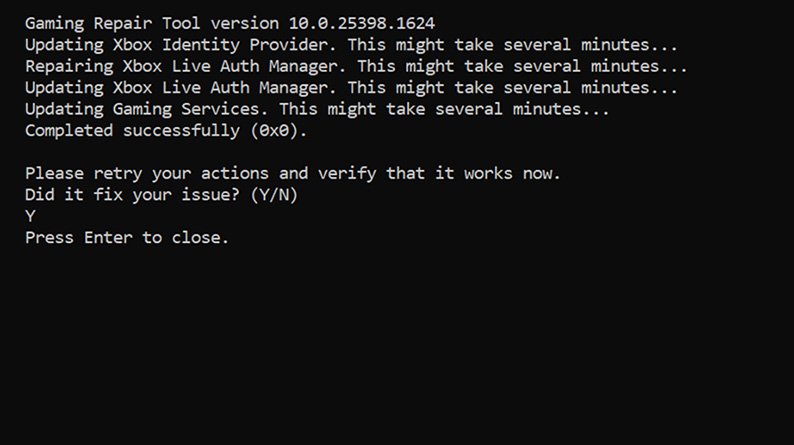
The Game Service in Windows 10 is a background service that supports various gaming features and functionality, including Xbox Live integration and game updates.
Have you ever wondered about that process running in the background when you’re gaming on your PC? Well, that’s likely the game service win 10 working behind the scenes. It’s a key component of your Windows experience, making many gaming features possible.
This service ensures things like your Xbox Live connection remains stable, and game updates happen smoothly, so you can enjoy your favorite titles without interruption. It also manages the connection between your games and the Xbox network. Knowing what it is helps you understand your PC’s processes.

What is Game Service Win 10?
Ever wondered what that “Game Service” thing is running in the background on your Windows 10 computer? It’s not some secret code, but actually a helpful tool that makes your gaming experience better. Think of it like a friendly helper for your games. It’s designed to make sure everything works smoothly, from launching games to letting you play with your friends online. Let’s dig into what this service does and why it’s important.
Understanding the Core Functionality of Game Service
The Game Service on Windows 10 isn’t a game itself, but it’s a part of the operating system that supports games. It’s like the backstage crew of a play, making sure all the actors (your games) have what they need to perform. Specifically, this service manages several important tasks:
- Game Launching: When you click on a game to play, the Game Service helps start it up correctly. It makes sure all the necessary pieces are in place so the game runs without a hitch.
- Multiplayer Functionality: Want to play with your friends online? The Game Service handles much of the networking magic that makes this happen. It helps you connect to game servers and other players.
- Game Updates: Keeping games up-to-date is crucial for fixing bugs and adding new features. The Game Service assists in downloading and installing these updates, ensuring you always have the latest and greatest version.
- Xbox Integration: If you’re an Xbox fan, you’ll be pleased to know that the Game Service plays a role in connecting your Windows 10 computer to your Xbox account. This means you can play Xbox games on your computer and access your Xbox friends.
In essence, the Game Service is a bridge between your games and the Windows 10 operating system. It handles a lot of technical details behind the scenes so you can focus on having fun.
Why is the Game Service Important?
You might be wondering, “Why do I need this service anyway?” The Game Service is important for several reasons. Without it, many modern games would struggle to run correctly, and you wouldn’t get the full experience. Here’s a closer look at why it matters:
- Smooth Gameplay: By managing game launches and updates, the Game Service helps ensure your games run smoothly and without errors. This means less frustration and more playtime!
- Online Gaming: If you enjoy playing online with others, this service is essential. It facilitates communication between your computer and game servers, allowing you to connect with other gamers.
- Access to Xbox Features: For those with Xbox accounts, the Game Service makes it easy to access your games and friends from your Windows 10 computer. This is great if you like to switch between console and PC gaming.
- Keeps Things Updated: Game updates can be a pain if you have to do everything manually. The Game Service helps keep your games current, so you get new content and fixes without much hassle.
Think of the Game Service as the oil that keeps the gears of gaming turning smoothly on your PC. Without it, things could get pretty rough!
Game Service and Xbox Integration
One of the most noticeable roles of the Game Service is its link to Xbox. If you have an Xbox, Microsoft wants you to be able to enjoy your games on your computer too. This is where the Game Service comes in. It allows you to:
- Play Xbox Games: Many Xbox games are now also available on Windows 10. The Game Service helps make this connection seamless, allowing you to play your Xbox games on your PC.
- Access Your Xbox Profile: The service lets you log into your Xbox account on your computer. This means you can access your friends list, achievements, and game saves.
- Cloud Saves: The Game Service also plays a role in synchronizing your game saves between your Xbox and your computer. So you can start playing on one device and continue on the other without losing your progress.
This integration is beneficial for those who use both Xbox and PC for gaming. It provides a unified experience across the platforms, making it easier to enjoy your games.
The Game Bar: Your Interface with Game Service
You might have noticed a bar that pops up when you play games on your Windows 10 PC, usually activated by pressing the Windows key + G. This is the Game Bar, and it’s another aspect of the Game Service. The Game Bar is your control center while playing games. Here are some things you can do with it:
- Record Gameplay: Want to show off your amazing game skills? The Game Bar lets you record videos of your gameplay. This is handy for creating videos or sharing highlights with friends.
- Take Screenshots: You can quickly capture moments of your games with the Game Bar’s screenshot tool.
- Monitor Performance: The Game Bar allows you to see how your computer is performing while you are playing. You can check things like CPU and GPU usage.
- Access Chat: If you’re playing multiplayer, the Game Bar can help you quickly connect with your friends via chat.
The Game Bar makes it easy to interact with your games in different ways, and it is all powered by the underlying Game Service.
Is the Game Service Always Running?
Yes, the Game Service runs in the background by default. It’s designed to be there when you need it. But don’t worry, it doesn’t consume a huge amount of your computer’s resources when you’re not gaming. Windows is smart about managing background processes and ensures they don’t slow down your computer.
However, if you’re having specific issues with the service or you’re on a very old PC, it’s sometimes possible to change its behavior, but this is not recommended for most users. Keeping the Game Service running ensures that games work smoothly when you decide to play.
Troubleshooting Common Game Service Issues
Sometimes things can go wrong, even with the Game Service. If you’re having trouble, here are a few common issues and how to troubleshoot them:
Game Service Not Starting
If the Game Service isn’t starting properly, you might see errors when you try to launch a game. Here’s what you can try:
- Restart Your Computer: A simple restart can often fix many problems. It’s worth a try as the first step.
- Check for Windows Updates: Sometimes, outdated Windows software can cause issues. Make sure your operating system is up to date.
- Run the System File Checker: This is a tool that can scan and fix damaged system files. Open Command Prompt as an administrator and type
sfc /scannowthen hit enter. - Check the Services App: Press the Windows key + R, type
services.mscand hit enter. Find “Game Services” in the list and make sure it’s running and set to “Automatic”. If not, right-click and change it.
Game Bar Not Working
If the Game Bar isn’t showing up, or some of its features aren’t working, try these steps:
- Check Game Bar Settings: Go to Settings, then Gaming, and check if the Game Bar option is turned on.
- Update Game Bar App: Open the Microsoft Store, then go to the downloads and updates section. Check if there are updates for the Game Bar.
- Restart the Game Bar Service: Open Task Manager, find the Game Bar process and select End Task. It should restart automatically.
Game Freezes or Crashes
If you are experiencing game freezes or crashes, the Game Service might be related. Here are a few things you can check:
- Check Game Requirements: Ensure your computer meets the minimum requirements for the game.
- Update Graphics Drivers: Outdated graphics drivers can cause problems. Visit your graphics card maker’s website and download the latest drivers.
- Close Background Applications: Make sure you are not running too many other programs at the same time as your game.
- Run Game in Compatibility Mode: Right click your game’s shortcut or executable, click properties, select the compatibility tab and try running the game in compatibility mode for an older version of Windows.
Sometimes issues aren’t directly related to the Game Service. If problems continue, you can often find specific help on the game’s support forum or the official game website.
Game Service and Resource Usage
Many users worry about background processes using up their computer resources, especially when gaming. So how does the Game Service fare? In general, the Game Service is designed to be lightweight and use minimal resources when it’s not actively doing anything.
When a game is running, the Game Service will be more active as it helps launch the game, manage updates and assists with multiplayer. However, it is still designed to have a minimal impact on your computer’s performance and not slow things down. If you notice that your game is running poorly, consider looking at your overall computer health and other background applications first, as these are more likely to cause slowdown than the game service itself.
If you do suspect the Game Service is causing problems, you can monitor its resource usage using the Task Manager. Open the Task Manager by pressing Ctrl+Shift+Esc, then look for “Game Services” in the Processes tab. You will see how much CPU, memory, and network usage it’s using, and if it is consuming too much you can try to restart the service.
Game Service and Privacy
It’s natural to have questions about privacy when dealing with any kind of service that is constantly running in the background. The Game Service is part of the Windows operating system and is designed to be as transparent as possible. Microsoft does collect usage data to improve its services, but it anonymized to protect your privacy.
If you are concerned about the privacy settings you can review and manage the settings by going to Settings, then Privacy, and then going to the Gaming section. Here you can manage your recording permissions, voice activation, game bar access and other aspects of the service.
It is important to be aware of your privacy settings when using any application, and the Game Service is no different. It is helpful to check these settings if you are concerned about your data.
The Future of Game Service
The Game Service on Windows 10 is likely to continue to play a big role in gaming on PC. As technology develops further we can probably expect to see the service improving and becoming more deeply integrated into the gaming experience. Microsoft is also actively working to make the Game Service more powerful by adding new features and making it more efficient. As more games become available on both PC and Xbox, the Game Service will also become more crucial to the gaming experience.
We can likely anticipate better cross platform compatibility between PC and console gaming through the Game Service. We can also expect future improvements to the game bar, with greater performance monitoring, better recording abilities and more features for gamers to make the experience smoother and more enjoyable.
Ultimately the Game Service is a crucial component of your Windows 10 gaming experience, and is likely to become more important as time goes on. Understanding its function is helpful to both troubleshoot issues when they arise and to get the best gaming performance possible.
The Game Service is a vital component for any PC gamer on Windows 10, working quietly behind the scenes to make your gaming experience as fun as possible. From launching games to managing updates and connecting you with other players, it is a helpful tool.
Disable Unnecessary Services in Windows 10 in 2021
Final Thoughts
Game Service on Windows 10 is a background process. It helps games function correctly. It manages updates and other key tasks.
Essentially, ‘what is game service win 10’ is a component that enables games to run smoothly. It supports various gaming features. Think of it as a silent helper. It allows games to work well with the operating system.

