
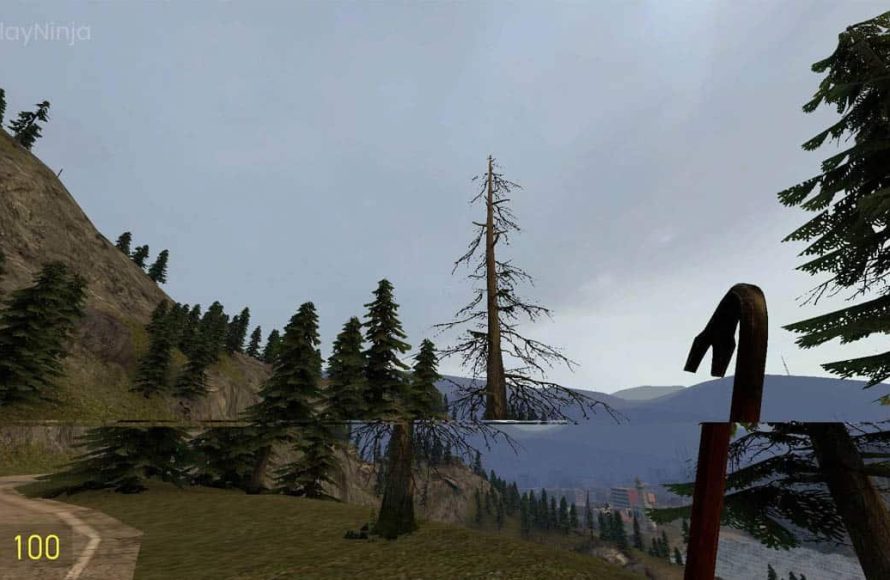
Screen tearing in games occurs when your monitor displays parts of multiple frames at once, resulting in a visible horizontal line or tear across the screen.
Have you ever noticed a strange, disjointed line slicing across your game screen? It can be quite jarring and distracting, taking you out of the immersive experience. This visual anomaly is what we call screen tearing, and understanding what is screen tearing in games is key to solving it.
It happens when your graphics card and monitor are not perfectly synchronized in displaying images. This lack of synchronization causes your monitor to try showing two different frames at the same time, creating that awful tear. Fortunately, there are ways to fix this, and we will explore that further.

What is Screen Tearing in Games?
Ever been playing your favorite video game, totally immersed in the action, when suddenly the picture seems to break apart? It looks like different parts of the screen are misaligned, like a puzzle that doesn’t quite fit together. That’s screen tearing, and it can be really annoying! It’s like a visual glitch that can pull you right out of the gaming experience. Let’s dive into what causes it, why it happens, and how you can try to get rid of it.
Understanding the Basics: How Images are Drawn
To really grasp what screen tearing is, we need to think about how your computer or console creates the images you see in games. Your device works very hard to put together each frame of the game, which is basically a single picture in a sequence of many pictures that create the illusion of movement. This process involves the graphics card (GPU) which calculates everything that you see, and the monitor, which displays those calculations.
Think of it like this: your computer is constantly drawing new pictures very, very quickly, like flipping through pages in a flipbook. Your monitor then shows these pictures to your eyes. To make things look smooth, the monitor refreshes its image multiple times per second. This is measured in Hertz (Hz). A 60Hz monitor, for example, redraws the picture 60 times every second. The rate at which the GPU delivers these pictures is called frames per second (FPS).
The Crucial Role of Refresh Rate and Frame Rate
The refresh rate of your monitor and the frame rate at which your GPU generates images are two different things. Ideally, they should work in harmony to create a smooth and clear gaming experience. When the frame rate and refresh rate are perfectly synchronized, it’s like a well-choreographed dance – everything lines up beautifully, and you see a seamless moving picture. But when these two don’t match, that’s when you get screen tearing.
Why Screen Tearing Happens
Screen tearing occurs when your monitor starts drawing a new frame before the previous one has finished being displayed. Imagine your monitor trying to show two different pictures at the same time. This is exactly what happens, and the result is an ugly visual line where the two frames meet, creating a split or torn-looking image. It’s like your flipbook got a little jumbled.
- Mismatched Rates: If your GPU is sending out frames faster than your monitor can refresh, the monitor might start displaying a new frame mid-way through showing the previous one, causing a horizontal line across the screen.
- GPU Overload: Sometimes the GPU is struggling to keep up with the demands of the game and throws out incomplete frames. This can also lead to tearing.
- Software Glitches: Very occasionally, problems with the game or graphics drivers can also contribute to screen tearing.
Recognizing Screen Tearing: What Does it Look Like?
Screen tearing usually appears as a horizontal line or multiple lines across your screen during gameplay. It’s not like a flicker or stutter; it’s a definite break in the picture, as if parts of the image are shifted to the side. It’s often most visible when the camera is moving quickly or in scenes with a lot of action. You might see it more in the following conditions:
- Fast-Paced Games: Games with quick camera movements, such as first-person shooters or racing games, often show screen tearing more noticeably.
- High Frame Rates: When your game’s FPS is very high, especially higher than your monitor’s refresh rate, tearing becomes more likely.
- Vertical Camera Movement: Screen tearing is most often seen in horizontal lines, which is most noticeable with vertical camera movements.
The Impact of Screen Tearing
Screen tearing isn’t just a minor visual annoyance; it can actually impact your gaming experience in several ways. The most direct effect is it breaks the immersion. Instead of being completely involved in the game world, you get distracted by the visual glitch, which takes you out of the experience. Additionally, because it is an interruption, it can make it harder to track moving targets or anticipate what is coming next. Imagine trying to aim in a shooter while the picture is constantly tearing. It certainly adds to frustration, which can lead to lower performance overall in the game.
How to Fix Screen Tearing
The good news is that screen tearing is often something you can fix or at least reduce. Here are some of the most common methods to try:
Vertical Synchronization (VSync)
VSync is the most basic method to address screen tearing. It essentially forces the GPU to wait for the monitor to finish displaying the current frame before sending the next one. This ensures that each picture displayed on the monitor is a complete frame, eliminating screen tearing. Here’s how it works:
- Synchronizes Frame Rate and Refresh Rate: VSync makes sure the GPU’s frame rate doesn’t exceed the monitor’s refresh rate. If the GPU is creating more frames, VSync will force it to slow down.
- Reduced Tearing: By doing this, the monitor always receives a complete picture to display, resulting in a much smoother experience.
- Potential Drawbacks: The problem with VSync is that it can sometimes cause input lag, making your actions in the game feel delayed, and also it can cause frame rate stutters.
To enable VSync, you usually find the option in your game’s graphics settings, or in your graphics card’s control panel (NVIDIA Control Panel or AMD Radeon Settings).
Adaptive Sync Technologies: G-Sync and FreeSync
Adaptive sync technologies like NVIDIA G-Sync and AMD FreeSync are advanced versions of VSync that aim to provide a smoother experience without the drawbacks of regular VSync. Instead of syncing to the fixed monitor refresh rate, these technologies allow the monitor’s refresh rate to adapt dynamically to the GPU’s frame rate.
- Dynamic Refresh Rate: G-Sync and FreeSync allow your monitor to change its refresh rate as per the current frame rate that the GPU is outputting. This is helpful if your frame rate keeps changing during gameplay.
- Eliminates Tearing and Reduces Input Lag: By adjusting the refresh rate in real-time to match the frame rate, these technologies almost eliminate tearing. In addition, the technologies greatly reduce the input lag associated with the standard VSync.
- Hardware Requirements: To use these technologies, you need a monitor and a graphics card that support the same technology (G-Sync for NVIDIA cards and monitors, FreeSync for AMD cards and monitors).
Frame Rate Limiting
Another technique to mitigate tearing is to limit the frame rate output from the game. This method sets a maximum value for frames your computer can output. This ensures that your GPU won’t be outputting more frames than what your monitor can handle. You can set this limit in a few different ways:
- In-Game Options: Some games include a built-in frame rate limiter, allowing you to set a maximum FPS.
- Graphics Card Control Panel: Both NVIDIA and AMD software have options to cap frame rates for individual games.
- Third-party Software: Programs like RivaTuner or MSI Afterburner can also be used to limit frame rates.
By limiting frame rates to the refresh rate of your monitor or just below, you may be able to reduce tearing significantly without some of the negative effects of standard VSync.
Other Helpful Tips
In addition to the major methods, other things can help reduce or eliminate screen tearing:
- Lower Graphics Settings: If your game’s settings are too demanding for your computer, it might be causing the GPU to generate frames inconsistently. Reducing graphics settings can help your GPU to produce frames more reliably.
- Update Drivers: Make sure you have the most recent drivers installed for your graphics card. Sometimes old or buggy drivers can cause problems that lead to tearing.
- Check Connections: Ensure that your monitor cable is properly connected to your computer. A faulty cable or connection can cause problems with the display, which may also include tearing.
Why Screen Tearing Matters in Gaming
Screen tearing might seem like a minor problem, but it can significantly affect the overall experience of playing games. It pulls you out of the game, can make fast-paced scenes harder to follow, and can sometimes cause a visual distraction that impacts how well you play. Addressing screen tearing not only improves the way your games look but also the way you feel about the gaming experience as a whole.
It’s a challenge that gamers often face, and knowing how to identify it and fix it is a useful skill for anyone who wants to get the most out of their gaming setup. With these tips and methods, you’ll have the knowledge to tackle screen tearing head-on and enjoy your games in all their glory.
Wreckfest PS5 Screen Tearing
Final Thoughts
Screen tearing happens when your monitor displays parts of multiple frames at once, causing a visible split. This occurs because the graphics card and monitor are not perfectly synchronized in displaying the rendered images. The tearing effect appears as horizontal lines across the screen.
Essentially, what is screen tearing in games is a visual glitch. It breaks immersion and can be distracting. Adjusting refresh rates or using V-Sync can reduce or eliminate this effect to help provide a better gaming experience.

