
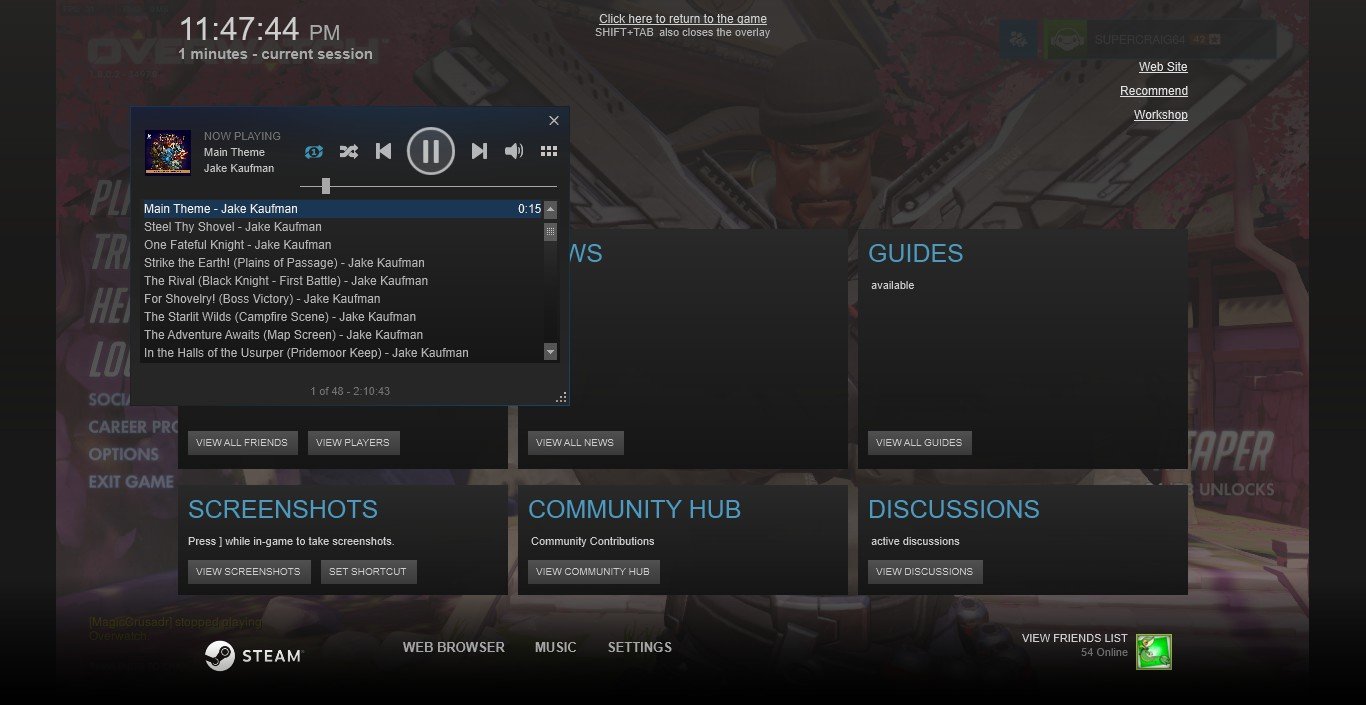
The Steam overlay while in game is a user interface that appears on top of your game, letting you access Steam features like friends lists, chat, and web browser without exiting your current game.
Have you ever been deep into a gaming session and needed to quickly chat with a friend or check a game guide? That’s where the magic of the Steam overlay comes in. What is Steam overlay while in game, you might ask? It’s a helpful in-game interface that allows quick access to some essential Steam functions. It saves you from alt-tabbing or leaving your game and it keeps the flow intact.

What is Steam Overlay While in Game?
Okay, let’s dive into the world of the Steam Overlay. If you’re a gamer on a computer, especially if you use Steam, you’ve probably seen this little thing pop up. But what exactly is it? Imagine having a secret toolkit that sits right on top of your game, without you having to leave what you’re doing. That’s pretty much what the Steam Overlay is! It’s like having a mini-Steam window right there while you’re playing your favorite game. This overlay is a feature that comes with the Steam program that lets you access many of Steam’s features without stopping or minimizing the game you’re in. Think of it like having your phone’s quick settings menu, but for Steam, and it appears right on your game screen. Now, let’s explore all its features and why it is so helpful!
How to Activate the Steam Overlay
So, how do you get this super helpful overlay to show up? It’s usually super easy. By default, the shortcut to bring it up is pressing the Shift and Tab keys at the same time. If you have never pressed these buttons before, give it a try now. If for any reason that doesn’t work, there might be another setting interfering. Let’s check how to make sure it’s working:
1. Open your Steam application.
2. Go to the ‘Steam’ menu at the very top left of your screen and click on ‘Settings’.
3. A new window will pop up. In this window, go down to the ‘In-Game’ tab on the left side.
4. Make sure the box that says “Enable the Steam Overlay while in-game” is checked. If it’s not checked, click on the box to add a check mark.
5. Now you can also see what the current overlay shortcut is. You can also change it here if you want to use different keys than Shift + Tab.
6. Click ‘OK’ to save any changes.
Now that you have made sure the overlay is enabled, try playing a game and press Shift + Tab to see if it pops up. If you’re in a game that does not support overlay it will not show up though.
What Can You Do With the Steam Overlay?
Now that you know how to bring it up, what cool stuff can you do with it? The Steam Overlay packs a lot of helpful features, all available without leaving your game:
Accessing Your Friends List
Have a friend playing the same game, or maybe something else? You can quickly jump into the overlay and see who’s online. You can chat with your friends, start or join a game together. It’s really handy for coordinating game sessions. You also can see what your friends are playing, and send them a quick message about your amazing progress in the game!
Checking Steam Notifications
Got a new game on your wishlist that is on sale? Or someone sent you a message? Any new notifications will pop up right there on the overlay screen. This means you don’t have to exit your game to check out all of your steam happenings. You can stay fully focused on your game but still get all the information that is happening on your Steam application.
Web Browser
Need to look up a guide or a walkthrough on how to pass a difficult area of your game? The overlay has a mini web browser built right in. This means you don’t need to switch out of the game you are playing to open a browser. You can keep the game going while reading a tip or two to help you out. You can also search for a specific topic for the game that you’re playing.
Taking Screenshots
Capturing your epic moments or funny glitches in the game is easier with the overlay. You can take screenshots with a quick keyboard shortcut (the default is F12) or with the overlay menu. These screenshots then are saved to your Steam library. Share your gaming achievements with your friends and family without any hustle!
Checking Game Achievements
Want to know how close you are to getting that awesome achievement? You can check your progress directly from the overlay! It shows what achievements you’ve already earned and what you still need to do to get the remaining ones. You can also quickly see how many achievements are in the game and how much you have progressed in the game you are currently playing.
In-Game Music
The Steam Overlay even lets you control your music! You can pause, play, or skip tracks without tabbing out of your game. This is handy if you like to listen to your own music while gaming. It’s a great way to customize your gaming experience with your favorite music choices.
Changing Game Settings
Some games allow you to adjust in-game settings directly from the overlay. This might include graphics options, volume controls, or other tweaks. You can often adjust the game setting without needing to leave the game, and re-enter. This makes the game more smooth to change while playing in real time.
Using the Steam Controller
If you use a Steam Controller, the overlay lets you customize the controller settings. You can change button layouts or other settings to make the controller work exactly how you want it.
Making In-Game Purchases
Sometimes while you’re in a game you want a new downloadable content (DLC) or some in game items. You can make purchases through the Steam overlay without having to exit the game. This means you can get right back into playing with any new things you’ve bought.
Why Use the Steam Overlay?
Why bother with the overlay, you might ask? Well, it has a lot of benefits for you as a gamer:
Staying Connected
Being able to chat with friends and see who’s playing is fantastic for connecting with other players. You can invite friends to join your game and play all together. You don’t need to use other external services to reach your friends, all of them are in one single place.
Seamless Experience
The biggest win is that you don’t have to interrupt your game to do other things. You can keep your momentum and stay completely immersed in your game. No more Alt-Tabbing out of a game and then losing track of what was happening.
Convenience
Having access to all the necessary Steam options within the game is super convenient. You can quickly adjust settings, grab a screenshot, or check a guide without having to tab out of your game. You can do many things, even buying a new DLC, without losing your focus.
Better Multi-tasking
You don’t have to interrupt your gaming session if you want to check any web page or watch your in game progress. It also means you don’t need to use two screens for browsing anything while gaming. Steam overlay is handy for multi-tasking.
Troubleshooting: When the Overlay Doesn’t Work
Sometimes the Steam Overlay doesn’t want to work. If it refuses to show up, here are some common fixes:
Checking for Game Compatibility
Not all games support the Steam Overlay. Older games or some games that aren’t on Steam might not play nicely with the overlay. Most of the time you can find out if a game supports the overlay on the Steam store page. If you don’t see anything written for Steam overlay, that means the game does not support it.
Restart Steam
A good old restart of the Steam program might be all you need. Close out of steam and reopen it to see if this fixes the issue.
Check for Game Updates
Sometimes a game update can cause the overlay to not work correctly. Try to update the game and then see if the overlay works.
Checking for Overlay Conflicts
Some other software or applications you have running on your computer might be interfering with the Steam Overlay. Try closing any extra programs or overlay software like Discord or NVIDIA overlay. Sometimes they can stop the steam overlay from working.
Check Graphics Drivers
Make sure that your video card drivers are up to date. Sometimes older drivers can conflict with the Steam Overlay function. Make sure to download and install the latest video card drivers from your video card manufacturers website.
Reinstall Steam
If none of the above methods work, you might have to remove Steam completely and reinstall it again. Be sure you know your log in information before doing this. It’s a little bit more work, but sometimes it’s the best way to fix a software issue.
Steam Overlay Performance Considerations
While the Steam Overlay is designed to be lightweight, it can sometimes impact the performance of your game. Here’s how to check it:
System Load
The overlay usually uses very little system resources. In rare situations if your computer is older, or very low-powered it may cause a performance problem while gaming. Most computers have no issues with the overlay. You can see how much your computer resources are being used in the task manager app.
Overlay Issues
If you have an older system, some overlays may cause FPS (frames per second) issues. Try closing all other overlays you have running to see if it improves.
Balancing Performance
It’s a good idea to close the overlay or disable it completely when you are playing a very demanding game if you have a lower-powered system.
Customizing Your Steam Overlay
You can customize the overlay to make it work better for you:
Changing the Shortcut
If the default Shift + Tab doesn’t work well for you, you can change it to something else you find more comfortable in the Steam settings. It can be another key, or a combination of many keys.
Changing the Overlay Theme
While Steam doesn’t offer a huge amount of customization for the overlay’s look, you can customize the theme of your Steam app. This will also slightly change the look of your overlay.
Removing Specific Features
You can’t remove specific features of the overlay (such as the web browser), but you can choose what to focus on by using the overlay settings.
The Future of the Steam Overlay
Steam is always getting updates and improvements, so we can expect the Steam Overlay to keep getting better. As gaming technology changes, Steam will need to make sure the overlay still works smoothly with new hardware and games. It’s exciting to see where the overlay will go in the future. We can definitely expect more features and enhancements that will help gamers.
The Steam Overlay is a useful tool for all gamers. It provides a lot of functions and options right where you need them while you are playing your favorite games. By understanding how to use it and troubleshoot any issues, you can have a better and more engaging gaming experience. The overlay provides so many ways to have a more efficient experience while playing games. Make sure to use the overlay to make gaming on Steam fun and easy for you!
The Steam Overlay truly adds a layer of convenience and connection to PC gaming. It simplifies many tasks that used to require leaving your game, allowing players to stay immersed in their virtual worlds. Whether you’re chatting with friends, checking achievements, or grabbing a quick screenshot, the overlay is a central hub for many in-game functions. It’s a testament to how Steam continually strives to enhance the user experience for its ever-growing community. This versatile tool will undoubtedly continue to be a key part of PC gaming for years to come.
How To Enable/Disable Steam Overlay!
Final Thoughts
The Steam overlay is an in-game interface. It lets you access various Steam features without exiting the game. This includes friends list, chat, web browser, and more.
Essentially, what is steam overlay while in game? It’s a convenient shortcut. You gain quick access to Steam’s functionality. You can manage downloads, view achievements, and even purchase games. This makes your gaming experience more seamless.

