
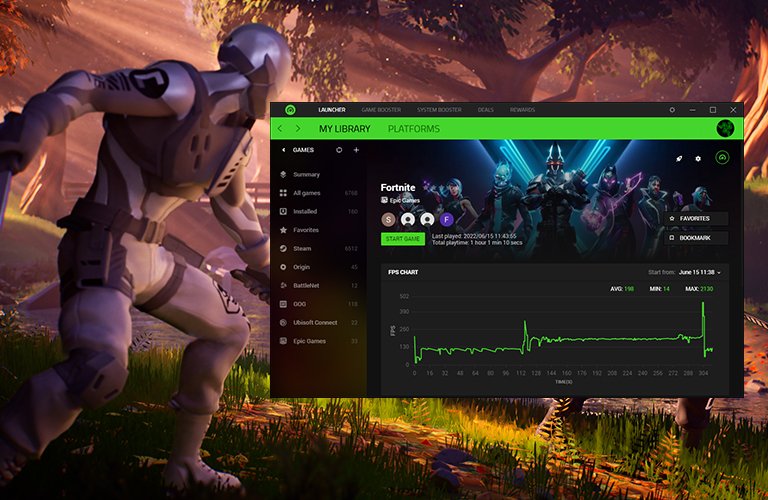
To optimize gaming performance, select only non-essential background processes like cloud services, updaters, and non-game related applications within Razer Game Booster.
Figuring out what processes to select for razer game booster on pc can be a bit tricky. Many users want a smoother gameplay experience. It’s about carefully choosing what gets temporarily shut down.
You don’t want to close essential system operations but focus on resource-hungry programs that run behind the scenes. Thinking critically about which applications you don’t need open during gaming sessions helps to improve the PC speed.

What Processes to Select for Razer Game Booster on PC
Okay, so you’re ready to get the most out of your games, and you’ve heard Razer Game Booster is the way to go. That’s great! But when it comes to picking which computer programs to shut down while gaming, it can feel a bit confusing. You don’t want to accidentally stop something important, right? Don’t worry; we’re going to break it all down. Selecting the right processes to close with Razer Game Booster will make your games run smoother and faster. Let’s explore what this actually means and how to do it right.
Understanding Background Processes
Think of your computer like a busy city. There are lots of things going on at once, even when you’re not actively using them. These are called background processes. Some are super important, like the ones that make sure your mouse and keyboard work. Others might be updates downloading or programs just sitting there, using up your computer’s resources (like its brain and energy). When you play a game, you want your computer to focus all its attention on that, not on all the other stuff. Razer Game Booster helps you do just that by pausing these unnecessary processes.
The Good Guys: Processes You Should NOT Stop
Before we start thinking about what to stop, let’s talk about what you definitely shouldn’t stop. These are the essential background processes your computer needs to run smoothly and safely. Accidentally closing these could cause problems. Here are some of the major ones:
- System Processes: These are the basic functions of Windows. They control things like your computer screen, file systems, and how your programs work. You’ll see things like “System,” “svchost.exe,” and “wininit.exe.” Don’t touch these!
- Security Programs: Your antivirus (like Windows Defender, Norton, or McAfee) and firewall are there to protect your computer. Turning these off makes your computer vulnerable to problems. Keep them running, no matter what!
- Driver Processes: These are tiny programs that let your computer talk to things like your graphics card, mouse, and keyboard. Without these, your game can’t work correctly. Keep drivers related to hardware running.
- Accessibility Programs: If you use anything that makes it easier to see or use your computer, don’t stop these. Examples include screen readers or programs that change text size.
- Audio Drivers and Software: These are responsible for all the sounds your computer makes. If you close them, you might lose all the game audio, and nobody wants that!
The Potential Bad Guys: Processes You CAN Stop
Now for the fun part! These are the processes that often use up resources you could use for better gaming performance. These aren’t always bad, but they aren’t always needed either. We will explore these in detail to give you the best understanding. Here are some of the common types you might find and consider pausing:
- Cloud Storage Syncs: Things like Dropbox, Google Drive, or OneDrive are constantly checking for new files and uploading changes. This can use up resources while gaming. Pausing them during gameplay can help.
- Unnecessary Startup Programs: Some programs start automatically when you turn on your computer. These include things like update checkers for different softwares or tools you rarely use. Often, you can disable these from starting up through Task Manager (we will talk about that later).
- Web Browsers: If you have a lot of tabs open in Chrome, Firefox, or another browser, they’re using up resources. Closing the browser while gaming can help boost performance.
- Chat/Messaging Apps: Programs like Discord, Slack, or messaging apps might have a bunch of notifications or use resources checking for new messages. If you’re not actively using them, pausing them could be helpful.
- Other Resource-Heavy Applications: Look for programs you’re not using but that are open in the background. Photo editing programs, video editors, or other programs that use lots of power while running should be closed when you aren’t using them.
- Game Launchers: If you aren’t actively downloading games, you can close the game launcher from Epic Games, Steam or any other platform for games, as they use resources even while not being used.
How to Identify Processes
Okay, so now you know what to keep and what to consider stopping, but how do you actually see these processes? Here’s where the Task Manager comes in. It’s like a control center for all the programs and processes running on your computer.
Using Task Manager
To open Task Manager, press Ctrl + Shift + Esc keys at the same time. Or you can right-click on the taskbar at the bottom of your screen and choose “Task Manager”. You can do so in any version of windows. Once it’s open, you will see a few tabs at the top, for our purposes we will mostly use the “Processes” tab, “Performance” tab and “Startup” tab.
The “Processes” Tab
This tab shows you a list of all the programs and processes running right now. You’ll see the name of the process, how much CPU (the computer’s brain), memory (like the computer’s short-term memory), disk (storage), and network they’re using.
- CPU: How much power the program is using from your computer’s main processor. If a process is using a lot of CPU, it means it’s actively doing something.
- Memory: This is like the computer’s short-term memory. The more a program uses, the less available there is for your games.
- Disk: How much the program is reading or writing to your computer’s hard drive.
- Network: How much data the program is sending and receiving over the internet.
The “Performance” Tab
Here you can see how much of your computer’s resources are being used overall. This includes things like CPU, memory, disk, and network usage. It gives you a good overview of how your computer is doing. This helps you spot if anything is using too much power before you even start gaming,
The “Startup” Tab
This tab shows you which programs start automatically when you turn on your computer. You can disable programs that you don’t need running in the background here. Disabling unnecessary programs from the “startup” process can improve your computers performance generally, and prevent such programs from running in the background and causing issue during gaming sessions. You can disable/enable any software you want by clicking on it, and then clicking the disable/enable button at the bottom right corner.
Important Task Manager Tips
- Be Careful: Don’t just start closing random processes you don’t understand. It can cause problems. Stick to the types of programs we discussed above.
- Sort by Resource Usage: Click on the “CPU,” “Memory,” or “Disk” columns to sort processes by how much resources they’re using. This makes it easy to spot the biggest resource hogs.
- Process Names: If you see a process you don’t recognize, you can search it on the internet to learn more before taking any action. Many websites provide information on what the processes do.
Razer Game Booster and Process Selection
Now that you understand processes and Task Manager, how do you apply this to Razer Game Booster? Razer Game Booster actually automates many of these things, but you also have control on what it shuts down to some extent. Here’s a step-by-step approach to getting the best results:
Automatic Boosting
Razer Game Booster has an automatic mode. When you launch a game through the booster, it will identify many unnecessary processes and close them automatically. It’s pretty good at detecting what’s safe to close, so this is a great place to start.
Customizable Boost
The program also provides you with the ability to customize its settings, this allows you to add specific process or services to the kill list, or add some of them in the ignore list.
Adding Processes to the Kill List
This list tells the Razer Game Booster which process you are sure of, that you want to close down when a game is launched. Use this with care, as closing down important process will lead to some problems. For example, you might add your browser here.
Adding Processes to the Ignore List
This list tells the Razer Game Booster which process you are sure of, that you want to keep running, when you launch a game. Add process like your audio drivers and anti-virus to this list. This will make sure that Razer Game Booster will not stop these process when you launch a game.
Making Informed Choices
Remember, the key to getting the most out of Razer Game Booster is to understand what you’re doing. Here’s what you should keep in mind when deciding on processes to stop:
- Start Simple: Try the automatic boosting first and then check how it affects your game performance. If that is enough, you do not need to do any other modification.
- Monitor Performance: After boosting, check your game’s performance. If it’s not enough, or there are problems, try different programs.
- Test One by One: Don’t start closing everything at once. Close a few processes at a time and then test. This way, if something goes wrong, you can tell what caused the problem.
- Read Process Descriptions: If you’re not sure about a specific process, search for it online. The internet is your friend for finding what various processes do.
- Experiment and Learn: Over time, you will get better at knowing which programs can and cannot be closed safely.
Examples of Common Processes to Manage
Here’s a quick guide on how to approach managing some common types of programs:
Cloud Storage
Processes like Dropbox.exe, GoogleDriveFS.exe, or OneDrive.exe can be closed during gameplay. If you need them, you can start them up again after you are done with gaming. They often use resources while synchronizing files, which can impact your performance when gaming.
Web Browsers
Processes like chrome.exe, firefox.exe, or msedge.exe should generally be closed. You should close the web browsers when gaming because they use considerable resources and aren’t needed during the game. Also the browser plugins use resources and may cause problems for you.
Chat Applications
You can shut down applications like discord.exe, slack.exe, and skype.exe as long as they aren’t needed. Keep in mind that if you use a messaging app to communicate with your teammates, you don’t want to shut it down completely, but you can change its behavior by modifying its setting within the app, for example you can turn off notifications.
Unnecessary Startup Programs
Use the “Startup” tab in Task Manager to prevent the startup of programs that you rarely use. Many software and tools install themselves to startup automatically, which will make your computer boot slower and use unnecessary resources while it is running in the background.
Game Launchers
Launchers like steam.exe, epicgameslauncher.exe, or ubisoftconnect.exe do not need to be running while you are playing the game that you have launched from the game launcher, and can be shut down to save resources.
Using Razer Game Booster Effectively
Razer Game Booster isn’t magic, but it can greatly improve your gaming experience if you use it correctly. The key is understanding the processes that run on your computer and making informed decisions about which ones to close. Start with the automatic boost, experiment with adding programs to your kill list, and always monitor your game’s performance. Keep learning and experimenting and you will find the perfect balance for a smooth gaming session. Remember to not stop any of the processes that are critical to the running of your computer. This is critical for avoiding problems.
By understanding what processes do and how to manage them with Razer Game Booster, you’ll be on your way to smoother, faster gaming experiences. It might seem complicated at first, but with a bit of practice, you’ll become a pro at optimizing your computer for gaming. The better you understand what processes do on your computer, the more easily you can improve your gaming experience. So remember, start slow, test, and never stop learning.
How To Use RAZER CORTEX To BOOST FPS in ALL GAMES ✅ (Best Game Booster 2023)
Final Thoughts
Selecting game-related processes like the game executable itself and its launcher is crucial. Prioritize processes directly involved in rendering graphics and handling game input.
Background applications not needed while gaming, such as web browsers, should be avoided. Identify and exclude chat programs or file sharing utilities that consume resources.
Carefully choose processes to optimize your gaming experience. This careful selection is important when considering what processes to select for razer game booster on pc.

