
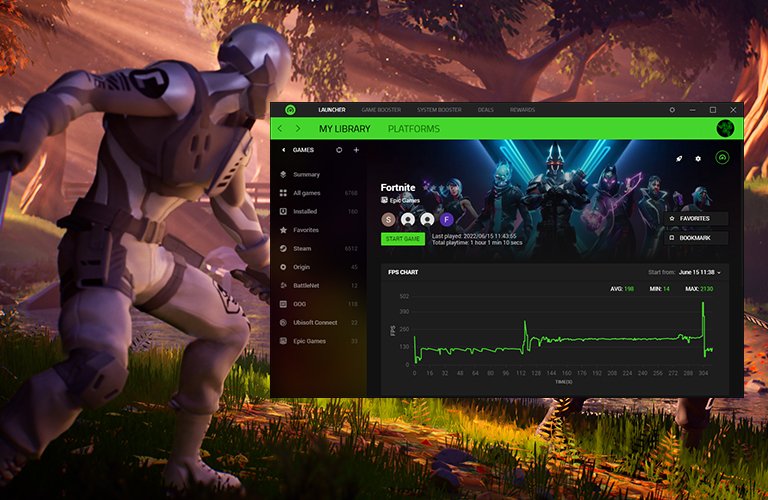
Prioritize game boosters that allow you to customize the processes and services they disable, focusing on those with specific game profiles and real-time performance monitoring.
Struggling with lag during intense gaming sessions? It’s a common frustration. Deciding what to select for game booster on pc can feel overwhelming, given the numerous options available. You need a solution to optimize system resources, pushing your PC to its limits.
Many programs offer various performance enhancements. However, carefully choosing which settings to tweak within a game booster is critical for improving performance. Selecting the right one might mean the difference between victory and frustrating loss.

What to Select for Game Booster on PC
So, you’re looking to make your games run smoother, faster, and just plain better on your PC? That’s awesome! A game booster can be a real game-changer (pun intended!), but with so many options out there, choosing the right one can feel like a big level boss. Don’t worry, we’re here to help you navigate this quest! This guide will break down what to look for in a good game booster and help you pick the perfect sidekick for your gaming adventures.
Understanding Game Boosters: What They Actually Do
Before diving into what to select, let’s quickly talk about what a game booster actually does. Basically, it’s a program that tries to free up your computer’s resources to focus on the game you’re playing. Think of it like this: imagine your computer is a busy restaurant kitchen. Many things are happening at once: chefs (your programs) are cooking, waiters (background processes) are running around, and customers (your game) are waiting for their food. A game booster acts like a manager, telling the waiters to take a break and the chefs to only focus on preparing the meal for the customer (your game). It does this by temporarily stopping unnecessary background apps and processes.
Key Functions of a Game Booster
- Closing Unnecessary Programs: Many applications run in the background, using up precious RAM and CPU power. A game booster can stop these programs.
- Optimizing System Settings: Some boosters adjust Windows settings to prioritize your game’s performance.
- Cleaning RAM: Over time, RAM can become cluttered. Game boosters can free it up.
- Driver Updates (Sometimes): Some boosters offer an easy way to update graphics card drivers, which is very important for gaming performance.
Must-Have Features in a Game Booster
Now that you understand what a game booster does, let’s explore the specific features you should be looking for when making your choice.
Easy-to-Use Interface
First, and most importantly, your game booster should be easy to use. You don’t want to spend more time figuring out the program than actually gaming! A clean, simple interface is the key. Look for software with clear buttons and easy-to-understand settings. There should not be any complicated steps or hidden menus. If you think you will be overwhelmed at first glance, then go for something else.
- Check for an intuitive dashboard.
- See if it has large, clear buttons for boosting.
- Make sure there aren’t too many technical words in the interface.
Automatic Game Detection
A good game booster will automatically detect when you launch a game. You do not want to have to manually select the game you are going to play every single time. The program should be intelligent enough to sense that a game has launched and start the optimization process automatically. This makes your life easier and your gameplay more enjoyable. Manual adjustments can still be available, but the option to automate the process is critical.
Customizable Boost Settings
While the automatic features are important, the best game boosters provide options for you to tweak how the boost works. Every computer is different, so you might need to adjust things slightly. This could include choosing what background processes to close, which windows services should be turned off, and the level of optimization that should happen. The ability to tweak the settings to fit your exact PC specifications and preferences is very important.
- Look for options to customize which processes get closed.
- See if you can pick certain background apps to ignore.
- Check if you can adjust the level of optimization.
Real-Time Monitoring
Real-time monitoring is a feature that lets you see how your PC is performing during a game. This can be very helpful in understanding if the game booster is making a difference, or if there are other issues that need attention. It will show you things like CPU usage, RAM usage, and temperatures of your computer’s hardware, all at the same time you are playing a game. This allows you to see the impact of the game booster on your system. With this information, you can adjust the settings as necessary to get optimal performance.
Driver Update Feature
Keeping your graphics card drivers up-to-date is really important for smooth gaming. While a game booster’s main job is not driver management, some come with a driver update feature. This is a very useful feature to have as it can make the process of updating your drivers easier, rather than having to do it manually. You will often find that you will get a better gaming experience after a driver update.
Clean and Safe Software
When you are choosing a game booster, it is very important to check that the software is coming from a safe and reputable source. You do not want to download a program that could potentially harm your computer. Check the reviews online from different users, and make sure the game booster does not come bundled with any bloatware or unwanted software.
- Look for reviews and ratings from other users.
- Check if the program has been tested by reputable sources.
- Be wary of software that seems too good to be true.
Affordable Pricing Options
Many game boosters offer a free version and a paid version. If you are not sure if you will use the program, it is a good idea to start with the free version to test it. If you like the program, you can consider paying for the more advanced features. Make sure to compare the different payment options available, and see what offers the best value.
Game Booster Selection: What to Avoid
Just as important as knowing what to look for is knowing what to avoid. Not all game boosters are created equal, and some can actually cause more harm than good. Here are some things to steer clear of when making your decision.
Aggressive Overclocking
Some game boosters claim to overclock your hardware to give you more performance, but this can be quite risky for your computer. Overclocking can cause your components to overheat, and potentially cause permanent damage. It is usually best to avoid game boosters that offer this type of functionality. It is best to do the overclocking of your system using the proper software and methods.
Bundled Software or Bloatware
Avoid any game boosters that come bundled with additional software you do not need. Sometimes these programs can be adware or malware, and they can slow your computer down even further. If it seems like the software is adding too many things you don’t want, it’s better to find a different game booster.
False Claims and Unrealistic Promises
Be careful of programs that make grand promises that seem too good to be true. Claims like “instant 100% performance increase” are often misleading. Game boosters can definitely help, but they are not magic. If a program sounds unrealistic, it probably is.
Complex Setup Processes
A good game booster should be easy to set up and use. Avoid programs that require many complicated steps or that are difficult to navigate. If the setup is difficult, it will be even more difficult to use on a regular basis.
Lack of Transparency
If a game booster does not tell you what exactly it is doing to your system, that is a big red flag. You should be aware of the program’s settings, what it does, and what data it collects. It is always best to choose a game booster from a reputable company that has a good standing and positive user reviews.
Testing Different Game Boosters
Now that you know what to look for, it’s a good idea to test a few different game boosters before settling on one. Many of them offer free versions, so you can try them out without spending any money. Here’s how to test them:
Benchmark Your Games
Before you test any game boosters, benchmark your favorite games first. Take a note of your frame rates, and the performance of your game, before you install any game booster. This will help you to see how much the booster is actually helping. You can use tools that are built into some games, or you can download specific benchmarking software.
Test Different Game Types
Run your benchmark tests on different game types. Some games are more CPU-intensive, while others are more GPU-intensive. You should test different types of games to see how a game booster is helping the system. If it seems like it only works for some games, that might not be the best choice.
Monitor Performance
While playing games, take note of how they perform with the game booster on and off. Look at the frame rates, and whether the game is smooth, or if it is choppy. Look for consistent improvements rather than just a one time boost. You can use your system’s monitoring software to see if your CPU and GPU performance is improving.
Observe Stability
Sometimes, an overly aggressive game booster can lead to game crashes or system instability. Check if your game booster causes any issues with your system or the game. If you are noticing crashes or freezes, you might want to uninstall the program, or make adjustments to its settings.
Popular Game Booster Options
While you should do your own research, let’s look at a few popular game booster options as examples to see what they offer:
Option 1: [Software Name Example 1]
[Software Name Example 1] is a popular choice because of its very simple and easy-to-use interface. It is good for people that are new to game boosters, as it doesn’t have a ton of settings, which could be overwhelming. It also includes the feature to automatically find and update drivers for your system, which is a useful feature to have. The free version can be good enough for many users, but the paid version has additional features that might be necessary for some power users.
- Simple and easy-to-use interface.
- Automatic driver updates.
- Free and paid versions available.
Option 2: [Software Name Example 2]
[Software Name Example 2] offers a good balance of ease of use and advanced features. It automatically detects games, but you also have a lot of control over the boosting process if you need it. The user interface is very clean and simple, and it will show you all the current statistics of your system. It’s a good option if you want a software that gives you a good amount of flexibility.
- Automatic game detection with customizable settings.
- Clean user interface.
- Real-time system monitoring.
Option 3: [Software Name Example 3]
[Software Name Example 3] is well known for its advanced features and in-depth customizations. It has some settings for advanced users, but it is still very simple to use, even for users that are not very experienced. It gives you the freedom to completely customize the system settings to your preferences. This one is also good for people that are very serious about optimizing their gaming setup.
- Highly customizable settings.
- Advanced performance options.
- Still remains user friendly.
Table Summary of Features
| Feature | [Software Name Example 1] | [Software Name Example 2] | [Software Name Example 3] |
|---|---|---|---|
| Ease of Use | Very Easy | Easy | Easy/Advanced |
| Automatic Game Detection | Yes | Yes | Yes |
| Customizable Settings | Basic | Moderate | Advanced |
| Driver Updates | Yes | No | No |
| Real-Time Monitoring | No | Yes | Yes |
| Pricing | Free/Paid | Free/Paid | Free/Paid |
Adjusting Windows Settings For Better Performance
While a game booster is a very good tool to have, there are also other ways to optimize your computer for better gaming performance. It is a good idea to make these adjustments along with using your chosen game booster.
Adjusting Power Settings
By default, Windows might be using a balanced power plan, but you can change the plan to one that is specifically for performance. You can do this in your Windows settings under “Power & Sleep”. Change the power plan to the “High performance” option. This allows the PC to use the maximum power available. You can also make more custom changes, if needed, to your system.
Disable Startup Programs
Many programs will automatically run when you start your computer, which can slow things down. To stop unnecessary programs from running, you can open the Task Manager. To do this, press Ctrl + Shift + Esc. Go to the “Startup” tab, and disable all of the programs that you do not need to start automatically. This can significantly speed up your boot times, and free up system resources.
Graphics Settings Adjustments
Within the settings of your games, you will have options to adjust the graphics settings. Sometimes, you do not have to use the maximum setting for everything in the game, as it can be very demanding on your system. Some settings such as shadows, or anti-aliasing, are more demanding than others. Try turning down some of the settings, and see if you can get more performance in your games. It is important to find a balance of graphical quality and performance.
Optimize Windows Visual Effects
Windows has some visual effects, such as animations, that can take up system resources. Turning some of these effects off can free up some extra performance. You can go to your system’s settings, go to “Advanced System Settings”, then the “Advanced” tab, and then the settings under the “Performance” section. From here, you can adjust many different visual effects.
Keep Windows Updated
Make sure to always keep your copy of Windows up-to-date. Microsoft is constantly releasing patches and performance improvements for Windows. It is very important to have the newest updates installed on your system. The newest updates can sometimes bring additional performance to your system, making your games run better.
By selecting the right game booster and making some simple adjustments to your PC settings, you’ll be well on your way to better gaming performance. Remember to test different options and find what works best for your computer. Happy gaming!
How To Use RAZER CORTEX To BOOST FPS in ALL GAMES ✅ (Best Game Booster 2023)
Final Thoughts
For game boosters, prioritize options that close background applications. Choose software allowing customization of boost profiles for specific games. Select features that manage system memory and reduce unnecessary processes.
Consider programs providing real-time monitoring of PC performance. This helps identify if the booster is truly improving the gaming experience. Evaluate the interface for ease of use too.
Ultimately, what to select for game booster on pc depends on your specific needs. Focus on core functions affecting game performance and avoid bloatware. Make a smart choice based on these factors.

