
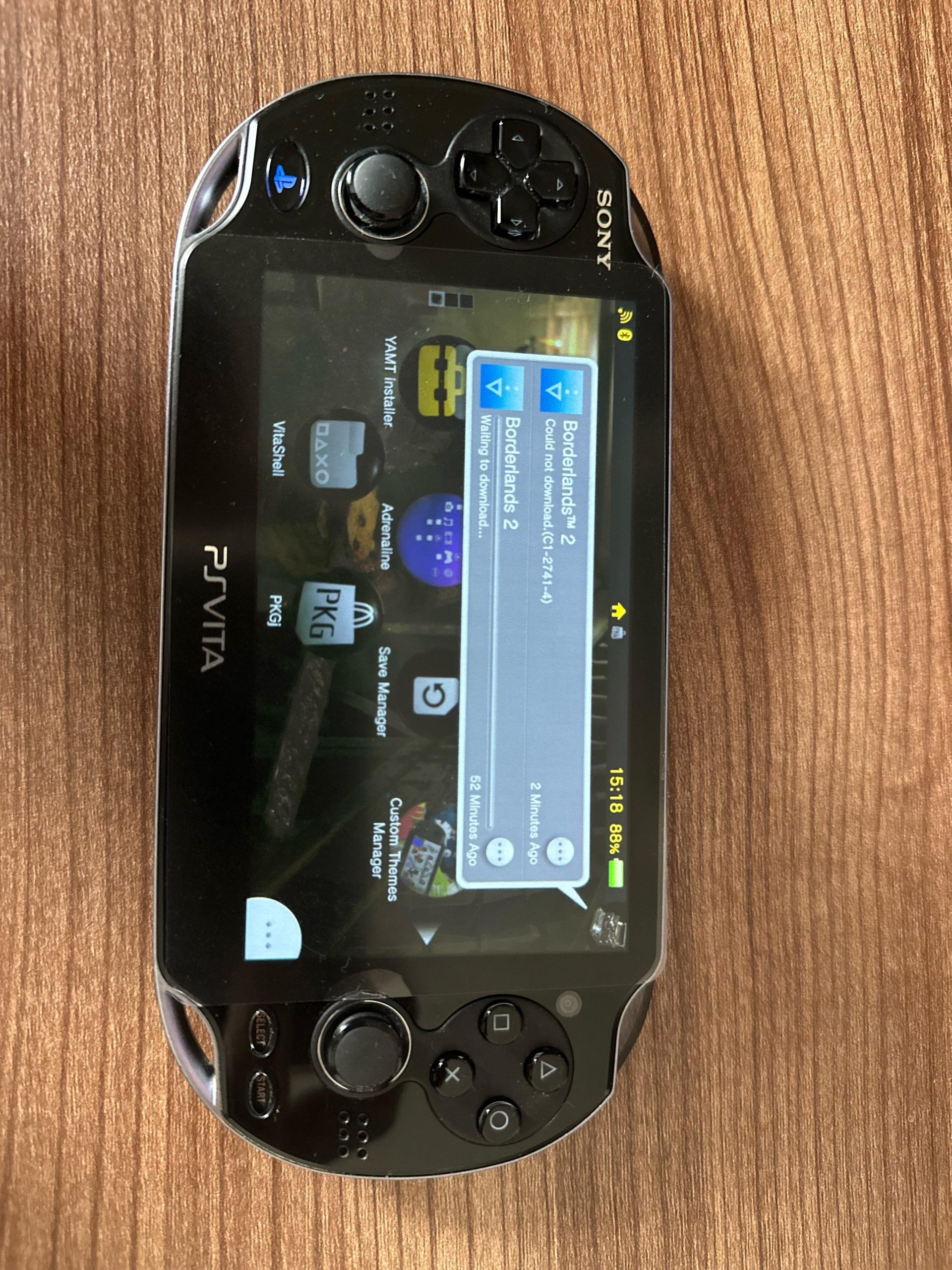
The downloaded games from pkgj are located in the ‘ux0:app’ folder on your PlayStation Vita.
Ever wondered where those exciting games you downloaded using pkgj actually go? It’s a common question for many new to the homebrew scene on the PS Vita. You see a successful download, but then find yourself asking where to find downloaded games from pkgj?
Figuring out the file locations can be a bit confusing at first. The good news is that the game files are usually in one specific spot. Once you learn the location, managing your games becomes much easier.

Where to Find Downloaded Games from PKGj
So, you’ve used PKGj to get some cool games for your PlayStation Vita or PlayStation TV? That’s awesome! But now you might be scratching your head, wondering, “Where did those games actually go?” Don’t worry, it’s a common question, and we’re here to help you find them. The location of your downloaded games depends on how your Vita is set up. Let’s dive into the details so you can start playing right away.
Understanding Storage Options on Your PS Vita
Before we pinpoint the exact location, it’s important to understand how your PS Vita stores data. You have two main options for game storage:
- The Internal Memory: Some Vita models have built-in storage space. The Vita 1000 has 1 GB, while the Vita 2000 models have a little more. This internal storage can hold your games.
- The Memory Card: Most people use a special PlayStation Vita memory card for storing games, saves and other data. This is usually the more practical option, as it gives you far more space. You can use several sizes, starting with smaller cards to large cards. If you play lots of games you will want a larger memory card.
The place where your PKGj games end up depends on where you have set your system to save games by default. Let’s explore the likely locations.
Finding Games on Your Memory Card
If you use a memory card (which most people do), this is the most likely place you will find your downloaded games. The games are organized into folders, which helps to keep your files tidy and in order. Here’s how you can find your games inside of your memory card:
The ‘app’ Folder
The main folder where PKGj puts game data is usually the ‘app’ folder. This folder acts like a main hub for your games. Here is how to get there:
- Turn On Your PS Vita: Start up your PS Vita like you normally would.
- Open the VitaShell Application: Navigate to the main screen and find the VitaShell app icon. It usually looks like a folder and it is used to access the internal files of your system.
- Browse to ‘ux0:’: Inside VitaShell, the internal storage or memory card is usually marked as ‘ux0:’. Click or tap on this to enter it.
- Find the ‘app’ Folder: Scroll down and find the ‘app’ folder inside the ux0: storage area. This folder contains all your downloaded game applications.
- Locate your Games: Inside the ‘app’ folder, you’ll see more folders. Each folder usually corresponds to a different game you’ve downloaded through PKGj. These are named using the game’s unique ID. For example, a folder like “PCSB00011” might be a game. If you have several games on your system, you will have several of these folders with the unique IDs for each of the downloaded titles.
Remember that each game will have its folder, so you need to look carefully inside the ‘app’ folder to find your games
Navigating through Game Folders
Inside a game’s folder (like “PCSB00011”), you will find all the necessary files for the game to work properly. There will usually be folders such as ‘sce_sys’ and several file formats like .bin and .eboot files. You don’t need to worry about messing with these files because the system takes care of these processes itself.
It is important not to remove these folders and not to move them to another place in the system, because they are essential for your games to launch correctly. The game will stop working if these files are removed or altered.
Finding Games on Internal Storage
If you’re using a Vita model with built-in storage (like the original Vita 1000), your games might be stored there. Here’s how to find them:
Accessing the ‘ur0:’ Partition
When the system uses internal storage, the path will not be ux0: but instead it is ur0:. The ur0: path points to the internal storage of the system. If you are using the built in memory, this is where your downloaded games will be:
- Open VitaShell: Start VitaShell from your PS Vita home screen.
- Browse to ‘ur0:’: Instead of ‘ux0:’, you’ll need to look for ‘ur0:’ in VitaShell. This signifies the internal storage.
- Locate the ‘app’ Folder: Inside ‘ur0:’, find the ‘app’ folder.
- Find Your Game Folders: Here, you’ll see the folders with game IDs similar to what you’d see on the memory card.
Similar to games saved on your memory card, do not delete or move the files in these folders. The system needs these files in order to work correctly and if you change or delete them it will not start the application.
Why it may not be there
Most users will use their memory card and not the internal memory of the system, so it may happen that the path ‘ur0’ does not have the ‘app’ folder at all. This is okay and nothing to worry about because it simply means that you are not saving your game data in your system’s internal memory.
A Note About Game IDs
As we mentioned above, game folders use codes to identify the correct game. These codes aren’t usually the game’s real name. Instead, they are called game IDs or title IDs. For example, a game called “Uncharted: Golden Abyss” might show up as “PCSB00011.”
These IDs are very important for the system to identify which files belong to which games and not get them mixed together. Here are some examples of game IDs:
- PCSB = Playstation Coded System of the game
- PCSA = Playstation Coded System of the game
- PCSE = Playstation Coded System of the game
The next set of characters is usually numbers that correspond to that particular game, and they are usually five digits in total. These codes are unique to each game, so each one is different from one another.
When you find a folder with a game ID, it can be difficult to remember which game it belongs to. However, you will start to recognise certain codes over time. Also, when you launch the game on the system, it displays the game’s real name. If you are not sure, you can always launch the game, and it will appear on the home screen with the correct name.
Using VitaShell’s Built-in File Explorer
VitaShell is not just for finding files; it also has a great file explorer that can help you understand how your PS Vita stores games. Here are some things you can do with VitaShell:
- View File Sizes: VitaShell lets you see how big each game folder is. This is very helpful if you want to free up space.
- Copy and Paste: You can use VitaShell to copy files from one location to another, if needed, but it’s usually best to leave your game files where they are.
- Move Files (With Caution): While you can move files, it is not advised to move any game files from the ‘app’ folder. If you have any doubts about what you are doing it is best to leave everything as it is, because moving the wrong file or folder can cause games to stop working.
It is good to get familiar with VitaShell, as it can be an important tool to keep your system running at its best. However, always be careful and make sure you understand what you are doing before moving, deleting or editing any file on your device.
Troubleshooting: Games Not Appearing
Sometimes, your game downloads might not seem to show up where they should. If this happens, here are a few things to check:
- Check Your Download History: Make sure the game was actually downloaded and installed properly using PKGj. Sometimes, the download can fail and the game will not be saved.
- Refresh LiveArea: Sometimes the game will be installed correctly, but it may not appear on your system’s home screen, you can do this by refreshing the home screen area (LiveArea). Usually you need to click the ‘refresh’ button on your home screen, or turn the system on and off.
- Storage Space: Make sure your memory card or internal storage isn’t full. If there is not enough space the files won’t save and the game will not install.
- Check for Errors: Look for any error messages that might have appeared in PKGj during the download. Sometimes the error messages will explain the problem and they can help you solve it.
If you continue to have issues and your games are not showing up, you may want to try a complete system restart. If this doesn’t work, you may have to re-install the games again.
Staying Organized
After you get comfortable with finding the games in your system, you might want to find ways to keep everything organized. Here are some tips:
- Check the Title ID: Make note of which title ID belongs to which game, this can help you keep your system in order, and can be helpful if you need to find the game files again in the future. You can keep a simple list of the names and their respective title ID.
- Use Folders in LiveArea: On the Vita’s home screen, you can create folders to group similar games together. This is useful if you have many downloaded titles.
- Be careful with file editing: You should always be careful with deleting or moving files on your system using VitaShell. Never edit, move or delete anything unless you are absolutely sure what you are doing, because it can cause your games to stop working.
Common Questions about Game Location
You might still have a few questions about game locations after reading this article. Here are some of the common questions that people often ask about PKGj and game locations:
Can I Change Where Games are Downloaded?
The location is typically set by the system and how it is configured. By default, the system will try to save games onto the ux0: storage, or if there is no memory card available it will save them to ur0:. You can’t change these paths directly using PKGj, but you can set the default storage on your system using the system settings. It is always recommended to use a memory card if you have the ability to do so because this will give you much more storage space.
What Happens if I Delete a Game Folder?
If you delete a game’s folder in the ‘app’ folder, the game will no longer work. The system needs these files in order to function correctly. However, if you have deleted the files by mistake, you can always re-download them using PKGj.
Can I Move Games Between the Internal Storage and Memory Card?
Yes you can! Using VitaShell you can move games between your memory card and your internal memory. However, it is not recommended to do this too often because this can cause problems in some systems. Usually it is best to choose your storage and leave the files where they are. If you need to move games from one location to another, always be sure of what you are doing and be very careful because you could accidentally delete or corrupt the files.
Is there a way to automatically organize the games in PKGj?
PKGj does not have an automatic file organizer, so the games will save in a specific folder with a unique name, but they will not be automatically organized in a specific way. It is always recommended to check the ‘app’ folder after each new download, so you can know which game belongs to which folder. Remember you can organize the games on the system’s home screen and make it easier to find the game you are looking for.
Can I use any Memory Card on the PS Vita?
No, you can only use official PlayStation Vita memory cards on the console. The system will not recognize a standard SD card or other similar memory cards. When buying a memory card, make sure it is specifically for the PS Vita and also make sure it is an original official memory card.
Finding your downloaded games doesn’t have to be a mystery. Once you understand where the PS Vita saves game data, it is easy to find the games you have downloaded, so you can start playing as soon as possible. Remember to use VitaShell to navigate the file structure and be careful when moving and deleting any files on your system. Have fun playing your games!
How to download games using PKGj App on PS Vita
Final Thoughts
PKGj downloads games directly to your Vita’s ux0:/app directory. This location is the standard folder where installed applications reside. You can access these downloaded games from your LiveArea after installation is complete.
Remember that, once the download finishes, the game appears within your regular application list. Specifically, where to find downloaded games from pkgj is in ux0:/app. Double-check there if you are having trouble.

