
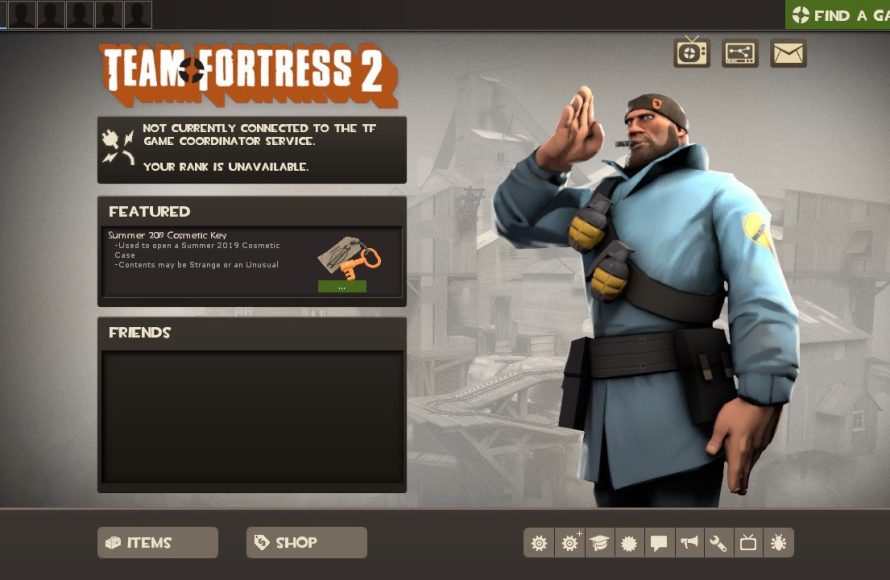
Your connection issue with the TF2 game coordinator likely stems from server problems, network instability, or issues with your game client itself.
Frustrating, isn’t it? You just want to jump into a match, but you’re staring at that dreaded message. “Why am I not connected to TF2 game coordinator?” It can really ruin your gaming mood. Let’s explore some common reasons behind this connectivity hiccup.
Sometimes the issue is simply server-side. Valve servers can experience temporary outages or maintenance periods. It’s also possible that your internet connection isn’t stable or fast enough to maintain a connection to the game servers. Another cause might be some setting issues within the game client that can be fixed.

Why Am I Not Connected to TF2 Game Coordinator?
Okay, so you’re itching to jump into Team Fortress 2, ready to blast some bots or dominate the other team. But then, bam! You see that dreaded “Not Connected to Game Coordinator” message. It’s like hitting a brick wall made of frustration. You’re not alone! Many players, both newbies and veterans, face this problem. Let’s dive deep and explore all the reasons behind this annoying error and what you can do about it.
What Exactly is the Game Coordinator?
Think of the Game Coordinator as the central hub of Team Fortress 2. It’s like the air traffic control for the game. It manages all the important stuff: your inventory, matchmaking, item servers, and even your connection to other players. When your game can’t connect to the Game Coordinator, it’s like the air traffic control tower went offline – planes (you and your game) can’t take off (play properly). That’s why you get that error message.
Common Culprits Behind the Connection Issue
There are quite a few reasons why you might be disconnected from the TF2 Game Coordinator. Let’s break them down into smaller, easier-to-understand pieces. This way, you can figure out what’s causing the problem for you. Remember, troubleshooting is like detective work – we’re looking for clues.
Server-Side Problems
Sometimes, the issue isn’t even on your end! It might be on Valve’s side. Here’s what can happen:
- Server Overload: Imagine everyone in the world trying to play TF2 at the same time. The servers get overloaded, like a highway during rush hour. This can cause the Game Coordinator to hiccup and struggle to handle everyone’s connections.
- Scheduled Maintenance: Like any good machine, the Game Coordinator needs maintenance. Valve sometimes takes the servers offline for updates or repairs. During this time, you won’t be able to connect.
- Unexpected Outages: Sometimes, things break unexpectedly. There can be unforeseen problems with the servers that cause an outage. These situations are usually temporary, and Valve works to fix them quickly. You can check status pages and social media, if the server issue occur for everyone.
Your Internet Connection
Your internet connection is the highway between your computer and the Game Coordinator. If that highway has potholes, your connection will be bumpy. Here are some internet-related issues that can cause problems:
- Unstable Connection: If your internet keeps cutting in and out, you’ll struggle to connect to the Game Coordinator. Think of it like trying to send a message with a bad phone connection.
- Slow Internet Speed: Playing online games needs a good amount of bandwidth, and a slow internet speed will struggle to send and receive the game’s data properly.
- Packet Loss: Packet loss means that some of the data sent between your computer and the game server gets lost along the way. This can lead to connection problems.
- Firewall and Router Interference: Your firewall or router might be blocking the connection. They see TF2 as a threat when it’s just trying to play, like stopping a friendly neighbor from visiting.
Local PC Problems
Sometimes, the problem is within your own computer. Here are a few things that might be at fault:
- Outdated Game Files: Think of your game like a book. If a new chapter comes out but you have not updated it, it might struggle. Outdated files can cause the game not to connect properly.
- Corrupted Game Files: Imagine your book having torn pages. Corrupted files can cause connection problems and errors.
- Conflicting Software: Some software, especially security programs, can interfere with the game’s connection to the Game Coordinator.
- Overloaded System Resources: If your computer is struggling with too many things running at once (like having 100 browser tabs open), it might not have enough power to connect properly.
- Incorrect Date and Time: This may sound strange, but your computer’s clock being wrong can cause problems with secure connections. Make sure the date and time are set correctly.
- VPN or Proxy Issues: If you’re using a VPN or proxy, it can sometimes interfere with the connection to the game servers, resulting in errors.
Troubleshooting Steps: Fixing the TF2 Game Coordinator Issue
Okay, now we know the usual suspects. It’s time to put on our detective hats and do some troubleshooting! Let’s go through the steps one by one.
Checking Your Internet Connection
Before doing anything else, let’s check if your internet is working properly:
- Test your internet speed: Go to a website like Speedtest.net and see what your download and upload speeds are. If they’re lower than what you usually get, that’s a sign there might be a problem with your internet.
- Restart Your Router and Modem: Turn them off, wait a minute, turn the modem back on, then turn on the router. This is like giving your internet a little reboot.
- Check your Wi-Fi connection: If you use Wi-Fi, move closer to your router or try using an ethernet cable for a more stable connection.
- Look for Packet Loss: You can use a command prompt or terminal to do a ping test to see if you have packet loss. You should contact your ISP if you see high packet loss values.
Checking TF2 and Steam
Now let’s take a look at the TF2 and Steam files:
- Verify Integrity of Game Files: In your Steam library, right-click on Team Fortress 2, go to “Properties,” then “Local Files,” and click “Verify Integrity of Game Files.” This will check for and replace any broken files.
- Restart Steam: Completely exit Steam and then start it again. Sometimes, a simple restart can fix things.
- Update TF2: Make sure your game is updated to the latest version. If there’s an update pending, it might cause connection issues.
- Restart your computer: Sometimes, a basic computer restart can fix temporary bugs and conflicts.
Adjusting Firewall and Router Settings
Now we’re going to see if your firewall and router settings are interfering with the connection.
- Check Firewall Settings: Make sure that Team Fortress 2 and Steam are allowed through your firewall. You might need to add exceptions for both of them.
- Check Router Ports: If you are more tech-savvy, you can look in your router settings and see if certain ports that TF2 needs to use are blocked. Some common ports TF2 uses are UDP 27005-27020 and TCP 27015 and 27036. If needed, you may need to configure port forwarding for these.
- Disable Router’s Built-in Firewall (Temporarily): As a temporary step, try disabling the built-in firewall of your router (not recommended for daily use), and check whether TF2 is connecting to coordinator or not. If it gets connected, it’s confirmed that your router was blocking the connection.
Other Potential Solutions
Still having trouble? Here are some additional things you can try:
- Close background applications: Close other programs that might be using up too many system resources. Having too many programs running at once may cause issues.
- Disable any VPN or Proxy: If you’re using a VPN or proxy, try turning them off temporarily to see if they’re the problem.
- Check Date and Time Settings: Make sure that the date and time on your computer are correct.
- Reinstall TF2: If all else fails, try uninstalling and reinstalling Team Fortress 2.
- Contact Steam Support: If you have tried everything and you’re still not connected to the Game Coordinator, reach out to Steam Support. They might have a solution that’s specific to your situation.
When the Servers Are Down
If the issue is with Valve’s servers, unfortunately, there isn’t much you can do except wait. You can check the following:
- Steam Server Status Page: Visit the Steam Server Status page to see if there are any known problems or outages. This page will tell you if the server is down for everyone.
- TF2 Community Forums: Check out community forums or subreddits dedicated to TF2. Players will often report any widespread issues there.
- Valve’s Social Media: Valve or TF2 developers may post updates about server issues on their social media accounts like Twitter, or on their blog pages.
Remember, patience is key. Server issues don’t usually last long, and Valve will fix them as quickly as possible.
By methodically working through these steps, you have a good chance to find the cause of the TF2 Game Coordinator connection issue. Start with the basics, like checking your internet and restarting your computer. Then move on to more advanced troubleshooting if those first few steps don’t fix the problem. The most important thing is to not give up, and try one method at a time.
Getting disconnected from the TF2 Game Coordinator can be a frustrating experience, but by using the troubleshooting steps outlined in this article, you’ll be able to pinpoint the issue, whether it’s on your end, your internet connection, or with the servers themselves. With a little patience and a methodical approach, you’ll be back in the game and dominating in no time! Remember that keeping your computer and TF2 up-to-date can help reduce these issues from occurring as well. Happy gaming, and good luck!
TF Game Coordinator Tutorial I TF2
Final Thoughts
The TF2 game coordinator errors stem from server issues, firewall blocks, or outdated game files. These problems often prevent connections. Players must check their internet, update game, and verify firewall settings.
Why am i not connected to tf2 game coordinator? This problem could also involve server maintenance on Valve’s end. You might have to wait it out. If all else fails a game reinstall can help too.

