
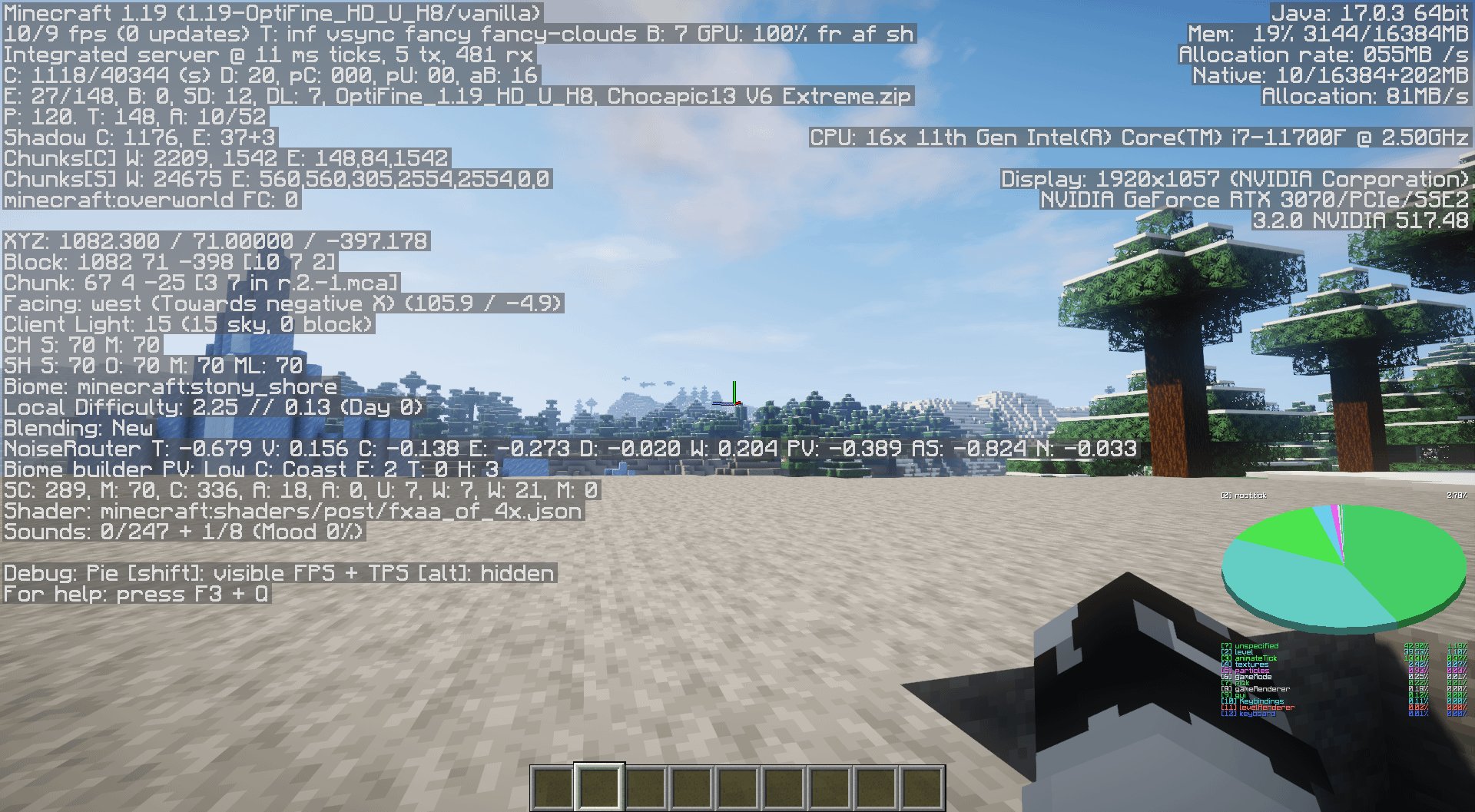
Your games are likely running slow due to a combination of factors such as outdated drivers, insufficient hardware, or too many background processes consuming resources.
Is that lag making your favorite game unplayable? It’s frustrating when frames drop and the action stutters. You are probably wondering, why are my games running slow? We have all been there, and the good news is that this is a very common problem, and there are usually fixes available. This article aims to guide you through the typical culprits and offer some basic solutions.

Why Are My Games Running Slow?
Ever get super excited to play your favorite video game, only to have it run like a snail on a molasses trail? It’s frustrating, we get it! A slow-running game can take all the fun out of the experience. So, why does this happen? Let’s explore all the reasons why your games might be lagging and what you can do to make them run smoother.
Your Computer’s Power (or Lack Thereof!)
Imagine trying to run a race with shoes that are way too heavy. Your computer’s “power” is like those shoes. If it’s not strong enough for the game you’re playing, it’s going to struggle. This power comes from different parts of your computer, and they all need to be up to the task.
The Graphics Card (GPU)
Your Graphics Processing Unit (GPU) is like the artist of your computer. It’s responsible for creating all the pictures and scenes you see in games. If your GPU is old or not very powerful, it will have a hard time keeping up with the demands of modern games. Think of it like trying to paint a huge mural with tiny crayons – it just won’t work well.
Signs your GPU might be the problem:
- The game looks choppy, like a flipbook instead of a smooth movie.
- Textures (the details on objects) look blurry or don’t load properly.
- The game crashes or freezes frequently.
The Central Processing Unit (CPU)
The Central Processing Unit (CPU) is the brain of your computer. It handles all the calculations and instructions for the game to run. If your CPU is slow, it can’t process all the information fast enough, leading to slow gameplay. It’s like trying to solve a complex math problem with a calculator that’s running on a very low battery – it will take forever!
Signs your CPU might be the problem:
- The game loads slowly, and levels take a long time to appear.
- The game slows down suddenly, especially when there’s a lot happening on the screen.
- Your computer gets really hot while playing.
RAM (Random Access Memory)
RAM is your computer’s short-term memory. When you play a game, the computer uses RAM to store all the information it needs to access quickly, like characters, levels, and sounds. If you don’t have enough RAM, your computer has to use the hard drive as “extra” memory, which is much slower. This makes the game stutter and lag. Think of it like a student trying to do their homework with a very small desk – they have to keep putting things away and pulling them back out, slowing down the whole process.
Signs you might not have enough RAM:
- The game is choppy and struggles when you move to new areas.
- You hear a lot of hard drive activity (clicking and whirring) while playing.
- You get error messages saying your computer is running out of memory.
How to Check Your Computer’s Specs
Not sure what kind of GPU, CPU, or RAM you have? It’s easy to check. On Windows, you can search for “System Information” in the start menu. Look for “Processor” (that’s your CPU), “Installed Physical Memory (RAM)” and “Adapter Type” under “Display” (that’s your GPU). You can usually find the information you need by looking at these items. Many game platforms also have specifications to help you.
Here’s a simple way to understand specs: Imagine you’re buying a toy car. The box will say “Engine Power”, “Tire Size”, and “Storage”. This is the same as a computer’s specs, but instead of Engine Power, you look at CPU, Tire Size is like GPU, and Storage is similar to RAM.
Game Settings: Too High, Too Demanding!
Sometimes, the problem isn’t your computer, but the game settings themselves. Games often let you adjust things like graphics quality, resolution, and special effects. If these settings are set too high for your computer to handle, the game will run slowly. It’s like trying to drive a small car very fast. If you go too fast, you’ll end up with a shaky ride!
Graphics Quality
Games often have settings for “Low,” “Medium,” “High,” or even “Ultra” graphics. Higher settings mean more details and visual effects, which need more power. Lowering the quality can make a big difference in performance. Try setting graphics to “Medium” or “Low” to see if it helps.
Resolution
Resolution determines how clear the game looks. Higher resolutions (like 1920×1080 or 4K) need more power, and it will cause your game to slow down. Lowering the resolution can make the game run faster, even if it means the game may not look as sharp.
Special Effects
Things like shadows, reflections, and detailed lighting look great but can really slow things down. Try turning down or off some of these effects in the game’s settings. You will be surprised by how much better your game will perform.
Here’s an analogy: Imagine you’re drawing. If you use a lot of colors, shading, and details, it takes longer than just a simple sketch. The same applies to games, if you use a lot of special effects, it takes a longer time to load, and that causes lag.
Too Many Programs Running in the Background
When you play a game, you want your computer to focus all its energy on that game. But, if you have many other programs running at the same time, they steal power from your game, causing it to slow down. It’s like trying to listen to the teacher while also talking to your friends and watching a movie at the same time. You can’t focus on any one thing.
Apps and Software
Things like web browsers, music players, and other apps running in the background can take up valuable resources. Always close any programs you’re not using before you start gaming. Remember, if you don’t need it, turn it off!
Background Processes
Some programs run in the background without you even knowing it, like updates or system checks. These can also slow down your game. Take a look in your system tray (the small icons in the bottom right corner of your screen) and close things you do not need, but be careful and don’t end background processes from windows and other important programs.
Think of it this way: Imagine your computer is a race car and it needs all its power to go fast. If you’re also using it to carry groceries, passengers, and a big TV, it won’t be able to go very fast. Closing programs is like removing all the extra weight, allowing your car (computer) to reach its top speed.
Overheating: Your Computer Needs to Cool Down!
Just like people, computers can overheat, especially when they’re working hard, like when playing games. When your computer gets too hot, it can slow down to protect itself. This is why your game might start running slowly, especially after you’ve been playing for a long time. Think of it like trying to run a marathon in the desert sun – you might overheat, become sluggish, and eventually need to rest.
Ventilation
Make sure your computer has good ventilation. If it’s a laptop, don’t put it on a soft surface like a blanket or pillow, this can block the vents and stop the computer from cooling properly. A hard surface, like a desk, is best. For desktop computers, make sure the fans aren’t blocked or covered in dust.
Dust
Dust can build up inside your computer and prevent it from cooling down effectively. Regularly cleaning the dust from inside your computer can help to keep it running smoothly. If you don’t know how to do that, ask an adult for help.
Cooling Systems
Some computers have special cooling systems, like fans or liquid coolers. If your computer is overheating often, you might need to check that these systems are working properly. You might need to replace a fan or clean out a liquid cooler to make sure that your computer is working properly.
Here’s an example: Imagine your computer is like a house. If the windows are shut, it’s hot inside. However, if you open the windows (good ventilation) the house will cool down and be more comfortable. Cleaning out the dust is like cleaning the house, making the airflow more effective.
Outdated Drivers: Keep Things Up-to-Date!
Drivers are like instruction manuals for your computer’s parts, and are very important for smooth game play. They tell your operating system how to communicate with your graphics card and other components. If these drivers are old, they can cause problems with your game.
Graphics Drivers
Graphics drivers are super important for running games smoothly. Make sure you have the latest graphics drivers for your specific GPU by checking the manufacturer’s website like Nvidia, AMD, or Intel. This helps with graphics and provides new features as well.
Other Drivers
Other drivers for your sound card or motherboard can also sometimes cause problems. Try updating these drivers from the website of the manufacturer, it may help you to run the games much faster.
Analogy: Imagine that your computer’s parts are like players on a sports team, and drivers are the coaches who teach them how to play together. If the coaches are using an old manual, the team won’t be able to play at their best. Updating drivers is like giving your players new manuals so they can perform at peak efficiency.
Slow Internet Connection: The Online Lag!
If you’re playing an online game, a slow internet connection can also cause lag, which can be super annoying. This can happen even if your computer is powerful enough. Slow internet makes the game seem slow and jumpy. Think of it like trying to send a letter by carrier pigeon. If the pigeon is slow, your letter won’t arrive quickly.
Wi-Fi
Wi-Fi connections can be unreliable and can fluctuate depending on the distance from the router or other wireless device activity. If possible, try connecting your computer to the internet using an Ethernet cable, that provides a more stable and reliable internet speed.
Internet Speed
Your internet connection speed might not be fast enough for online games. You might need to contact your internet service provider to see if you can increase your bandwidth. Check your internet speed online, there are several websites where you can check it.
Other Devices
If other devices on your network are using a lot of internet, it can slow down your game, especially if you play online games. If someone in your home is streaming a movie or video calling, it will slow down your online game.
Example: Imagine your internet connection is a water hose. If the hose is small, not much water will get through, slowing down the game. You need a hose that’s wide enough to deliver enough water (internet speed). If someone else is using the hose, you won’t get enough water.
Hard Drive or SSD Issues: Storage Matters
Your hard drive or Solid State Drive (SSD) is where your games and other files are stored. If your hard drive or SSD is old, full, or has problems, it can make your game run slower, as your computer struggles to load the data. Think of it like having a room that’s full of junk, and you need to find a specific toy; you will have to go through everything, which will take a lot of time.
Hard Drive vs SSD
Solid State Drives (SSDs) are generally much faster than traditional Hard Disk Drives (HDDs). If you’re still using a regular hard drive, an SSD might make a noticeable difference in game loading and performance.
Storage Space
If your hard drive is almost full, your computer will start running slower because it doesn’t have much space left to store temporary files. Make sure that you have enough free space in your system, and if it’s almost full, clean up unnecessary files.
Disk Errors
If your hard drive has errors, it might slow down your computer and cause your game to lag. You can use disk checking tools provided with your system to look for and correct errors.
Analogy: If you have a box full of Lego blocks and you need to find a specific one, it will take a lot of time. If the box is organized (SSD) you can quickly find the lego, if it is unorganized (HDD), it may take some time. If you have too many toys in the box (Full drive), it will take more time to search, so, it’s better to remove the extra toys and organize your toys.
Game Bugs or Glitches: Sometimes, It’s Not You!
Sometimes, the problem isn’t your computer at all – it’s the game itself. Games can have bugs or glitches that make them run slowly, and unfortunately, it’s something you can’t really fix. However, there are some things you can do.
Game Updates
Game developers are always working to fix bugs and glitches. Make sure your game is updated to the latest version to get all the fixes. Updates can sometimes improve the game performance.
Community Forums
Check if others are also experiencing the same issues online. If a lot of other players are having the same problem, it’s more likely a bug in the game. You can find these kind of issues and fixes in game community forums.
Try Different Settings
Sometimes, certain game settings interact with each other in a way that causes problems. Try experimenting with different settings, even if they don’t seem directly related to the issue.
Here is an example: If your favorite toy breaks, and other kids have also broken the same toy, there is a high chance that the toy is faulty, and you might have to either get a replacement or change the toy.
Malware or Viruses: Protect Your Computer!
Malware and viruses can make your computer slow, and not just for games, it can also cause many issues and make your computer unusable. They are like unwanted guests in your house; they take up space and use your resources, making everything run slowly. It’s important to protect your computer.
Antivirus Software
Use reliable antivirus software and run regular scans to look for and remove any malware from your computer. This will prevent the computer from running slowly and also protect your data.
Avoid Suspicious Websites and Downloads
Be very careful when visiting websites or downloading files. This is very important to keep your computer safe. Some websites and downloads contain viruses and malware, which can slow down your computer and may cause more problems. Only download files from reliable sources.
Keep your Software Updated
Keep your operating system and other software up-to-date. Many times, security updates also fix vulnerabilities, and will save you from having viruses and malware on your system.
Think of it like this: Your computer is like a house, and if you don’t lock the doors, anyone can come in and steal your stuff and cause problems. Antivirus software is like a lock, and it can help to protect your system.
By understanding these different reasons, you’ll be well on your way to figuring out why your games are running slow and hopefully you will find a way to fix it and get back to playing! Remember, it’s often a combination of factors, so try troubleshooting each one step by step. Enjoy gaming!
Fix Your Slow Computer – 5 Easy Steps – Windows 10 (2023)
Final Thoughts
Ultimately, your games run slowly due to various factors. Older hardware struggles with modern game demands. Insufficient RAM or a weak graphics card can cause significant slowdown. Background applications also consume valuable resources.
Overheating is another common issue; ensure proper cooling. Updating drivers and optimizing game settings often helps. Therefore, the answer to ‘why are my games running slow’ often involves a combination of these elements, and troubleshooting requires method.

