
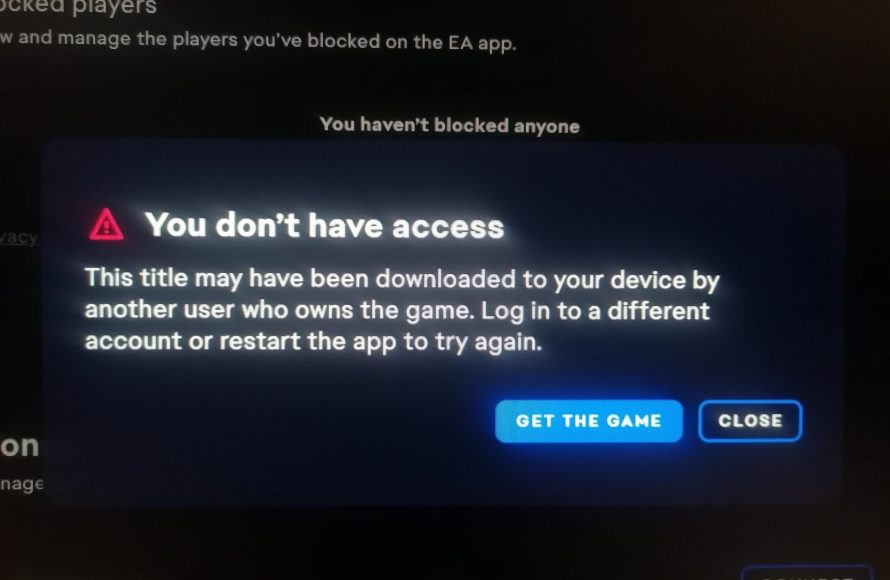
‘You likely cannot play any EA game on your computer because your system does not meet the minimum hardware or software requirements specified by EA, or there could be an issue with your EA app or account.’
Frustration mounts when your favorite titles refuse to launch. You’ve downloaded the game, eagerly anticipating hours of entertainment, but instead face a blank screen. The question echoes in your mind: why cant i play any ea game on my computer?
This can be a real headache. We will explore the common culprits behind this gaming barrier, helping you understand what’s stopping you from diving into your EA library.

Why Can’t I Play Any EA Game on My Computer?
Okay, so you’re super excited to jump into the latest EA game, or maybe revisit a classic, but your computer just isn’t cooperating. It’s incredibly frustrating when you’re ready to play and nothing happens, or worse, you get error messages you don’t understand. There are many reasons why you might be facing this issue, and it’s rarely a single cause. Let’s explore the common culprits and how you can get back to gaming.
System Requirements: The Foundation of Play
Before anything else, the most important question to ask is: does your computer meet the game’s minimum system requirements? Think of it like needing the right ingredients to bake a cake. If you are missing something, it just won’t come out right. Every game has a set of requirements, detailing what your computer needs to be able to run the game properly. These requirements usually include things like:
- Operating System (OS): Is your computer running Windows, macOS or something else? Is it the right version? For example, a game might require Windows 10 or Windows 11, and won’t work on older versions like Windows 7 or 8.
- Processor (CPU): This is the brain of your computer. Games need a certain amount of processing power, usually specified with specific processor models like an Intel Core i5 or an AMD Ryzen 5.
- Memory (RAM): RAM is where your computer stores data it needs quickly. Think of it as your desk space. The more RAM you have, the more room your computer has to work. Games can be very demanding on RAM.
- Graphics Card (GPU): This handles the visuals you see on the screen. Some games need a dedicated graphics card to run well, with specific models being the required. Integrated graphics (the ones built into your CPU) aren’t always enough.
- Storage Space: You’ll need enough free space on your hard drive or SSD to install the game. Modern games can take up a lot of space.
Checking Your Computer’s Specifications
Not sure what your computer’s specifications are? It’s easy to find out! On Windows, you can search for “System Information” using the search bar. This will show you all the key details about your computer including the OS, processor, RAM, and graphics card. On macOS, you can find similar information by clicking the Apple icon and selecting “About This Mac.” Now, compare these specifications with those listed on the game’s page, usually on the EA website or the store where you bought the game. If even one of your computer specs is below the minimum requirement, that could explain why you can’t play. Keep in mind that just meeting the minimum requirements might not give you the best experience. You might experience lag or lower graphics settings. If you want a better gaming experience, you should check the “recommended” specifications as well.
Driver Issues: Keeping Your Graphics Card Up-to-Date
Your graphics card drivers are like the translator between your computer and your graphics card. If they’re old or faulty, it can make your game stutter, crash, or just not run at all. Think of it as having an old instruction manual that doesn’t quite match your machine. Manufacturers release new drivers regularly to improve performance and fix issues.
Updating Your Graphics Drivers
Updating your drivers is not difficult. For NVIDIA cards, you can find the latest drivers on the NVIDIA website, and for AMD cards, you can get them from the AMD website. There are usually auto-detect tools on these sites that will find the appropriate driver for your card. You can also access them through the GeForce Experience app (for NVIDIA) or the AMD Software: Adrenalin Edition (for AMD). If you have an integrated graphics card, you should get the latest drivers from your computer’s manufacturer website (e.g., Intel if your CPU is an Intel processor). Regular updates can fix issues, so make sure to check for new drivers regularly.
Game Installation Problems: The Digital Puzzle
Sometimes, the problem isn’t your computer, but the game installation itself. If the game files are not correctly downloaded or installed, it won’t work. Think of it as trying to build a Lego set with missing pieces or with incorrect instructions.
Checking for Errors
- Corrupted Files: Sometimes during the download or install, files can get corrupted. This can happen because of internet issues, or problems with your storage device. Sometimes, a game might start to download, but it fails mid way and some of the files are not completely downloaded, or have incorrect data in the file.
- Insufficient Storage Space: Make sure you have enough free space on the hard drive where you are installing the game. If you are too short on storage space, installation can fail.
- Installation Errors: Sometimes, the installation process itself can run into problems, especially if you are installing the game for the first time or if you have some security software installed on your system that is blocking the installation from completing successfully.
What to Do
- Verify game files: If you installed the game via a launcher like the EA app, or via Steam or Epic, they have built in methods to check the files for errors. Use this tool to scan the game files and re-download damaged or missing files. This is like double-checking your Lego pieces to make sure you have them all.
- Reinstall the game: Sometimes, the best solution is to uninstall the game completely and start over with a fresh install. This will download a fresh copy of the game files and could fix the issue.
- Run as Administrator: Sometimes, the game needs admin rights to install properly. Make sure you run the setup or installer as administrator (Right-click on the installer, and select “Run as administrator”).
EA App Issues: The Gateway to Games
Many EA games now use the EA app as their primary launcher and game library. While convenient, it can also be a source of problems. This is like a door to your games, if that door is broken, you can’t get to the games. If the app itself has issues, it may impact the games you are trying to play.
Common Problems
- Outdated App Version: Using an old version of the app can cause problems. Check for updates, and install them if there is an available update.
- Cache Issues: The app may have a bunch of saved data that is incorrect, or conflicting with the games. This can be easily cleared in the settings or app preferences.
- Login Problems: Make sure you are logged in with correct username and password. If there are issues with EA’s servers, you might not be able to log in, and this can prevent you from launching games.
- App Conflicts: Some security software and other third party software installed on your PC might conflict with the EA app, leading to issues. You should disable these softwares temporarily, and see if that resolves the issue.
Troubleshooting Steps
- Update the app: Check for updates within the app and install any that are available.
- Clear the app cache: Look for settings to clear the app’s cache and try launching the game again.
- Reinstall the app: Uninstall and reinstall the app as a last resort. Make sure to restart your PC after uninstalling and reinstalling the app.
Software Conflicts: The Unseen Battles
Sometimes, other software on your computer can interfere with EA games, preventing them from running smoothly. It is like someone is trying to talk on the phone but there is a lot of background noise making it difficult to hear. Let’s look at what causes this.
Security Software
Your antivirus or firewall software, while important for security, can sometimes mistakenly block game files or components, treating them as threats. This can prevent the game from launching or playing correctly.
- Temporarily disable your antivirus: To see if this is the cause, try temporarily disabling your antivirus software, and then try launching the game. If the game works well after disabling it, make sure to add exceptions for game files in your antivirus settings.
- Add Exceptions: If the game works after temporarily disabling antivirus, but you don’t want to completely disable it, then you need to add the game folder to the exception list of your antivirus software. This will tell the software that the game is not a threat and will allow the files to run without interruptions.
Background Applications
Other programs that run in the background might be using resources that your game needs, or sometimes they could just conflict with the game directly. Closing any unnecessary programs may help the game to run properly.
- Close unnecessary programs: Before launching the game, close all programs that you don’t need to use. You can also check the task manager and stop any applications you are not using, that could be consuming your system’s resources. This frees up RAM and CPU resources for the game.
- Clean boot: To make sure there are no conflicts, you could do a clean boot of windows. In a clean boot you disable all the non windows applications. This means if the game works normally after clean booting your PC, there might be some other software which is causing conflicts with your game.
DirectX and Visual C++ Redistributables
DirectX and Visual C++ Redistributables are essential components required by many games to run correctly. DirectX handles graphics and multimedia functions, and Visual C++ Redistributables contain libraries of code that are required by games. If these are old or missing, it can cause game to not run at all. This is like missing tools in a toolbox.
Checking and Updating
- Update DirectX: Usually, game installers include the correct DirectX version, or have the ability to download and install them automatically, but if it’s not included you can visit Microsoft website and install the latest version.
- Update Visual C++ Redistributables: Similar to DirectX, you can download the latest version of Visual C++ from Microsoft website. You might need multiple versions of Visual C++, which is fine, and won’t cause any issues.
Hardware Problems: When Parts Fail
Sometimes, the issue might be your computer’s hardware. If your components are old, damaged, or failing, it might be difficult or impossible to run demanding games. This is like driving a car with a broken engine. There is no way it will take you where you want to go.
Potential Issues
- Overheating: If your computer gets too hot, it can lead to performance issues, crashes, or even system damage. Make sure your computer is properly ventilated, and that the cooling system is working efficiently.
- RAM Problems: If your RAM is faulty, it can cause games to crash or not start at all. You can use Windows memory diagnostic tool to check for RAM errors.
- Hard drive/SSD issues: If your hard drive or SSD is failing, that can also prevent the games from working. You can run the disk checking utility in Windows to diagnose your hard drive health.
- Graphics card problems: As the graphics card gets older, it can start developing faults, and can fail completely. Some older games might not be compatible with new hardware, which can also cause issues.
If you suspect a hardware problem, consider getting your computer checked by a professional. This can be a more expensive and lengthy process, so you should only consider this after ruling out all the above software related issues.
By looking at all these potential problems systematically, you can figure out why your games are not running and get them working. If you are still facing issues, it is always good to contact EA support for specific advice.
Ultimately, getting your favorite EA game running smoothly is about identifying the root cause. By systematically checking each of these possible issues, you’ll hopefully be back in the game soon.
How To Fix EA Desktop Not Launching Games
Final Thoughts
If you’re facing issues, it could stem from outdated drivers or system incompatibilities. Check if your computer meets the minimum game requirements. A corrupted game installation also might hinder your ability to play.
Poor internet connection can prevent some EA games from launching properly. Sometimes, firewalls or antivirus software incorrectly block EA applications. Make sure you adjust these settings.
Ultimately, understanding these elements will greatly help diagnose ‘why cant i play any ea game on my computer’. Troubleshooting each area must be completed to pinpoint your problem.

