
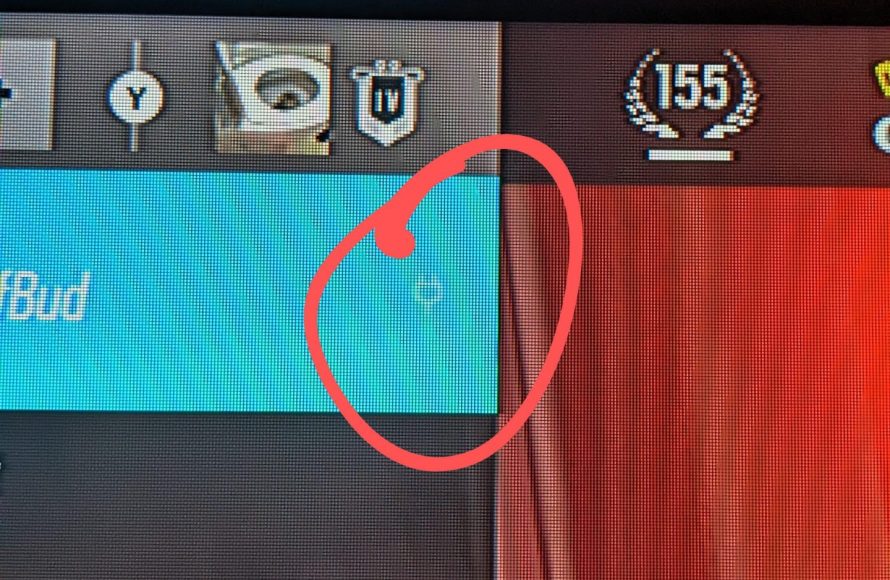
Ensure your microphone is properly connected and enabled in both your PS5 settings and the Rainbow Six Siege game settings. Also, verify your privacy settings aren’t blocking voice chat.
Ever felt the frustration of being silent in the tactical chaos of Rainbow Six Siege on your PlayStation 5? It’s a common issue, and you’re not alone if you’re asking, “why cant i talk in game chat r6 ps5?” It’s infuriating when your callouts are unheard.
This issue usually stems from a few key areas in your console and game settings. We will explore these issues, so you can get back to communicating with your team effectively.

Why Can’t I Talk in Game Chat R6 PS5?
Ever been in the middle of a tense Rainbow Six Siege match on your PS5, ready to call out enemy positions, only to find your mic isn’t working? It’s super frustrating! You’re not alone. Many players face this issue. There are several reasons why your voice might not be getting through. This guide will help you figure out what’s going on and how to get your microphone working again so you can get back to communicating effectively with your team. Let’s dive into the common causes and their fixes.
Basic Checks: Is Your Mic Even Working?
Before we go too deep, let’s start with the simplest things. Sometimes the problem isn’t with the game, but with your hardware. Here’s what to check first:
Physical Connections:
- Is your headset plugged in correctly? Make sure the cable is fully inserted into your controller or the PS5 console. If it’s a wireless headset, is it charged and properly paired with the console?
- Try a different controller port. Sometimes a controller port can be faulty.
- Inspect the cables. Check for any damage, like fraying, bends, or loose connections.
- Test a different headset/microphone. If you have another headset or a separate microphone, try using that with your PS5. This will help you determine if the problem lies with your current device or with something else.
Microphone Mute:
- Is your microphone muted? Some headsets have a mute button or switch on the headset or the cable. Check to see if it’s active.
- Is your controller muted? Sometimes the controller has a mic mute option built in. Make sure it’s not enabled.
PS5 System Settings: Configuring Your Audio
If your physical connections and mute button aren’t the problem, the next step is to check your PS5 system settings. You might need to make some adjustments to get your microphone working properly with Rainbow Six Siege.
Checking Input Device:
Your PS5 needs to know which microphone to use. Make sure your headset is selected as the input device.
- Go to Settings on your PS5 home screen.
- Select “Sound”.
- Go to “Microphone”.
- Check the “Input Device”. Make sure your headset/microphone is selected.
Adjusting Input Level:
If the input level is too low, your team might not be able to hear you. You might need to increase your microphone volume.
- Still in “Microphone” settings, find “Adjust Microphone Level”.
- Speak into your mic, and make sure the input level bar goes up and down. If it doesn’t, something is probably wrong. Adjust the slider to a good level for your voice.
- Try speaking normally, and see if your level is showing up well without it being too high.
Microphone Status:
Ensure your microphone is “enabled” in the settings.
- From the same “Microphone” menu, check the “Microphone Status” setting.
- Make sure it is set to “On.”
Rainbow Six Siege Game Settings: In-Game Chat Issues
Even if your PS5 is set up correctly, the problem could be in the game’s settings. Rainbow Six Siege has its own audio configurations that you need to review.
Voice Chat Settings:
Make sure voice chat is enabled inside the game.
- Start Rainbow Six Siege.
- Go to “Options.”
- Select “Audio.”
- Find “Voice Chat”.
- Ensure that “Voice Chat” is turned ON.
- Adjust “Voice Chat Recording Mode” (open mic or push-to-talk), and test the settings according to your preference.
Voice Chat Input Device:
Just like with your PS5 settings, the game needs to know which device to use as your microphone.
- In the “Audio” settings, check “Voice Chat Input Device.”
- Make sure your headset or preferred microphone is selected.
Push-to-Talk Issues
If you’re using “push-to-talk,” make sure you’re actually pressing the correct button or key. If it’s assigned to a weird place on the controller, this could cause problems. Try re-assigning the button in the controller setting or in-game control settings.
Network Connectivity: Can Your Connection Affect Voice Chat?
A poor or unstable internet connection can sometimes affect voice chat in online games like Rainbow Six Siege. Here’s what to check:
Checking Your Connection Speed
Your network needs to be stable and fast enough to handle both the game and voice chat.
- Use your PS5’s network testing tools to see if your internet speed is good enough. Go to Settings > Network > Test Internet Connection.
- Try restarting your router. Sometimes a quick restart is all you need to fix a temporary problem.
- Consider using an Ethernet cable instead of Wi-Fi. Wired connections are usually more stable.
NAT Type and Firewalls
Your network settings, especially NAT type and firewall settings, can sometimes block voice chat. If you have a strict NAT type it can lead to issues where others can’t hear you, or vice versa. Here’s what you can look into:
- In the same network settings section on the PS5, check your NAT Type. A “Type 1” (Open) or “Type 2” (Moderate) NAT should work fine. A “Type 3” (Strict) NAT can create problems.
- Look up how to adjust the network settings on your router to switch your NAT Type. The process is different for each model.
- If you have a firewall or other security software, make sure it is not blocking the necessary ports needed for R6 Siege and voice chat. Consult your router manual for the specific ports to open.
Account and Privacy Settings
Sometimes it might not be something technical, but rather privacy settings blocking your chat functionality. This involves both your PSN account and, on occasion, your game account.
PSN Privacy Settings:
Your PSN account settings control how you interact with other players.
- Go to Settings > Users and Accounts > Account > Privacy.
- Look for Communication and Multiplayer options.
- Make sure your settings allow voice communication.
- Check if you are allowing “voice chat” under the “who can interact with you through voice and text” setting.
Ubisoft Account Settings:
It’s rare, but it is a good idea to check your Ubisoft account. There should be no game-related chat settings, but ensure nothing is blocking it.
- Login to your Ubisoft account via a browser or app.
- Review your communication settings.
Software Issues: Updates and Bugs
Sometimes the cause of the problem is related to software issues, either in the game or on your PS5 system. It is very possible that a glitch can cause the microphone to stop working.
Game Updates and Patches:
Game developers release updates to fix bugs, and it’s possible an update could interfere with voice chat. Here’s how to make sure your game is updated:
- Ensure you have the latest version of R6 installed by going into the games tab of the PS5.
- Check patch notes on the Rainbow Six Siege website, or forums. Sometimes there are known voice chat bugs after updates. If so, you might have to wait for a patch.
PS5 System Software:
An outdated PS5 system software could also cause issues. Make sure your system is up to date:
- Go to Settings > System > System Software > System Software Update.
- Install any updates.
Headset Specific Issues
If you are using a specific brand of headset it might have specific problems, and here is how to address those issues.
Headset Software:
Some headsets use dedicated software for customization or drivers. Make sure your headset software is updated on your PS5 or computer.
- Look on your headset manufacturer’s website for any necessary downloads for your device.
- If your headset has companion software, install it on a computer and check for new updates.
Firmware Updates:
Sometimes headsets need firmware updates as well. Check your headset manufacturer’s website for firmware updates for your specific model, and follow any necessary steps to update.
- Check your specific headset’s instructions for installing firmware updates, because they could vary.
Troubleshooting Steps: When Nothing Seems to Work
If you have gone through all of the above, and still have the “Can’t talk in game chat R6 ps5” issue, here are some final steps to take.
Restart the Game and Console:
Sometimes restarting the game or even your PS5 can fix a random glitch. Close R6, and power cycle your console.
Try a Different Account:
If possible, log in to your PS5 with a different user account and launch R6. See if the mic works on a different profile, this can indicate the problem is tied to your account and not the hardware.
Contact Support
If nothing else works, it’s time to reach out for help.
- Contact PlayStation support. They might have troubleshooting steps specific to your situation.
- If it is an in-game problem you can also contact Ubisoft support.
- If the issue is related to your specific headset, contact the headset manufacturer’s support team.
By methodically working through each of these steps, you’ll be well on your way to solving your in-game voice chat problems in Rainbow Six Siege on your PS5. Remember to check the most common and simple issues first, before moving on to more complex troubleshooting!
How To Fix Voice Chat & Mic Not Working In Rainbow Six Siege On PS5
Final Thoughts
Troubleshooting audio issues on your PS5 often involves checking your settings. Verify your microphone is correctly connected and that the game’s voice chat isn’t muted. Network connectivity also plays a major role; a stable internet is a must for voice to function.
If the above steps fail, consider restarting your game and console. Sometimes a simple reset resolves various glitches impacting audio. Remember, problems with your headset can also be a factor.
Ultimately, the question ‘why cant i talk in game chat r6 ps5’ usually stems from these common issues. Double-checking each possible cause will often reveal the solution.

