
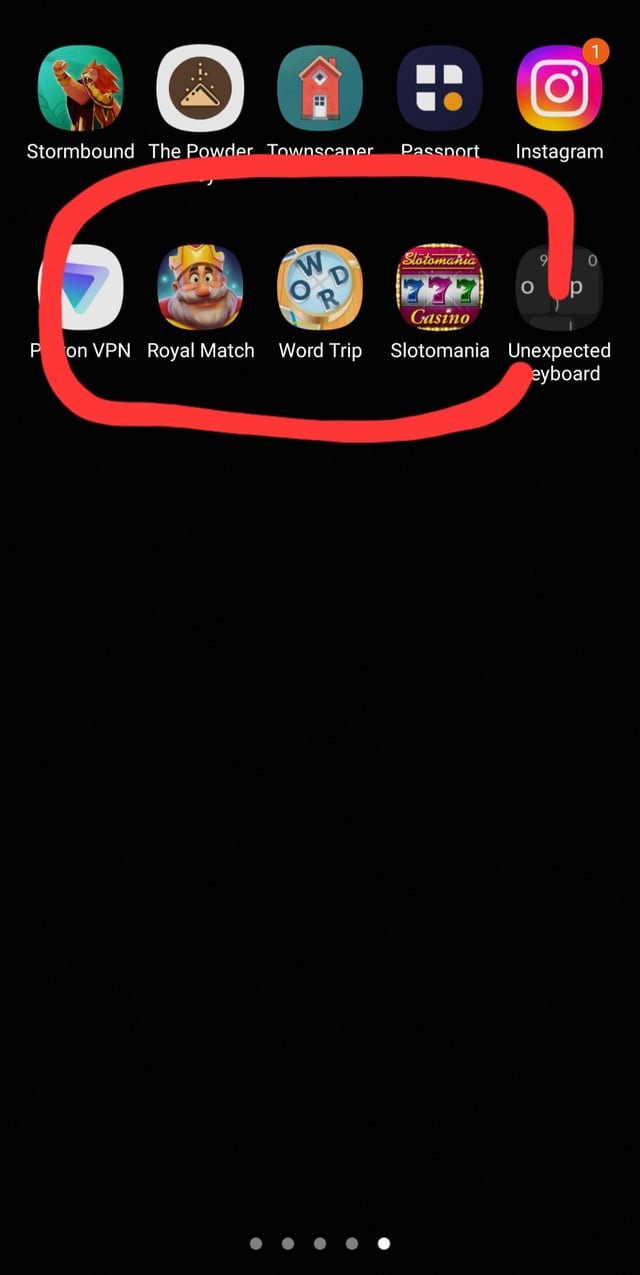
The most likely reason games keep downloading on your phone is that automatic updates are enabled in your app store settings.
It’s incredibly frustrating when you see games suddenly appearing on your phone without your explicit permission. You might be wondering, why do games keep downloading on my phone? It’s a common issue, and luckily, there’s a simple explanation for this unexpected behavior.
These downloads are usually not some malicious activity, but rather a setting that needs adjustment. Most app stores have a feature that automatically updates your installed apps, including games, when connected to Wi-Fi. This makes sure you have the latest versions, but they might download when you don’t expect it.

Why Do Games Keep Downloading On My Phone?
Ever found yourself scratching your head, wondering why a game you thought you deleted is suddenly back on your phone? It’s a frustrating experience, and you’re definitely not alone! Many users face this issue, and it usually boils down to a few key reasons. Let’s dive into the common culprits and figure out how to stop these sneaky game downloads.
Automatic Updates: The Silent Installers
One of the most frequent reasons for games magically reappearing is the automatic updates feature on your phone. Most smartphones are set to automatically update apps, including games, when they’re connected to Wi-Fi. This is helpful for keeping everything current but can be annoying when you don’t want certain games back.
How Automatic Updates Work
Think of it like this: your phone checks regularly for new versions of the apps you have installed. If an update is available, it downloads and installs it in the background. If you previously had a game, and a new version is released, your phone might see this as a new install, even if you thought you had deleted it. This is especially true if you haven’t completely removed the game’s data.
Turning Off Automatic Updates
The good news is, you can usually control this setting. Here’s a general idea of how to turn off automatic app updates on most smartphones:
- Android Phones: Open the Google Play Store app. Tap on your profile picture at the top right. Go to “Settings,” then “Network preferences.” You’ll find an option for “Auto-update apps.” Tap it and choose either “Don’t auto-update apps” or “Auto-update apps over Wi-Fi only.”
- iPhones: Open the Settings app. Tap on “App Store.” You’ll see an “App Updates” toggle. Turn it off to prevent automatic updates. You can also choose to update apps over Wi-Fi only.
By turning off auto-updates, you have more control over what gets downloaded to your phone.
Cloud Sync: The Backup That Brought Games Back
Another common reason for reappearing games is cloud synchronization. Many phones and app stores use cloud services to back up your app data and settings. This is helpful if you switch phones or lose your data, but it can also cause games to reinstall if they were part of the backup.
How Cloud Sync Works
Cloud sync services, like Google Drive or iCloud, store a record of the apps you’ve used. If you delete a game, but it’s still in your cloud backup, your phone might see it as something that should be installed again. It can seem like magic, but it’s just your phone restoring from its backup.
Disabling Cloud Sync for Apps
You have some control over this too. Here’s how you can manage cloud sync for apps on most phones:
- Android Phones: Open the Settings app. Find “Google” or “Accounts & backup.” Look for “Backup” and you can manage the settings, including what gets backed up. You may find the option to disable app backups or choose specific apps you don’t want to back up.
- iPhones: Open the Settings app. Tap on your name at the top, then tap on “iCloud.” You’ll see a list of apps using iCloud. You can turn off the toggle for app backups.
By managing cloud sync settings, you can stop games from coming back automatically.
Family Sharing or Shared Accounts
If you have a family plan or share an app store account with others, this could also be causing the mystery downloads. If someone on the shared account downloads a game, it might also get downloaded on your device.
How Family Sharing Affects Downloads
App stores and family plans are designed to make sharing content easier. If someone in your family group downloads a game using the shared account, it might be automatically installed on all devices linked to that account. It’s a convenient feature for sharing, but can be unexpected if you’re not aware of it.
Managing Shared Downloads
To prevent these unwanted downloads, you might need to adjust the family sharing or shared account settings. Here are a few things to check:
- Family Sharing Settings: Look for the Family Sharing option in your device’s settings or in the app store account settings. You might find options for managing downloads and purchases on shared accounts.
- Individual Account Settings: Check the settings on each family member’s account and devices. Make sure downloads on one device don’t trigger downloads on every device in the family.
Communication with your family members about app downloads can also help prevent unwanted reappearance of games.
Leftover Data and Cache
Sometimes, even when you think you’ve deleted a game, some data and cache might remain on your phone. This can trick your phone into thinking the game is still partially installed, leading to re-downloads.
Understanding Leftover Data
When you uninstall an app, it usually leaves behind temporary files and data, like cached images or game settings. If these leftovers are present, your phone might try to restore the game based on this information.
Clearing Cache and Data
To ensure a complete removal, you can clear the cache and data before uninstalling the game. Here’s how to do it:
- Android Phones: Go to “Settings” then “Apps.” Find the game you want to remove. Tap on “Storage” and choose to “Clear cache” and “Clear data.” After that, uninstall the game again.
- iPhones: For iPhones, simply deleting the game usually removes its data. But you can double check by looking for any associated data in the “iCloud” settings, just in case.
Clearing the cache and data will remove any leftover bits and ensure a cleaner uninstall.
Pre-installed Games (Bloatware)
Many phones come with pre-installed games or apps that you might not want. These are sometimes called bloatware. Even if you delete them, they may re-download with software updates or phone resets.
Why Bloatware Reappears
Manufacturers often partner with app developers to include certain apps or games on new phones. These pre-installed apps can be tied to the phone’s operating system, causing them to reinstall with system updates or when you reset your device.
Managing Bloatware
Dealing with bloatware can be tricky, but here are a few tips:
- Disable the App: On Android, you can usually disable pre-installed apps even if you can’t uninstall them. Go to “Settings,” then “Apps,” find the game, and choose “Disable.” This prevents the app from running in the background and downloading updates.
- Use a Third-Party App: Some apps available on the app store can help you identify and remove bloatware. Just be careful when using third-party apps, and read reviews to ensure they are safe and trustworthy.
- Factory Reset with Caution: If you’re completely resetting your phone, keep in mind that pre-installed apps might return. You’ll have to take steps to disable or remove them again.
Managing bloatware is crucial to maintaining control of your phone and prevent unwanted downloads.
Malicious Apps or Software
In rare cases, a game might be repeatedly installing due to malicious apps or software on your phone. This is more of a security concern and you should always be cautious of the apps and downloads on your device.
How Malicious Apps Work
Some bad apps can install other apps without your knowledge. They might disguise themselves as something useful, but they can cause problems with your phone, including unwanted downloads. This could also cause ads to pop-up unexpectedly or slow down your phone.
Protecting Your Phone
Here are some steps you can take to protect your phone:
- Use Anti-Virus Software: Install a reputable anti-virus app and run a scan to find any malicious software on your device.
- Download Apps from Official Stores: Be cautious of downloading apps from websites or unknown sources. Always download from the official Google Play Store or Apple App Store.
- Check App Permissions: When installing a new app, always check the permissions it is asking for. If it seems like it is asking for too much access to your device, it might be suspicious.
- Keep Your Phone Updated: Keep your phone operating system and apps updated with the latest security updates, as this can help to fix vulnerabilities.
Being vigilant and careful can help you avoid malicious software on your phone.
Accidental Taps or Automatic Installation
Sometimes the reason for a reappearing game is simply an accidental tap or a setting that installs new apps automatically. It’s easy to accidentally tap an install button, especially if you’re browsing the app store or receiving an advertisement.
How Accidental Installs Happen
Sometimes while casually looking through the app store, or clicking through advertisements, it’s easy to accidentally tap on an install button. If the install occurs quickly, you may not even notice.
Preventing Accidental Installs
To help avoid accidentally installing games, try these strategies:
- Be Careful When Browsing: Avoid quickly clicking on ads, especially if they look suspicious. If it sounds too good to be true, then be extra careful.
- Review Downloads: Always check your phone’s notification bar for app downloads. If you see a download you didn’t initiate, immediately stop it.
- Use Parental Controls: If you have kids, set up parental controls for the app store to prevent accidental downloads.
By being mindful of your actions and device settings, you can avoid accidental downloads.
How to stop apps from downloading by themselves on your Android device Samsung Motorola Kyocera
Final Thoughts
Ultimately, games download repeatedly on your phone primarily due to settings or storage issues. Automatic updates, if enabled, will trigger new downloads. Insufficient storage forces the phone to constantly remove and then reinstall apps.
Poor network connections can also cause interrupted downloads, leading to retries. This continuous loop makes it appear as if “why do games keep downloading on my phone” is a persistent problem, but it’s usually settings based.

