
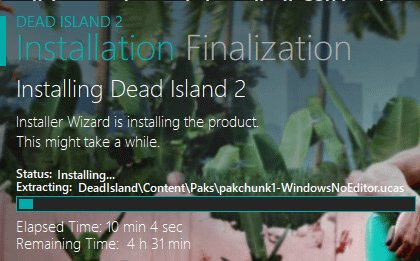
Games take so long to unpack on Steam because the downloaded files are compressed to reduce download times; the unpacking process involves decompressing these files, which requires significant processing power from your CPU and storage device.
Ever downloaded a game on Steam and felt like the unpacking process takes an eternity? You’re not alone! Many gamers wonder why do games take so long to unpack on Steam, and the frustration is understandable. It feels like the download itself was quick, but now you’re stuck waiting.
This decompression process, though necessary, uses a good chunk of your computer’s resources. The time it takes to unpack depends on the game’s size and your system’s hardware. It’s a necessary step to prepare the game for play.

Why Do Games Take So Long to Unpack on Steam?
So, you’ve just clicked that glorious “Install” button on Steam, and the download bar is zooming along. Fantastic! But then, bam! It hits 100%, and you’re not playing yet. Instead, you’re staring at a progress bar that says “Unpacking.” What’s the deal? Why does this unpacking process take so darn long, sometimes even longer than the download itself? Well, let’s dive deep into the world of game files and figure out why this seemingly simple step can be such a time sink. It’s not magic, it’s just some clever computer science at work, and I’m here to break it down for you!
Understanding Compressed Game Files
Think of your game download like a suitcase packed for a trip. To fit everything in, you might squish your clothes, roll them up tightly, and use every bit of space. That’s what game developers do with their massive games. They compress, or “squish,” all the game’s files into one large archive (like a ZIP file, but way more complex). This archive is what you download from Steam. By compressing the files, the download size becomes much smaller and that means you get your game quicker, and that means Steam servers don’t get clogged with too much traffic.
Why Compression is Necessary
- Faster Downloads: Smaller files mean faster downloads, saving you time and internet bandwidth. Imagine if every game was downloaded completely uncompressed. Your download times would skyrocket, and your internet bill might too!
- Less Server Load: Steam’s servers handle massive amounts of data. Compressed files ease this load, preventing the servers from being overwhelmed and keeping the whole Steam ecosystem running smoothly.
- Storage Space on Steam Servers: Storing compressed files on Steam’s servers reduces the amount of space needed. This efficiency makes sure they can provide a huge range of games available to you.
The Unpacking Process: What’s Actually Happening?
So, the download is done, and now you’re in the “unpacking” phase. Think of it as taking everything out of that suitcase we talked about and organizing it in your hotel room, or in this case, on your hard drive. The game’s installer has to take that compressed archive and return all of those “squished” game files into their usable, original form. This is where the CPU and your storage come into play, and this is where things often slow down.
Decompression Algorithm and CPU
The unpacking process is not as simple as just unzipping a regular file. There are complex algorithms at play that compress and decompress the game data. When the unpacking process starts, your computer’s CPU has to work very hard to reverse the compression applied during packaging. The complex algorithms used to compress and decompress the data are CPU intensive tasks. The better your CPU is, the faster this decompression will happen.
- CPU Load: The more powerful the processor (CPU), the quicker it can handle the decompression calculations. Older CPUs, or those with lower specs, tend to take a longer time for this work. A lot of time, during this process, the CPU is near 100% usage.
- Multiple Cores & Threads: If your CPU has multiple cores or can process multiple threads at once, it can handle decompression faster because it can process multiple parts of the file at the same time.
Storage Speed and the Hard Drive
The speed of your hard drive or SSD plays a significant part too. The unpacked game files need to be written back to your drive as the CPU decompresses them. Slow drives cause a bottleneck in the process, slowing things down significantly. It’s like trying to pour a lot of water into a glass with a very small opening.
- HDD (Hard Disk Drive): Traditional mechanical hard drives are slower, with moving parts and slower data transfer rates. This means that writing a large amount of unpacked data to them will take more time.
- SSD (Solid State Drive): Solid-state drives (SSDs) have no moving parts and are significantly faster at reading and writing data. This makes them ideal for unpacking, making the process much quicker than with HDDs.
- NVMe SSDs: NVMe (Non-Volatile Memory Express) SSDs are the fastest form of storage currently available for consumer computers and laptops. They use a higher-speed connection than standard SSDs. This results in the fastest game unpacking times of all storage types.
File Verification
Another part of the unpacking process involves the computer verifying that the files were decompressed correctly and without error. This is an important step to ensure that the game will work properly and without issues. It’s sort of like checking all the parts are there and undamaged after you unpack that suitcase. This adds a little more processing time, but it’s worth it to avoid errors.
- Integrity Checks: The unpacking process includes integrity checks to make sure the decompressed data is exactly the same as it should be. If there was data corruption or damage in the archive you downloaded, Steam has to make sure that it didn’t cause a problem during decompression.
- Error Handling: If an error is discovered during the checks, Steam might even restart the unpacking process for that part of the game, adding extra time to the whole process.
Game Size and Complexity
The larger and more complex the game is, the more time it will take to unpack it. Imagine unpacking a small bag of groceries versus unpacking a whole car trunk full of stuff. The bigger the game, the more files there are to decompress, verify, and organize, which naturally takes more time. Games with high resolution textures, complex game world maps, lots of character models, and high quality audio, need significantly more time to unpack than a simpler game.
Types of Game Files
- Textures and Graphics: High resolution textures and complex graphical assets make up a large portion of the file size of games, and they need time to decompress.
- Audio Files: High quality sound effects, background music, and voice acting can make up quite a significant part of a modern game’s file size. They too must be decompressed and installed.
- Game Code and Data: The actual game code and data need to be properly placed into game directories, and linked together during the unpack process.
Game Engine and Technologies
The engine in which the game was made influences how the game’s files are arranged and compressed. Some engines can lead to more efficient unpacking, while others can result in more time being required. Some games may also make use of their own compression algorithms or formats, which add to the complexity of the process. Newer games with cutting-edge technology can sometimes require more time to unpack, since they’re doing more complex things with their files than older games.
Other Factors Affecting Unpacking Time
It’s not just your hardware and game size, other things can influence unpacking time too. It’s a lot like trying to finish a race when there are other things in the way.
Background Processes
- Other Applications: If your computer is running a lot of other programs in the background during unpacking, it may slow things down. Other applications, running in the background, can take up a lot of processing resources, causing a bottleneck on the unpacking process.
- Antivirus Software: Antivirus programs can sometimes interfere with unpacking as they scan files to make sure they are safe. This can cause additional delays while your system verifies the integrity of the files being written.
- System Updates: If Windows is also performing background updates at the same time, this may impact the processing performance, leading to longer unpacking times.
Steam’s Performance
Sometimes, Steam’s servers or your internet connection might have issues that could affect unpacking, although this is less common. If Steam is having a busy day, or if your connection to the servers is slow or unstable, even the file verification step might take a little longer.
- Steam Server Load: If Steam’s servers are under heavy load due to a lot of people installing or updating games at the same time, unpacking could slow down slightly.
- Connection Stability: A weak or fluctuating internet connection might not directly affect unpacking, but it can cause problems with verifying downloads, which, in turn, can slow things down.
Optimizing Your Unpacking Experience
Now that you know the reasons behind lengthy unpacking times, here are a few things you can do to try to make the process less painful.
Hardware Upgrades
- Faster CPU: If you have an older CPU, upgrading to a newer one can significantly reduce unpacking times.
- SSD or NVMe Drive: Switching from a traditional hard drive (HDD) to an SSD, or even better, an NVMe SSD, will give you the most dramatic improvement in unpacking times.
- More RAM: Sufficient RAM will help with the decompression process, and can make your system run more efficiently during unpacking.
Software Optimization
- Close Background Apps: Before unpacking, close any other applications that might be running to ensure all CPU resources are focused on unpacking.
- Disable Antivirus Temporarily (With Caution): If you’re confident about the game’s source (Steam is safe), you could try disabling your antivirus during unpacking, but it’s essential to re-enable it afterwards. Only do this if you’re very confident that you’re downloading safe software.
- Update Drivers: Make sure your video card and system drivers are up to date, as this can sometimes improve performance.
Other Tips
- Download During Off-Peak Hours: Downloading and unpacking during off-peak hours, when Steam servers are less congested, might help, but is likely to be minimal in its effect.
- Check for Drive Errors: Making sure your hard drive doesn’t have any errors can improve its performance.
In closing, while it may be frustrating to have to wait for a game to finish unpacking, knowing what’s going on under the hood can make the process a little less mysterious. It is a very complex process which makes sure that games can be downloaded quickly, and installed with verification. Remember, faster hardware helps, but sometimes it is just about having to wait to play the game.
How to unpack from preload faster on Steam
Final Thoughts
Decompression and file verification are primary reasons why game unpacking takes considerable time on Steam. These processes, although essential for integrity, can feel tedious. Storage drive speed also impacts the overall time.
Faster drives will generally reduce unpacking durations. The game’s size, along with your computer’s specifications, play a vital role. Therefore, ‘why do games take so long to unpack on steam’ boils down to these key factors.

