
Your games likely minimize due to background applications, outdated drivers, or specific game settings that cause focus loss.
It’s incredibly frustrating when you’re in the heat of battle and your game suddenly minimizes to the desktop. I know exactly how that feels, you are wondering ‘why do my games keep minimizing’. This can ruin your immersion and affect your gameplay.
Many things can cause this, such as notification pop-ups or other programs demanding your system’s attention. Finding the root cause requires a little detective work, and we’re here to help guide you through the process of identifying and fixing these issues.

Why Do My Games Keep Minimizing?
It’s super frustrating, right? You’re deep into an exciting game, maybe you’re about to beat a tough level, or you’re in the middle of a crucial battle, and then poof – your game suddenly minimizes, and you’re staring at your desktop. This happens to lots of people, and it can be caused by many different things. Let’s explore the common reasons why your games keep minimizing, so you can get back to gaming without interruptions.
The Dreaded Background Programs
Think of your computer as a busy city. Many programs and applications run in the background, some you see, and some you don’t. These background programs, even when they aren’t on your screen, can cause your game to minimize. Imagine them as little cars honking their horns – they demand attention, and your computer gives it to them by pushing your game aside.
Notifications: The Pop-Up Problem
One of the main offenders are notifications. These are alerts from various programs telling you something new happened. Maybe you got an email, a message from a friend, or your antivirus program finished a scan. These pop-up notifications try to take your attention and cause the game to minimize. If you’re using Windows, this usually happens with the notifications on the right bottom corner of your screen. To reduce these interruptions you can change your notification settings.
- How to fix: To stop the notifications from interrupting your games, go into your computer settings and search for “notifications”. You can turn them off completely, or just disable notifications for specific apps that you know usually cause problems.
Antivirus Interference: Overprotective Software
Antivirus programs are super important to keep your computer safe, but sometimes they can be a bit too protective. When an antivirus program detects any action or software change during game play, it might interrupt your game by minimizing the current window to ensure safety. When you’re playing a game, your antivirus could interpret the game processes as potential threats and try to get your attention by minimizing the game window, even when it is not dangerous.
- How to fix: You can try setting your game folder or game executable file as an exception or creating an exclusion rule in the settings of your antivirus program. This will tell the antivirus to leave your game alone. Remember, only add your game as an exception if you are sure it’s safe, and make sure you’ve downloaded the game from a legitimate source.
Other Background Applications: The Silent Culprits
Many other applications run in the background without you noticing it. Some common ones include:
- Cloud storage apps like Dropbox or Google Drive may cause interruptions when they are syncing files.
- Communication programs like Skype or Discord, may pop up notifications.
- Hardware monitoring apps that show your temperature or other system performance can sometimes cause problems with game display.
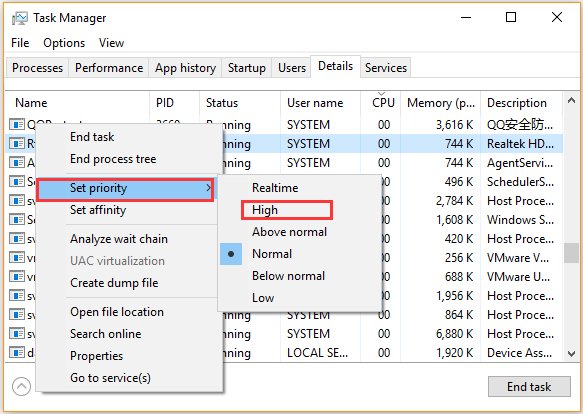
To identify which app is causing your games to minimize, check Task Manager. Task Manager shows all the programs currently running, you can find it by pressing Ctrl+Shift+Esc keys together. Look for any apps that you don’t need and close them. You can right-click the app and select “End task” to close it. Try running the game again to see if that helps.
Driver Problems: Outdated or Corrupted
Your computer uses special software called “drivers” to communicate with all the hardware like your video card, mouse, and keyboard. If these drivers are outdated, or faulty, it can lead to many issues, including game minimization. Imagine the drivers as the language translators between your games and your hardware; if the language is out of date, problems happen.
Graphics Card Drivers: The Visual Powerhouse
The most common driver to cause these issues is your graphics card driver. Old or incompatible drivers can cause crashes, stutters, and even game minimizing. These drivers are crucial to ensure that the game can smoothly display on your monitor.
- How to fix: Updating your graphic card drivers to the latest version, usually fixes these kind of problems. The way to update them varies on the card you have (NVIDIA, AMD, or Intel), but usually you can find the correct drivers on the website of your graphic card manufacturer. You can also use the software that came with your graphics card. Always download your drivers from the official website of the manufacturer.
Other Outdated Drivers: Not Just Graphics
Even other drivers, like the drivers for your sound card or even your mouse, can lead to unexpected minimizing issues. While they aren’t as common, if your other troubleshooting steps don’t work, try looking at updates for other drivers as well.
- How to fix: You can check and update all of your drivers in Windows through the Device Manager. Search for it in the windows search box. Right-click on the device, select “Update driver”, and then select “Search automatically for drivers”. Windows will then search for newer versions of your drivers and install them if needed.
Game Settings and Conflicts
Sometimes, the problem isn’t with your computer, but with the game itself. Certain game settings can cause minimizing issues, or conflicts with other programs running on your computer. The way a game is set up can affect how it interacts with your system.
Fullscreen Mode: The Usual Suspect
A common reason for game minimizing is issues when playing the game in “fullscreen mode”. When you are using “fullscreen mode” game takes full control of your screen. Sometimes, other programs can take priority or make issues with the full screen, resulting in your game minimizing.
- How to fix: Try switching to a “windowed” or “borderless windowed” mode. This mode usually resolves problems caused by fullscreen settings. You can usually find this setting in the game’s graphics settings menu. If “windowed” or “borderless windowed” mode works, you’ve found a solution.
Resolution Conflicts: Mismatched Visuals
Sometimes the display resolution of your game might be different from the display resolution you have set on your computer. This mismatch between the two resolutions can sometimes force the game to minimize.
- How to fix: To fix this problem, try setting the game resolution to match the same resolution as your monitor. You can change the game resolution from the graphics options in the game settings.
Game Overlays: Unwanted Interference
Some games use overlays, they are a type of screen display within the game. These overlays could be causing conflicts and minimizing issues. Game overlays from programs like Discord, Steam, or other game optimization software can cause problems during gameplay. These can cause conflicts with the game and make your game minimize.
- How to fix: Try disabling these overlays. For example, to disable the Discord overlay, go to the user settings, and then the “Game Overlay” tab, and disable “Enable in-game overlay”. You can turn off the overlays of the specific application that you want to.
Hardware Issues: When Things Get Physical
Sometimes, the reasons for your game minimizing aren’t because of software, but instead it can be because of your computer’s hardware. Your computer’s physical parts can cause games to minimize, if they have any issue.
Overheating: The Hot Topic
If your computer is getting too hot, it can make your games minimize or even crash. Overheating usually happens if your computer fans are not running correctly, or if the inside of your computer has a lot of dust and the heat is not being removed correctly. High temperatures can cause your computer to reduce performance to prevent damage. This can also cause your games to minimize unexpectedly.
- How to fix: Make sure your computer has enough ventilation around it. If it’s a laptop, try using it on a hard surface, not on a pillow or blanket. Also, make sure your computer fans are working correctly. You can also consider getting it cleaned or adding extra cooling to keep your computer cool during game play.
Loose Connections: The Untightened Parts
Loose connections inside your computer can also lead to unexpected problems with game display. It’s rare, but sometimes cables or cards inside your computer can get loose and stop working correctly and cause minimizing problems.
- How to fix: If you’re comfortable opening your computer case, check the connections of the graphics card and other components. Make sure everything is plugged in firmly. However, if you’re not comfortable with opening up your computer, it’s best to ask for help from a professional.
Operating System Glitches: When Windows Gets Buggy
Sometimes the problem is not about the game, your drivers or even the hardware, sometimes the operating system itself has a bug and it can cause problems like your games minimizing during gameplay.
Outdated Operating System
Using an outdated operating system can lead to various issues, including game minimizing. Microsoft releases updates for Windows to fix bugs and make the system run better with different programs and games. If you are not running the latest version of windows, this may be the reason for your game minimizing.
- How to fix: Make sure your windows is up to date. In order to update windows, you can search for “windows updates” in the windows search bar, then click on the “Check for updates” button and install any available updates.
Corrupted System Files
Sometimes the system files get corrupted and may interfere with the way programs run. This interference can lead to games minimizing unexpectedly.
- How to fix: To check and repair corrupted system files use the system file checker tool. To use the SFC tool, open Command Prompt as an administrator (search for cmd in the start menu, right click and select “run as administrator”). Type sfc /scannow and press Enter. The system will scan your computer files for any issues. When the scan is finished, restart your computer and see if the problem is resolved.
Software Conflicts: Other programs impacting game play
It is also possible that another program or application is causing a conflict with the game and making it minimize during the game play.
Conflicting Applications
Sometimes, multiple apps installed on your computer can conflict with each other. This conflict can cause one of the apps to not work correctly and in case of gaming this can cause minimizing. The other program could be trying to use same resources as your game, leading to conflicts and minimizing.
- How to fix: To check if another application is causing conflict with the game, you can try a “clean boot”. Clean boot will start your computer with only the essential system programs needed, and without any other background programs. To perform a clean boot, search for “System Configuration” and select it. Go to the “Services” tab and click on “Hide all Microsoft services”, then click “Disable all”. Go to the “Startup” tab, click “Open Task Manager”, and disable each startup app one by one. Then restart your computer. Now try playing your game again, if it works without minimizing then you will have to enable services or startup apps one by one, to find out which one is causing the problem.
By checking all of these things, you should be able to find out why your game keeps minimizing and fix the issue. Remember to take your time, and don’t get discouraged; with a little bit of problem-solving, you’ll be back to gaming in no time.
Fixing the issue of your games minimizing can be a bit of a detective work but by systematically looking at each of these areas, you will be able to find out the cause and you can get back to uninterrupted game play. Remember that each computer is different so what fixes the issue for one user, might not fix it for another user. Take your time and try the solutions one by one, you can always try another way if a solution does not work for you.
Full screen apps and games keep minimizing itself in Windows 10, 11 Fix
Final Thoughts
Ultimately, various factors cause game minimization. Outdated drivers, background apps, and even certain game settings can interrupt your gameplay. These interruptions are often the root cause of “why do my games keep minimizing.”
Checking for driver updates is essential. Closing unnecessary programs also helps. You may need to tweak game specific settings, for example switching from full screen to borderless window mode.

