
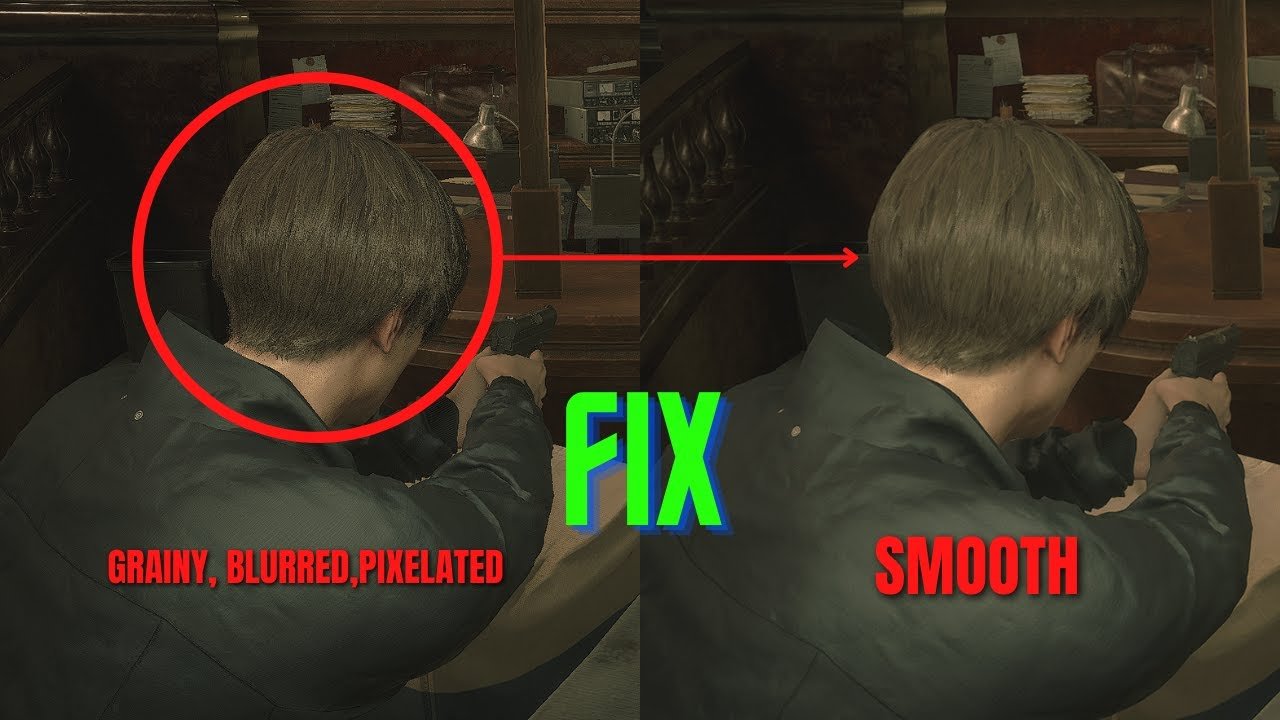
Your games likely appear grainy due to low resolution settings, upscaling artifacts, or issues with anti-aliasing.
Have you ever been engrossed in a game, only to be pulled out by the distracting, grainy visuals? It’s a common frustration, and you’re not alone in asking “why do my games look grainy”. This can really affect your overall experience.
Several factors contribute to this visual problem, ranging from your game’s display settings to the way your graphics card handles images. We’ll explore the most common causes and offer solutions for clearer gameplay.

Why Do My Games Look Grainy?
Ever fired up your favorite game, ready for action, only to be greeted by a screen that looks more like static than stunning graphics? That “grainy” look, also known as visual noise or pixelation, can be a real bummer. It’s like trying to watch a movie through a dirty window. The good news is, there are several reasons why your games might look grainy, and most of them have simple solutions. Let’s explore the most common culprits and get your games looking crystal clear again.
Understanding the Grain: What’s Really Going On?
Before we dive into solutions, let’s understand what that “grain” actually is. The graininess you see in games typically isn’t a single issue; it’s often a combination of things working against the picture. It could be:
- Pixelation: This is when individual pixels become very noticeable. Think of it like looking at a mosaic up close – you see the individual tiles rather than a smooth picture. This usually happens when the game’s resolution is too low for your monitor.
- Noise: This is random visual clutter that makes the image look dirty or fuzzy. It’s like the static you sometimes see on a TV. Different factors can cause noise, such as low rendering quality or aggressive sharpening settings.
- Artifacts: These are unwanted visual distortions that aren’t meant to be there. They can appear as blocks, lines, or other strange shapes. Artifacts often point to issues with the graphics card or its settings.
Resolution: The Foundation of Sharpness
One of the biggest factors influencing how clear a game looks is the resolution. Resolution refers to the number of pixels your screen displays, usually measured in width and height (e.g., 1920×1080, also known as 1080p). Think of it like the number of tiny dots that create the picture. A higher resolution means more dots, which results in a sharper, more detailed picture. If your game’s resolution is lower than what your monitor can handle, the image will be stretched and look blurry or grainy.
Match Your Game Resolution to Your Monitor’s Native Resolution
The easiest fix is often to check your game’s graphics settings. You need to ensure the game is set to the correct resolution for your monitor (this is often called “native resolution”). For example, if your monitor is a 1920×1080 screen, make sure the game is also set to 1920×1080. If your game’s resolution is set too low, say to 1280×720, you’ll get that grainy look.
Here’s how to check and change the resolution in most games:
- Open the game.
- Find the settings or options menu (often represented by a gear icon).
- Look for the graphics or video settings.
- Find the resolution settings and choose the native resolution of your monitor.
- Save changes and restart the game if needed.
Upscaling: A Band-Aid, Not a Cure
Sometimes, you might find your game’s resolution is already set to the max. But even then, the game can still look grainy. This could mean that your game is using a low internal rendering resolution and then using something called “upscaling.” Upscaling is when the game tries to make the image look better by increasing the pixel count, but it’s not a perfect process. It often results in a blurry or grainy image because it’s artificially creating details that weren’t really there to begin with.
Some games offer upscaling options like FSR (FidelityFX Super Resolution) or DLSS (Deep Learning Super Sampling). While these technologies can help improve performance, they can also introduce a bit of a soft or sometimes grainy look, especially if set to the aggressive performance-focused options. If you’re using these, try adjusting the settings to prioritize quality over performance to see if that improves the situation.
Graphics Settings: The Fine Details Matter
Beyond resolution, several other graphics settings can impact the graininess of your game. These settings control the quality of visual elements and can either enhance or detract from the clarity of your game. Adjusting these can often resolve the problem without needing new hardware.
Anti-Aliasing: Smoothing the Edges
Aliasing is that jagged, stair-step effect you see on diagonal or curved lines. Imagine drawing a diagonal line using only square blocks; it won’t look smooth. Anti-aliasing (AA) techniques are designed to smooth out these edges, reducing visual noise and making images look much cleaner and sharper. If anti-aliasing is off, or set to a low setting, your game can appear more grainy and pixelated.
There are different types of anti-aliasing, such as:
- MSAA (Multi-Sample Anti-Aliasing): A more traditional method that can be very effective but also demanding on the graphics card.
- FXAA (Fast Approximate Anti-Aliasing): A less demanding option but can result in slightly blurry images.
- TAA (Temporal Anti-Aliasing): A common technique that blurs the image slightly across frames to reduce aliasing, but can also sometimes add a bit of a soft look.
Experiment with different anti-aliasing options in your game’s settings to find what works best for your setup. Start by enabling it or increasing the level if it’s already on. Sometimes a higher level of anti-aliasing will use more processing, but will give you a much cleaner look.
Texture Quality: Details at a Distance
Texture quality controls how detailed the surfaces of objects appear in the game. Low-quality textures will often look blurry and grainy, especially when viewed up close. High-quality textures will make sure the details are sharp and clear. If you’ve lowered your texture settings for more performance, it might be worth increasing the quality to see if that fixes your grainy issue. This generally depends on how much memory your video card has to use. If you run out of this memory it will hurt the performance of the game.
Sharpening: Be Careful with This Setting
Sharpening filters are meant to make the game image look clearer and more detailed. However, if they are set too high, they can also add a lot of grain and noise to the image. Many games have their own sharpening options. If your game looks grainy, try reducing or turning off the sharpening option, then see if it looks better. Sometimes less is more!
Ambient Occlusion: Adding Depth
Ambient occlusion is a graphics setting that affects how light and shadows interact with objects and surfaces. When ambient occlusion is off or set too low, surfaces can look flat and lack depth. Enabling ambient occlusion, or increasing it, can result in a richer, more detailed, and less grainy look. This setting can be more performance demanding so adjust based on your own system.
Monitor Settings: Overlooked but Crucial
It’s easy to focus on the game settings themselves, but your monitor’s settings are also important. If the monitor is not configured correctly, it can contribute to a grainy image, even if the game is set up properly.
Sharpness and Contrast Settings
Like with in-game sharpening, your monitor’s sharpness setting, if too high, can create unnecessary noise and accentuate the grain. Try turning down your monitor’s sharpness setting a bit or completely, and see if that helps. Similarly, incorrect contrast settings can cause details to be lost or become muddy, making the image appear less clear. Experiment with your monitor’s contrast settings to find a balance that works for you. You may want to go back to the default if you have changed them.
Refresh Rate and Response Time
While refresh rate (Hz) and response time don’t directly cause graininess, they can affect the overall smoothness and clarity of the image, which is related to how sharp the picture appears. If your monitor’s refresh rate is set too low, or there is a mismatch between the monitor’s refresh rate and the game’s frame rate, you might see some visual tearing. This can contribute to a feeling that the image is not sharp or clear. Also, your monitor’s response time dictates how fast pixels can change color. If your response time is not set correctly, especially on faster gaming monitors, this can cause smearing and ghosting which can also contribute to the perception of a less clear image.
Hardware Issues: When the Problem Runs Deeper
If you have tweaked all of the settings to perfection and are still seeing grainy visuals, the issue might be with your hardware. Your computer or its components might be struggling to provide the clear and detailed image you are looking for.
Overheating Graphics Card
If your graphics card gets too hot, it can lead to visual issues like artifacts and graininess. Overheating usually happens when the card is working hard, and if it gets too hot, it will start to lose performance. This can cause the game to have visual problems including grain. Ensure your computer’s fans are working correctly and that there is proper ventilation around your system to prevent overheating. Monitor your card’s temperature using software, such as the one provided by the manufacturer. If it is getting too hot, you may want to check if the fans are working and clear the dust out.
Outdated or Corrupted Graphics Drivers
Graphics drivers are what allow your games to communicate with your graphics card. Old or corrupted drivers are a common cause for various visual problems, including graininess. Make sure you have the latest drivers installed for your graphics card from the manufacturer’s website (Nvidia, AMD, or Intel). These drivers are often updated and have the most up-to-date information for your video card so that it operates smoothly.
Updating your drivers is generally a very simple process:
- Visit the website of your graphics card manufacturer.
- Find the downloads or drivers section.
- Choose the right driver for your operating system and your graphics card.
- Download and install the driver.
- Restart your computer.
Failing or Insufficient Hardware
Sometimes the issue is simply that your hardware is getting old. If your graphics card is not powerful enough for the game, you’ll get low performance and potentially blurry or grainy images, especially if you are running at a higher resolution than the card is capable of doing. You might be getting by with older hardware, but if your machine is struggling to keep up it might be time for an upgrade. This is usually a last resort since other solutions tend to be more straightforward to resolve.
Game-Specific Issues: When It’s Not You, It’s Them
It’s not always your setup. Occasionally, the issue might lie with the game itself. Some games are simply more prone to looking grainy due to their rendering techniques, or if they haven’t been optimized. Also games that are earlier in development may have more of these visual issues, which is sometimes expected. There’s not much you can do about it besides trying to contact support or wait for patches.
Game Bugs and Glitches
Some bugs or glitches in a game can cause visual anomalies, including graininess. If you suspect a bug, check the game’s official forums or communities. Other players might be experiencing the same issues, which is helpful when troubleshooting. Sometimes a patch is released for this type of problem.
Poor Optimization
Some games are just not optimized well. This means they do not perform well on most systems, or have visual issues such as graininess even when the graphics are at the highest setting. If you are having trouble with a newly released game, it could be that it needs more work to perform better on a wide variety of systems.
A Quick Checklist: Troubleshooting Grainy Games
If you’re still struggling with grainy visuals, here’s a quick checklist to run through:
- Resolution: Make sure your game is set to your monitor’s native resolution.
- Anti-Aliasing: Experiment with different AA options.
- Texture Quality: Increase the texture settings.
- Sharpening: Reduce or disable sharpening filters, both in the game and on your monitor.
- Monitor Settings: Check your monitor’s sharpness, contrast, refresh rate and response time settings.
- Graphics Drivers: Update to the latest version for your card.
- Overheating: Ensure your graphics card is not overheating.
- Game Specific: Look for known bugs or optimization issues.
With a little troubleshooting and some adjustments, you can usually get your games looking much better. Don’t be afraid to try different combinations of settings to see what works best for your specific setup. Happy gaming!
Why do modern games look so blurry?
Final Thoughts
Ultimately, grainy visuals often stem from resolution mismatches or inadequate in-game settings. Lower rendering resolutions or insufficient anti-aliasing make textures appear less smooth, and thus grainy.
Incorrect display scaling can also cause graininess. Sometimes, older or incompatible display drivers also affect graphic output, contributing to the “why do my games look grainy” problem. So, remember to check your settings and drivers to improve image quality.

