
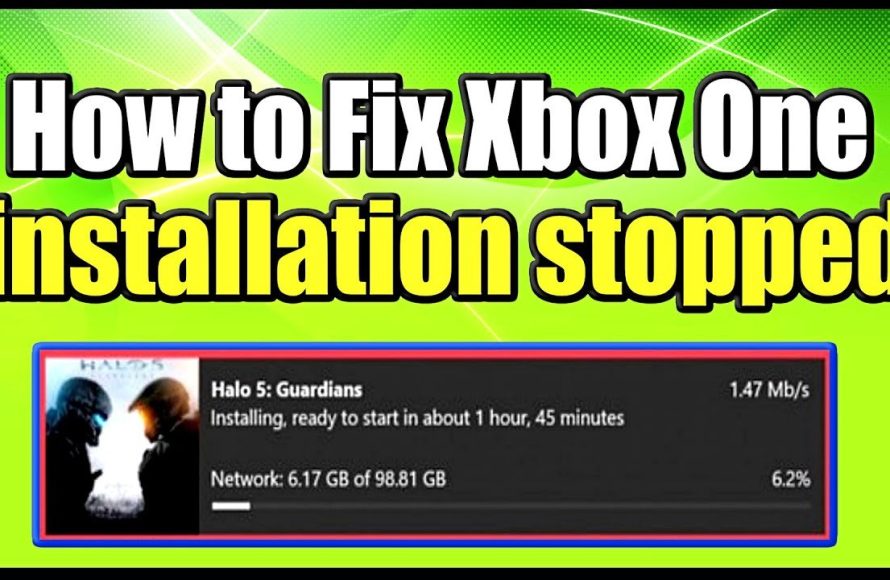
‘Your Xbox One games might stop installing due to insufficient storage space, a poor internet connection, or issues with Xbox Live services.’
Frustration mounts when you’re excited to play a new game, only to find the installation grinding to a halt. It’s annoying, and many gamers experience this problem. So, why do my games stop installing on xbox one? Let’s explore the common causes and solutions.
This issue often involves several factors which we will explain. From storage problems to network hiccups, knowing these key issues helps you troubleshoot. It will help you to get back to gaming quicker.

Why Do My Games Stop Installing on Xbox One?
It’s super frustrating, right? You’re excited to play that brand-new game, or maybe you’re just trying to revisit an old favorite. You hit “install,” everything seems to be going smoothly, and then…bam! The download stops. The progress bar freezes. Your Xbox One game installation is stuck. Why does this happen? Let’s dive into the reasons why your game installations might be getting interrupted on your Xbox One and how you can try to fix them.
Internet Connection Issues
One of the biggest reasons why your game installation might grind to a halt is your internet connection. Think of it like this: the game data is traveling through your internet to your Xbox. If that road gets bumpy, the data can’t arrive properly.
Slow Internet Speed
Imagine a tiny straw trying to fill a giant bucket with water. That’s kind of like a slow internet connection trying to download a huge game. If your internet speed isn’t fast enough, it will take a really long time, and the connection might even drop in the middle of the process. This can make the installation stop completely. It’s essential to check your internet speed. Many websites allow you to test your internet speed quickly and easily. This will help you understand if your internet speed is as fast as your provider says it should be. You might want to contact your provider if you’re consistently getting very slow speeds.
Unstable Wi-Fi
Wi-Fi is convenient, but it can be a bit flaky sometimes. Walls, other electronic devices, and even distance from your router can weaken the signal. This makes it difficult for your Xbox to maintain a steady connection with the internet, which can cause downloads to stall or stop. If you’re using Wi-Fi, consider moving your Xbox closer to your router, or try connecting your Xbox directly to the router using an Ethernet cable. An Ethernet cable provides a more stable and reliable connection, which can significantly improve your download speeds and reduce the chances of interruptions during game installations. You might also want to try restarting your router and modem; sometimes these devices just need a quick reset to work at their best.
Network Congestion
If many people in your house are using the internet at the same time – streaming videos, playing online games, or downloading files – it can make your internet connection crowded. It’s like rush hour on the internet! This congestion can slow down everything, including game installations on your Xbox. Try to download games when fewer people are using the internet, such as late at night or early in the morning, to see if it helps speed up the process.
Storage Problems
Another common reason for installation problems is related to the storage space on your Xbox One. Your Xbox needs enough space to save the game files, like a book needs a space on a shelf. If your “shelf” is full, you won’t be able to put the new book on it.
Not Enough Free Space
This one is pretty simple: if your Xbox is full, you can’t install a new game. Check how much free space is available on your console. You can find this information in your Xbox settings. If you’re running low, you’ll need to delete some games or apps to make room for new installations. Remember, even if a game is on a disc, your Xbox still needs to install parts of the game to your hard drive. You might need more space than you think! Consider deleting some large games that you don’t play anymore. You can always download them again in the future if you want to play them.
Corrupted Storage Data
Sometimes, the data on your hard drive can become corrupt, like a page in a book that’s been torn or smudged. This can interfere with new installations. Corrupted data can be caused by power surges, incomplete downloads, or even just the age of the hard drive. You might want to try clearing your local saved games. To do this, go to “Settings,” then “System,” and then “Storage.” Select the drive with your saved games and select “Clear local saved games.” This will delete local copies of saved data, and Xbox will re-sync your game saves to the cloud next time. This can often fix the problem if corrupted data is causing issues.
Hard Drive Issues
Just like any other piece of technology, your Xbox One’s hard drive can have problems over time. Sometimes, the hard drive can become faulty or damaged, which can cause games to stop installing. If you suspect the hard drive may be failing, it might be time to consider replacing the internal hard drive or getting an external hard drive to install your games on. Sometimes, the sounds coming from your Xbox can signal a potential issue. If you hear strange noises coming from the console, it’s a good idea to investigate further.
Xbox System Issues
Sometimes, the issue isn’t your internet or your storage but problems within the Xbox itself.
Outdated System Software
Just like your phone needs updates, your Xbox needs them too. These updates often contain bug fixes and performance improvements that can affect how well games install. If your system software is out-of-date, it could cause issues with installations. Make sure your Xbox is up-to-date. Go to “Settings,” then “System,” and then “Updates.” If there are updates available, install them. Sometimes, a system update can also interrupt an ongoing download. In these cases, restart the download after the update is completed.
Software Glitches
Sometimes, technology just has hiccups. A software glitch might be causing the installation to stop, even if everything else seems fine. When the Xbox is processing a lot of information it might sometimes have a short glitch. These types of issues are often solved with a simple power cycle or restart. You can do this by holding down the Xbox button on your console until it completely shuts off. Then, unplug the console for a few minutes before plugging it back in and turning it on. If the issue persists, try the troubleshooting steps below.
Game Specific Problems
Sometimes the issue lies with the game itself, rather than your console or connection.
Game File Corruption
The game files on the disc or on the download server can sometimes get corrupted. It’s like having a damaged page in a book that makes the whole story hard to read. If the game files are corrupt, the installation might fail. If you are installing from a disc, check if the disc has any scratches or damage. If you are downloading the game digitally, try canceling the download and starting it again, this can sometimes fix a corrupt download.
Installation Errors
Sometimes, the installation process itself can encounter errors. These errors can be caused by a variety of reasons, including software conflicts or problems with the way your Xbox is processing the information. These errors are not always easy to pinpoint, but the troubleshooting steps mentioned below might help solve them.
Troubleshooting Steps
Don’t worry, here are some things you can try to get your games installing again:
Restart Your Xbox
Sometimes, a simple restart can fix many issues. Turn off your Xbox completely, wait a few seconds, and then turn it back on. This can clear any temporary glitches.
Check Your Internet Connection
Make sure your internet is working correctly. Try visiting a website on your phone or computer. If you’re having trouble loading web pages, it indicates an issue with your internet connection.
Pause and Resume the Download
Sometimes, pausing and then resuming the download can restart the process if it’s just stuck.
Clear the Cache
Clearing your console’s cache can sometimes resolve installation issues. To do this, go to “Settings,” then “System,” then “Storage,” and then “Clear local saved games.”
Check for System Updates
Make sure your Xbox has the latest system updates installed. Go to “Settings,” then “System,” and then “Updates” to check.
Try an Ethernet Cable
If you’re using Wi-Fi, try connecting your Xbox directly to your router with an Ethernet cable. This can provide a more stable connection.
Use a Different Storage Device
If you have an external hard drive, try installing the game on that instead of the internal hard drive. This can help rule out any issues with your internal storage device.
Cancel and Redownload
Sometimes, the download process can get corrupted. Cancel the download and try downloading the game again.
Factory Reset (as a last resort)
If none of the above steps work, you can try factory resetting your Xbox. This will erase all your data, so make sure you back up your game saves before doing so. Go to “Settings,” then “System,” then “Console Info,” and then “Reset Console.” You can choose to keep your games and apps, or completely wipe everything.
Tips to Prevent Installation Issues
Here are a few things you can do to try and prevent these issues in the future:
- Regularly check and update your system software.
- Keep your hard drive clean and delete games you no longer play.
- Try to use an Ethernet connection when possible, as this can provide a more reliable connection.
- Avoid downloading large games while lots of other devices are using your internet connection.
- Periodically clear your console’s cache.
- Make sure your Xbox One is in a well-ventilated area, so it doesn’t overheat.
Installation problems can be a headache, but with a little bit of troubleshooting, you can usually get your games working again. Just remember to check your internet connection, storage space, system software, and, if all else fails, perform a power cycle or reset. By following the tips and troubleshooting steps, you can keep those installation issues to a minimum.
How to Fix Xbox One installation stopped for Digital or Disc Installs (Easy Method)
Final Thoughts
Ultimately, several factors cause your Xbox One game installs to halt. A full hard drive, network issues, or problems with the Xbox system itself can interrupt the process.
Interrupted downloads will occur if your internet connection is unstable or if the server experiences issues. Also, insufficient storage space will stop an install.
Therefore, to address “why do my games stop installing on xbox one”, you must check storage space, your network connection, and update console software. Troubleshooting must be done step-by-step.

