
Third-party applications, notifications, or background processes often interrupt your game, causing your computer to keep tabbing out of games.
It’s incredibly frustrating, isn’t it? You’re immersed in a critical moment of a game, and suddenly, you’re staring at your desktop. The question “why does my computer keep tabbing out of games” plagues many gamers. It seems like an annoying, random occurrence, but usually, there are specific reasons behind this.
These interruptions disrupt gameplay and can even cause you to lose progress. We will explore the common culprits and provide solutions to minimize this irritating issue. Let’s get you back to gaming without those annoying tab-outs.

Why Does My Computer Keep Tabbing Out of Games?
It’s super frustrating, isn’t it? You’re right in the middle of an intense game, about to win, and suddenly, bam, you’re staring at your desktop. Your game has minimized itself! This constant tabbing out can ruin your immersion and even cost you a victory. But why does this happen? It’s usually not a single problem, but a bunch of different things that could be causing your games to keep minimizing.
Background Applications Demanding Attention
One of the most common culprits behind those annoying game interruptions is other programs on your computer trying to get your attention. These background applications are constantly running, doing their own thing, but sometimes they need to show you a message, an alert, or update. When they do, they can force your game to minimize.
Notifications
Think of it like this: your game is a movie playing on a big screen, and your other apps are like smaller screens in the background. When one of those smaller screens wants your attention, it pops up in front, taking over the big screen. Notifications from programs like:
- Email clients (like Outlook or Thunderbird)
- Instant messaging apps (like Discord, Slack, or WhatsApp)
- Social media platforms (like Facebook or Twitter)
- Calendar reminders
- Antivirus software
- Download managers
- Operating System update notifications
These notifications can all cause your game to minimize, taking you out of the action unexpectedly. It’s not because these apps are bad; it’s just that they are designed to interrupt you when they need to. You can manage these notifications and choose which ones can interrupt you.
How to Reduce Notification Interruptions
- Focus Assist/Quiet Hours: Both Windows and macOS have options to help reduce notifications. In Windows, it’s called Focus Assist, and on macOS, it’s called Do Not Disturb. These modes can silence or hide most notifications while you play your games. You can usually find these options in your operating system’s settings.
- App Notification Settings: You can also customize the notifications settings of individual apps. So, if you know a certain app is always popping up at the wrong time, you can change its settings to only show notifications at certain times or even turn them off completely.
Driver Issues: Graphics and More
Your computer’s hardware needs special programs called drivers to work properly. These are like instructions that tell your computer how to use its parts. If a driver is outdated, corrupted, or not compatible with your game, it can lead to all sorts of problems, including your game minimizing.
Graphics Card Drivers
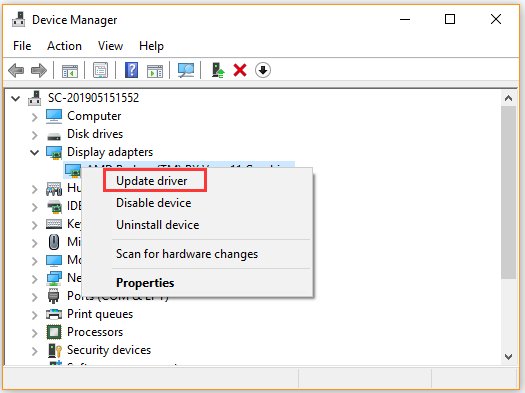
Your graphics card is one of the most important parts of your computer for games. It’s responsible for creating the images you see on the screen. If the graphics card driver is faulty, outdated, or corrupted, it can cause your game to crash, freeze, or, yes, minimize. Always make sure that your graphics drivers are up to date. You can usually do this through the software that came with your graphics card (like NVIDIA GeForce Experience or AMD Radeon Software).
Other Important Drivers
Although graphics drivers are most critical, you should keep all other device drivers updated as well, especially:
- Sound Drivers (for speakers and headphones)
- Input Device Drivers (for keyboards, mice, and game controllers)
- Motherboard Drivers (the main circuit board)
How to Update Drivers
- Automatic Updates: Windows or macOS often handle driver updates automatically through Windows Update or System Updates. This is the easiest way to keep drivers updated, but sometimes, it is not the latest.
- Manufacturer Websites: For the most current drivers, visit the website of your computer’s manufacturer (like Dell, HP, Asus, etc.) or the website of your specific hardware components (like NVIDIA, AMD, or Intel). Download and install the drivers directly from there.
Overlays Causing Conflicts
Overlays are programs that run on top of your games. They are useful for seeing information without leaving the game, but sometimes, they can create problems. Overlays from programs such as:
- Steam
- Discord
- NVIDIA GeForce Experience
- AMD Radeon Software
- Other third-party tools (recording, fps counters, etc.)
These overlays can try to take focus from the game, especially if they have a notification or a window pop up. They might also interfere with how the game handles its window.
How to Manage Overlays
- Disable Overlays Temporarily: If you’re having tabbing out problems, try disabling overlays one at a time to see if one is causing the problem. You can often do this in the settings of the software with the overlay.
- Update Overlay Software: Just like drivers, keeping the overlay software up to date can prevent conflicts.
Game Settings and Window Modes
Sometimes, the way your game is set up itself can cause problems with tabbing out.
Fullscreen vs. Windowed
Games can usually be played in three window modes:
- Fullscreen: The game covers your entire screen. This often provides the best performance.
- Windowed: The game runs in a window like any other program. This makes switching between applications easier.
- Borderless Windowed: The game looks like it is in full screen but actually runs in a window with no borders.
Sometimes, games running in full screen mode might be more prone to tabbing out because they have to switch screen modes. Borderless windowed mode is usually a more stable option if you want an almost full-screen experience with less chance of tabbing out.
How to Change Window Modes
You can usually change the window mode in your game’s video settings menu. Experiment with different modes to see if it helps with your tabbing out issues.
Hardware Problems
While software issues are more common, sometimes your computer hardware can be the cause of random game minimizing.
Overheating
When your computer gets too hot, it might start acting weird. Overheating can cause all kinds of issues, including game crashes, freezing, and minimizing. Make sure your computer has proper ventilation, and check the temperature of your components (especially the CPU and GPU). You can monitor these temperatures with software like HWMonitor.
RAM Issues
Your computer’s memory (RAM) is essential for games. If you have faulty RAM, it can cause games to act erratically, sometimes tabbing out. Try running a memory test using Windows Memory Diagnostic tool or a third-party memory diagnostic tool to check for any RAM problems.
Other Hardware
In rare cases, a failing hard drive, power supply, or motherboard component can also create unexpected behavior, like minimizing games. If your game minimizing persists after trying all other solutions, consider having a technician examine your hardware.
Viruses and Malware
A virus or other type of malicious software could be interfering with your games. Malicious software can often cause unwanted pop-ups and sometimes, can minimize games to try to trick the user. Regularly scan your computer for viruses with a good antivirus program, and run a scan with an anti-malware program for an extra layer of safety. Windows Defender provides a basic level of protection, but using a trusted third-party antivirus software is usually a good idea.
Operating System Issues
Sometimes the operating system (Windows or macOS) itself can be the source of the issue. If the system has some conflict in the core or some outdated files, this could cause games to minimize unexpectedly. Make sure you keep your OS updated to the latest version.
Corrupted System Files
System files are crucial for the operation of the operating system, and sometimes they can become corrupt, which may lead to all sorts of problems. There are some built-in tools that can scan and fix system files in both Windows and macOS. In Windows, the tool is called System File Checker (sfc /scannow), and in macOS, it can be done through the terminal.
Multiple Display Problems
If you are running multiple monitors, this might be a source of issues as well. Sometimes a monitor might try to regain the focus, which results in minimizing the game you are playing on the other screen. If you are facing this problem, try running the game on a single screen and see if it solves the problem.
Third Party Applications
Sometimes some of the third-party applications you have installed in your computer could cause unwanted interruptions or minimize the games, especially if these are designed to interact with games or are not stable in the system. Try closing any unnecessary third-party applications, and see if it resolves the problem. You can also try to start the computer in clean boot mode, which will start the computer with only basic drivers and services to help you identify which program is the culprit.
Conflicting Keyboard Shortcuts
Sometimes other applications are listening to keyboard shortcuts and may interfere with the game. Some programs have hotkey functions that might overlap with those used by the game you are playing. Check your applications for custom hotkeys and try to change them.
Solving the problem of your games constantly tabbing out can sometimes take some time and effort, because it could be several factors. By investigating all the possible causes mentioned above, you can pinpoint what is causing your games to minimize and fix the problem.
Full screen apps and games keep minimizing itself in Windows 10, 11 Fix
Final Thoughts
Ultimately, multiple factors cause the frustrating issue of games minimizing. Conflicting applications, outdated drivers, or even notification pop-ups frequently interrupt gameplay. Addressing these underlying causes is must for a smooth gaming experience.
Troubleshooting involves updating drivers, closing unnecessary programs, and adjusting notification settings. This should minimize interruptions and let you focus on your game. If all else fails, investigate potential hardware issues.
Ultimately, ‘why does my computer keep tabbing out of games’ often points to background processes demanding focus. A bit of detective work will help you quickly solve this problem.

