
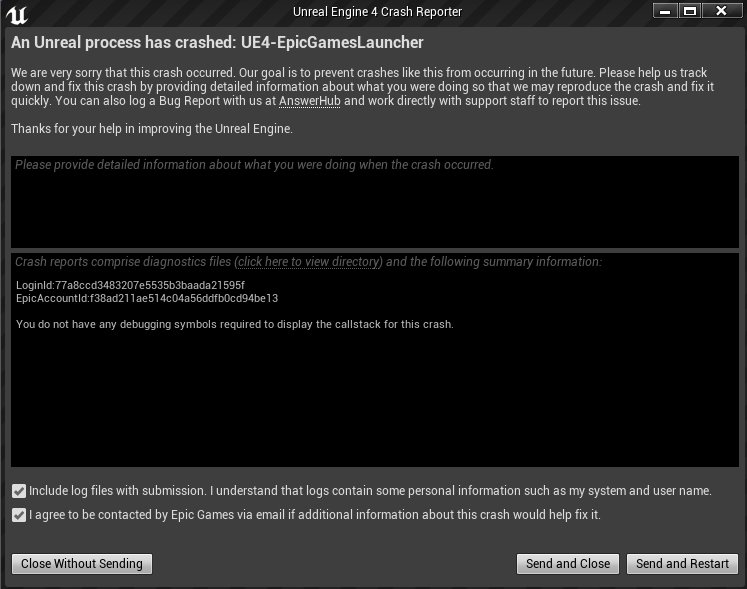
The Epic Games Launcher crashes because of issues like corrupted game files, outdated drivers, conflicts with other software, or insufficient system resources.
Is your Epic Games Launcher constantly crashing, throwing a wrench into your gaming plans? It’s frustrating, we get it. Many users face this issue and wonder why does my epic games launcher keep crashing.
The good news is that it’s often fixable. We’ll explore some common causes and simple steps you can take.
Let’s get you back to playing your favorite games!

Why Does My Epic Games Launcher Keep Crashing?
It’s super frustrating when you’re all set to dive into your favorite game, and the Epic Games Launcher decides to take a nosedive instead! You’re not alone; many players experience this issue. Let’s explore the most common reasons why your launcher might be crashing and, more importantly, how you can fix it. We’ll go step by step, just like a game tutorial, so you can get back to playing ASAP!
Outdated Software: The Sneaky Culprit
Sometimes, the simplest explanation is the correct one. Your Epic Games Launcher, like any other software, needs updates. When it’s running an old version, it can become unstable and crash. This is like trying to play a brand-new game on an old console—it just doesn’t work well together.
How to Check for Epic Games Launcher Updates
- Open the Launcher: Launch the Epic Games Launcher as you normally would.
- Look for a Notification: If there’s an update available, you’ll usually see a notification icon in the upper-right corner of the launcher (it looks like a little bell). Click it!
- Install Updates: If there are updates, the launcher will prompt you to download and install them. Follow the instructions. Sometimes, it might do it automatically, but it’s always good to check.
- Restart: After the update is complete, make sure to restart your launcher. This makes sure everything is working together smoothly.
How to Check for Windows Updates
Your Windows system also needs regular updates. Here’s how to make sure Windows is up to date. Outdated system files can make the launcher unstable, so this is crucial.
- Click the Start Button: It’s the Windows logo in the bottom-left corner.
- Go to Settings: Click the gear-shaped icon (settings).
- Click “Update & Security”: It looks like two arrows forming a circle.
- Check for Updates: Click the “Check for updates” button. Windows will then search for any available updates. If it finds some, it’ll download and install them.
- Restart: Restart your computer once the updates are installed.
Corrupted Installation Files: Like a Puzzle With Missing Pieces
Imagine trying to build a Lego castle and finding some pieces bent or broken. That’s similar to what happens with corrupted installation files. If some of the files the Epic Games Launcher needs to run are damaged, it might crash frequently. Sometimes a file is damaged during the download, install or during usage.
How to Verify Game Files
Luckily, the Epic Games Launcher has a built-in tool to help fix this.
- Open the Launcher: Launch the Epic Games Launcher.
- Go to your Library: In the top navigation menu, select “Library”.
- Find the Game: Find the game causing the problem (even if it’s the launcher itself that’s crashing, this method can help).
- Click the Three Dots: Click on the three dots (…) next to the game’s name.
- Select “Verify”: Choose the “Verify” option from the menu that appears. The launcher will then check the game’s files and replace any missing or damaged ones.
Reinstalling the Epic Games Launcher
If the verify option does not help, a clean installation is a good step. This removes any damaged files and replaces them with new ones.
- Close the Launcher: Completely close the Epic Games Launcher by right-clicking on the icon in the system tray and selecting “Exit”. Make sure it’s not running in the background.
- Uninstall the Launcher: Go to “Settings” -> “Apps” -> “Apps & features” (or “Add or remove programs” on some older versions of Windows). Find the “Epic Games Launcher” in the list and click “Uninstall.”
- Download the Installer: Go to the Epic Games website and download the latest launcher installer.
- Run the Installer: Once downloaded, run the installer and follow the instructions to install the launcher.
- Restart: Once the installation is done, restart your computer and relaunch the Epic Games Launcher.
Hardware Issues: When Things Get Hot
Your computer’s hardware is like the engine of your gaming experience. If it’s not working properly, things can go wrong. Overheating, not enough power, or old hardware can all contribute to crashes.
Overheating
If your computer gets too hot, it might slow down or even shut down to protect itself. This is similar to when you exercise in the sun for too long, you get tired and need a break.
- Check Your Fans: Make sure your computer’s fans are working correctly. You should be able to hear them running. If not, there might be a problem.
- Clean Your Computer: Dust can block the airflow and make your computer overheat. Clean the vents with compressed air to remove dust buildup.
- Improve Cooling: Consider using a laptop cooler or repositioning your desktop computer to allow better ventilation.
Insufficient RAM (Memory)
RAM is like your computer’s short-term memory. If you don’t have enough, your system might have problems running programs efficiently, leading to crashes. This is like trying to remember too many things at once, you get confused and forgetful.
- Close Other Programs: Close any unnecessary programs running in the background. The fewer programs using RAM, the better.
- Upgrade RAM: If you continue to have problems, you might consider upgrading your computer’s RAM. This is like getting a bigger notebook to hold more ideas.
Old or Incompatible Graphics Card Drivers
Your graphics card (GPU) is very important for games. Like your launcher and other software, it needs drivers. If your graphics card drivers are out of date or not working right, it may cause problems. This can lead to crashes or graphical glitches in games.
- Find Your Graphics Card: You can usually find this information in Device Manager on Windows. Search for “Device Manager” in the search bar.
- Update Your Drivers: Go to the website of your graphics card manufacturer (NVIDIA, AMD, or Intel) and download the latest drivers for your card. These websites usually have a search feature to help find the correct drivers.
- Restart Your Computer: After installing the updated driver, restart your computer.
Conflicting Software: When Programs Don’t Play Nice
Sometimes, other programs on your computer can conflict with the Epic Games Launcher and cause crashes. Think of it like trying to play two different games on the same screen—they just get in each other’s way.
Antivirus Software
Antivirus software is meant to protect your computer, but sometimes it can be too protective and interfere with your games. This can cause crashes or performance issues.
- Temporarily Disable Antivirus: You can try disabling your antivirus software temporarily to see if that helps. Do this cautiously, and make sure you reactivate your antivirus after testing.
- Add an Exception: If disabling the antivirus fixes the issue, you may need to add an exception for the Epic Games Launcher in your antivirus settings. This tells your antivirus not to interfere with the launcher.
Overlays
Overlays are programs that show up on top of other programs. They can also sometimes cause problems with games or the Epic Games Launcher. Sometimes these overlays might not be fully compatible with the launcher and may cause crashes.
- Disable Overlays: Many applications like Discord, Steam, and GeForce Experience have overlay features. Try disabling these overlays to see if it fixes the problem.
- Test One by One: If you have multiple overlays, try disabling them one at a time to find the one causing the problem.
Internet Connection Issues: Losing the Connection
The Epic Games Launcher needs a stable internet connection to work correctly. If your internet connection is unstable or slow, this can cause the launcher to crash.
Check Your Connection
- Restart Your Modem/Router: Unplug your modem and router, wait a minute, plug them back in, and then wait for them to connect.
- Use a Wired Connection: If possible, connect your computer to your router with an Ethernet cable instead of using Wi-Fi. A wired connection is usually more stable.
- Check Your Internet Speed: Go to a website like speedtest.net to check if your internet is working as expected. If your speed is very low, you may need to contact your internet service provider.
Epic Games Server Issues: Not Always Your Fault
Sometimes, the problem isn’t on your end. Epic Games servers might be experiencing problems, which can cause the launcher to have issues. This is rare, but sometimes things go wrong at their end.
- Check the Epic Games Status Page: Epic Games has a status page where they post information about server issues. Check it before troubleshooting your computer. You can usually find this on their official website or by searching for “Epic Games Server Status.”
- Wait It Out: If there is a server issue on Epic Games end, there is not much you can do besides wait for the issue to be resolved.
Permissions Problems: Not Allowed to Play
Sometimes, the Epic Games Launcher may not have the necessary permissions to run correctly. This can happen if you’ve recently changed your computer setup or if some files became corrupted. It’s like trying to open a door, but your key doesn’t fit!
- Run as Administrator: Right-click on the Epic Games Launcher shortcut and select “Run as administrator.” This gives the launcher more permissions, which can help resolve issues.
- Check File Permissions: Ensure that the Epic Games Launcher and its associated files have the appropriate read and write permissions in your system.
Background Processes: Too Much at Once
Many background processes on your computer can take up resources and interfere with the launcher. These processes use memory and can slow down your system, leading to crashes.
- Use Task Manager: Open Task Manager (press Ctrl + Shift + Esc). Go to the “Processes” tab and look for any programs that are using a lot of resources (CPU, Memory, Disk).
- End Unnecessary Processes: Close any unnecessary programs or services you’re not using. Be careful not to end any important system processes!
Temporary Files
Temporary files can build up over time and cause problems with how software works. These files are like clutter, and cleaning them out can sometimes help. It is important to occasionally remove these files to free up space and keep your system running smoothly.
- Open Disk Cleanup: Search for “Disk Cleanup” in the Windows search bar and open the tool.
- Select Drive: Select the drive where the Epic Games Launcher is installed (usually C:).
- Select Files to Delete: Choose the options for “Temporary files” and click OK.
By understanding these reasons, you can take steps to fix the crashes and get back to gaming. Each time you try a solution, test the launcher again to see if the issue is gone. Don’t worry, with a little patience you will get back to playing your games!
If none of these solutions work, don’t worry! The next section covers other advanced methods and troubleshooting techniques.
Persistent crashing can be annoying, but by going through the steps mentioned above, you should be well-equipped to tackle most of the causes. However, if the launcher continues to crash, don’t be afraid to reach out to Epic Games support. They’ll be able to give you further direction and help solve the issue.
How To Fix Epic Games Launcher Keeps Crashing Tutorial
Final Thoughts
In summary, various factors can trigger crashes. Outdated drivers, corrupted game files, or even software conflicts cause the launcher to malfunction. A failing internet connection might contribute too. Troubleshooting each element helps.
Addressing these common issues often fixes ‘why does my epic games launcher keep crashing’. Sometimes, a complete reinstall offers a fresh start. Make sure to check for system requirements as well.

