
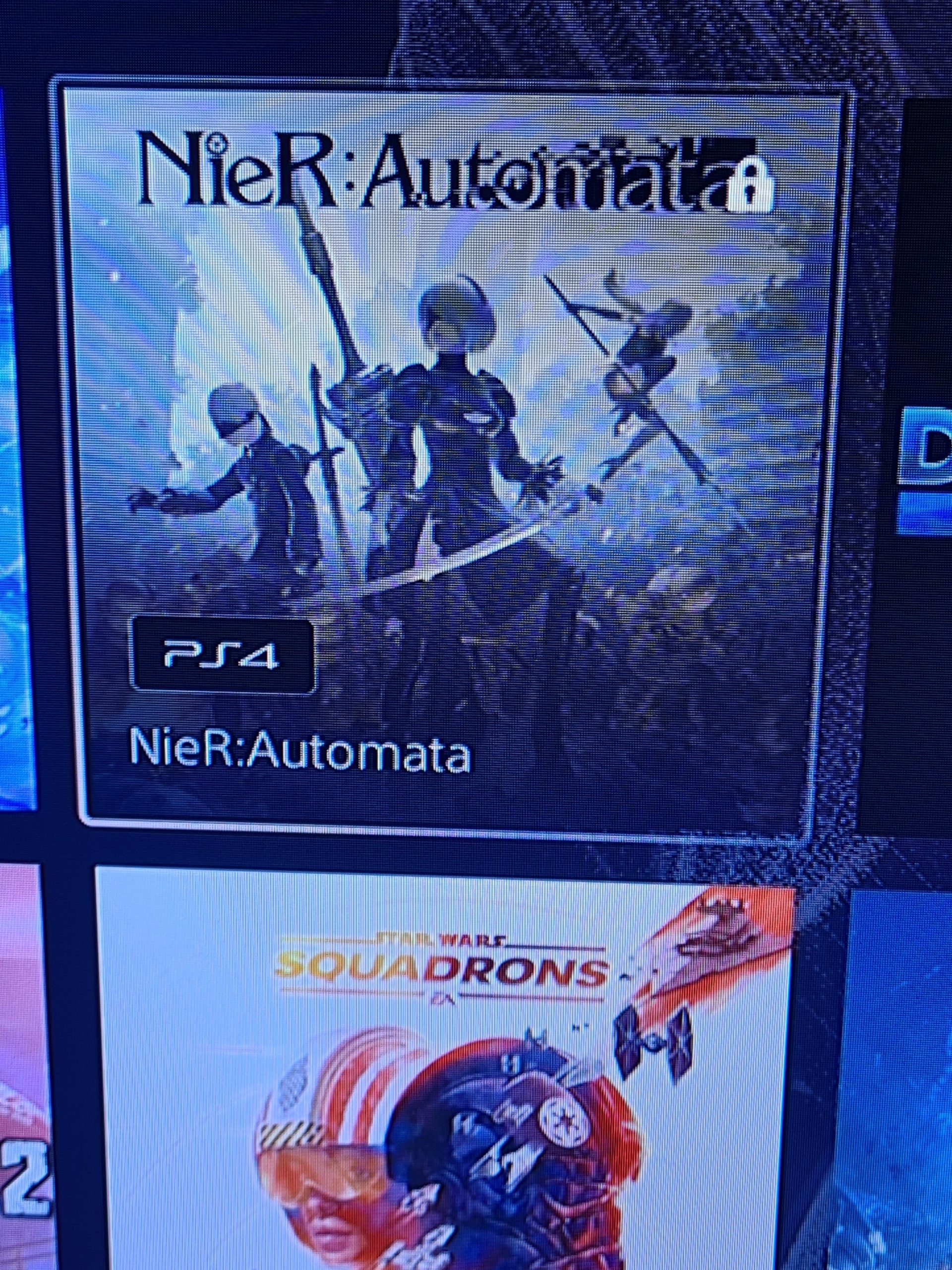
The lock on your PS5 game typically indicates that the license is not verified, often because the game was purchased on another account or the console isn’t set as the primary console for that account.
Ever stared at your PS5 screen, confused, wondering why does my game have a lock on it ps5? It’s a frustrating sight, a digital barrier between you and your gaming session. This lock usually pops up because of a few common reasons.
These reasons generally relate to account licensing issues or console settings. You may be trying to access a game purchased on a different profile, for instance. Or your console may not be activated as the primary one for the account that owns the game.

Why Does My Game Have a Lock on it PS5?
Seeing a lock icon on your PlayStation 5 game can be confusing and a little frustrating. You’re ready to jump into your favorite game, but instead, you see a little padlock. Don’t worry, it’s a common issue, and there are several reasons why this might be happening. We’ll explore all the possible causes and, most importantly, how to get rid of that pesky lock!
Understanding the Lock Icon
Before we dive into solutions, let’s understand what the lock symbol usually means. Think of it like a door: it’s telling you that something is preventing you from accessing the game right now. It’s not a broken game, but more like the PS5 needing to check a few things before letting you play.
Primary Reasons for the Lock
Let’s take a closer look at the main culprits behind the locked game icon on your PS5. These are the most common reasons and often the easiest to fix.
Digital Game Ownership Issues
One of the most common reasons for a locked game is a problem verifying your digital game license. When you buy a game from the PlayStation Store, your PS5 needs to make sure you are the owner, to play the game. Imagine you have a library card that allows you to take out books. Your PS5 needs to confirm that you have a valid library card. If something prevents that verification, your game will have a lock icon.
- PSN Account Issues: The first thing to check is that you’re logged in to the correct PlayStation Network (PSN) account. Make sure you’re using the account that was used to buy the game. If you log in with a different PSN account, the game will show as locked because that account doesn’t have the rights to play it.
- Internet Connection Problems: Your PS5 needs a working internet connection to verify your game license. If your internet is down, or if your connection is unstable, you will often see the lock. A weak WiFi signal or a temporary outage can easily trigger this.
- PlayStation Network Outages: Sometimes, the PlayStation Network itself can experience issues. If PSN servers are having problems, your PS5 might be unable to confirm your game license even if your internet is working fine. Check the official PlayStation Network status page, or look for status updates on social media to see if this is the cause.
Game Sharing and Primary Console Settings
Game sharing is a cool feature that allows you to share your digital games with others. But, if you have game sharing enabled, it can also cause some locks if it is not set up properly.
- Primary Console Activation: When you game share, your PS5 needs to be set as the “primary console” for the account that owns the game. If your PS5 is not set as the primary console for the game owner’s account, games shared through that account will often show a lock. You need to make sure you activate the console of the game owner as primary in order for the game to work properly.
- Game Sharing Conflicts: If multiple consoles are trying to use the same account, issues like game locking can happen. Ensure that the accounts are set up correctly for the intended game-sharing.
Physical Disc Issues
Even physical games can sometimes get locked. It usually is not as common, but there are reasons why this could happen.
- Disc Not Inserted: Sounds simple, but the most obvious reason for a locked physical disc game is that the disc isn’t in the PS5. It’s an easy thing to overlook. The console needs the disc to check the game license.
- Dirty or Damaged Disc: Scratches, smudges, or dirt on the game disc can prevent the PS5 from reading it properly. This can cause it to show as locked. Make sure your disc is clean and in good condition.
PlayStation Plus and Game Trials
PlayStation Plus is required for online gaming, but it is also important for game access in some scenarios.
- PS Plus Subscription Issues: Some games are only available through a PS Plus membership. If your membership is not active, or the game is only part of a higher PS Plus tier, the game can show as locked. Check your subscription status to make sure it is active, and that you have the correct tier to play the game you’re trying to launch.
- Game Trial Expiration: Some games offer trials through PS Plus. Once the trial period ends, the game will be locked if you haven’t purchased it. If you’re playing a game on trial basis, and your trial has ended, the game will get locked.
Troubleshooting Steps: Getting Rid of the Lock
Now that you know the reasons why your game might be locked, let’s go through how to fix it. Here are the best troubleshooting steps to try. Start with the most simple ones, and proceed with other ones if needed.
Initial Checks and Quick Fixes
Sometimes, a simple restart or check can fix the problem.
- Restart Your PS5: A simple restart can clear temporary glitches that may be causing the lock. Turn off your PS5 completely, wait about 30 seconds, and then turn it back on.
- Check Your Internet Connection: Make sure you’re connected to the internet. If you use WiFi, try restarting your router as well. Try running a connection test on your PS5 to see if you’re connected.
- Sign Out and Sign Back In: Sign out from your PSN account and then sign back in. This can sometimes refresh your license and get rid of the lock.
- Check Your Disc (Physical Games): Check the game disc for any damage or dirt. Gently clean the disc using a soft, lint-free cloth. Wipe it from the center outwards.
Account and License Restoration
If the initial checks don’t solve the problem, let’s take a closer look into the digital aspects of your account and game licenses.
- Restore Licenses: In your PS5 settings, navigate to Account Management and then select “Restore Licenses.” This forces your PS5 to re-verify all your digital game licenses. This can often fix problems caused by licensing issues.
- Verify Account: Double-check that you’re signed in to the PSN account that owns the game. Go to your PSN account info and confirm that you are using the correct account, or change if needed.
Primary Console Settings Adjustment
Setting up the primary console correctly is very important for smooth game sharing, if this is used on your system.
- Set Primary Console: Make sure the console used by the game owner is set as the primary console for their account. To do this, go to Settings > Users and Accounts > Other > Console Sharing and Offline Play. Make sure this is enabled for the account that owns the game.
- Deactivate and Reactivate: If you think the primary console setting is having trouble, try deactivating your console and reactivating it. Go to Settings>Users and Accounts > Other> Console Sharing and Offline Play, and choose Deactivate. Then, reactivate.
PlayStation Plus Verification
Make sure that your PlayStation Plus subscription is active and correct for your game.
- Check Your Subscription: Check the status of your PlayStation Plus subscription to ensure it is active. Go to your PSN account, manage subscriptions, and verify that your membership is active.
- Upgrade to Correct Tier: If a game requires a higher tier of PS Plus, make sure you have the correct tier in your account. Check the PlayStation store if your game is part of that service.
Advanced Troubleshooting
If the other troubleshooting steps do not work, then you may need to proceed with more advanced steps.
- Rebuild Database: Rebuilding your PS5 database can help fix any software errors that might be causing the lock. Start your PS5 in safe mode by holding down the power button until you hear two beeps. Then choose the option to rebuild database. This can take some time, but it could resolve the issue.
- Reinstall the Game: If all else fails, try deleting the game and reinstalling it. This can often clear corrupted data. Delete the game from your storage, and then reinstall it from your disc, or from the PlayStation store for digital downloads.
- Contact PlayStation Support: If the game is still locked after all of these steps, it’s time to contact PlayStation support. They have the tools to check your account and find out if something is wrong on their side. They can provide further help and solutions that you might not find on your own.
Preventing Future Lock Issues
While these steps will often fix the problem, it’s good to take some steps to prevent future game locks.
- Keep Your Software Up to Date: Keep your PS5 system software updated. Updates often contain fixes that can prevent licensing issues and other problems. Check for updates regularly.
- Use A Stable Internet Connection: Try to use a reliable internet connection, preferably a wired one. If using WiFi, try to improve the WiFi signal as much as possible.
- Regularly Check Your Subscriptions: Keep an eye on your PlayStation Plus subscription to make sure it is active and at the right tier for the games you want to play.
- Proper Disc Care: Make sure you store your game discs safely, and avoid scratches and damages. Always try to keep your discs clean.
By understanding the common reasons why games get locked on your PS5, you can save yourself a lot of frustration. If you follow these steps, you will likely fix the lock and be back to gaming in no time. Game locks are usually easily resolved with a bit of troubleshooting.
How to UNLOCK Games on PS5 (EASY) (2022) | SCG
Final Thoughts
The lock icon on your PS5 game usually means you don’t have the game’s license. This can happen with digital purchases if the account isn’t primary on the console. Also, physical disc games require the disc to play.
Another reason for the lock could be PlayStation Plus subscription issues. Sometimes a lapsed subscription causes problems for games you got through it. Therefore, verifying active subscriptions is a must.
So, if you see a lock icon, remember these points. This answers, “why does my game have a lock on it ps5”. Check your account, disc, and subscription status.

