
Your game keeps minimizing likely due to another application stealing focus, outdated drivers, or an overlay interfering.
It’s incredibly frustrating when you’re deep in a game and it suddenly minimizes, throwing you back to your desktop. Why does my game keep minimizing? This unexpected interruption can break immersion and cost you crucial moments in gameplay.
Several factors can contribute to this issue, from background programs demanding attention to software conflicts. Addressing the root cause is key to enjoying a seamless gaming experience.

Why Does My Game Keep Minimizing?
It’s super frustrating when you’re in the middle of an awesome game, and suddenly, bam, it disappears from your screen! Instead of epic battles or nail-biting races, you’re staring at your desktop. This constant minimizing can really mess up your gaming fun. Let’s explore why this happens and what you can do to fix it. There are lots of reasons why your game might be hiding itself. We will look at the most common causes and how you can get back to your game without any more annoying interruptions. We will investigate problems with other programs, hardware, and even the game itself.
Overlapping Applications and Notifications
One of the main reasons your game might minimize is because another program is trying to take center stage. It’s like having a bunch of kids all wanting your attention at once! Your computer needs to decide which one gets to be in the front. Here are some common culprits:
Notification Pop-Ups
Those little messages that pop up from your email, chat apps, or even your antivirus software can force your game to minimize. Think about it – when you get a new email, the notification wants you to read it right now. The computer then temporarily pushes the game out of the way. This also includes the alerts from the operating system itself, such as new updates or other messages.
How to Handle Notifications
- Turn on Do Not Disturb Mode: Most operating systems (like Windows and macOS) have a “Do Not Disturb” or “Focus Assist” mode. When this is enabled, notifications are silenced and won’t interrupt your gaming. Find this in your system settings, often under the ‘Notifications’ area.
- Customize Notification Settings: You can choose which apps are allowed to send notifications. Go to your notification settings and turn off notifications from apps you don’t need while gaming, like email or social media.
- Use Gaming Software’s Built-in Notification Control: Some gaming platforms or software have their own notification settings. Check them to see if you can silence or reduce notifications that appear during games. For example, Steam has a “Do Not Disturb” setting within its client.
Background Applications
Even if a program isn’t showing a pop-up, it could still be running in the background and causing problems. Things like file syncing apps, automatic backup programs, and even some antivirus software can sometimes steal focus away from your game. It’s like having a crowded room; even if not everyone is shouting, they’re still taking up space.
Managing Background Apps
- Close Unnecessary Apps: Check your system tray (the little icons in the corner of your screen, near the clock). See if there are any programs running that you don’t need. Right-click on them and choose “Close” or “Exit.”
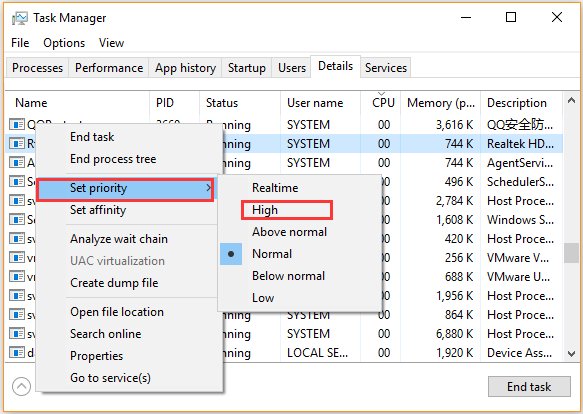
- Task Manager: On Windows, open Task Manager (press Ctrl+Shift+Esc). Look at the “Processes” tab to see what’s running and using up your computer’s power. Close anything you don’t need by right-clicking and choosing “End task”. Be careful not to close important system processes.
- Startup Programs: Some programs automatically start when you turn on your computer. Check your startup programs (also found in Task Manager on Windows, or in System Settings on macOS) and turn off programs that you don’t need running all the time.
Driver and Software Conflicts
Sometimes, the problem isn’t with a running program, but with the software your computer uses to communicate with its parts, or with the game itself. These are often called drivers and software conflicts.
Outdated or Corrupted Graphics Drivers
Your graphics card is responsible for making your game look pretty. But if its driver, the software that helps it work, is old or messed up, it can cause problems, including minimizing the game. Imagine trying to ride a bike with a flat tire; it won’t go well! Having up-to-date graphics drivers is very important for smooth gameplay and can help prevent issues like frequent game minimization.
Updating Your Graphics Drivers
- Visit Manufacturer’s Website: The best place to get drivers is from the website of your graphics card maker (like NVIDIA, AMD, or Intel). They’ll have the newest versions that work best with your specific hardware.
- Use the Graphics Driver Software: Often, graphics card makers provide software that automatically checks for driver updates and installs them. These are very easy to use.
- Check Windows Update: Sometimes Windows Update will also find graphics driver updates. Make sure your computer is up-to-date with all the latest updates.
Game Software Conflicts
Sometimes, the game itself might be having issues. This could be due to bugs, outdated versions, or compatibility problems with your computer. These types of issues need careful diagnosis to understand the underlying problem.
Resolving Game Software Conflicts
- Update the Game: Check if there are any updates available for your game. Game developers often release updates to fix bugs and other issues that can cause problems like minimizing. Usually, game platforms like Steam and the Epic Games Store will automatically download the latest version.
- Reinstall the Game: If updating the game doesn’t help, try uninstalling and then reinstalling the game. Sometimes files can get damaged or corrupted, and reinstalling can often fix these problems.
- Run as Administrator: Sometimes games need special permissions to work correctly. Try right-clicking on the game’s shortcut and choosing “Run as administrator”.
- Compatibility Mode: If your game is older, try running it in compatibility mode. This can sometimes help the game work properly on newer operating systems. To do this, right-click on the game’s shortcut, go to Properties, and then find the “Compatibility” tab.
Hardware Issues
Sometimes, the problem isn’t software at all, but actual issues with the physical parts of your computer. These issues can be a little trickier to identify and sometimes require more advanced troubleshooting steps.
Overheating
If your computer gets too hot, it can cause all sorts of problems, including making games minimize. Overheating can happen when your computer works too hard and the fans can’t cool it down enough. It’s like running a car engine too hard; it’ll overheat and stop working right. Make sure your computer has good airflow to prevent this.
Checking for Overheating
- Monitor Temperature: Use software that shows your computer’s temperature. There are many free programs available online that you can use to see how hot your CPU and GPU get.
- Clean Your Computer: Dust buildup can make your computer overheat, so cleaning the fans and other components can make a big difference. Use a can of compressed air to carefully remove dust, and make sure that the air vents are not blocked.
- Improve Ventilation: Make sure your computer has good airflow. Don’t put it in a closed space where the hot air can’t escape. Consider using a laptop cooling pad if you are playing games on a laptop, and make sure you place desktop computers in a way where air can freely circulate around them.
Faulty Peripherals
Sometimes, the problem isn’t with your computer itself, but with other devices connected to it, like your keyboard, mouse, or game controller. Malfunctioning peripherals can send unexpected signals to your computer, which sometimes can cause a game to minimize.
Troubleshooting Peripherals
- Unplug and Re-plug: Sometimes, simply unplugging and re-plugging a peripheral can fix the problem. Make sure all connections are secure.
- Test with different peripherals: Try using a different mouse, keyboard, or controller to see if the problem goes away. This will help you know whether the problem is with your devices or with your computer itself.
- Driver Updates: Just like graphics cards, peripherals often have their own drivers. Check the manufacturer’s website for updates, and make sure that they are running on the latest driver software.
Game Settings and Configurations
The way your game is set up can also have an impact on whether it minimizes or not. This is often linked to display settings and the specific configuration options for your game.
Fullscreen vs. Windowed Mode
Games can be played in fullscreen mode or in a window. Fullscreen mode takes over your entire screen, while windowed mode puts the game in a resizable window. Sometimes, fullscreen mode can be more prone to minimizing than windowed mode, especially if there is a problem with the way the game interacts with your graphics card.
Experimenting with Display Modes
- Try Windowed Mode: If you’re playing in fullscreen, try switching to windowed mode (or borderless windowed mode if available). This can often make the game more stable.
- Check Game Settings: Go to your game’s video settings menu and try different display mode options to see what works best on your computer.
- Adjust Screen Resolution: Try reducing the game’s resolution. Sometimes, very high resolutions can cause problems with minimizing, particularly if your monitor’s native resolution is different than the one you are playing with.
Multiple Monitor Setup
If you are using multiple monitors, this can sometimes cause the game to minimize when the computer detects a change in focus (such as clicking on a window on your secondary monitor). When using multiple monitors, your computer is always calculating the display settings and the screen positions, and that can sometimes cause issues with the game, especially with older ones.
Adjusting Multi-Monitor Configurations
- Play on One Monitor: Try running the game on just one monitor to see if it makes a difference. If this prevents the game from minimizing, then it’s likely that the issue is linked with your multiple-monitor settings.
- Check Monitor Settings: Make sure your monitor display settings are correct in your operating system’s settings. This includes the layout and position of your screens.
- Use Game-Specific Settings: Some games have specific settings for multiple monitors. Explore your game’s display options for these particular settings.
Operating System Issues
Sometimes, the problem might be with your operating system itself. Operating system issues can range from small configuration problems to more extensive system-wide bugs.
Outdated Operating System
Using an old version of your operating system can lead to compatibility issues. Games are often optimized for the latest OS versions. Old OS versions might have system-level bugs or lack important drivers that cause issues with new games.
Maintaining Up-to-date Operating System
- Windows Updates: Always make sure to install the latest Windows updates. Windows updates contain important security patches and fixes for known bugs, some of which might cause your game to minimize.
- macOS Updates: Similarly, keep macOS up-to-date with the latest available updates. This will help ensure your system is running correctly and includes the drivers needed for the games you want to play.
- System Maintenance: Do regular system cleanups to ensure that your operating system runs correctly. This includes removing unnecessary software or files that can be causing your computer to slow down and negatively affect your game.
System File Issues
Sometimes, system files can get corrupted and cause problems with other programs. This is like having bad blocks in your computer’s memory. Corrupted or bad files can stop your game from running properly, and cause it to minimize when it’s not supposed to.
Checking System Files
- System File Checker: Use the System File Checker (SFC) tool to scan your computer for system file issues. On Windows, open the Command Prompt as an administrator and type sfc /scannow. This will scan for any system file issues and automatically try to fix them.
- DISM Tool: On Windows, use the Deployment Image Servicing and Management (DISM) tool to fix corrupted system files. Open Command Prompt as an administrator, and then type DISM /Online /Cleanup-Image /RestoreHealth. This can help restore the health of your system image.
If you’ve tried all of the above and your game still keeps minimizing, it could be a less common problem. In such cases, sometimes it’s best to seek help from a professional or from the game developers directly, they might have more information about specific bugs that could be affecting your system.
Fixing a game that keeps minimizing can feel like a puzzle, but by systematically investigating the potential causes you will find the solution to your problem. Remember to start with the simplest steps, such as managing notifications and updating drivers, and then move on to more advanced troubleshooting if necessary. Happy gaming, and remember that you can often find the solution with a bit of patience and perseverance!
Full screen apps and games keep minimizing itself in Windows 10, 11 Fix
Final Thoughts
Game minimizing issues often stem from conflicting applications or outdated drivers. A quick check of other running programs, like background apps, is a good first step. Updating your graphics card driver can also resolve the problem.
Sometimes, accidental key presses, such as the Windows key, will force the game to minimize. A deeper dive into your system settings might be necessary if those don’t help. Therefore, remember that ‘why does my game keep minimizing’ can have multiple causes.

