
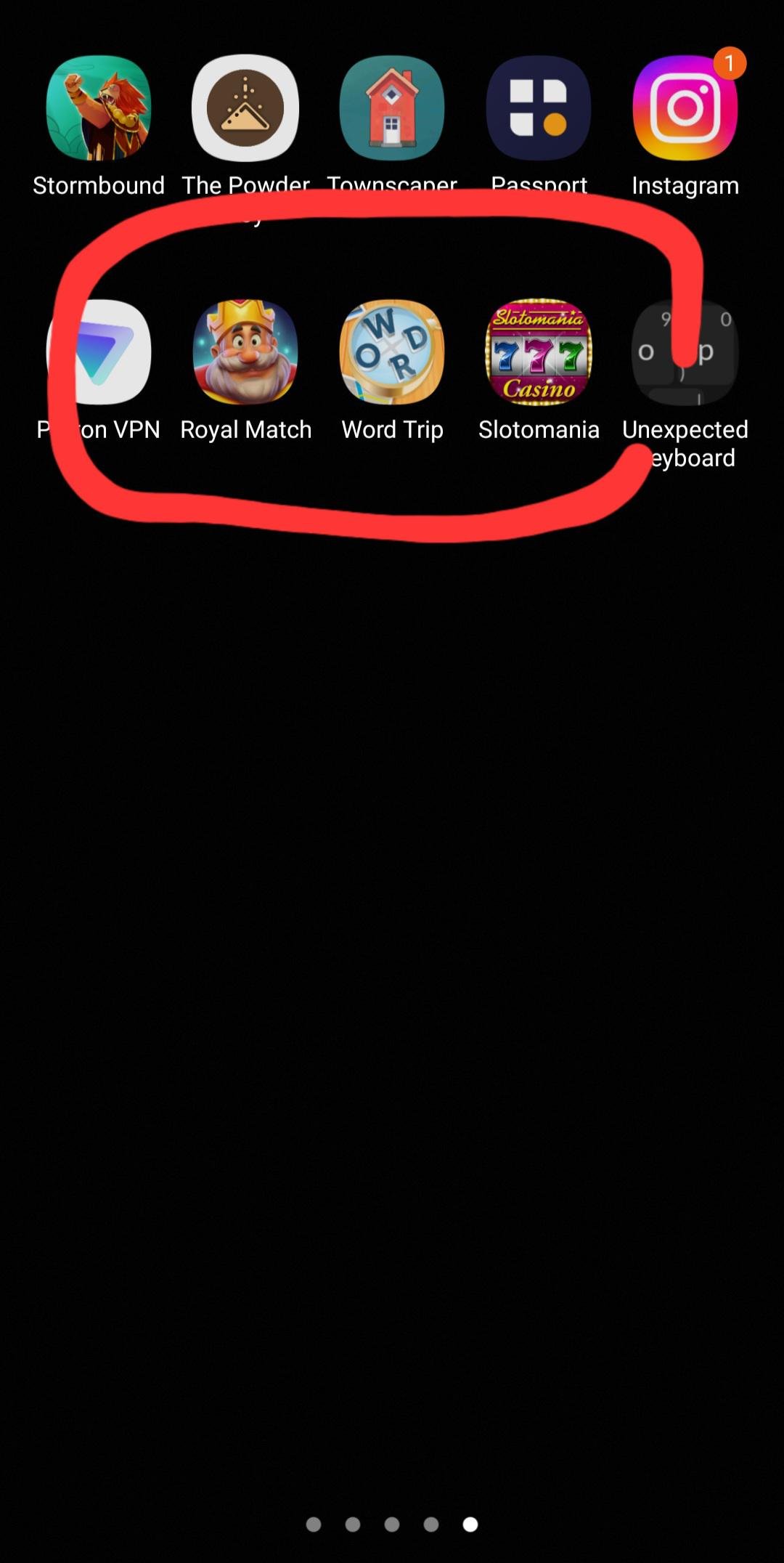
Your phone likely keeps downloading random games because you have inadvertently enabled automatic app downloads, granted permissions to an untrusted app, or are subscribed to a service that pushes these games.
It’s incredibly frustrating when your phone seems to have a mind of its own, isn’t it? You pick it up, and suddenly there’s a new game icon staring back at you. This leads many users to ask, “why does my phone keep downloading random games?”. It feels like an invasion of your digital space.
Figuring out the cause can be tricky since multiple things can trigger these unexpected downloads. Some apps might have permissions you don’t realize you gave them. You also might have settings turned on that allow for this behavior. Let’s investigate the common reasons behind it.

Why Does My Phone Keep Downloading Random Games?
It’s super annoying, right? You’re just trying to use your phone, and suddenly, BAM! A new game appears that you never asked for. It’s like your phone has a mind of its own. You’re not alone if you’re experiencing this. Many people find their phones mysteriously downloading games they didn’t want. Let’s dive deep into why this is happening and what you can do to stop it.
Understanding the Culprits: App Permissions Gone Wild
One of the main reasons your phone might be grabbing random games is because of sneaky app permissions. When you download an app, it often asks for permission to do different things, like access your storage, use the internet, or even install other apps. Sometimes, an app you trust might have hidden tricks. It might download additional apps or games without directly asking you. These hidden installs can be a real pain. It’s like they’re sneaking in through the back door.
What Are App Permissions?
App permissions are like a set of rules for what an app is allowed to do on your phone. For example, a photo app needs permission to access your photos, while a map app needs permission to know your location. But sometimes, apps ask for more permissions than they actually need. This is where trouble can start.
How Do Apps Abuse Permissions?
- Bundled Software: Some apps bundle other applications or games within their package. When you agree to the initial install, you might not know that you’re also agreeing to install additional software.
- Hidden Installers: Certain apps may include a hidden installer. This installer can download and set up additional applications behind the scenes. It is often done when you don’t expect it.
- Advertising Networks: Many apps make money from showing ads. Some advertising networks are less careful than others. They might promote games that auto-install without clear consent.
The Sneaky World of Third-Party App Stores
While official app stores like Google Play Store and Apple App Store generally have strict rules, the same cannot always be said for third-party app stores. These stores, which are not controlled by the main companies, can have apps that are less trustworthy. When you get apps from these sources, there’s a greater chance of getting unwanted downloads. It’s like buying a toy from a stranger instead of a store; you don’t always know what you’re getting. These apps sometimes include hidden software that installs games. They may also have less security measures, which can make your phone more vulnerable.
Why Third-Party Stores Are Risky
- Lack of Verification: Unlike official stores, third-party stores don’t always carefully check apps for safety and security.
- Malware and Adware: Some apps on third-party stores might contain malware or adware. This can cause problems with your phone and lead to unwanted game installations.
- Hidden Software: Developers of apps on these stores might include hidden programs that download other applications on your phone, including those annoying games.
The Impact of Clickbait and Misleading Ads
Have you ever clicked on an ad that promised something amazing, only to find yourself downloading a game you didn’t want? This is a common trick. These ads, often called clickbait, are designed to make you click and download without thinking. They might use catchy words or exciting images to get your attention. Once you click, you might accidentally agree to an auto-download.
How Clickbait Ads Work
- Exaggerated Claims: These ads often promise things that are too good to be true. This can draw your attention and make you click without thinking.
- Misleading Visuals: They use flashy graphics and exciting images to trick you into thinking the offer is great.
- Hidden Download Links: Some ads contain hidden download links. When you click on the ad, you might not realize that you’re also agreeing to download an app or game.
The Role of Software Updates and System Settings
Sometimes, it’s not about a sneaky app. Your phone’s system settings or software updates can also be a factor. Some updates include new apps or games as part of the package. Or, changes in settings might let new things download without your knowledge. These are less common but still worth considering.
Software Updates and Bundled Apps
- Manufacturer Bloatware: Sometimes, phone makers include apps with their updates. These apps, which you might not want, are pre-installed on your device.
- Partner Apps: Your phone might have agreements with certain game or app developers. Updates could include those apps by default, even if you don’t want them.
Hidden Settings
- Unknown Sources: If you have ‘Install from Unknown Sources’ enabled, you might be more susceptible to unwanted downloads. This setting allows apps from anywhere, and not just the official store, to be installed.
- Background Activity: If an app has permission to run in the background, it can make changes and even download applications without you even noticing.
Browser Issues: Unwanted Downloads Through Web Pages
Websites can be a big source of unexpected downloads. Some websites can contain scripts that trigger downloads without you explicitly agreeing to them. This happens when you click on links or browse untrustworthy sites. It’s like walking into a store that is filled with hidden traps. Your browser might also have settings that could allow downloads without you realizing it.
How Websites Trigger Downloads
- Malicious Scripts: Some websites contain code that starts downloads on their own.
- Forced Pop-Ups: Some websites use pop-ups that contain hidden download links. It’s very easy to click these by accident.
- Fake Download Buttons: Sometimes download buttons look real, but they are just disguised ways to install other apps.
Browser Settings and Protection
- Pop-Up Blocker: Make sure your pop-up blocker is turned on. This can stop many hidden download prompts.
- Security Settings: Check your browser’s security settings. Increase the level to reduce the chances of unwanted downloads.
- Safe Browsing Features: Use your browser’s safe browsing features. They can help you to stay away from websites with potentially harmful content.
How to Take Control and Stop Unwanted Game Downloads
Okay, enough about why it happens. Let’s talk about what you can do to take control. You don’t have to live with unwanted games on your phone. Here are some actionable steps to stop those random game downloads and keep your phone clean:
Review and Revoke App Permissions
It’s time to become an app detective! Regularly review your app permissions and see which apps have the power to do things like install other apps. Take away any permissions that seem risky or unnecessary.
How to Check Permissions:
- On Android: Go to Settings > Apps > Choose an app > Permissions.
- On iOS: Go to Settings > Tap on an app > See permissions.
What to Look For:
- Install Other Apps: If an app has this permission and you don’t understand why, it’s a red flag.
- Unknown Sources: Check if your phone settings allow apps from unknown sources. If it does, you can change this by toggling it off in settings.
- Background Activity: If an app seems to be running when you’re not using it, then it might be doing things you don’t know about. Reduce its background activity permission.
Stick to Official App Stores
Avoid using third-party app stores. Stick to the official app stores, like Google Play Store for Android and the Apple App Store for iOS. While not totally free from bad apps, they have stricter rules about what apps can do. It’s like choosing to eat at a restaurant with a health certificate over eating street food from an unknown vendor. It is a much safer and more reliable option.
Be Smart About Clicking Ads
Be careful before clicking on ads, especially those that seem too good to be true. Don’t click on ads with flashy graphics or promises of amazing offers that sound fake. Always make sure the ad is from a source you trust. Instead of clicking, think, “Is this something I really want or is it just trying to trick me?”
- Read Carefully: Before clicking, check what the ad really offers. Pay attention to the fine print.
- Avoid Clickbait: Stay away from ads that use words like “free” or “amazing” to grab your attention. These are often traps.
- Trust the Source: Only click on ads from websites or companies you recognize and trust.
Update Your Phone and Browser Regularly
Keep your phone’s software updated. Updates often include security improvements that help to block unwanted downloads. It is like giving your phone a protective shield to fight against threats. Also, keep your web browser updated to have access to the newest safety features.
- Software Updates: Check your settings regularly for updates to your operating system (Android or iOS).
- Browser Updates: Make sure your browser is updated. Check its settings or app store for updates.
- Security Patches: These updates often include fixes that protect you from security problems.
Use Security Software
Security apps can help keep your phone safe. They can scan for malicious programs and block suspicious activities, including hidden downloads. It’s like having a bodyguard for your phone. It’s good to have an extra layer of protection.
- Anti-Malware Apps: These apps check your phone for harmful software.
- Security Scans: Run regular scans to keep your phone safe.
- Blocking Suspicious Activity: Security apps can often stop harmful apps or scripts from doing damage.
Check Browser Settings
Take a look at your web browser’s settings. Make sure that your pop-up blocker is enabled. Also, increase your browser’s safety settings. This can help prevent unwanted downloads while browsing the web. It’s like making sure your front door is locked before you go out.
- Pop-Up Blockers: Make sure that the pop-up blocker is turned on and running.
- Security Settings: Raise the level of security in your browser.
- Clear History: Regularly clear your browsing history and cookies. This can help prevent your browser from storing data that might be used for downloads you don’t want.
Uninstall Unnecessary Apps
Go through your apps and get rid of any you don’t use. The less apps you have, the less chance you’ll have of running into those sneaky apps that download games. It is like cleaning out your closet; the more you get rid of, the more organized it becomes.
- Uninstall Regularly: Get rid of the apps you do not use.
- Be Honest: If you don’t use an app, uninstall it.
- Save Space: Uninstalling unused apps not only makes your phone cleaner but can also free up storage space.
Factory Reset
If everything else fails and the games keep downloading, then consider doing a factory reset. This takes your phone back to how it was when you first bought it. This should remove any apps or settings that are causing problems. It’s like pressing a reset button on your phone. It is a last resort but an effective one.
- Back-Up Data: Before doing a reset, make sure to back up all your important data. You don’t want to lose your important pictures, documents, and files.
- Follow Instructions: Follow your phone’s instructions carefully. Be patient through the reset process.
- Reinstall Apps: After the reset, reinstall only the apps you need. Avoid installing apps from untrustworthy sources.
It can be frustrating when your phone decides to download games you didn’t ask for. However, by understanding why it happens and taking the necessary steps, you can take control and keep your phone the way you want it. Remember to check your app permissions, stay away from third-party app stores, be cautious about clicking ads, and update your phone often. With these steps, your phone should be game-free, unless you choose to download them! And if all else fails, consider a factory reset for a fresh start. Your phone should be a tool you control, not the other way around.
How to stop apps from downloading by themselves on your Android device Samsung Motorola Kyocera
Final Thoughts
Unwanted app downloads usually stem from accidental clicks, third-party app stores, or bundled software. These sources often bypass normal security checks. You should always review app permissions and download apps from official sources.
Regularly check your phone’s security settings. Also, disable automatic updates or installs. This way, you gain more control over downloads.
In conclusion, ‘why does my phone keep downloading random games’ is mostly due to unauthorized sources or settings. Taking control of your device’s permissions and download sources is important to prevent this issue and keep your device safe.

