
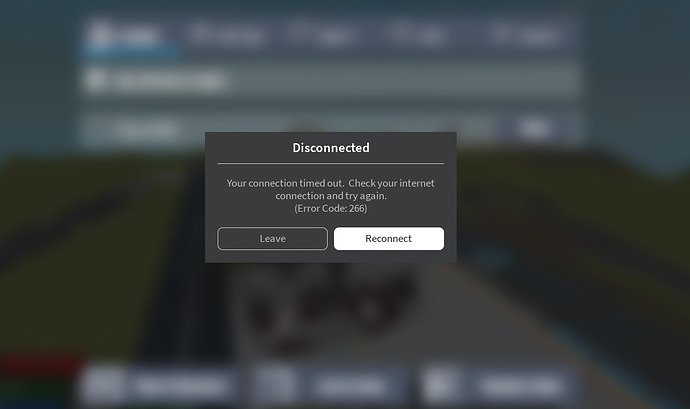
Your Roblox game freezes because your device might lack sufficient processing power, internet connection is unstable, or the game itself has bugs.
Frustration hits when your Roblox game suddenly freezes, doesn’t it? The action stops, everything stalls, and you are left wondering why does my roblox game keep freezing. It’s a common issue that many players face, and fortunately, there are several potential causes.
Sometimes your device struggles to run the game smoothly, especially if it’s older or has limited resources. Slow internet can also interrupt data flow, leading to freezes. Bugs within the Roblox game itself may be responsible as well.

Why Does My Roblox Game Keep Freezing?
It’s super frustrating when you’re in the middle of an awesome Roblox game, building a cool house, or battling other players, and suddenly… freeze! Your game stops, everything gets stuck, and you’re left staring at a still screen. This happens to lots of players, and it can be due to several things. Let’s break down why your Roblox game might be freezing and what you can do about it.
Your Computer’s Struggle: Processing Power
Think of your computer like a superhero. It needs enough power to do all its jobs, like running Roblox games. If your computer is old or doesn’t have strong enough muscles (we call that processing power), it might have trouble keeping up with everything happening in the game. This can cause freezing.
What Exactly is Processing Power?
Processing power is how fast your computer’s brain can work. The brain of a computer is called the CPU (Central Processing Unit). A faster CPU can handle more information at once, making your games run smoother. If your CPU is weak or it’s working very hard doing other things, Roblox can freeze up. Imagine you have to carry a bunch of heavy boxes. If you’re strong, it’s easier. If you’re tired, you might have to stop or go very slowly. That’s like a weak CPU.
How to Check Your Computer’s CPU
You can check your computer’s CPU in a few ways:
- Windows: Press Ctrl+Shift+Esc to open Task Manager. Go to the “Performance” tab and look for “CPU.” It will show you the percentage being used. If it’s very high (like 90% or 100%), your CPU is working very hard, and that could be why Roblox is freezing.
- Mac: Press Command + Space Bar, type “Activity Monitor” and press enter. Click on the “CPU” tab. You will see the CPU usage. A high percentage means it’s working hard.
What Can You Do?
- Close Other Programs: If you have a lot of other programs open, your computer’s CPU has to work harder. Try closing programs like internet browsers, video players, and other games while you play Roblox.
- Lower Graphics Settings: Roblox has graphic settings that affect how detailed the game looks. If your CPU is struggling, lower the graphics settings in Roblox by going to settings in the game. Lower settings require less work.
- Upgrade Your Computer: If you continue to have problems, it might be time for a new computer. If that’s not an option, you may have to get a better CPU.
Internet Problems: The Connection Puzzle
Playing Roblox is like talking on the phone with lots of other players. You all need a good connection so you can hear and see each other. If your internet is slow or has problems, your Roblox game might freeze. It’s like if you start talking on a phone, and the line keeps getting disconnected, you wouldn’t be able to have a good conversation. This is similar to when your internet is bad. The game gets disconnected from the server, making it freeze.
What Causes Internet Issues?
- Slow Internet Speed: If your internet is slow, it takes longer to get game information. This makes the game freeze.
- Weak WiFi Signal: If your computer is far from your internet router, the signal can be weak, causing freezes.
- Too Many Devices: If many devices are using the internet at the same time in your house, it might make the internet slow for everyone.
How to Test Your Internet Speed
You can test your internet speed using websites like speedtest.net. This will tell you how fast your internet is. If it’s very slow, that could be causing problems.
What Can You Do?
- Get Closer to the Router: If you are using WiFi, try moving your computer closer to your router. A better WiFi signal means a better connection.
- Connect with an Ethernet Cable: An Ethernet cable connects your computer directly to the router. This can provide a faster and more reliable internet connection than WiFi.
- Restart Your Router: Sometimes turning your router off and on again can fix internet problems.
- Check Your Internet Plan: If you are consistently experiencing low internet speeds, it might be a good time to talk to your internet provider and see if there are better internet plans available.
Roblox Server Issues: It’s Not Always You
Sometimes, the problem isn’t with your computer or your internet. The Roblox game itself might be having issues. Roblox games run on special computers called servers. If the Roblox servers are having problems, everyone playing that game might experience freezes, disconnections, or lag. This is kind of like if the phone company had problems; no one would be able to talk on their phones, regardless of how good their phone is.
Signs of Server Issues
- Many People Having Problems: If you notice many other players in the game are complaining about freezes, it’s likely a server problem.
- Official Roblox Outages: Roblox may have an official outage if they are having issues they may post about it on their social media accounts or their support page.
What Can You Do?
- Check Roblox Status: Visit the official Roblox status page to see if there are any known server problems.
- Be Patient: If there’s a server problem, it will usually get fixed by Roblox. Just be patient and try again later.
Old Software and Drivers: Keeping Things Up-to-Date
Just like you need to keep your toys and games in good condition, you need to keep your computer’s software up-to-date. Software updates and drivers help your computer and the games work together nicely. If your computer is using old software, it can sometimes cause games to freeze.
What are Drivers?
Drivers are little programs that help your computer talk to the parts inside it like the graphics card and sound card. If the drivers are old or broken, it can cause problems with the games like Roblox.
How to Check for Updates
- Windows: Go to Settings, then Update & Security. Click “Check for Updates” and let Windows install anything it finds.
- Mac: Go to System Settings (or System Preferences), then General. Click Software Update. It will look for any updates.
How to Update Graphics Drivers
It’s especially important to keep your graphics drivers up-to-date. The graphics card handles all the pictures you see in Roblox, and outdated drivers can cause freezing or other graphics issues. You can usually find the newest drivers on the website of the company that made your graphics card. For example:
Go to their website and find the drivers for your card, and install them. If you don’t know which card you have, you can check in your device manager (Windows) or in system settings (Mac).
What Can You Do?
- Regularly check for updates: Make it a habit to check for updates to your computer, drivers, and game regularly.
- Use the automatic update settings: Most computers have a setting to install updates automatically. This can help you avoid problems.
Game Specific Issues: The Game’s Fault
Sometimes, the game itself can be the problem, not your computer or your internet. Some games are very big or complex, and they might have bugs (mistakes in the game’s code) that cause freezing. These games might have lots of details, and your computer has to work harder to run them.
How to tell if it’s the game?
- Try another game: If the freezes only happen in one specific game and other games run fine, then it may be the game itself causing the issue.
- Check Game Reviews: Look at the reviews or feedback for the game on the Roblox website. If other people are experiencing the same freezes, then it’s likely the game.
What Can You Do?
- Contact the game creators: Let the game’s creators know what you are experiencing. They can help fix it with updates.
- Play a different game: There are many awesome games on Roblox to play. If one is giving you problems, choose another.
Too Much Going On: Overheating
When your computer works really hard, it can get hot. Sometimes, if it gets too hot (overheating), it might slow down or freeze up to protect itself. This is like when you’re running too fast and you have to stop to catch your breath.
How to Know if Your Computer is Overheating
- Feeling hot: If the computer itself is hot to the touch, especially near the vents where air comes out.
- Loud fans: If the fans are working loudly and faster than normal, trying to cool down the computer.
What Can You Do?
- Let your computer cool down: Stop using your computer for a while and let it rest. Turn it off to let it cool down better.
- Make sure vents are clear: Ensure that nothing is blocking the vents where the air comes out of your computer.
- Keep your computer in a cool space: Avoid using your computer in warm areas or on soft surfaces like blankets or pillows that can block airflow.
Freezing in Roblox can be annoying, but by checking these potential problems, you’ll be able to pinpoint and solve the issue. Remember to keep your computer updated, check your internet, and also look out for any Roblox server issues or problems with the game itself.
How To Fix Roblox Keeps Freezing On PC [New & Updated 2024]
Final Thoughts
In short, your Roblox game freezes because of several reasons. Internet connection issues, hardware limitations, or graphic settings contribute to freezing. Outdated drivers or corrupted game files might also cause this problem.
Sometimes, server overload or a bug within the game itself leads to freezes. Troubleshooting steps include checking your internet speed and adjusting graphic settings. Addressing “why does my roblox game keep freezing” involves systematic checks.

