
It’s because Steam games install in designated library folders, not directly within the main Steam folder.
Ever find yourself scratching your head wondering, “why dont i hacve steam games on steam folder?” You are not alone. Many users expect to find their game files nestled neatly inside the primary Steam directory but Steam organizes things differently.
The application installs games within separate library locations which you may have specified during setup. This helps in organization and prevents cluttering the main application folder.

Why Don’t I Have Steam Games in My Steam Folder?
Ever looked in your Steam folder, expecting to find a neat list of all your games, only to be met with confusion? It’s a common head-scratcher for many gamers. You’ve purchased and downloaded games, you play them all the time, so where do they actually live on your computer? This guide will explain why it seems like your Steam games are hiding and where they actually are.
Understanding the Steam Library System
Steam does things a bit differently than just dumping all game files into one spot. It uses a library system. Think of it like a librarian organizing books in a library. Instead of one huge messy pile, books are categorized and placed on shelves. In Steam’s case, games are placed into separate folders, making things more organized and efficient.
Steam Library Folders
Steam isn’t limited to just one place to store games. You can set up multiple “Steam Library Folders.” This is super helpful if you have a smaller hard drive that’s filling up fast, or if you want to keep your games on a different drive. For instance, you could keep your operating system and programs on one solid state drive (SSD) and your games on a large traditional hard drive (HDD). Here’s how it works:
- Primary Location: The main Steam installation folder (the one you probably went looking through first!) usually holds the Steam app itself, along with some configuration files. You won’t find your game files here directly.
- Library Folders: These folders are where your actual game files live. You can set up as many of these as you want. This is done through the Steam settings.
Finding Your Games
So, how do you find these sneaky game files? Here’s where to look.
Locating Active Library Folders
The first step is to find your active library folders. Here’s how:
- Open Steam: Start your Steam client.
- Go to Settings: Click on “Steam” in the top left corner of the Steam window and select “Settings.”
- Select Downloads: In the Settings menu, click on “Downloads.”
- Click on Steam Library Folders: You’ll see a button labeled “Steam Library Folders.” Click it.
- See Your Folders: Here you will see the active folders where Steam saves your games. It will list out where all your games are stored.
Navigating to Game Installation Locations
After locating the folder locations, you can now navigate to them.
- Open File Explorer (Windows) or Finder (Mac): Find your File Explorer or Finder, depending on your OS.
- Go to the Library Folders: Navigate to the folders listed in the Steam Library Folders window you previously accessed.
- Find “steamapps” Folder: Inside each of these library folders, you’ll find another folder called “steamapps.”
- Locate “common” Folder: Inside “steamapps,” you’ll find a folder labeled “common”. This is where most of your installed game files are!
- See Game Folders: Inside the “common” folder, you’ll finally see individual folders for each of your installed games.
Each folder in the “common” folder will usually have the game’s name as the folder’s name. Inside will be the files that make the game run. This is where you’ll find executables (.exe files in Windows) and the data files that power your gaming experience.
Why Steam Uses This System
You might wonder why Steam does this instead of just putting everything into one folder. Here are a few reasons why it works so well:
- Better Organization: Separating game files into different folders makes it way easier to manage your game collection. Imagine if all your game files were jumbled together! It would be difficult to find or update games.
- Multiple Drives: This system makes it easy to install games on multiple hard drives, as discussed earlier. You can keep your large game library from filling up your main drive, which is often smaller in size.
- Faster Game Updates: When games update, Steam can more quickly and easily change the game files in the specific game folder, compared to if all games were in a single location.
- Simplified Backups: If you want to back up your games, this structure makes it easy to copy an entire game folder over to another drive.
Common Misconceptions and Mistakes
It’s easy to get confused when trying to find your games, so let’s clear up a few common misconceptions:
Looking in the Wrong Spot
Many people automatically assume that all game data is saved in the main Steam folder. This is wrong. The main Steam folder is mostly for Steam itself and not for where the game files are.
Hidden Folders
Sometimes folders appear to be missing or invisible. However, they most likely are not actually gone. Usually, the folder you are looking for is simply hidden from view. Make sure you have enabled showing hidden folders in your operating system settings. This is done differently, depending on which operating system you have.
Installation Issues
Sometimes, if a game installation gets interrupted, or is not completed properly, the folder might not show up as it should. If this happens, try restarting your PC and trying the installation again.
Handling Multiple Library Folders
Using multiple library folders is really simple. You might want to store all your really big games on one drive and your smaller games on another one, for example. Here is a little information on setting this up.
Adding New Library Folders
Here is how to add a new library folder:
- Open Steam Settings: Go to “Steam” then select “Settings.”
- Select Downloads: Click on “Downloads.”
- Steam Library Folders: Click the “Steam Library Folders” button.
- Add Folder: Click the “+” button and choose the location where you want your new library folder.
Setting a Default Installation Location
You can also set a specific library folder as your default location when installing new games. When adding a new library folder, Steam will ask you if you want to make it the default. You can do this anytime using these simple steps:
- Open Steam Settings: Go to “Steam” then select “Settings.”
- Select Downloads: Click on “Downloads.”
- Steam Library Folders: Click the “Steam Library Folders” button.
- Make Default: Right-click the folder you want as the default, then click “Make Default”.
Moving Games Between Folders
Steam allows you to move games between library folders without deleting and reinstalling them. This is a very easy process that saves a lot of time. The method is as follows:
- Open Steam: Start your Steam client.
- Go to your Library: Select “Library”.
- Find the Game: Right-click on the game you want to move.
- Select Properties: Click “Properties.”
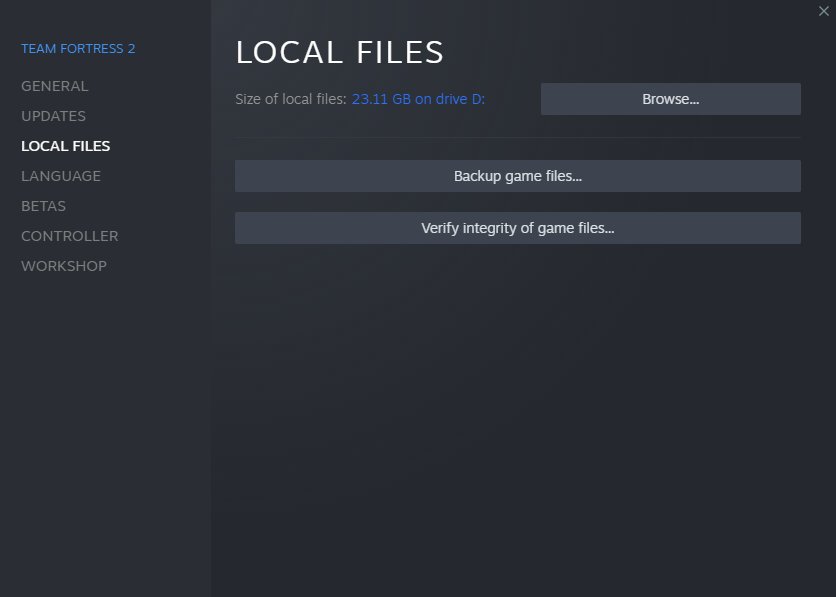
- Go to Local Files: Click the tab that says “Local Files” in the pop-up menu.
- Move Installation Folder: Click on the “Move Install Folder” button. This button will bring up another window that will give you the option to move the game to another one of your library folders. Select the drive, then select “Move” and it will move your game to the new location.
What About Game Saves and Settings?
When you move games, your game saves and settings are generally saved, because they are not stored in the same location as the game files themselves. So you can move your games around, without losing the progress in your games. There may be rare cases where saves might not move with the game for some games, but this does not happen very often.
When Things Go Wrong
Sometimes, things don’t work perfectly. Let’s look at what to do when games seem to disappear.
Game Files Are Missing
If a game’s files are actually missing, not just hiding, there could be a couple of reasons. Usually, it happens if you try to move game files manually. This can confuse Steam, so always move the game using the method previously described. If your game files are gone, you will have to reinstall the game. Use the method described earlier to find the game, right-click it and select the uninstall option. This will clear out the installation. Then simply reinstall the game.
Corrupted Game Files
Sometimes game files can become damaged or “corrupted.” This can be because of sudden power outages, or other problems that occur while the game is updating. If you suspect that this is happening, you can try to verify your game files. Simply follow these steps:
- Open Steam: Start your Steam client.
- Go to your Library: Select “Library”.
- Find the Game: Right-click on the game.
- Select Properties: Click “Properties.”
- Go to Local Files: Click the tab that says “Local Files” in the pop-up menu.
- Verify Integrity: Click on the “Verify integrity of game files” button. Steam will then scan your game files and replace any that are missing or corrupted.
Hard Drive Issues
If you continue to have problems with games disappearing, it could be a problem with your hard drive. Test your hard drives for errors using the methods appropriate for your operating system. You can also consider using an external drive to store your games. This can help with space issues, and also diagnose hard drive issues if the problems go away.
Understanding how Steam manages your game files is key to making the most of your gaming experience. By using this guide, you should be able to track down exactly where your games are located and also troubleshoot when things do not work as intended. The Steam system is easy to use, and once you know where to look, it’s simple to find the games you are looking for.
How To Locate Steam Games Already Installed That You Have Backed Up No Download Needed
Final Thoughts
Steam games reside in the “steamapps” folder, not the main Steam folder. They are typically in subfolders named after their AppIDs. If you can’t find them, check your Steam library install locations; you may have designated custom paths, which is key.
This explains why dont i hacve steam games on steam folder. Games aren’t directly within the base steam folder itself. This folder contains essential application files.

