
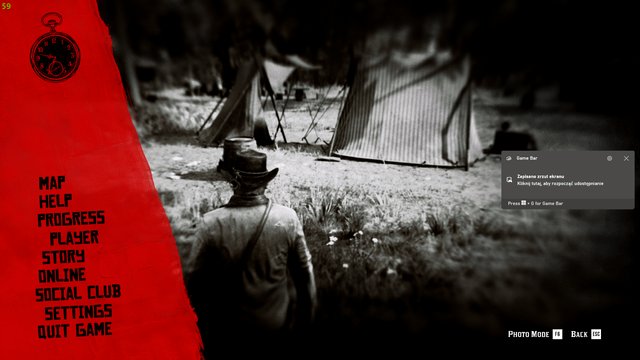
The Game Bar’s frequent, unwanted overlays and conflicting keyboard shortcuts often interrupt gameplay, making the game bar so annoying windows 11 users experience.
You’re mid-game, completely focused, and then bam, the Game Bar pops up, disrupting your flow. It’s a common frustration for many, and the question, “why is game bar so annoying windows 11,” echoes through online gaming forums. It seems a feature intended to improve the experience often becomes a source of irritation.
The constant notifications, the overlay obscuring vital screen information, and the way it sometimes hijacks keyboard controls are all valid gripes. Let’s dive into the reasons behind these issues and explore how to mitigate them.

Why is Game Bar so Annoying in Windows 11?
The Windows Game Bar is supposed to be your helpful sidekick while you’re gaming on your PC. It’s there to let you take screenshots, record gameplay, chat with friends, and even check how well your computer is performing. But for many folks, it feels more like an annoying pest than a useful tool. Let’s dive into why so many people find the Game Bar frustrating in Windows 11. We will examine the different problems that come with it and try to understand why this supposed helper causes so many headaches.
The Constant Pop-Ups: A Source of Annoyance
One of the biggest complaints about the Game Bar is its tendency to pop up when you least expect it. Imagine you’re in the middle of an intense game, focusing all your energy, and suddenly, bam! The Game Bar decides to make an appearance, obscuring part of your screen. This interruption can be incredibly jarring, especially in fast-paced games where even a split-second of distraction can mean the difference between winning and losing.
The Problematic Shortcut Key
The default shortcut for the Game Bar, usually Windows key + G, is a big part of the problem. This key combination is relatively easy to accidentally press, especially if you’re using other shortcuts or just have a bit of a heavy hand on the keyboard. This can cause the Game Bar to open unintentionally and become a frustrating distraction, when you were just trying to jump in the game.
- Accidental Activation: It’s easy to hit the Windows key + G combination without meaning to, especially when you’re in the heat of the moment.
- Unwanted Screen Overlay: The Game Bar covers a portion of the game screen, obstructing your view and leading to potential misclicks or missed cues.
- Disrupts Focus: Sudden pop-ups break your concentration, potentially impacting your performance in games.
Performance Issues and Resource Hogging
While it’s meant to be a helpful tool, the Game Bar can sometimes turn out to be a bit of a resource hog. It can use up your computer’s processing power, which can cause problems like lag and frame rate drops. This can really mess with your gaming experience and lead to a far less smooth and enjoyable game.
How Game Bar Impacts System Resources
Game Bar is always running in the background waiting to be activated. This means it’s always taking up some of your computer’s processing power, even when you are not using it. This becomes more obvious in less powerful systems. While it may not be obvious on high-end machines, on mid-range or older PCs, the impact can be felt with game performance.
- CPU and RAM Consumption: The Game Bar can sometimes use a significant amount of your CPU and RAM, especially while capturing gameplay or using other features.
- Frame Rate Drops: This resource consumption can lead to frame rate drops in games, making them feel choppy and unresponsive.
- Potential for Lag: Lag can occur due to increased resource usage, resulting in delays between your actions and what you see on the screen.
Feature Bloat and Unwanted Extras
The Game Bar has grown over the years to include many features. While some of these are helpful, others can feel like bloat that you don’t need or want. This can make the whole experience feel cluttered and make it harder to find the features you actually want to use.
Too Many Features, Too Little Use
The Game Bar now includes features like widget store, chat functionalities, Spotify and other integrated services. If all you want to do is record some footage or take screenshots, these extra options can feel unnecessary and confusing.
- Overwhelming Interface: The multitude of options and features can make the interface feel cluttered and hard to navigate.
- Irrelevant Widgets: Many users find the included widgets unnecessary, adding to the sense of bloat.
- Difficulty Finding Core Features: With so many options present, simple tasks like capturing a screenshot may become more difficult to find and execute.
Recording Issues and Glitches
Another common problem with the Game Bar is that its recording feature can be inconsistent. Sometimes it works perfectly fine, but other times it might fail to record, produce corrupted videos, or have other frustrating issues. These kinds of glitches can be especially annoying when you’re trying to save an important gaming moment.
Common Recording Problems
- Recording Failures: Game Bar may sometimes fail to start recording, especially in certain games or when background processes are running.
- Corrupted Video Files: Recorded files can sometimes become corrupted or unplayable, losing your footage.
- Audio Sync Issues: In some cases, recorded videos may have audio that is out of sync with the video.
- Performance Drops During Recording: Recording can sometimes cause the game to lag or stutter, particularly on lower-end PCs.
Lack of Customization Options
One of the biggest letdowns of the Game Bar is the lack of good customization options. You can’t really change how it looks, move things around, or disable the features you don’t use. This lack of flexibility can make the whole experience feel rigid and inconvenient.
Why Limited Customization Hurts
Customization is a crucial factor when it comes to a good user experience. We like things to be the way that we want them and when we can not adjust things the way that we want to, we become less happy with the software. The lack of customization for Game Bar makes it hard for people to mold it to the way they like to interact with their games.
- Fixed Layout: You cannot change the layout of the Game Bar, move its elements around or hide ones that you do not need.
- Limited Appearance Options: There are very few options available to change the appearance of the Game Bar, making it difficult to integrate into custom themes.
- Inability to Disable Unwanted Features: There’s no way to turn off or hide the features you don’t need or use.
Conflicts with Other Programs
Sometimes, the Game Bar can also cause conflicts with other software on your computer. This can result in strange issues like crashes, freezes, or games not running properly. It can be quite a headache to figure out if the Game Bar is causing issues with other applications that you have installed.
Common Conflicts
- Overlay Conflicts: Game Bar’s overlay may conflict with other overlay applications, like those from Discord, Steam or some screen capturing software.
- Game Crashes and Freezes: In some instances, it can cause games to crash or freeze, especially when recording or using other features.
- Compatibility Issues: There can sometimes be problems with how the Game Bar interacts with some older games or less popular software.
The “Always On” Nature
The fact that the Game Bar is always running in the background, even when you’re not gaming, can be annoying to many users. It’s constantly using up system resources and can sometimes interfere with other applications. Most people don’t like things to be running in the background if they are not using them, that includes the Game Bar. This can become even more annoying if you have less powerful systems.
Why Background Activity Matters
- Unnecessary Resource Usage: Having the Game Bar running in the background uses up your computer’s resources unnecessarily.
- Potential Performance Impact: Although it’s intended to be low-impact, there’s a risk of minor performance drops while it runs in the background.
- Background Processes: Most of us do not like having background apps that we do not use.
The Lack of User Control
Many people wish that they had more control over the Game Bar. They want to be able to completely disable it when they are not using it. They also want to adjust certain aspects of how it works and be in control of its functions. However, there is little to no control in Windows 11, making the experience very frustrating to a lot of users.
Why More Control is Necessary
- Limited Disabling Options: There is no simple way to completely disable the Game Bar if you don’t want to use it.
- No Fine-Tuning Options: Users can’t fine-tune Game Bar’s settings to their own personal preferences or their gaming habits.
- Lack of Control Over Background Running: People want more options to control when the Game Bar is running and when it is not.
In short, the Windows 11 Game Bar, while having the potential to be a good tool, can be a major source of frustration for many users. Its constant pop-ups, resource hogging tendencies, glitches, and lack of customization options make it more of an annoyance than a helpful addition to your gaming experience. Many users who just want to enjoy their game without any unwanted interruptions find that the Game Bar simply gets in the way of their gaming experience.
How to Remove Game Bar Annoying Notification
Final Thoughts
Game Bar’s persistent overlays and unwanted recording prompts frequently interrupt gameplay. This constant presence can severely hamper the user experience, making it frustrating to use. It forces itself into focus when it’s not needed.
The resource usage of Game Bar, even when idle, contributes to performance issues. Users notice stuttering and frame drops. This happens more noticeably in older or lower-powered systems. This resource consumption is a major reason why is game bar so annoying windows 11.
Ultimately, the combination of intrusive behavior and performance impact make the Game Bar a persistent nuisance. Many gamers actively seek ways to disable it entirely to improve their experience. It’s important to understand the cause of it.

