
Game Pigeon might not be working due to server issues, a poor internet connection, an outdated app, or problems with your device’s operating system.
Frustrating, isn’t it? You’re ready for a quick round of 8-ball or a heated game of word hunt, but Game Pigeon just won’t cooperate. You are probably thinking, why is game pigeon not working, this thing usually works fine.
It’s a common problem many users face. Multiple factors can prevent the app from functioning correctly, and figuring out the cause is the first step to a solution.
Let’s explore potential reasons and get you back to playing your favorite games with your friends.

Why is Game Pigeon Not Working?
Game Pigeon is a super fun app that lets you play games with your friends right in iMessage. But sometimes, it can be a real bummer when it just…stops working! There are a bunch of reasons why Game Pigeon might be acting up, and we’re going to explore all of them so you can get back to your games as soon as possible. We’ll go through common problems, how to fix them, and even give you some tips for keeping Game Pigeon running smoothly.
Common Culprits: Internet Connection Issues
Let’s start with the most frequent troublemaker: your internet connection. Game Pigeon needs a stable internet connection to work because it sends data back and forth between your phone and your friend’s. If your connection is weak or spotty, it can cause the game to freeze, lag, or even fail to start. Think of it like trying to send a message through a really noisy radio – sometimes, the message just doesn’t get through clearly.
Wifi Woes
Are you using Wi-Fi? Sometimes, your Wi-Fi signal can be the problem. A weak signal, too many people using the same network, or interference from other devices can all slow things down. Here’s how to check your Wi-Fi:
- Look at the Wi-Fi icon: On your phone, you’ll see a little symbol that shows your Wi-Fi connection. If it looks like it has only a few bars, you might have a weak signal.
- Try a different app: See if other apps that use the internet are also slow. If they are, it means the problem is likely your Wi-Fi and not just Game Pigeon.
- Move closer to your router: The router is the box that sends out your Wi-Fi signal. Getting closer to it can make your connection stronger.
- Restart your router: Sometimes, routers need a little break. Unplug your router from the wall, wait about 30 seconds, and then plug it back in. This is like giving your router a little reset.
Mobile Data Drama
If you’re not using Wi-Fi, you’re probably on mobile data. While mobile data can be great, it can also have issues. Here are a few things to check:
- Data Signal Strength: Look at the signal bars on your phone. If you see only one or two bars, or even an “E” or “G” symbol, it means your signal is weak. You might have to move to a place where your signal is better.
- Data Limits: Sometimes, your phone plan has a limit on how much data you can use. If you’ve used up your data, your internet speed will get very slow. Check your phone settings or your account with your phone provider to see if this is the case.
- Location Matters: If you’re in a place with a lot of tall buildings or in a rural area, your signal might not be very good. This can be a real problem, and sadly, there’s not much you can do about it right away except to try to move to a location with better service, if possible.
Game Pigeon App Issues
Sometimes, the problem isn’t with your internet, but with the Game Pigeon app itself. Apps, just like anything else, can have problems that cause them to stop working the way they should. We’ll look at some common app-related issues:
Outdated Version
Like your favorite toys, apps need to be updated sometimes. The people who made Game Pigeon release updates to fix bugs and add new features. If you haven’t updated the app in a while, it might not work correctly. Here’s how to check:
- Open the App Store: Find the App Store icon on your phone (it looks like an “A” inside a blue circle) and tap it.
- Search for Game Pigeon: Tap on the search bar at the bottom and type “Game Pigeon.”
- Look for the “Update” Button: If you see an “Update” button instead of an “Open” button next to the Game Pigeon app, tap it! This will download and install the newest version.
App Glitches
Sometimes, apps can just get confused. They might get stuck or not respond to your taps. This is where a quick restart comes in handy. Follow these steps to restart the app:
- Close Game Pigeon: Swipe up from the bottom of your screen (or double-click the home button on older iPhones) to see all the apps that are currently open. Swipe up on the Game Pigeon preview to close it.
- Reopen Game Pigeon: Go back to your Messages app, tap on the Game Pigeon app and try to play a game again.
App Data Corruption
Sometimes the information that Game Pigeon saves can get messed up. This is like when your toys get jumbled up in the toy box. Clearing the app’s data can sometimes help fix this. Please note that this will not remove any important data, and the next time you open Game Pigeon, it will load the data needed. Here’s how:
- Go to Settings: Open the Settings app on your iPhone (it looks like a gray gear icon).
- Tap General: Scroll down and find “General,” then tap it.
- Tap iPhone Storage: In the “General” settings, find “iPhone Storage” and tap it.
- Find Game Pigeon: Look for Game Pigeon in the list of apps and tap it.
- Tap “Offload App” : You’ll see an “Offload App” option. Tap it. This won’t delete the app, but it will clear its data.
- Tap “Reinstall App”: Then you will see the “Reinstall App” option. Tap it. It will reinstall the app. Now open the Game Pigeon and see if it is working correctly.
iMessage Problems
Game Pigeon lives inside iMessage, so if iMessage is having problems, it can affect Game Pigeon. iMessage is like the hallway where all of your game playing takes place, so it has to be working to access your games. Let’s see what could be wrong with iMessage.
iMessage Activation
Before you can send iMessages or use apps like Game Pigeon, iMessage needs to be turned on and working. It’s like needing to turn on a light switch to see the game. Here’s how to check:
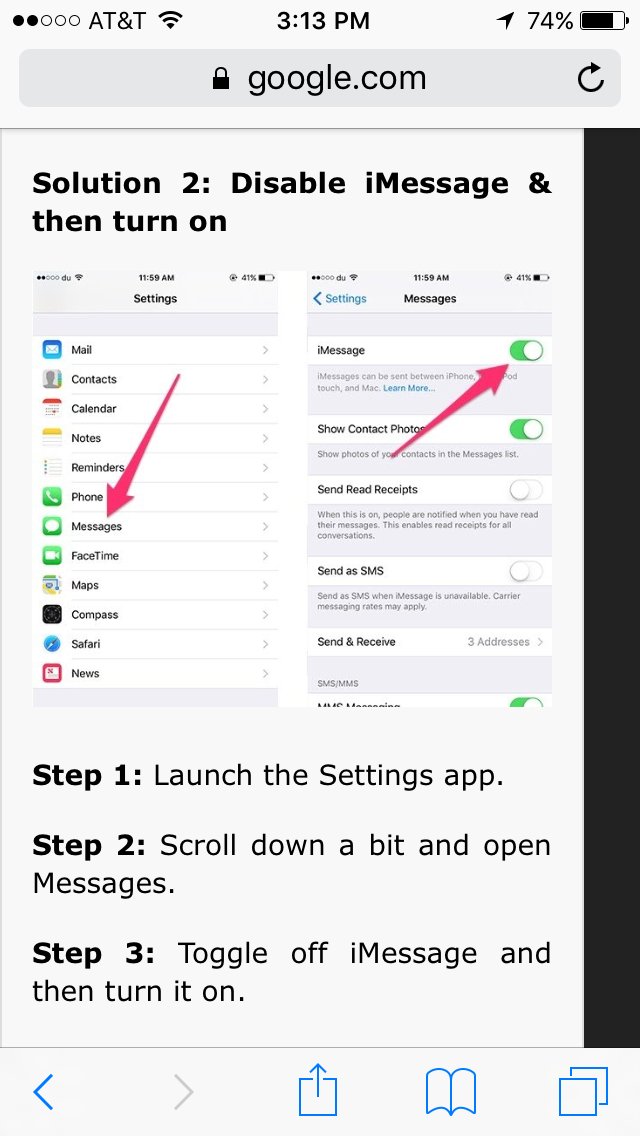
- Open Settings: Go to the Settings app on your iPhone.
- Tap Messages: Scroll down until you find “Messages” and tap on it.
- Check the iMessage Switch: Make sure that the switch next to “iMessage” is turned on (green). If it’s off (white), tap it to turn it on.
iMessage is Down
Sometimes, Apple’s servers where iMessage runs can have problems. This is like when the school’s electricity goes out and everything shuts down. If the iMessage servers aren’t working well, Game Pigeon will also not work. You can check the status of Apple’s services online.
- Visit Apple’s System Status Page: You can use your web browser to find the system status page. Search for “Apple System Status” on your device.
- Look for iMessage: Scroll down the list of services to find “iMessage.” If you see a green dot next to it, everything is fine. If you see a yellow or red dot, there’s a problem.
- Wait it Out: If iMessage is down, you just have to wait for Apple to fix the issue. There’s nothing you can do on your end. Try again later.
iMessage is Not Syncing
If your iMessage settings are not syncing properly, it can cause various issues. iMessage needs to be able to talk to your other Apple devices to work properly. Check that your settings are synced and logged in to the same account.
- Check Your Apple ID: Go to Settings, then tap your name at the top. Make sure you’re signed into the same Apple ID on all your devices.
- iCloud Sync: Go to Settings, then tap your name at the top, and go to iCloud. Make sure the “Messages” option is toggled to on (green).
Device Problems
Sometimes, the problem isn’t with Game Pigeon or the internet; it’s with your phone itself. Your phone is like a car – if something is wrong with it, you won’t be able to get anywhere. Here are a few device issues that can affect Game Pigeon:
Low Storage Space
If your phone is full of photos, videos, and apps, it can slow down. When your phone doesn’t have enough space, it might not have the space it needs to run Game Pigeon smoothly. It’s like trying to stuff too many toys into a box – it just doesn’t work well. You need to make some room so Game Pigeon can breathe.
- Check your Storage: Go to Settings > General > iPhone Storage. This will show you what’s taking up space on your phone.
- Delete Unused Apps: If there are apps you don’t use anymore, delete them.
- Remove old Photos and Videos: Save important photos and videos to your computer and then delete them from your phone.
- Clear Browser History: Sometimes, your web browser keeps a lot of temporary files. Go to Settings > Safari > Clear History and Website Data.
- Remove Old Messages: You can set up your messages to automatically delete after a certain period of time. Go to Settings > Messages > Keep Messages and choose a time period.
Outdated iOS
Like Game Pigeon, your iPhone software, called iOS, also needs to be updated. Old software might not work well with new apps, or it can cause your phone to run slower. To update your iOS, follow these steps:
- Open Settings: Tap the Settings app on your iPhone.
- Tap General: Find “General” in the list and tap it.
- Tap Software Update: Tap on “Software Update.”
- Check for Update: Your phone will check to see if there are any updates available. If there is, tap “Download and Install.”
Device Restart
Sometimes, your phone just needs a good nap to get back on track. Restarting your phone is like giving it a quick reset. Here is how to do it:
- Press and hold the power button (or power and volume up button) on your phone until the slide to power off slider appears.
- Slide the slider to the right to turn your phone off.
- Wait about 30 seconds, then press the power button again to turn your phone back on.
Other Potential Issues
We have covered a lot of the big issues, but sometimes there might be other, less common reasons why Game Pigeon might not be working.
Server-Side Issues
Sometimes, the problems aren’t on your side, but on the side of the Game Pigeon server. Like iMessage servers, these servers can also have problems, and then the game won’t work correctly. If this is the case, just wait it out. Usually these problems are resolved quickly by the Game Pigeon team.
Account Related Issues
Sometimes, your Apple ID account could be having problems that impact how you can use iMessage and Game Pigeon. It’s rare, but it can happen. You may need to sign out and back in to your account to fix it.
- Sign Out: Go to settings, tap your name at the top and scroll to the bottom. Then tap “Sign Out”.
- Sign Back In: Then sign back into your account to see if that fixes the issue.
Firewall or Network Restrictions
In some cases, like if you’re using a school or work network, there may be restrictions on which services can be accessed. These restrictions can prevent Game Pigeon from working. Try using the network at home to see if that helps.
Game Pigeon not working can be annoying, but usually, it’s caused by a simple problem that you can fix. By checking your internet connection, making sure the app is up to date, and checking for problems with iMessage and your device, you can usually get back to gaming with your friends. Remember to keep your phone’s software updated and clear out old data to keep everything running smoothly.
Game Pigeon not working- How to fix
Final Thoughts
Game Pigeon might not work due to server issues, outdated app versions, or poor internet connections. These common problems can interrupt gameplay.
Sometimes, device settings or storage limitations cause glitches. Check for updates and adequate free space. Restarting the app or device is often a quick fix.
Ultimately, various factors affect the app’s performance. Knowing these causes helps users troubleshoot. ‘why is game pigeon not working’ often stems from these simple issues.

