
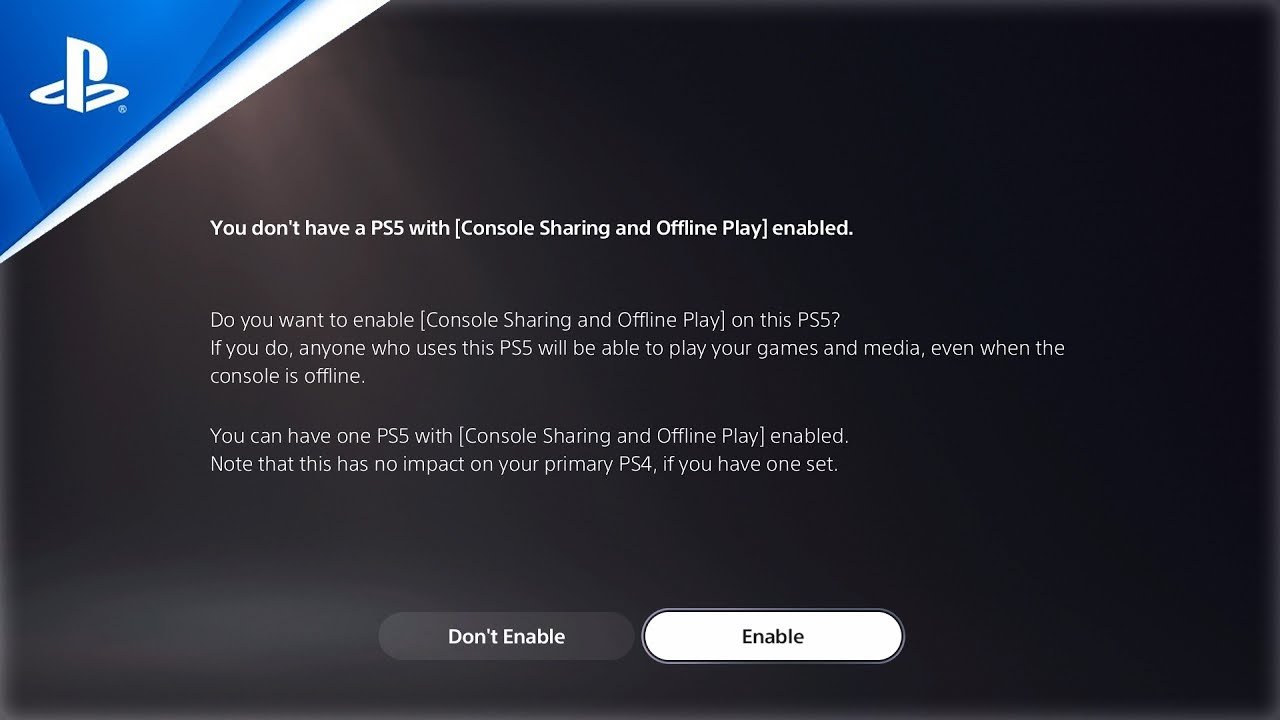
Game sharing on PS5 often fails because either the console isn’t set as the primary console for the account sharing the games or due to network connection issues.
Have you ever excitedly tried to share a game with a friend on your PS5, only to be met with frustrating errors? It’s a common issue and definitely begs the question, why is game sharing not working ps5? Many users struggle with this, and it’s often tied to easily overlooked settings or simple networking problems.
You might think you have everything set up correctly, but a tiny misstep in the primary console designation can prevent games from being shared successfully. Let’s dive into some reasons behind the trouble.

Why is Game Sharing Not Working on PS5?
So, you’re all set to share your awesome PlayStation 5 games with a friend or family member, but it’s just not working? It can be super frustrating when a feature that’s supposed to be easy gives you trouble. Let’s explore why game sharing might be giving you a headache on your PS5. We will break down all the potential reasons and offer you solutions to get back to gaming together!
Understanding How PS5 Game Sharing Works
Before diving into the problems, it’s important to understand the basics. Game sharing on PS5, also known as “Console Sharing and Offline Play”, allows you to share your digital games and PlayStation Plus benefits with one other console. This feature is fantastic because you can play games from each other’s libraries without buying them again. However, it is not a free-for-all; there are specific rules and limitations set in place by Sony.
The idea is to designate one console as your “primary” console, which means that all the accounts on that console will have access to your games and benefits. If you are the primary user on your own console, you will have full access to your games, and other accounts will be able to play the digital games too if they are logged into their accounts on that primary console.
The Primary Console System
Think of it like this: your primary console is your “home” for games. Anyone who uses that console can play your games, even if they are not you. So your friend, sibling, or anyone else who uses the same console as your primary console, can play games you bought from your PlayStation Network account. This is all straightforward when it works correctly, but things become complicated when the feature doesn’t.
How to Enable Console Sharing and Offline Play
To enable the console sharing option, you need to do some things in the settings of your ps5 console. These are the simple steps to enable it:
- Step 1: Login to your PlayStation account on the console that you want to make as your primary console
- Step 2: Go to the “Settings” menu
- Step 3: Find and Select “Users and Accounts”
- Step 4: Select “Other” option
- Step 5: Select “Console Sharing and Offline Play”
- Step 6: If the option is “Disable,” then your primary console is already set, if not, select “Enable” option
Make sure you are logged into the correct PlayStation Network account when you try to enable this option. Also, ensure that you have a stable internet connection to make the process smooth and easy.
Common Reasons Why Game Sharing Fails
Okay, now that we understand the basics, let’s get to the real problem: why isn’t your game sharing working? Many things can stop this from working as it should. Here are some of the most common culprits:
Incorrect Primary Console Setup
This is probably the biggest reason why game sharing doesn’t work. You can only have one primary console at a time. Here’s what can go wrong:
- Your friend’s console is your primary: If your friend set your account as their primary on their console to get your games, then yours will not have the access. So your friend is using your games with his/her account. The PS5 system is designed to make only one console to have access to your games, and you can have console sharing only on one console at a time.
- Your primary console is changed unknowingly: Sometimes, you might change your primary console without even knowing it, especially if you have multiple PS5s or log in to other consoles with your account. This can lead to confusion.
- Account login on a wrong console: If you log in to your PlayStation Network account on another console, and someone else logs into their account on your primary console, then this could also cause an issue.
Solution: Always make sure your console is the primary one for your account. You can check this in your account settings. If it is not set as your primary, then enable the option and set your console as your primary.
Account Login Issues
Another common reason for game sharing troubles is problems with your account login.
- Wrong Account: Double-check that you’re using the correct PlayStation Network account on both consoles. It’s easy to mix up usernames or use an old account by mistake.
- Multiple users logged in: If two accounts are logged into the same game at the same time, the game sharing can fail.
- Internet problems: sometimes you can get a problem due to internet connection. Internet helps in account authentication.
- Server issues: There might be PlayStation Network server issues that cause issues with verifying the account and license.
Solution: Make sure everyone is logged into the right accounts, and try logging out and back in again to refresh your account status. Sometimes, restarting your console can help too.
Game License Conflicts
Even if your account is setup correctly, you might face problems with your games. Here’s why.
- Game was not purchased: The game you are trying to play is not digitally purchased from your PlayStation Network account. Instead you are trying to play a physical disc game.
- Digital ownership: The person on the other console also needs to be able to access the games from the PlayStation account with which the game was purchased.
- PlayStation Plus subscription status: If you are trying to play a game which you got from the PlayStation plus subscription, you will require an active PlayStation plus subscription on the account from which the game was added.
Solution: Ensure the game you are trying to share was digitally bought from the right account and it is available on the primary console. Also make sure that the account which has the ps plus subscription is active.
Software Glitches and Bugs
Sometimes, things just go wrong with the console’s software. Bugs or glitches in the system software can cause problems with game sharing. Here is what you can do:
- Outdated system software: Make sure that both consoles have the latest software updates installed. Outdated software can cause conflicts.
- Software corruption: Sometimes the software data may get corrupted and cause problems with the license check and game sharing feature.
Solution: Go to your system settings and check for software updates. Always keep your PS5 software up to date. If the software is corrupted, you can try re-installing the system software using a USB drive. This may fix the problem.
PlayStation Network Outages
The PlayStation Network is the system that manages all accounts and game purchases. If the PlayStation Network servers are down, it can affect game sharing.
- Server issues: Sometimes Sony may face issues with its server and there might be a maintenance going on, causing issues with the account verifications.
- Connection problems: Make sure that you have stable and working internet connection.
Solution: Check the PlayStation Network status page to see if there are any known issues. You might have to wait until the server issues are solved before game sharing will work again.
Conflicting Console Sharing Settings
You must ensure your game sharing is setup correctly in the settings of your ps5 console.
- Conflicting Settings: Ensure that the console is set to primary properly and the other console is set as non primary console.
- Changed settings: Sometime accidentally we may change the settings in the console and it may break the game sharing feature.
Solution: Go to your settings and check your settings for console sharing option.
Troubleshooting Steps for Game Sharing Issues
If you are still having problems, don’t worry! Here are some steps you can try to get things working correctly. We’ll break it down step by step to make it easy:
Double Check Primary Console Settings
First, let’s make sure your console is set as your primary console.
- Go to settings: On your PS5 console, navigate to the main menu, and find settings.
- Users and Accounts: Scroll down in the settings menu and find the “Users and Accounts” option.
- Other Tab: Select “Other” from “Users and Accounts” menu.
- Console Sharing: Click on “Console Sharing and Offline Play”.
- Enable the option: If the option says “Enable”, then select “Enable” to enable the console sharing. If the option says “Disable”, then this console is already set as your primary console.
If your console was not set as your primary, then this may solve your problem.
Sign Out and Sign Back In
Sometimes, logging out and back in can fix the problem.
- Log Out: Go to your account settings and log out of the PlayStation Network account on both consoles.
- Restart: Restart the PS5 console.
- Sign In: Sign back in with your accounts on both consoles.
This can refresh your account status and resolve small glitches.
Check Network Connections
A poor internet connection can make game sharing difficult.
- Check internet: Ensure both consoles are connected to the internet.
- Speed: Make sure you have stable internet speeds.
Sometimes a simple router restart can solve network issues.
Restart Your PS5
A simple restart can resolve minor software issues.
- Shutdown: Turn off your PlayStation console completely.
- Unplug: Unplug the console from power outlet.
- Plug back in: Plug the power cable back in after 30 seconds.
- Power on: Power on your PS5 and try game sharing again.
Update System Software
Outdated software may cause issues.
- Check Updates: Go to “Settings” then “System” then “System Software”.
- Update: Check for updates and install them if necessary.
Always keep your software up to date, especially when you are using online services.
Contact PlayStation Support
If none of the above steps work, it might be time to contact PlayStation Support. They can help you with specific problems. They might be aware of a specific glitch that you are encountering and help you in solving the issue.
By following these steps, you have a better chance to get game sharing working correctly again on your PlayStation 5. It can sometimes take a few tries, but don’t give up!
Game sharing issues can be frustrating, but with a bit of patience and troubleshooting, you should be able to get your games working smoothly. Always double-check your settings and ensure everything is correct. If you have done all the troubleshooting and still having problems, then contacting PlayStation support would be the final solution. Happy Gaming!
How to Fix Gameshare Locked on PS5
Final Thoughts
Game sharing issues on PS5 often arise from incorrect primary console settings or inconsistent account logins. Activation limits and software glitches can also cause problems. These technical hurdles prevent successful game access for secondary users.
Therefore, troubleshooting ‘why is game sharing not working ps5’ involves verifying primary console activation, consistent account use, and checking for updates. You must configure your PS5 correctly and ensure smooth sharing.

