
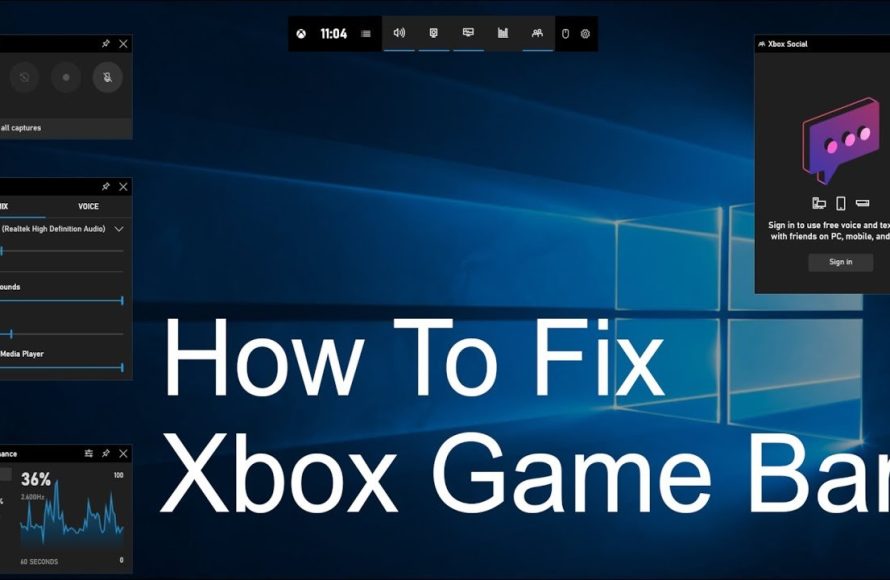
The game bar might not be opening because it is disabled in settings, the Xbox app is not running correctly, or there could be a conflicting application.
Frustrating, isn’t it? You’re ready to record that epic game moment, or quickly check your system’s performance, but the game bar just won’t appear. This article addresses the common question, why is my game bar not opening? We will go through some common causes and offer potential fixes.
Sometimes the simplest things can be the cause of this annoying issue. We often overlook basic setting configurations. We will explore these settings. We will also cover some possible app conflicts and background issues that may block it from appearing.

Why is My Game Bar Not Opening?
Okay, so you’re ready to jump into your favorite game, maybe record a sweet highlight reel, or just chat with your buddies. You press the trusty Windows key + G, expecting that familiar Game Bar to pop up. But… nothing happens. It’s like it’s gone on vacation without telling you! Frustrating, right? You’re not alone. Lots of gamers have this happen, and usually, the solution is pretty easy. Let’s explore the common reasons why the Game Bar is being stubborn and how you can get it back in action.
Is the Game Bar Even Enabled?
Sometimes the simplest answer is the right one. The Game Bar isn’t some magical thing that always works automatically. You actually have to turn it on. It’s like flipping a light switch. If it’s off, it’s not going to work! So, first, let’s check if the Game Bar is enabled in your Windows settings. Here’s how:
Checking Game Bar Settings
- Click on the Start button (the Windows logo in the corner of your screen).
- Click on the Settings icon (it looks like a little gear).
- In the Settings window, click on “Gaming.”
- Look on the left side of the window. You’ll see “Game Bar.” Click it.
- Now, on the right, you’ll see a switch labeled “Record game clips, screenshots, and broadcast using Game bar.” Make sure that this switch is turned to the “On” position. If it’s off, just click it to turn it on.
After you turn it on, try pressing Windows key + G again. Did it work? If not, let’s move on to other possibilities.
Conflicts with Other Software
Your computer is a busy place! Sometimes, other programs are fighting for control, like two kids arguing over a toy. These programs might interfere with the Game Bar. Let’s check for those conflicts.
Overlays and Third-Party Apps
Some programs that like to put overlays on your screen while you are gaming can interfere with Game Bar, like certain voice chat programs, screen recording tools, or even some anti-virus apps. Here’s what you can do:
- Close Programs: Close other programs one by one to see if one of them is causing the problem. Don’t worry, you can always open them again later! Start with apps that you know can put overlays on your screen.
- Disable Overlays: If you can’t close a program, see if you can temporarily disable its overlay feature. For example, Discord, NVIDIA GeForce Experience, and Steam all have overlays that you can disable in their settings.
- Anti-Virus Interference: Sometimes your anti-virus might think the Game Bar is something bad. See if your anti-virus software has a feature to allow or add exceptions for the Game Bar.
Try opening the Game Bar again after trying each of these steps. See if that fixes the issue.
Clean Boot Your PC
If you are still facing issue, you can try a clean boot. It starts your computer with only the most necessary programs running. This helps figure out if some background program is messing with the Game Bar. To perform a clean boot, you can follow these steps.
- Press the Windows key + R to open the Run dialog box.
- Type ‘msconfig’ and then press Enter. This will open the System Configuration window.
- Go to the ‘Services’ tab.
- Check the box that says ‘Hide all Microsoft services’.
- Click on ‘Disable all’. Don’t worry, we’ll turn them back on later.
- Now, go to the ‘Startup’ tab and click on ‘Open Task Manager’.
- In the Task Manager window, disable all startup items by right-clicking each and selecting “Disable.”
- Close Task Manager, and then click ‘Apply’ and ‘OK’ in the System Configuration window.
- Restart your computer.
After your computer restarts, try to open the Game Bar again. If it works now, it means a program you disabled was causing the problem. You can then turn on the services and startup programs one by one, testing the Game Bar after each one to find out which is the culprit. Once you find the problem program, you may want to keep it disabled at startup or try to update it to a newer version.
Outdated or Corrupted Drivers
Your computer needs special programs called drivers to help it work with all the different parts of your computer. When those drivers get old or become damaged, they can cause all sorts of problems, including making the Game Bar not work correctly. Let’s make sure they are up to date.
Updating Graphics Drivers
The graphics driver is very important when you’re playing games and can affect the Game Bar. Here’s how you can update them:
- Find Your Graphics Card: You need to know what type of graphics card you have. The easiest way to check is to right-click on the Start button and choose “Device Manager.” Then, find “Display adapters,” and click the little arrow next to it. You’ll see the name of your graphics card.
- Go to the Manufacturer’s Website: Now go to the website of the company that makes your graphics card (like NVIDIA or AMD).
- Download the Latest Drivers: Look for the latest drivers for your specific graphics card. Follow their instructions to download and install them.
- Restart Your Computer: After you update the drivers, restart your computer for changes to take effect.
Try opening the Game Bar after restarting your computer, see if it is fixed.
Updating Other Device Drivers
While graphics drivers are the most common culprit, other outdated drivers can sometimes interfere with the Game Bar. To make sure all the drivers are up to date, you can also try checking for Windows updates.
- Open Settings: Click the Start button and then the Settings icon.
- Go to Update & Security: Click on “Update & Security.”
- Check for Updates: Click on “Check for updates.” Windows will automatically search for updates. If updates are available, download and install them.
- Restart Your Computer: After the updates, restart your computer.
This will also help to make sure your drivers are up to date, and hopefully will fix your problem with Game Bar.
Problem with Game Bar Itself
Sometimes, the problem is not with your computer or other programs, but with the Game Bar application itself. You might need to repair or reset the Game Bar, just like restarting a video game when it gets glitchy.
Repairing the Game Bar Application
You can easily fix the Game Bar using the Windows settings app. Let’s try this:
- Open Settings: Click the Start button and then the Settings icon.
- Go to Apps: Click on “Apps.”
- Find Game Bar: In the search bar type Game Bar and then click on “Game Bar”.
- Click on Advanced Options: Click on “Advanced Options”
- Try Repair: In the new window, look for the Repair option and click the “Repair” button.
- Try Game Bar: After Repair, try launching Game Bar using Windows key + G.
If it’s still not opening, move on to the next step, but this step can fix the problem in most cases.
Resetting the Game Bar Application
If repairing does not work, let’s try resetting Game Bar. Please note that resetting will delete any customized preferences or settings in the Game Bar, but it can sometimes fix some stubborn errors.
- Open Settings: Click the Start button and then the Settings icon.
- Go to Apps: Click on “Apps.”
- Find Game Bar: In the search bar type Game Bar and then click on “Game Bar”.
- Click on Advanced Options: Click on “Advanced Options”
- Try Reset: In the new window, look for the Reset option and click the “Reset” button.
- Try Game Bar: After Reset, try launching Game Bar using Windows key + G.
Hopefully, this fixes the problem. If not, let’s continue to the next steps.
Problem with Windows Installation
Sometimes, the problem is with Windows itself. It might not be a small thing like a setting, but something is wrong with the Windows operating system. Here are a couple of things to consider.
Corrupted System Files
When some of the important files Windows needs get damaged or missing, it can affect different things on your computer. Here’s how to check your system files:
- Open Command Prompt as Administrator: Type “cmd” in the Windows search bar, then right-click on “Command Prompt” and select “Run as administrator.”
- Type the Command: Type sfc /scannow and then press Enter.
- Wait and Let it Work: Windows will now scan your system files, and fix if it finds any corrupted or missing ones. This might take a little time.
- Restart Your Computer: After that process is complete, restart your computer.
Hopefully, this will fix any corruption with the Windows files. Check the Game Bar again.
Windows Updates
Keeping Windows up to date helps in performance and also prevents any issues. Sometimes, an older version can cause issues with the Game Bar. Let’s check for Windows updates.
- Open Settings: Click the Start button and then the Settings icon.
- Go to Update & Security: Click on “Update & Security.”
- Check for Updates: Click on “Check for updates.” Windows will search for updates. If it finds updates, download and install them.
- Restart Your Computer: After the updates, restart your computer.
This can fix most of the issues with Game Bar, hopefully, this can solve your problem.
Performing a System Restore
If all else fails, you might want to think about using a system restore to put your computer back to a point in time when the Game Bar was working fine. This helps if some of the changes caused the problem in recent times.
- Open System Restore: In the Windows search bar, type “system restore” and click on “Create a restore point.” Then click on the “System Restore” button.
- Follow the On-Screen Instructions: Follow the instructions to select a restore point (if available) when your Game Bar was working fine.
- Complete the System Restore: Let the system complete its restore. It will restart your computer.
After the system restore is done, check to see if Game Bar is working. If you didn’t have a restore point available, you can’t use this method.
Hardware Issues
In rare cases, a hardware problem can also cause the Game Bar to not work properly, so let’s check this.
Keyboard Issues
Sometimes, the issue might be as simple as a faulty keyboard or a key not working correctly, it’s not very common but still needs to be checked.
- Test Your Windows Key: Try using your Windows key in other shortcuts. For instance, Windows key + D should show you the desktop. If the Windows key isn’t working, that’s probably the reason why Game Bar is not working, try a different keyboard.
- Test Your G Key: You can also test G key, by pressing only “G” key in a Notepad and see if the key is working or not.
Check for Other Issues
If you suspect something wrong with your hardware, like a hard drive failure, it is best to take your PC to a professional to diagnose any issues.
So, there you have it – a full guide to why your Game Bar might be playing hide-and-seek and how you can get it back. By going through these steps, you’ll probably find the solution and be back to gaming and recording in no time. Don’t give up, one of these steps is bound to fix your problem!
How To Fix Xbox Game Bar Not Opening Working in Windows 11
Final Thoughts
So, you’re facing the frustrating ‘why is my game bar not opening’ problem. Likely causes include incorrect settings, outdated software, or conflicts with other applications. Verify game bar is enabled in settings and check for Windows updates.
Consider closing background apps that might interfere. A simple system restart sometimes resolves the issue. If the problem persists, investigate for corrupted files using system file checker.

