
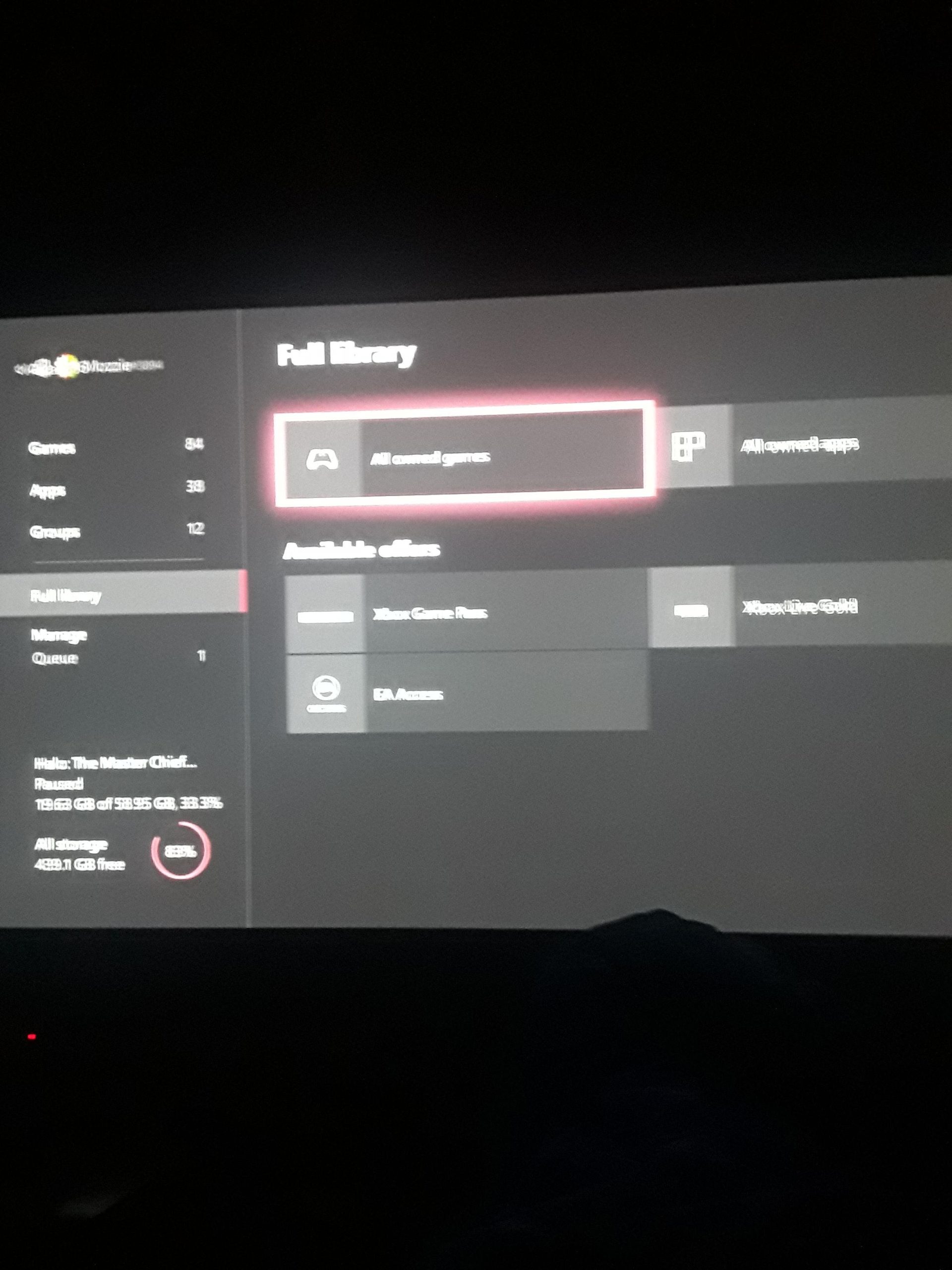
Your Game Pass might not be working due to an expired subscription, network issues, problems with your Microsoft account, or required updates for your console or the app.
It’s frustrating when you’re ready to game but find yourself asking, “why is my game pass not working?”. Several factors can cause this interruption to your gaming fun. You’re not alone if you are facing these issues.
Let’s explore some common reasons and what you can do to get back into the game. We’ll troubleshoot the common culprits preventing you from accessing your games.

Why Is My Game Pass Not Working?
It can be super frustrating when you’re ready to play your favorite games and your Game Pass just won’t cooperate. You might see error messages, games won’t download, or the app simply refuses to open. There are many different reasons why this can happen, and we will explore all of them so you can get back to gaming. Let’s dive in and figure out why your Game Pass might be having a tough day.
Check Your Internet Connection
First things first, let’s talk about your internet. A shaky or slow internet connection is a common reason why Game Pass might not work correctly. Think of it like trying to watch a movie – if your internet is cutting out, the movie will keep buffering or stop altogether. Games are the same! They need a steady internet connection to download, update, and even to verify that your Game Pass subscription is still active. Here’s what you can check:
- Wi-Fi Signal: Make sure you have a good Wi-Fi signal on your device. If you’re far from your router or have a lot of walls in the way, your signal might be weak. Try moving closer to the router or using an ethernet cable if possible.
- Speed Test: You can use online tools to test your internet speed. Google “internet speed test” and run one. Compare the results to what your internet provider says you should be getting. If it’s much lower, there might be a problem with your internet service.
- Other Devices: Are other devices on your network using a lot of internet? Someone streaming a movie or downloading a large file at the same time can slow things down. Try turning off those devices temporarily to see if your Game Pass works better.
- Router Problems: Your router may need a restart. It is just like your device, it can sometimes become overwhelmed. To restart, unplug it from the power outlet, wait about 30 seconds, and then plug it back in. Wait for it to fully restart, then test your Game Pass again.
Remember, a strong and stable internet connection is crucial for your Game Pass experience. Always try checking this first when you face problems.
Issues with Your Game Pass Subscription
Another big reason why Game Pass might not work is related to your actual subscription. Sometimes, things can get a bit messy. Here are a few aspects to consider:
Subscription Status
Is your Game Pass subscription still active? Sometimes, payment information gets changed or needs updating. If your subscription lapses, you won’t be able to access the games or other perks. Here’s how to check:
- Microsoft Account: Go to your Microsoft account online. Then, find the “Services & subscriptions” page. Here, you can see all of your subscriptions and whether your Game Pass one is active.
- Xbox App: If you are on a PC or console, you can open the Xbox app and check your subscription status there. It should show if your subscription is still valid.
- Payment Method: If your subscription is about to expire or has expired, you might need to update your payment information. Make sure your payment card or PayPal account is up-to-date.
Sharing Issues
If you are trying to share Game Pass with someone else through features like Game Sharing on your Xbox, make sure that everything is set up correctly. If someone changes their home console, this can sometimes stop Game Pass from working on another device.
- Home Console: Check your Xbox settings for the home console settings. Make sure that the correct console is set as your “home Xbox”.
- Correct Account: Make sure that the account that has the Game Pass subscription is set as the primary account for Game Sharing.
Problems with the Xbox App or Game Pass Software
The Xbox app itself can have issues that stop your Game Pass from working. Like any software, it can have bugs or errors. These issues can prevent you from accessing games or using the service properly.
Outdated App
Is your Xbox app or Windows Store app up-to-date? Outdated apps can cause all sorts of problems. Here’s what you should do:
- Windows Updates: Go to your Windows settings and check for updates. Make sure your computer’s operating system is running the latest version.
- Xbox App Updates: Open the Microsoft Store, and search for the Xbox app. If there’s an update available, download it.
- Gaming Services: Check that Xbox Gaming Services are also up-to-date, they are important to have installed and updated
App Cache and Data
Sometimes, the Xbox app stores temporary files, called cache, that can become corrupted and cause problems. Clearing the app cache and data can help, it’s like giving the app a fresh start:
- Windows Settings: Go to your Windows settings, then to “Apps,” and find the Xbox app. Click it, then “Advanced options,” and from here, you’ll find buttons to clear cache and data.
- Xbox Console: Clearing the cache on your console is also important. This can be done through settings. Look for “Clear local saved games” option, be aware this might delete your unsynced save data.
App Reinstallation
If clearing the cache doesn’t help, try reinstalling the Xbox app. This will give you a fresh install and might fix the underlying problem. To do this, you first uninstall the app and then go back to the store to install it again. Be sure to restart your device after this.
Specific Error Codes
If you see an error code, write it down! This error code tells you exactly what is wrong and can help you troubleshoot faster. Often, Microsoft or online communities will have instructions on how to fix specific error codes. Do a search for your error code and follow the advice you find.
Account and Login Problems
Another issue that can cause your Game Pass to malfunction is problems with your Microsoft account. If you’re having trouble signing in, or if there are account conflicts, this can make Game Pass inaccessible.
Incorrect Credentials
Make sure that the email address and password you are using are correct. Double-check that you are not using the wrong account or making typos. You could even use the “forgot password” feature to reset your password if necessary.
Account Conflicts
Sometimes, especially if you have more than one Microsoft account, you may not be signed into the right account. Make sure the account you are using to sign in is the one associated with your Game Pass subscription. You can also try signing out of all accounts and then signing back into the correct account.
Regional Issues
Game Pass regions need to match your account region. If you are in another country now you might need to use a VPN. If you are in a country where the Xbox app is not supported, it may cause issues. Contact support to check if this is the case.
Device Compatibility
Your Game Pass might have trouble running if there are problems with your device’s software or hardware. It is essential to make sure that your device meets the minimum requirements for running the Xbox app and games.
System Requirements
Check the system requirements for the Xbox app and games you are trying to play. If your device is too old or doesn’t have the right parts, it may not work correctly. You can find the system requirements on the games’ page or on the Xbox website.
- Operating System: Make sure you have the right version of Windows installed on your computer or if you are on console, that the software is up to date.
- Graphics Card: Some games require a graphics card. If yours is outdated or not powerful enough, you may have issues.
- Storage Space: You need enough space to download and install games. Check that you have enough free space on your hard drive or SSD.
Driver Updates
Graphics drivers are the software that makes your video card work. Outdated drivers can cause many problems. You should check for updates from the graphics card maker such as Nvidia or AMD.
Xbox Server Problems
Sometimes, the issue is not on your end at all. Xbox servers can sometimes go down for maintenance or experience unforeseen problems. When this happens, you will likely face connection issues.
Status Page
The best place to check for outages is the official Xbox support website or the social media accounts. Microsoft often posts updates about any server issues they are experiencing. When servers are down, you will have to just wait it out.
Other Possible Problems
Antivirus Software
Sometimes, your antivirus can be overly protective and block the Xbox app from accessing the internet or running properly. Check to see if your antivirus is causing problems and if needed temporarily disable it to see if the problem persists. If disabling fixes your issue, you may need to add an exception for the Xbox app in your antivirus settings.
Firewall Settings
Similar to antivirus software, firewalls can block network access. Make sure your firewall is not blocking access to the Xbox app. You may need to add exceptions for the app or the relevant game files if required.
Date and Time Settings
Incorrect date and time settings can lead to issues with online services, including Game Pass. Make sure your system’s time and date settings are set correctly. It may seem small, but it can create problems.
So, there you have it—a comprehensive look at why your Game Pass might be acting up. Remember, troubleshooting might take a few tries, but systematically going through these steps will definitely help you get back to gaming in no time. Try each step and if the problem persists, try contacting customer service from Microsoft or Xbox, they may be able to help you solve the problem.
How To Fix Xbox One/Series X/S Error Code 0x803f900a
Final Thoughts
In short, several factors can cause your Game Pass issues. Network problems, subscription status, or even console glitches might be the culprit. Sometimes, simply restarting your device fixes the problem. Ensuring your account is correct and up to date is also a must.
If basic troubleshooting doesn’t work, contacting support becomes necessary. Don’t forget to verify the server status too. Ultimately, ‘why is my game pass not working’ is a question with varied answers. Therefore, methodical checking is crucial to resolve it.

