
‘Your game is likely tabbing out randomly due to other applications vying for focus, outdated drivers, or conflicting background processes.’
Is your gaming session constantly interrupted by the game minimizing itself? It’s frustrating when your immersive experience is broken by unexpected trips back to your desktop. You’re not alone if you’re wondering “why is my game tabbing out randomly.” This common issue can stem from a variety of causes. Let’s explore what makes this annoying phenomenon occur and how you can regain control of your gaming.

Why Is My Game Tabbing Out Randomly?
It’s super frustrating when you’re deep into a game, about to win, and suddenly – bam – your game minimizes and you’re staring at your desktop. This random tabbing out can feel like a digital gremlin messing with your fun. But don’t worry, there are usually logical reasons why this happens, and most of them are fixable. Let’s explore some of the common culprits behind this annoying issue.
Background Applications Demanding Attention
One of the most frequent reasons for unexpected game tabbing is other programs vying for your computer’s attention. Think of it like a classroom where everyone is trying to talk at once. Your game is focused, trying to run smoothly, and then another program decides it’s more important and grabs the spotlight.
Notifications From Other Programs
Programs like email clients, messaging apps (Discord, Slack, etc.), or even your antivirus software, might send you notifications that briefly pull your focus away from the game. These notifications often trigger a window focus change, causing the game to minimize. Imagine a pop-up ad suddenly appearing in your favorite movie; it’s the same interruption.
How to Fix It:
- Close Unnecessary Apps: Before gaming, close any programs you’re not actively using. This frees up your computer’s resources and prevents those interruptions.
- Turn off Notifications: Temporarily disable notifications from apps that are known to pop up frequently while you are gaming. Most apps have settings to control notifications. Look for options like “Do Not Disturb” or “Quiet Mode.”
- Check Notification Settings: Go into your operating system’s notification settings (for Windows, it’s in Settings > System > Notifications & Actions) and turn off notifications that could interrupt your gameplay.
Resource-Heavy Applications
Sometimes, programs running in the background might be using a lot of your computer’s processing power or memory. This can force your game to tab out as your system struggles to keep everything running smoothly. These resource-hogging apps are like a group of friends trying to use the same small table; there just isn’t enough space.
How to Identify Resource Hogs:
- Task Manager (Windows): Press Ctrl + Shift + Esc to open Task Manager. Look at the “Processes” tab. Sort by “CPU” or “Memory” to see what’s using the most resources. Close any non-essential heavy users.
- Activity Monitor (macOS): Open the Activity Monitor from your Applications/Utilities folder. Click on the “CPU” or “Memory” tabs to find resource-heavy apps and close them.
Outdated or Corrupted Drivers
Drivers are the software that allows your computer’s hardware to communicate with your operating system. Think of them as the translator between the hardware and the software. If these drivers are out of date or damaged, they can cause many problems, including games tabbing out.
Graphics Card Drivers
Your graphics card is very important for smooth gaming. If its driver is old or faulty, your game can crash, freeze, or randomly tab out. It’s like having an old, rusty engine in a race car – it’s not going to perform well.
How to Update Graphics Drivers:
- Nvidia: Go to the Nvidia website, find the “Drivers” section, and download the newest drivers for your specific graphics card.
- AMD: Go to the AMD website and find the “Drivers & Support” area. Download and install the appropriate drivers for your card.
- Intel: If you have an Intel graphics card, go to the Intel Download Center to get the most recent drivers.
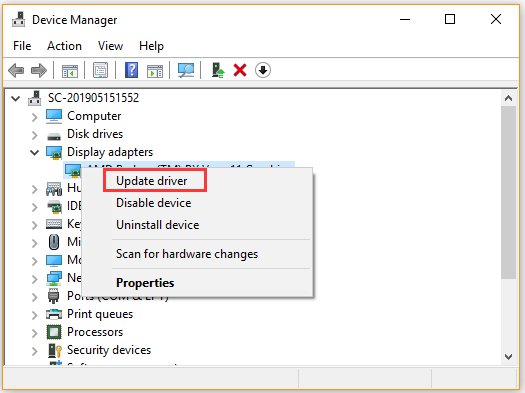
- Device Manager (Windows): You can also update drivers using the Device Manager. Search for “Device Manager” in the Start menu, find your graphics card under “Display adapters”, right click and select “Update Driver”.
Other Hardware Drivers
Besides graphics, other drivers like your audio, chipset, or even mouse drivers can also sometimes lead to these issues. It’s always good to keep all important drivers up to date. It’s like having all the parts of a machine working at their best.
How to Update Other Drivers:
- Manufacturer Websites: Visit the website of your computer or motherboard manufacturer to get the latest drivers for your hardware.
- Windows Update (Windows): Check for optional driver updates in Windows Update settings.
- Driver Update Software: Consider using a dedicated driver update tool. Remember to only use trusted sources!
Game Settings and Conflicts
Sometimes, the issue isn’t with your computer but with the game itself. Certain game settings or conflicts can also lead to random tabbing.
Fullscreen vs. Windowed Mode
Games can run in a few modes: Fullscreen, Windowed, and Borderless Windowed. Running in full screen provides better performance but if other programs have priority, they will take your game to tab out. Windowed mode is more prone to tabbing out since the game is treated as a regular window but also easier to switch between applications. Borderless windowed mode can be a good middle ground. It behaves like full screen, but it’s slightly more forgiving when switching between applications.
How to Change Display Mode:
- In-Game Settings: Most games allow you to change display modes in their video settings. Try switching from “Fullscreen” to “Borderless Windowed” or “Windowed” and see if it helps.
Overlay Conflicts
Overlays, such as those from Discord, Steam, or other game launchers, can sometimes interfere with games. These overlays are like extra layers on top of the game that sometimes don’t play nice together.
How to Disable Overlays:
- Discord: Go into Discord settings and disable “In-Game Overlay.”
- Steam: In Steam’s settings, uncheck “Enable Steam Overlay while in-game.”
- Other Launchers: Check the settings of other game launchers (Epic Games, GOG Galaxy) for similar overlay options.
Game-Specific Bugs
Sometimes, it’s not your fault at all! Games can have bugs that cause them to tab out randomly. It’s like a little glitch in the program itself.
How to Address Game Bugs:
- Check for Updates: Make sure your game is updated to the latest version. Developers often release patches to fix bugs.
- Game Forums/Support: If the issue persists, search the game’s forums or contact support. Other players might have experienced the same thing.
Hardware Issues
While less common, hardware problems can also contribute to random tabbing. Let’s consider what hardware issues could cause it.
Overheating
If your computer’s components get too hot, they can cause instability and lead to tabbing out, crashing, and other issues. Overheating is like a car engine getting too hot; it will cause problems.
How to Check for Overheating:
- Monitor Temperatures: Use hardware monitoring tools (like HWMonitor) to check your CPU and GPU temperatures while gaming. If they are very high, it’s likely an overheating problem.
- Improve Cooling: Make sure your computer has adequate cooling. This may include cleaning out dust from your computer, adding fans, or even upgrading to better cooling solutions.
Faulty Hardware
Sometimes, a failing component, such as your RAM or graphics card, can cause all sorts of issues, including tabbing out. It is like having a broken part in a machine, leading to unpredictable behavior.
How to Check for Faulty Hardware:
- Run Diagnostics: Use memory diagnostic tools to check if your RAM is working correctly.
- Test Components: Try running your computer with different components if you have extras to check if a component is causing the issue.
- Seek Professional Help: If you suspect a hardware issue and can’t identify it yourself, it might be time to consult a computer repair expert.
Operating System Settings
Certain settings in your operating system can also be the source of the tabbing problem. Let’s review operating system settings.
Focus Assist (Windows)
Windows has a feature called Focus Assist (formerly called Quiet Hours) designed to limit notifications. However, it can sometimes cause unexpected behavior with games. It’s designed to help you focus but can sometimes interrupt gameplay.
How to Adjust Focus Assist:
- Windows Settings: Go into Windows Settings, click “System”, and then “Focus Assist”. Adjust the settings or turn it off entirely to see if it resolves the issue.
Accessibility Options
Certain accessibility features, like “Sticky Keys” or “Filter Keys,” can sometimes cause conflicts with games if they are triggered accidentally during gameplay. It’s like having extra shortcuts turned on that interfere with normal play.
How to Check Accessibility Settings:
- Windows Settings: Go to Windows Settings, click on “Ease of Access,” and then select “Keyboard.” Turn off any accessibility features that might be causing the issue.
- Mac Settings: Go to System Preferences, click “Accessibility” and check the various settings for potential conflicts.
Malware Infections
While not very common, malware can sometimes interfere with running applications and cause random tabbing and other game issues. Think of malware like a bad virus messing with your game. Let’s check malware infections.
How to Check for Malware:
- Run a Scan: Use a reputable antivirus program to scan your computer for malware and remove it.
- Keep Antivirus Updated: Make sure your antivirus is updated to its latest definitions to have better protection.
By systematically going through these potential causes, you’ll have a much better chance of figuring out why your game is tabbing out and fixing the issue. Always remember to test one change at a time so you can clearly identify what’s causing the problem.
So, next time your game decides to take a break without your permission, remember these tips and get back to your gaming!
How to Fix | Alt + Tabbing Out Of Games Screen Turns Black For 2-3 Seconds
Final Thoughts
Random tabbing occurs due to many factors, including outdated drivers, background applications, or conflicting software. Check for updates and close unnecessary programs. Your keyboard might also be a culprit if keys are stuck.
Overlays from software, like Discord or Steam, may also pull focus. Game settings, including resolution or fullscreen mode, can also cause this. Carefully review those elements.
Ultimately, troubleshooting ‘why is my game tabbing out randomly’ requires systematically eliminating each potential cause. This frustrating problem usually has an underlying fixable reason.

