
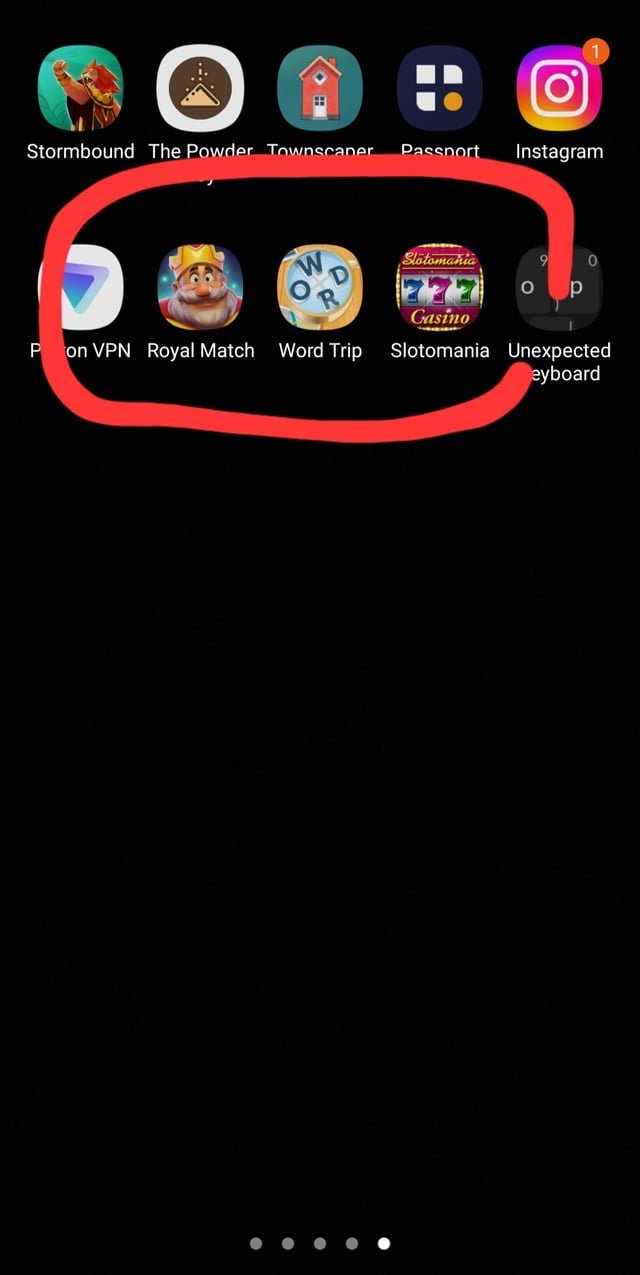
Your phone is installing games by itself typically due to pre-installed apps with promotional features or you may have granted permission to an app that now auto-downloads them.
Ever picked up your phone and found a new game you didn’t download? It’s a frustrating experience that many face. You’re likely asking yourself, “why is my phone installing games by itself?” It’s not magic, and it’s not a gremlin living inside your phone, there are common causes.
Often, this happens because of bloatware, these are pre-installed apps from your phone manufacturer that sometimes push game recommendations to your device. Some apps may request permissions that enable automatic downloads of other applications without your direct knowledge.

Why Is My Phone Installing Games by Itself?
It’s super frustrating, right? You look at your phone and suddenly, there’s a new game you never asked for! It’s like a little gremlin is sneaking in and adding things while you’re not looking. You’re not alone; many people have experienced this. Let’s explore the reasons why your phone might be installing games without your permission and what you can do about it.
Understanding the Sneaky Game Installers
Before we panic, it’s important to understand the usual suspects. Most of the time, it’s not magic or a virus, but rather some features or settings that you might not know about. Let’s break them down.
Pre-Installed Apps and Bloatware
When you get a new phone, it often comes with some apps already installed. These are called pre-installed apps, and sometimes they include games you might not want. Phone makers and carriers often make deals with developers to include these apps. Think of it like a surprise gift, but sometimes the gift isn’t something you actually want. These pre-installed apps sometimes also download new games via system updates or background processes.
Why They’re There:
- Deals with App Developers: Phone companies and app developers might have agreements where the apps are preloaded on phones. It’s a way for app developers to get their games in front of many users.
- Monetization: Phone companies also make money from these deals, so it can be beneficial for them.
- “Free” Trials: Sometimes these games are included as trial versions, hoping you will like it and pay to continue playing the full version.
App Store Settings and Automatic Updates
Your app store settings play a big part in what happens with the apps on your phone. Most app stores have a setting for automatic updates, which includes updating apps but also installing suggested or recommended apps and games. These recommendations sometimes come in form of game packages from developers or advertisers.
How Automatic Updates Work:
When you enable automatic updates, your phone checks for updates to existing apps. However, sometimes app stores try to promote new apps. Even if you didn’t search for those games, the app store might think you’d like them. Some app updates also come as software updates bundled with new games or features. This can be particularly annoying if you don’t want any new games on your phone.
Checking your App Store settings
To check your app store settings, follow these steps:
- Android (Google Play Store)
- Open the Google Play Store.
- Tap your profile picture (usually at the top right corner).
- Tap “Settings”.
- Tap “Network Preferences”.
- Tap “Auto-update apps”. Here you can select the desired update options (over Wi-Fi only, always, or never).
- Also, check settings under “Family” and “Manage Devices” for any automatic app install settings that could be in play.
- iOS (App Store)
- Open the Settings app.
- Scroll down and tap “App Store”.
- Under “Automatic Downloads,” toggle off “Apps” if you don’t want the app store to automatically download new games and other applications.
- Also, check for settings related to “In-App Content” which could also automatically download files in your apps without any request.
Bundled Apps from Third-Party Sources
Sometimes, when you download an app from a third-party website or an unofficial app store, it might come bundled with other apps. This is a way for developers to earn money or push other apps they want you to use, including games. This type of bundling is usually very sneaky and hidden in fine print and agreements, which are often ignored by users.
Why Bundling Happens:
- Monetization: The developer of the third-party app gets paid to include other apps.
- Cross-Promotion: The developer might want you to try other games they’ve made.
- Hidden Agreements: You often unknowingly agree to install additional apps by clicking “accept” to the main install terms.
How to Avoid Bundled Apps:
- Stick to Official App Stores: Download apps only from the Google Play Store (Android) or the App Store (iOS) to minimize the risk of unwanted apps.
- Read App Permissions Carefully: Before installing any app, carefully read the permissions it requests to determine if they are appropriate for the app functionality.
- Be Cautious of Third-Party Websites: Avoid downloading apps from unofficial websites because they can contain malicious software.
Carrier-Specific Apps and Promotions
Just like phone manufacturers, some mobile carriers also have deals to include certain apps on your phone. These apps can sometimes be games or other promotional content. They may automatically get installed when you update your phone or when your phone is connected to carrier Wi-Fi, or even through SIM card settings.
How Carriers Install Apps:
- Pre-Loaded SIM Settings: When you insert a new SIM, it may automatically download apps based on your plan and region.
- Through System Updates: Carrier apps can be part of system updates to your phone.
- Promotional Apps: Carriers may push promotional apps through their own channels.
Avoiding Carrier Apps:
- Check Carrier Settings: Look in your phone’s settings for options to disable or uninstall carrier apps.
- Contact Carrier Support: Ask your carrier how to avoid installing unwanted apps.
- Research Before Choosing a Plan: See if you can switch to a plan that has fewer preloaded apps.
System Updates and Software Bloat
Sometimes, system updates include not only bug fixes and security patches but also new apps. Phone manufacturers often include games as part of these updates. The practice is often called software bloat and is considered an unwanted addition by many users. While system updates are needed for security, they can sometimes come with extra software that you didn’t ask for.
How Software Bloat Happens:
- Bundled Apps: Games are often included in these system updates.
- Manufacturer Agreements: Phone companies include these apps through deals with developers.
- “New Features”: Sometimes, games are positioned as “new features” but are really just promotional content.
Dealing with Software Bloat:
- Review Update Details: Check the details of each update before installing to know what’s included.
- Uninstall Unwanted Apps: If games are included, uninstall them as soon as possible.
- Use a Custom ROM: Advanced users might consider using a custom ROM (a modified version of the operating system) that doesn’t include manufacturer bloat.
“Recommended” Apps and Sponsored Content
App stores and even some system settings might show “recommended” apps. These aren’t always things you want, and sometimes they include games. These recommendations are often disguised as part of regular system features or suggestions. Sponsored apps are also often featured in your app store and may install if you accidentally tap the install button.
How Recommendations Get on Your Phone:
- App Store Suggestions: App stores recommend new apps based on your previous downloads and trending searches.
- System Alerts: Sometimes, system settings might also offer recommendations for new apps.
- Sponsored Ads: App stores feature sponsored apps, which sometimes get installed with one click.
Managing Recommendations:
- Disable Recommendations: You can go to app store settings and turn off the recommendations.
- Carefully Review Prompts: Review all the prompts before clicking install when you see a new app recommendation.
- Customize Your App Store: Explore your app store settings to see how to customize your experience and remove personalized suggestions.
Permissions and Malware
In rare cases, some malicious apps (malware) can install other apps on your phone without your permission. This is why it is important to be careful when giving permissions to applications. Malware can sometimes hide in fake apps that you download from unofficial sources. It is essential to be mindful of the permissions you are granting to the applications you have on your phone because sometimes the permissions can be misused by hackers.
How Malware Installs Apps:
- Fake Apps: Malware can disguise itself as normal apps.
- Permission Abuse: Malware abuses permissions to install other apps.
- Hidden Downloads: Malware can download apps in the background without your knowledge.
Protecting Against Malware:
- Install Antivirus Software: An antivirus app can help detect and remove malicious apps.
- Download Apps from Official Sources Only: Only get apps from the Google Play Store or the App Store.
- Be Careful with Permissions: Check the permissions that apps ask for before installing them. Only allow permissions when they are reasonable for the app.
- Keep Your Software Updated: Make sure that your phone’s operating system and other software are up-to-date with the latest security features.
Family Sharing or Child Accounts
If you are using a family sharing feature or a child account, the administrator of the family account can download or install games on all the devices associated with the same account. For example, your parents might be able to install apps on your phone if you have a child account associated with their family account.
How Family Sharing Can Cause This:
- Administrator Control: Family account administrators can install apps remotely.
- Shared App Purchases: Purchases and installations might be shared within the family group.
- Content Filtering: Family settings often include content filters which can cause app installs.
Managing Family Settings:
- Check Family Sharing Settings: Look in your phone’s settings for family sharing or child account options.
- Talk to the Account Administrator: Check with the account administrator about any new app installs.
- Change the Account Settings: Modify the settings to prevent unwanted installs of new games.
Inadvertent Clicks and Accidental Installs
Sometimes, games might get installed because you accidentally tap an ad or a button. These clicks can happen quickly and easily, especially if you’re not paying close attention. For example, when you’re reading an article, you may accidentally tap on an advertisement, which can then take you to the app store to download a game without you noticing.
How Accidental Installs Happen:
- Banner Ads: Tapping ads on websites or apps can lead to installations.
- Pop-Up Ads: Clicking a pop-up ad can download the app instantly.
- Accidental Clicks: You can accidentally click install buttons while scrolling.
Avoiding Accidental Installs:
- Be Mindful of Clicks: Pay attention when you see ads or buttons.
- Install Ad-blockers: An ad-blocker can prevent some ads from being shown on your screen.
- Don’t Click Random Prompts: Don’t click pop-up ads or any prompts that you don’t recognize.
Phone Memory Issues and Data Management
When your phone has low storage space available, it can start misbehaving. Sometimes, your phone might try to manage space by automatically clearing data from different apps. In some instances, this may also include re-installing applications, or installing new applications when storage space is available.
How Low Memory Can Cause This:
- Managing App Data: Your phone may automatically clear data and also reinstall apps to manage storage.
- Automatic Clearing of Storage: When available space is too low, your phone can reinstall apps when new space is available, which can also mean unwanted games.
- System Performance: Low memory space can cause your device to malfunction.
Managing Phone Memory:
- Check Your Phone’s Storage: Go to phone settings and check for storage details.
- Remove Unwanted Apps and Files: Delete old videos, pictures, apps, and other files you don’t need.
- Use Cloud Storage: Store files in cloud services instead of your phone.
What To Do If Games Are Installing By Themselves
So, what should you do if your phone keeps installing games on its own? Here are some steps to take:
- Check Your App Store Settings: Go to your app store settings and disable automatic updates and any recommendation settings.
- Uninstall Unwanted Apps: Remove any games you didn’t install by yourself immediately.
- Review Permissions: Check the app permissions and remove them or uninstall the applications which ask for unnecessary permissions.
- Scan For Malware: Scan your device with an antivirus software to eliminate any malware.
- Check For Carrier Settings: Look for any carrier apps in your settings and try to uninstall or disable them.
- Manage Family Sharing: Check with the family administrator about new app installations if you are in a family share group.
- Keep your Phone Updated: Make sure your phone’s operating system is up-to-date.
- Check Your Storage: Always make sure that your phone has free memory space.
- Factory Reset If Needed: In case of excessive issues, performing a factory reset can make your device as good as new, just don’t forget to back up your data.
It can be a very annoying situation, but now you know the reasons why it can happen. By taking the steps mentioned above you can avoid the issue in the future. Always be vigilant with permissions and be mindful when downloading and installing any application on your device. Also, always prefer to download from official application stores and only install what you need.
Apps installing themselves on my Android phone solved
Final Thoughts
In short, unwanted game installations usually stem from bundled software within apps or permissions you accidentally granted. Sometimes, third-party app stores are the culprit. These sources often contain hidden agreements.
Therefore, regularly review app permissions, carefully download applications, and avoid suspicious sources. Understanding why is my phone installing games by itself requires this proactive approach. You must stay vigilant to maintain control over your device.

