
Troubleshooting why your R6 game chat is not working on Xbox often involves checking your Xbox privacy settings, ensuring your headset is properly connected, and verifying that in-game voice chat is enabled.
Experiencing silence in Rainbow Six Siege on Xbox when you expect to hear your teammates can be incredibly frustrating. Why is my r6 game chat not working xbox? It’s a common issue, but the fix is often straightforward. You might be overlooking simple settings or a loose connection.
Lets explore some typical culprits and guide you through basic troubleshooting to restore communication with your squad. This will help you get back into action as soon as possible.

Why is my R6 Game Chat Not Working Xbox?
Okay, so you’re geared up for some intense Rainbow Six Siege action on your Xbox, but something’s not right – you can’t hear your teammates, or they can’t hear you. Your game chat seems to be completely silent. Frustrating, right? You’re not alone. This is a common problem many Xbox gamers face, and thankfully, there are usually simple fixes. Let’s dive deep into why your R6 game chat might not be working and how to get you back in the comms!
Understanding the Basics of Xbox Game Chat
Before we troubleshoot, let’s understand how Xbox game chat works. It’s not just magic; it relies on a few key things to function correctly:
Network Connection: A stable internet connection is essential. If your connection is weak or spotty, chat can drop out or not work at all.
Xbox Live/Game Pass: You need an active Xbox Live Gold or Game Pass Ultimate subscription to use online multiplayer features, including voice chat.
Microphone/Headset: A working microphone and headset are obviously needed for two-way communication.
Game Settings: Rainbow Six Siege has its own voice chat settings that can impact your ability to communicate.
Xbox Settings: The Xbox console itself also has privacy and communication settings that need to be configured correctly.
If any of these things are out of whack, your chat will likely be silent. Let’s explore each aspect.
Checking Your Network Connection
Wired vs. Wireless Connection
First, let’s look at your internet. If you are using Wi-Fi, consider switching to a wired (Ethernet) connection. Wired connections are generally more stable and less prone to interference. They often have faster and more consistent speeds, which helps with real-time communications. If you can’t use wired connection don’t worry we have other tips for you, lets see these tips:
- Restart Your Router: Sometimes, your router gets “stuck” and needs a restart. Unplug it from the wall, wait about 30 seconds, then plug it back in. Let it fully power on before trying again.
- Test Your Internet Speed: Use your Xbox’s network settings to test your download and upload speeds. Make sure they are meeting the minimum recommended requirements for online gaming. If your speed is way down, contact your internet provider.
- Minimize Other Network Usage: If other devices on your network are streaming videos, downloading large files, or playing online games, it can cause congestion. Try turning some of those off while you play.
Network Address Translation (NAT) Type
The type of NAT your router uses can also impact your voice chat. Here’s a quick breakdown:
Open NAT: The best. Allows you to connect with anyone.
Moderate NAT: Can connect with some people, but might have trouble with others.
Strict NAT: Makes it difficult to connect with people.
You can see your NAT type in your Xbox’s network settings. If you have Moderate or Strict NAT, you may need to forward ports on your router or put your Xbox in a DMZ for better connection. Your Internet Service Provider or Router manual will provide details about how to change these settings.
Ensuring Xbox Live/Game Pass is Active
This is a simple step, but it’s crucial: Make sure you have an active Xbox Live Gold or Game Pass Ultimate subscription. If your subscription has expired, your access to online multiplayer, including voice chat, will be blocked.
Check your Subscription Status: Go to the Xbox settings > Account > Subscriptions. Here you can see if your subscription is current and when it expires.
Renew If Needed: If your subscription has ended, renew it.
Check for Xbox Live Issues: Sometimes, the Xbox Live service itself has problems. You can check the Xbox status page online or through the Xbox dashboard. If there are any alerts, that could be the source of the issue.
Troubleshooting Your Microphone/Headset
Let’s move on to your communication hardware. Your microphone or headset might be the issue. Here are a few things to check:
Physical Connections
- Check the connection: Make sure your headset is firmly plugged into your controller. If it’s a wireless headset, make sure that it is connected to your console.
- Test Another Headset/Microphone: If possible, try a different headset/microphone to see if the problem is with your current one.
- Look for Damage: Check your headset and the cable for any visible damage, like cuts or kinks, that could be causing problems.
Microphone Mute Switch
- Check the mute switch: Headsets often have a physical mute switch. Make sure it is not set to mute. Sometimes, we hit it without knowing!
- Controller Mute Button: Make sure you haven’t accidentally muted yourself using the controller’s mute button.
Xbox Settings
Your Xbox settings can affect how your microphone behaves.
Test Your Microphone: Go to Settings > Devices & connections > Accessories, then select your controller. From here, you can test your microphone input. If it doesn’t register your voice, there is a problem.
Check Privacy Settings: Go to Settings > Account > Privacy & online safety > Xbox privacy > View details & customize > Communication & multiplayer. Make sure that “You can communicate with voice and text” is set to “Everybody” or at least “Friends.”
Microphone Permission: Check that the apps have permission to access your mic.
- Go to Settings > Privacy & online safety > App privacy > Microphone. Make sure that your game/app has permissions.
Digging into Rainbow Six Siege Settings
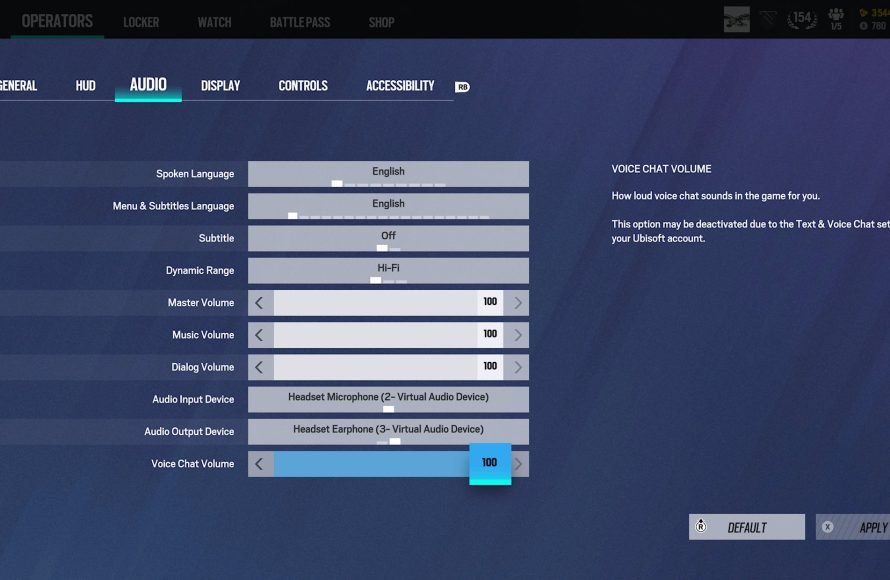
Voice Chat Options
Rainbow Six Siege has its own set of voice chat settings that you will want to check:
- Open Game Menu: Load up Rainbow Six Siege and go to the settings menu.
- Navigate to Audio: Look for the “Audio” options and find voice chat.
- Voice Chat Mode: Make sure voice chat mode is set to “Open Mic” or “Push to Talk.” Test both modes to make sure they work.
- Voice Chat Output Device: Make sure the output device is set to your headset.
- Voice Chat Input Device: Make sure the input device is set to the correct microphone.
- Voice Chat Volume: Check the volume levels to ensure you can hear others and that your microphone picks up your voice.
Game-Specific Settings
Sometimes, other in-game settings can impact voice chat indirectly. Check these:
- Audio Channels: Check the output of the game. Make sure that your audio is being routed to the right channels.
Troubleshooting Specific Xbox Scenarios
Xbox Series X/S
The Xbox Series X/S has some updated features and settings. Make sure your firmware is up to date. Outdated firmware can cause various issues. Go to Settings > System > Updates and follow the instructions. Also, be sure to check the Xbox Settings regarding microphone permissions.
Xbox One
The older Xbox One consoles have similar steps as the newer Series X/S consoles, but their interface is a bit different. Make sure that the controller settings are configured properly, as they tend to become less reliable as time goes on. Make sure you are using an official Microsoft controller for best compatibility. Also, be sure to check the Xbox Settings regarding microphone permissions.
Using Party Chat vs. Game Chat
Sometimes the voice chat is not working properly, and switching between party chat and game chat can help isolate the problem.
- Try Party Chat: Create an Xbox Party and invite your friends. If voice chat works in the party, but not in the game, the problem is probably in-game settings.
- Try Game Chat: If the party works fine, try switching back to game chat to see if that solves the problem. Sometimes, switching chat types can reset the game chat.
Advanced Troubleshooting Techniques
If the standard solutions don’t work, it’s time to dig a little deeper.
Power Cycle Your Xbox
Power cycling your console can clear its memory.
1. Turn off your Xbox completely.
2. Unplug the power cord from the back of the console.
3. Wait for at least 30 seconds.
4. Plug the power cord back in and turn on the Xbox.
Clear Persistent Storage
Clearing persistent storage can sometimes resolve problems. This can be done in Xbox settings. Please consult your specific model’s manual on how to do this. Be careful when doing so and only try this as a last resort.
Check for Game Updates
Sometimes, game updates can introduce bugs. Make sure that your game is updated to the latest version. If other players are reporting similar voice chat issues, there may be a problem with the game.
Reinstall the Game
If nothing else works, try uninstalling and reinstalling Rainbow Six Siege. Doing so will ensure that you have a clean copy and might help.
Consult Support
If none of the solutions seem to help, contact Xbox or Ubisoft Support. They can give you specific advice. You can reach them through their websites and usually their support teams are very helpful.
Common Pitfalls and How to Avoid Them
Rushing Through Settings: Make sure to take your time and go through each setting correctly. It is easy to miss a simple checkbox.
Forgetting to Update: Make sure your game is updated. Make sure your controller firmware is updated.
Assuming It’s Not Your Mic: Test everything! Don’t assume that just because your microphone worked yesterday that it works today.
By systematically going through these troubleshooting steps, you should be able to find and fix the cause of your R6 game chat issues. Remember to check each component carefully, starting with the simplest and working toward the more complex issues. And always make sure that the basic things, such as mute buttons, are not what are causing your issues.
By addressing the most common problems first, you can save time and get back to enjoying the game. Remember to check all settings, from the basic mute switch to the more detailed network configuration. If you’re still having trouble after all of that, reach out to official support. They can give you personalized assistance and help you find the root cause of your problem.
How To Fix Voice Chat & Mic Not Working In Rainbow Six Siege On Xbox
Final Thoughts
Therefore, issues with your Xbox R6 game chat often stem from network problems, privacy settings, or game bugs. Checking your Xbox Network connection and adjusting privacy settings for communication usually solves it.
If these actions don’t fix the problem, consider restarting your console and checking for game updates. Why is my r6 game chat not working xbox is a common question, and these steps frequently offer solutions.
Remember to also ensure your headset and microphone function correctly, as faulty hardware can also be the cause of in-game chat problems.

