
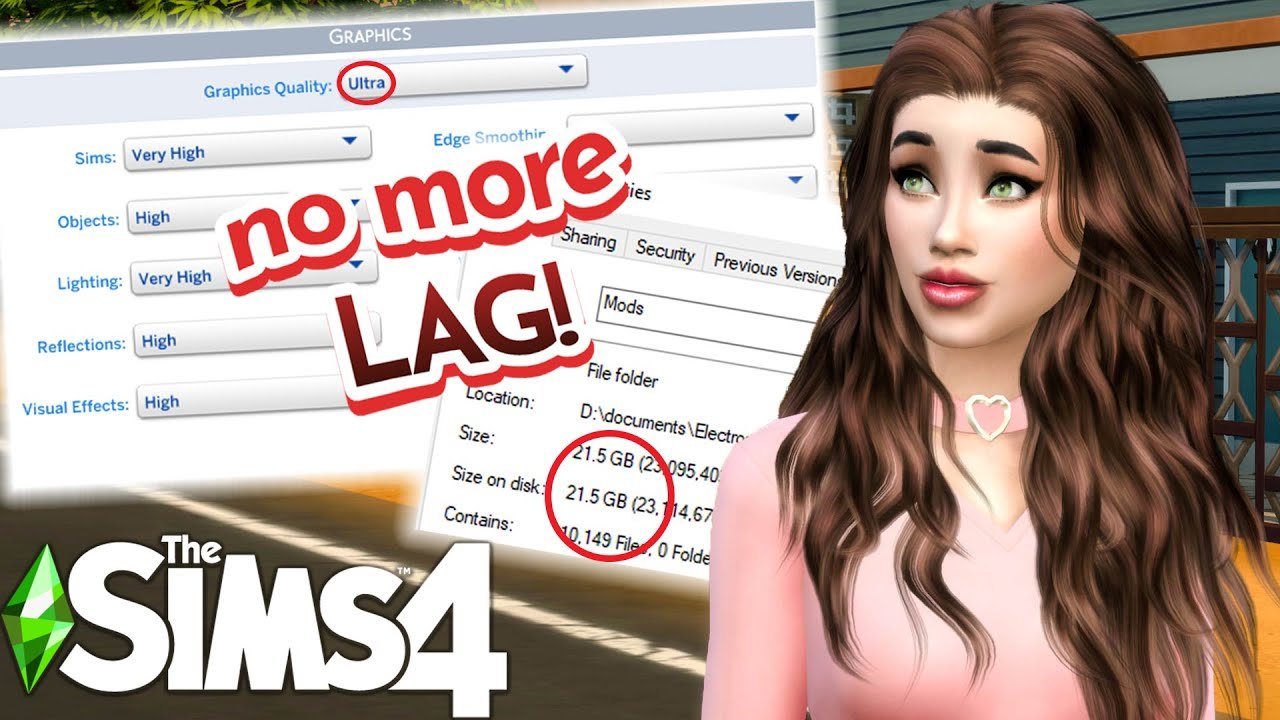
Your Sims 4 game is laggy because of insufficient PC specs, outdated drivers, too many mods or custom content, or high game settings.
Frustration mounts when your Sims 4 world stutters. Why is my sims 4 game so laggy? It’s a common question among simmers. Various factors can contribute to this frustrating issue.
Resource-intensive games like Sims 4 demand a good balance of hardware and software. Understanding these causes is the first step to smoother gameplay. Let’s explore the common reasons behind the lag.

Why is my Sims 4 game so laggy?
So, you’re excited to build your dream house, create quirky characters, and live out fantastical stories in The Sims 4. But then, disaster strikes! Your game starts moving slower than a snail, or freezing up completely. It’s frustrating, right? You’re not alone. Many players experience lag in Sims 4, and there are several reasons why. Let’s dig into those reasons and see what we can do to get your game running smoothly again.
Your Computer’s Specs: The Foundation of Smooth Gameplay
Think of your computer as the engine that powers your Sims 4 experience. If the engine isn’t strong enough, it will struggle to keep up, resulting in lag. The game has minimum and recommended system requirements, and these are important.
Minimum System Requirements: Just Enough to Play
These are the bare minimum specifications your computer needs to run The Sims 4 at all. Playing with these specs might mean low graphics settings and more frequent lag. If you have minimum specs you might need to be patient when using the game.
- Operating System: Windows 7 (SP1), Windows 8, Windows 8.1, or Windows 10 (64-bit is recommended)
- Processor: 1.8 GHz Intel Core 2 Duo, AMD Athlon 64 Dual-Core 4000+, or equivalent
- RAM: At least 4 GB
- Graphics Card: NVIDIA GeForce 6600, ATI Radeon X1300, Intel GMA X4500, or equivalent. Needs 128 MB of video RAM, and supports Pixel Shader 3.0
- Disk Space: At least 10 GB
Recommended System Requirements: For Smoother Gameplay
These specs allow the game to run better, with smoother graphics and fewer hiccups. If you want to play Sims 4 at its best, aim for at least the recommended system requirements.
- Operating System: 64-bit Windows 10
- Processor: Intel core i5 or Faster, AMD Ryzen 5 or faster
- RAM: 8 GB or more
- Graphics Card: NVIDIA GTX 650 or faster, or equivalent. It should have at least 1 GB of video RAM
- Disk Space: 18 GB
How to Check Your Computer’s Specs:
Not sure what your computer has? Here’s a quick guide:
- Windows: Press the Windows key, type “System Information,” and open the app. Look for the processor, RAM, and operating system information. Click “Display” for the graphics card info.
- Mac: Click the Apple menu, choose “About This Mac.” Here you’ll find information on your processor, RAM, graphics card and Operating system.
Game Settings: Graphics and Performance
Even if your computer meets the minimum specs, your game settings can cause lag. Higher graphic settings demand more from your system. If your computer is struggling to keep up, lowering these settings can make a big difference. Think of it like trying to run a race in heavy boots versus running shoes.
Graphics Quality: How Much Detail?
The Sims 4 lets you change how detailed everything looks. Higher graphics quality (like “Very High”) creates beautiful images, but requires more processing power. Lowering this setting can help reduce lag. Consider setting it to “Medium” or “Low” to see if it improves the performance. Experiment and see what works best for you.
Resolution: The Sharpness of the Image
Resolution refers to how sharp the image appears on your screen. Higher resolutions (like 1920×1080) look great but demand more power. If you’re experiencing lag, try using a lower resolution. A lower resolution, such as 1280×720 or even 1024×768 can reduce the load on your system. The trade-off is that the image may look less crisp.
Advanced Graphics Options
- Edge Smoothing: Makes edges of objects look smoother. Turning this off can boost performance.
- Visual Effects: Affect how water, fire, and other effects appear. Lowering these can reduce lag.
- Lighting: How light and shadows look in the game. Lowering lighting quality is another way to help with lag.
How to Change Your Game Settings
Changing these settings is easy! Here’s how:
- Start your Sims 4 game.
- Click the three dots (…) at the top right corner to open the Options menu.
- Choose “Game Options”.
- Go to the “Graphics” tab.
- Adjust the graphics quality, resolution, and advanced settings as needed.
- Click “Apply Changes” to save your new settings.
Mods and Custom Content: A Double-Edged Sword
Mods and custom content (CC) are popular ways to add new items, clothing, and features to The Sims 4. They can add a ton of fun to the game, but they can also be a major cause of lag. It’s like adding extra weight to a car – it can slow it down.
What Are Mods and Custom Content?
- Mods: These are files that change the way the game works. They can add new features, gameplay changes, or even fix bugs.
- Custom Content: This includes new hair, clothes, furniture, and more. It changes the appearance of the game.
Why Do Mods and CC Cause Lag?
Poorly made or outdated mods and custom content are often the culprits for lag. Here are some reasons:
- Resource Intensive: Some mods and CC require a lot of processing power to run, which can slow your game down.
- Conflicts: Mods can clash with each other or with the game itself, causing errors and lag.
- Outdated Files: When the game gets updated, some mods and CC might become outdated, leading to compatibility issues and lag.
- Large Amount: Having too much custom content can put a huge amount of strain on your system.
How to Manage Mods and CC to Reduce Lag
- Keep Mods Updated: Check the mod creator’s page regularly for updates. Outdated mods cause lots of lag and errors.
- Download from Reliable Sources: Only get mods and CC from trusted websites to avoid harmful files.
- Test New Mods and CC: Don’t add too many files all at once. Add a few at a time and play to see if you experience any lag. This can help you find the problematic files.
- Organize Your Mods Folder: Keeping the mods folder organized helps you to track and find problematic files.
- Clear the Cache: Sometimes the game keeps old mod and CC files in its cache. Clear this regularly by deleting the localthumbcache.package file in your Sims 4 folder.
How to find problematic Mods or CC
The 50/50 method is a common way of finding problematic custom content. This involves:
- Removing half of your mod folder, and loading up your game. If the lag is still present, then the problem must be in the half you didn’t remove. If not then it is present in the half you removed.
- Continue removing half of the problematic side until you have isolated the mod that is the cause of the lag.
By carefully using mods and CC, you can have the best of both worlds – fun additions to the game without the frustrating lag.
Background Programs: Other Apps Stealing Resources
Even if your computer is powerful enough to play The Sims 4, other programs running at the same time can steal resources, leading to lag. Imagine trying to run a race while carrying heavy bags – it’s much harder! Programs running in the background can slow down the game by using up your computer’s processing power, RAM, and graphics card.
What Programs Can Cause Lag?
- Web Browsers: Having multiple tabs open in your browser uses a lot of RAM.
- Streaming Services: Watching videos or listening to music can take up valuable processing power.
- Other Games: If other games or applications are running in the background, they will use resources too.
- Antivirus Software: Sometimes, antivirus programs can interfere with your game’s performance while scanning for threats.
How to Reduce Background Program Interference
- Close Unnecessary Programs: Close any applications you’re not actively using while playing The Sims 4. This includes your browser, music players, and any other software running in the background.
- Use Task Manager: On Windows, press Ctrl+Shift+Esc to open Task Manager. You can see which programs are using the most resources and close them if needed.
- Use Activity Monitor: On Mac, search for Activity Monitor in spotlight. You can see what programs are using up your resources and close them.
- Disable Startup Programs: Some programs start automatically when your computer turns on. Disable those you don’t need to improve your game.
- Check Antivirus Settings: You can temporarily pause your antivirus scan while playing the game, but be sure to restart it afterwards. You can also set the game as an exception in the antivirus program.
By closing background programs, you give The Sims 4 the resources it needs to run smoothly, meaning more fun for you and your sims.
Hard Drive Issues: Where the Game Lives
The Sims 4 needs enough space on your hard drive to work properly. Your hard drive is where all the game files are stored, and if it’s full or fragmented, this can contribute to lag. Think of it as a messy bedroom. When your room is untidy, it’s hard to move around! Similarly, if your hard drive is cluttered, your game will struggle to load quickly.
Why a Full Hard Drive Causes Lag
- Lack of Space: When your hard drive is nearly full, there isn’t enough space for the game to create temporary files needed to run smoothly.
- Slower Reading Speeds: A full hard drive can slow down the reading speeds, meaning it takes longer for the game to load files.
- Fragmentation: Over time, the files on your hard drive can become fragmented (spread out in different locations) making it harder to find the game files.
How to Fix Hard Drive Issues
- Free Up Hard Drive Space: Delete any old or unnecessary files, such as videos, documents, and other files that aren’t being used. Uninstall games or applications you no longer need to free up space.
- Run Disk Cleanup: This tool can find and remove temporary files and other unnecessary files.
- Defragment Your Hard Drive: Defragmenting your hard drive reorganizes files to speed up performance. Windows can do this for you or you can find third-party software online. Note that if you have an SSD (Solid State Drive) you should NOT defrag it.
- Use an External Drive: If you don’t have much space on your main drive, consider installing the game on an external hard drive.
A clean and well maintained hard drive is essential for smooth game play and keeping your game running at it’s best.
Game Updates: Keeping Up with the Latest
Game updates can be a bit of a pain, but they are necessary for the game to run at its best. These updates contain bug fixes, performance improvements, and new features. Think of it as the game getting its regular checkup. Running an outdated version of the game can lead to lag and other issues.
Why Game Updates Are Important
- Bug Fixes: Updates often include bug fixes that can eliminate issues causing lag.
- Performance Improvements: Developers may include tweaks that make the game run faster and smoother in updates.
- Compatibility: Updates ensure that the game is compatible with your system and with other content, like new expansion packs.
How to Keep Your Game Updated
- Automatic Updates: Most game platforms, like Origin and Steam, automatically update your games. Make sure that auto update is turned on.
- Check for Updates Manually: You can manually check for updates within your game client. Just right click on the game to see the options menu.
- Restart Game Platform: Sometimes, restarting your game platform will prompt an update.
Making sure your game is up to date helps to stop bugs and improve your game’s overall performance.
Internet Connection: Essential for Online Features
While Sims 4 doesn’t require a constant internet connection to play, you will need an internet connection for certain features. Lag can sometimes be related to a poor connection to the internet. Think of it like a busy highway – if there’s traffic, everything slows down.
When is an Internet Connection Important?
- Downloading Updates and Content: A good internet connection is needed when downloading game updates, mods, and custom content.
- Online Features: If you use any of the game’s online features, a stable connection is important.
- Cloud Saves: Cloud saves require an internet connection.
Troubleshooting Internet Issues
- Restart Your Router: Unplug your router, wait for a few minutes, and then plug it back in to see if it improves your internet connection.
- Check Your Connection Speed: Use an internet speed test to check your upload and download speeds.
- Use a Wired Connection: If you’re using WiFi, try connecting with an ethernet cable for a more stable connection.
- Close Other Programs: Streaming and downloading on other devices can slow down your connection. Try closing some down to increase speed.
Although the game itself doesn’t need a continuous internet connection, having a good connection is still beneficial, especially if you want to download content and utilize the game’s online features.
Computer Overheating: Too Hot to Handle
Just like people, computers can overheat when they’re working too hard. Overheating can cause performance issues and lead to your game running slowly, and can also cause other issues. When your computer gets too hot, it may slow itself down to prevent damage. It’s like your computer’s way of saying, “I need a break!”.
Why Overheating Causes Lag
- Slower Processing: Overheating makes your computer slow down to prevent damage.
- Performance Throttling: When your components get too hot, your computer slows them down to cool them.
- Potential Damage: Overheating can damage your computer, causing expensive repairs.
How to Prevent Overheating
- Check your Cooling System: Make sure that the fans on your desktop or laptop are working correctly and aren’t clogged with dust.
- Ventilation: Make sure your computer has good airflow, with vents unobstructed to help dissipate heat.
- Clean Dust: Dust buildup can stop your fans working. Make sure you clean out the vents.
- Use a Cooling Pad: For laptops, use a cooling pad with extra fans to help keep it cool.
- Avoid Overuse: Take breaks during intense gameplay to give your computer a rest.
By keeping your computer cool, you’re helping it work at its best. This can mean fewer issues and better game play.
Is your Sims 4 laggy? Try this easy fix! #shorts #sims4
Final Thoughts
Sims 4 lag often stems from outdated graphics drivers or too many mods. Your computer’s specs might struggle with the game’s demands, causing slowdowns.
Overcrowded save files and running background applications also contribute to the problem. So many things running simultaneously can overwhelm the system.
Therefore, “why is my sims 4 game so laggy?” is often a combination of these factors. Troubleshooting by addressing the various potential causes will improve your gaming experience.

