
The lag in your Sims game typically stems from your computer struggling to handle the game’s demands due to insufficient hardware, excessive custom content, or outdated drivers.
Is your Sims world moving at a snail’s pace? Are your sims freezing mid-action, making you question why is my sims game so laggy? It’s a common frustration for many players, but thankfully there are reasons why this happens.
Often, the issue is related to your computer’s capabilities not quite meeting the game’s requirements. Also, too many mods or custom content can put a strain on performance.

Why is My Sims Game So Laggy?
Okay, Simmers, let’s talk about something super annoying: lag. You’re building the perfect dream house, designing a stylish outfit, or trying to get your Sim to finally propose, and then… freeze. Everything slows to a crawl, and your game becomes more frustrating than fun. You’re probably thinking, “Why is my Sims game so laggy?” Well, you’re not alone, and there are many different things that could be causing it. Let’s explore some of the main culprits and what you can do to fix them.
Your Computer’s Power
Think of your computer as the engine that powers your Sims game. If your engine isn’t strong enough, the game will struggle. Just like a car needs enough fuel and a working motor, your computer needs enough processing power, memory, and a good graphics card to run smoothly.
Checking Your Specs
Before we dive into other causes, it’s really important to check if your computer meets the minimum and recommended specs for the Sims game you’re playing. Every game has different requirements. You might have been able to play an older Sims game just fine on your computer, but the newer ones, like The Sims 4 or Project Rene, need a bit more power. Here’s what you need to look for:
- Processor (CPU): This is the brain of your computer. It handles all the instructions the game throws at it. Make sure your CPU meets at least the minimum specs listed for your game.
- Memory (RAM): Think of this as your computer’s short-term memory. The more RAM you have, the more things your computer can keep active at once. The Sims games can use a lot of RAM, especially with expansions and mods, so having enough is essential.
- Graphics Card (GPU): This is what creates the images you see on screen. The Sims may look like simple cartoons, but they still need a good graphics card to render everything, especially if you’re using higher settings.
- Operating System: Ensure you have the correct version of Windows or macOS that the game is designed to run on. Using an older version might cause performance issues.
To find out what your computer’s specs are, you can follow these steps:
- On Windows: Search for “System Information” in the Start Menu. This will show you your processor, installed RAM, and operating system. You can find your graphics card by searching for “Device Manager”, clicking on “Display adapters”, and it should be listed there.
- On macOS: Click the Apple menu in the top left corner of your screen, then select “About This Mac.” This will show you your processor, RAM, graphics card, and operating system.
If you find that your computer’s specs fall short of the minimum requirements, that’s a big reason why your game might be lagging. Upgrading your computer’s components, especially the RAM or graphics card, could help your game run a whole lot better.
Age of Your Computer
Even if your computer used to run The Sims fine, remember that technology ages. A computer that could breeze through Sims 3 five years ago might struggle with Sims 4 today, simply because its components have become older, and newer games require more advanced hardware. So, if you have an older computer, that is often the primary source of the lag you are seeing. Think of it as trying to run the latest video game on an older gaming console; it will just slow things down.
In-Game Settings
Just like you can adjust the volume on your TV, you can adjust the graphics settings within your Sims game. These settings control how detailed everything looks, and that can really affect how well your game runs.
Graphics Settings
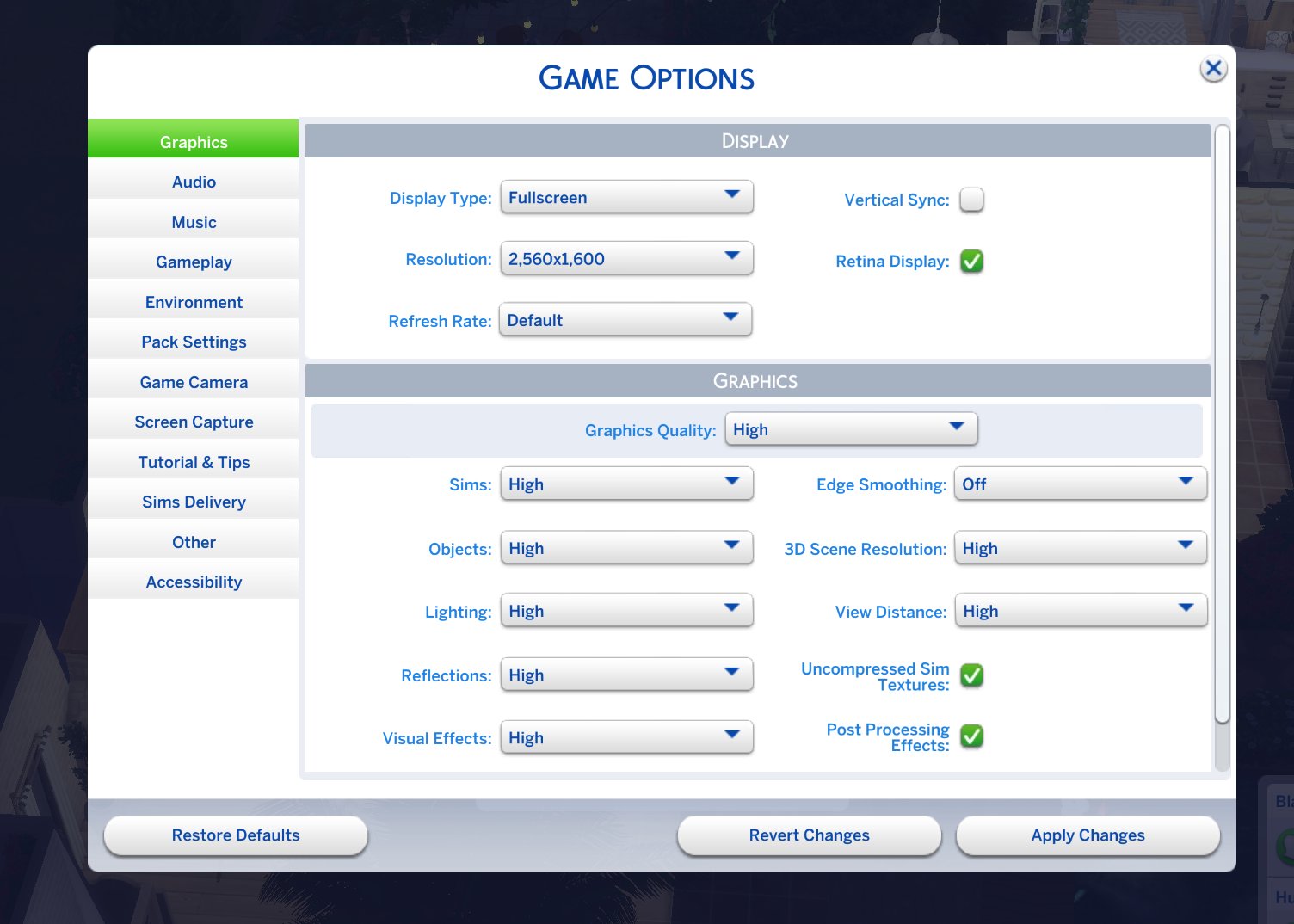
Your graphics settings are the main reason for the performance of your game. Turning them down can work wonders for lag. Here are some settings you should pay attention to:
- Graphics Quality: This usually has settings like Low, Medium, High, and Very High. The higher the setting, the better the game looks, but the more work it requires from your computer. If your game is lagging, start by turning this down. It might not look as pretty, but it will probably run much faster.
- Resolution: This is how many pixels are on the screen. Higher resolution means a sharper picture, but it also means more work for your graphics card. Reducing the resolution can make a difference if your game is chugging along slowly.
- Shadows: Shadows can add a lot to the look of the game, but they also take up a lot of resources. Try turning shadows to low or turning them off altogether to see if that helps your performance.
- Visual Effects: This includes things like reflections and special effects. These can also be a drain on your resources, so turning them down might help.
- Edge Smoothing: This makes the edges of objects look less jagged. Turning this down or off can help your game move faster.
Experiment with different settings. Start by turning everything to low and see if the lag disappears. Then, slowly increase settings one at a time until you find a balance between good-looking graphics and smooth gameplay. You want to find the sweet spot for your machine.
Game Options
Beyond graphics settings, other game options can affect the performance. Take a look at these options:
- Laptop Mode: If you are playing on a laptop, use the laptop mode. This setting reduces the graphic details and slows down the game when it is not the active window, saving battery power and decreasing performance load.
- Sim Limit: The higher the number of Sims in the world, the more work your computer needs to do. Try reducing the number of Sims in your active neighborhood. You can also try to play with less densely populated areas.
Too Many Expansions, Stuff Packs, and Game Packs
Think of expansions and packs as extra toys for your Sims. The more you have, the more your game needs to juggle. All those extra items, locations, gameplay mechanics, and clothing items can put a strain on your computer. If you have a lot of packs, especially on an older computer, you might experience some lag.
Managing Packs
Unfortunately, you cannot just pick and choose which packs to load when starting your Sims game. If you own it, it will load. Therefore, it’s worth checking out the following.
- Uninstall Packs: If you are not playing with a specific pack or several packs, temporarily uninstall them. This will remove them from the game and reduce the load on your system. You can always add them back when you want to play with them again. This doesn’t apply to the Origin version of the game. If you install via the EA App, you must be more mindful of storage and loading of packs.
- Be Selective: Try not to buy every pack, especially if your computer is older. Be more selective about what packs you purchase. Think about which ones you’ll actually play with the most.
Mods and Custom Content
Mods and custom content are very popular within the Sims community. These give you more control over the game, adding in more hair styles, clothing, objects, gameplay features, and many other things. While these additions can enhance your gaming experience, they can also cause issues with performance, which lead to lag.
Managing Mods and Custom Content
If you have a lot of mods or custom content installed, it is worth taking some time to evaluate them. Here is what to do:
- Too Many Mods: Just like packs, having too many mods can be problematic. Try removing all of your mods and then add them back one by one. This will help you narrow down the culprit if there is one. Make sure to always check if the mods are up-to-date as well, as an out-of-date mod can cause issues.
- Corrupt Custom Content: Sometimes, custom content files can become corrupt, which causes errors in your game. This is common if they are outdated or not fully downloaded. If you think you might have corrupt CC, delete them.
- Check for Conflicts: Sometimes, mods can conflict with each other, which can also cause lag. If you are finding lots of lag, it could be due to these conflicts. The only way to figure out the source of the problem is to test your mods one-by-one. It is tedious, but worth it!
- Keep them Organized: Try to keep your mods and custom content folders organized. This makes it easier to find and remove files that cause issues. It also makes it easier to manage your game overall.
Background Programs
Your computer isn’t just running your Sims game. It’s also running other programs in the background. Some programs can use up a lot of your computer’s resources, which can lead to lag in your game. Imagine trying to do homework with a noisy TV in the background – it’s harder to focus.
Closing Unnecessary Programs
To improve your game’s performance, close any unnecessary programs before you start your game. Here is a small checklist:
- Web Browsers: Having a ton of tabs open on your web browser uses a lot of RAM. So, close any browser tabs that are not in use.
- Downloading Files: Downloads take up bandwidth and computing resources, which can slow down your game. Stop them while playing.
- Streaming Services: Programs like Netflix or Spotify in the background use system resources. Close them down if you are not actively using them.
- Other Games: If another game is running, even in the background, it can cause conflicts with your Sims game. Close any other games that are also in use.
- Chat Apps: Apps like Discord can be resource-heavy as well. Close these down for optimal performance if not in use.
Also, check your system tray (usually in the bottom right corner of your screen) for running programs that you might not be aware of. Close any that aren’t needed.
Overheating
Computers generate heat, and if they get too hot, they start to slow down to protect themselves. Overheating is especially common with laptops, as they tend to have less ventilation than desktop computers. Playing for long periods of time and in a hot environment can overheat your computer as well.
Keeping Your Computer Cool
Here are some tips to help keep your computer cool:
- Ventilation: Make sure the vents on your computer are not blocked. If you are using a laptop, don’t use it on your bed, a blanket, or carpet, as this blocks the airflow.
- Cooling Pads: Consider using a laptop cooling pad. These pads have fans that help blow air and keep your computer cooler. They are cheap and really do help.
- Clean Your Computer: Dust can build up inside your computer and make it overheat, so it’s a good idea to clean it out every now and then. You can use compressed air to remove dust from the vents. Make sure your computer is turned off when doing so.
Outdated Drivers
Drivers are like instruction manuals for your computer’s hardware. Outdated drivers can cause problems with how your game runs. It’s like trying to read a new book with old glasses. Your graphics card is very important for the Sims games, so always check for up-to-date graphics drivers.
Updating Drivers
To update your graphics drivers:
- Find Your Graphics Card: See the step-by-step guides in the ‘Checking Your Specs’ section to identify your graphics card.
- Visit the Manufacturer’s Website: Once you know what graphics card you have, go to the manufacturer’s website, such as AMD, Intel, or Nvidia. They have a support page where you can download the latest drivers.
- Download and Install: Find the correct driver for your operating system, download it and then follow the installation steps. It’s important to restart your computer after installing new drivers.
Regularly checking for driver updates can help improve performance of all your games, not just the Sims!
Hard Drive Space
Your hard drive is where your game and all its files are stored. If it is full, your computer will have less space to work with, which causes it to slow down. It’s like having a closet so full you can’t find anything. Always make sure you have plenty of free storage space on your computer.
Managing Hard Drive Space
Here’s how to free up space on your computer:
- Delete Unused Files: Remove old documents, photos, and videos that you no longer need.
- Uninstall Programs: If you have programs that you never use, uninstall them to free up some space.
- Use Cloud Storage: Move some of your files to cloud storage services like Google Drive or OneDrive. This will free up space on your hard drive.
Internet Connection
The Sims 4 does not usually require an active internet connection, but sometimes, the EA App needs to be connected to make sure the game licenses are valid. If your internet is slow or unstable, it can sometimes contribute to lag, especially if the EA App is running into difficulties verifying the licenses. Additionally, if you are sharing your internet connection with others in your household, this will slow your internet speed.
Optimizing Your Internet Connection
- Check Your Speed: Use an online speed test to see if your internet connection is performing as expected.
- Restart Your Router: Sometimes, restarting your router can help fix connection issues. Unplug it, wait about 30 seconds, and then plug it back in.
- Limit Usage: If you have a shared internet connection, try to limit the number of people using it at the same time as you are playing.
- Hardwire Connection: If you use WiFi, try using an ethernet cable. This provides a much more stable connection and helps minimize any potential issues.
Game Bugs
Finally, sometimes, the game itself has bugs that cause performance issues. This can be a problem with the game’s code, especially after a new update. The developers are usually working on these issues, but in the meantime, there are things you can do.
Dealing with Game Bugs
- Check for Updates: Always make sure you have the latest version of the game installed. New updates often include bug fixes.
- Report Issues: If you are encountering consistent bugs, report them to the Sims developers using their channels. This can help them identify the issues and make fixes.
- Game Repair: The EA App allows you to repair the game. This can help correct file issues, which is also a potential source of lag.
- Other Players: Reach out to other players and see if they are having similar issues. This will help identify whether the problem is your system or the game.
Lag can be frustrating, but with a little investigation and adjustment, you can find out the main causes of these issues. If you test out all the things above and your game is still very slow, it is worth reaching out to tech support, or asking on the Sims forums, to see if they can give more ideas.
Is your Sims 4 laggy? Try this easy fix! #shorts #sims4
Final Thoughts
So, why is my sims game so laggy? It’s often due to too many mods or custom content. These additions, while fun, heavily tax your system’s resources. Outdated drivers and insufficient hardware can also cause performance issues.
Lowering your graphics settings is a must. Closing other programs running in the background helps, too. A combination of these actions will improve your gameplay experience and reduce the lag.

