
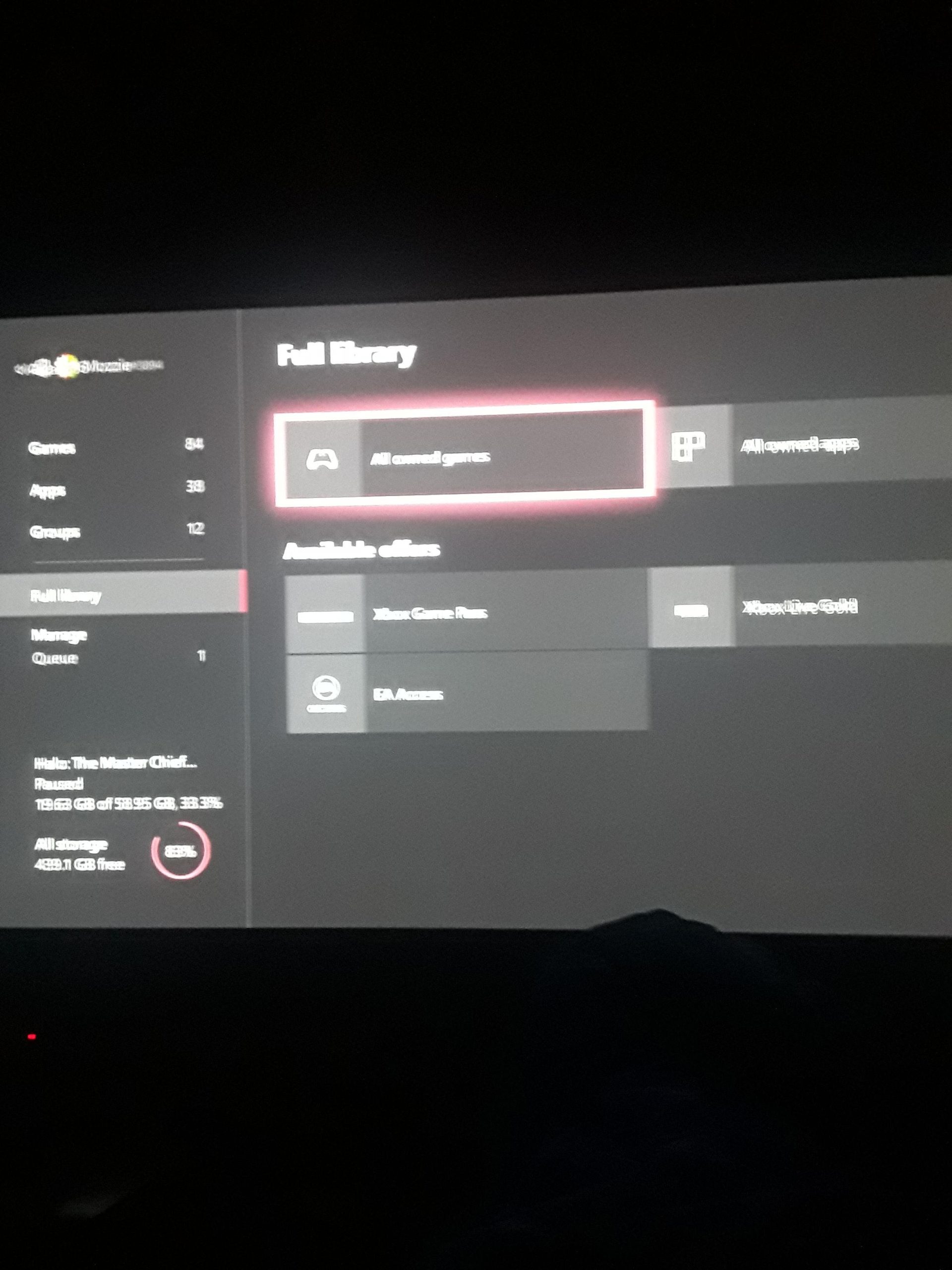
There are several reasons why your Xbox Game Pass might not be working, including issues with your subscription status, network connectivity, or Xbox console software.
Is your gaming session abruptly halted, leaving you staring at a screen that refuses to cooperate? You’re not alone if you’re asking, “why is my xbox game pass not working”. It is frustrating when you expect to jump into a new game, but are blocked by access issues.
Many users encounter this problem, and it often stems from a few common culprits. We’ll help you understand what could be going wrong and get you back to gaming in no time.

Why is My Xbox Game Pass Not Working?
Okay, so you’re excited to jump into a new game, or maybe catch up on an old favorite, but your Xbox Game Pass isn’t cooperating. It’s frustrating, we totally get it! It feels like your digital playground has suddenly closed its gates. Don’t worry, you’re definitely not alone, and there are a bunch of reasons why this might be happening. Let’s break down the common culprits and figure out how to get you back to gaming.
Checking Your Subscription Status
The very first thing to look at is your subscription itself. Is it still active? Sometimes, subscriptions expire without us even noticing. It’s like your library card being out-of-date – you can’t check out any new books (or in this case, games!). Here’s how you can check:
- On Your Xbox Console: Go to ‘Settings,’ then ‘Account,’ and then ‘Subscriptions.’ Here, you will see the status of your Xbox Game Pass. It will say if it’s active and when it renews.
- On the Microsoft Website: Sign in to your Microsoft account online. Navigate to the ‘Services & subscriptions’ section. You’ll find your Xbox Game Pass listed there, along with its status.
If your subscription is indeed expired, you’ll need to renew it to regain access. Sometimes there is payment problem. So it’s better to recheck your payment method. Make sure the payment method you have on file is still active and hasn’t expired.
Payment Method Issues
If your subscription is active, but still not working, the problem may be with your payment method. Microsoft might have trouble processing your payment, and that’s why the Game Pass isn’t working. The solution is straightforward:
- Check for Updates: Make sure your credit card or debit card information is up-to-date. If you have a new card, update the info.
- Alternative Payment Method: Try adding a different payment method if your primary one is having issues. This can sometimes bypass the problem.
- Contact Support: If you have verified that your payment method is working and still facing issues, contact Microsoft or your bank for assistance.
Network Connection Problems
A stable internet connection is the lifeblood of Xbox Game Pass. Without it, your access is severely limited. Think of it like trying to watch a movie without plugging in your TV – it just won’t work! Let’s figure out if your internet is the problem:
Is your Wi-Fi working?
First and foremost, ensure that you are actually connected to a Wi-Fi network. Sometimes, we are disconnected from the Wi-Fi without even noticing. So, recheck the connection on your console.
Checking your Internet Speed
A slow internet can also make the game pass seem like it is not working, while actually it is working just not smoothly. Here’s how you can test it:
- Xbox Network Test: On your console, go to ‘Settings,’ then ‘General,’ then ‘Network Settings,’ and choose ‘Test network connection.’ This will tell you if you’re connected and how strong your connection is.
- Speed Test Website: Use a website on your computer or phone to test your internet speed. Search on Google for “speed test.” You’re looking for a good download and upload speed.
Troubleshooting Network Issues
If your connection is not what it should be, try these steps:
- Restart Your Modem and Router: This is the old trick that often works. Unplug them, wait for about 30 seconds, and plug them back in.
- Move Closer to Router: If you are using Wi-Fi, move closer to the router and see if the connection gets better.
- Use an Ethernet Cable: If possible, connect your Xbox directly to your router with an Ethernet cable. This can improve your connection’s stability and speed.
- Restart Your Console: Sometimes just restarting your Xbox can fix the network problem.
Xbox Live Service Outages
Sometimes, the issue isn’t on your end at all. Xbox Live services can experience outages or maintenance. It’s like when your favorite store is closed for a day – you just have to wait. Here’s how to check if this is the case:
- Xbox Status Website: Visit the official Xbox status website using your phone or computer. This website provides real-time updates on Xbox services.
- Social Media: Check Xbox’s official social media accounts, such as Twitter. They usually post updates about any service issues or outages.
If there is indeed an outage, all you can do is wait. These are usually resolved quickly, so patience is key.
Game Pass Installation Issues
Sometimes, the problem is not with the pass itself but with specific games. You might find that you cannot install a new game or play a previously downloaded game. There could be several reasons for this:
Insufficient Storage Space
Just like you can’t put more toys in a box that’s already full, you can’t install more games on your Xbox if there’s not enough space. Check your storage:
- Go to ‘Settings,’ then ‘System,’ and then ‘Storage.’
- Review how much space you have left, you may need to delete some older games or apps.
- If the storage is full, you’ll need to uninstall some games or expand your storage.
Game or App Updates
Sometimes games or the game pass app itself require updates. If there are pending updates, they might stop the game pass from working.
- Go to ‘My games & apps’ and see if there is a download queue with updates pending for your games.
- The Xbox sometimes updates automatically. But sometimes, it needs your input for it to start an update.
- If there is an update pending, initiate the update. After this, you might find the problem solved.
Game Pass App Glitches
Occasionally, the Xbox app itself may have glitches. Here is how you can manage:
- Restart the App: Close the game pass app completely and then relaunch it.
- Update the App: Check if there is an update available for the Xbox app and update it.
- Reinstall the App: If nothing seems to work, uninstall the app and reinstall it again.
Profile and Account Sync Problems
Xbox works using your profile on the cloud. If your profile is not syncing correctly, it might create problems with the game pass. Here is what might be happening and what you can do:
Profile Syncing Issues
Sometimes, the cloud sync might have problems, and your console is unable to verify your subscription.
- Sign out and Sign back in: Try to sign out of your profile and then sign back in. This will refresh your profile sync with the cloud.
- Restart the console: In some instances, restarting your console might also help to refresh your profile sync.
Account Region Issues
If your account region doesn’t match your location, it might lead to issues. The solution is simple:
- Check Account Region: Go to your Microsoft account settings online and verify if your account region is correct.
- Change Account Region: If your region is not correct, update it to match your actual location.
Other Possible Problems
While the issues discussed above are the main culprits, sometimes there are unusual problems.
- Console System Updates: Make sure your Xbox console is up-to-date. Old software might not work correctly with the latest Game Pass features. Check for system updates in your console settings.
- Licensing Issues: There might be an error with the licenses of your purchased games. Contact Microsoft Support and they can help fix this issue.
- Hardware Problems: Although rare, problems with your console’s hard drive or other hardware can affect how Xbox Game Pass works.
Seeking Support
If you’ve tried all of these steps and nothing is working, it might be time to seek assistance from Microsoft. They have dedicated support channels for issues like this.
- Xbox Support Website: Go to the official Xbox support website for a detailed troubleshooting guide.
- Xbox Support Twitter: You can reach out to Xbox Support on Twitter.
- Xbox Forums: Look in the Xbox community forums, where you might find similar problems and their solutions.
Dealing with issues like this can be frustrating, but hopefully, now you have a better understanding of what might be causing the issue and how to resolve it. Keep going through the steps, and soon you’ll be back to enjoying your Xbox Game Pass without any problems.
How To Fix Xbox One/Series X/S Error Code 0x803f900a
Final Thoughts
Ultimately, troubleshooting steps like checking your internet connection, verifying account status, or restarting devices often resolve the issue. Sometimes, server problems or account glitches prevent game access. If these simple fixes fail, contacting Xbox support offers more specific help.
This process might lead to a solution. Keep in mind, “why is my xbox game pass not working” can stem from multiple causes, some easily fixable, others requiring expert assistance. Proper network setting must be looked at first.

