
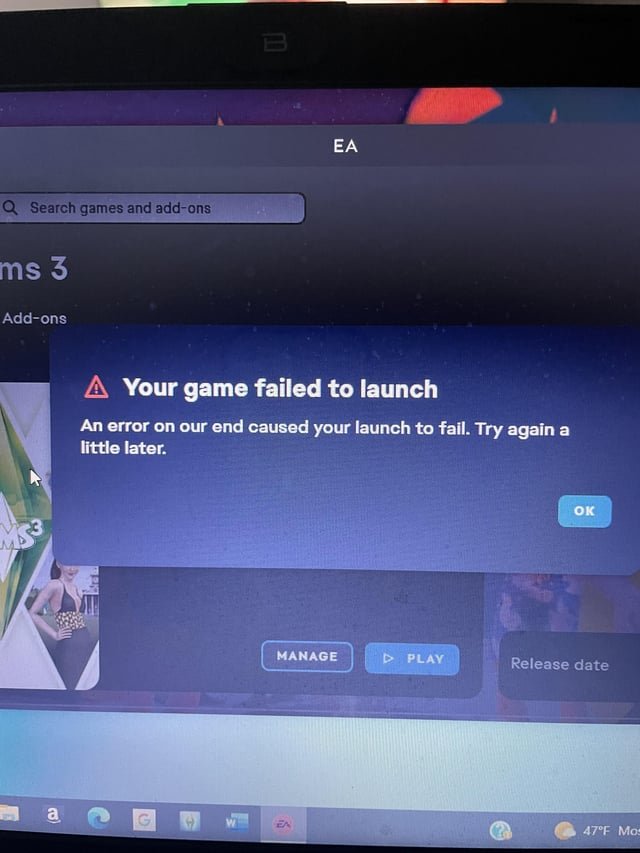
Your computer likely lacks necessary system requirements, has outdated drivers, or has conflicting software preventing EA games from launching.
Frustration mounts when you anticipate a gaming session, only to find that your favorite titles refuse to cooperate. If you’re experiencing the annoying “why wont any ea games launch on my computer” problem, you’re certainly not alone. This can be a complex issue, with various possible reasons lurking behind the black screen or error messages. We’ll help you navigate this frustrating situation.
Many things could be causing this problem, from insufficient hardware to software clashes. Let’s explore some of the common culprits and find the best way for you to get back into the game.

Why Won’t Any EA Games Launch On My Computer?
It’s super frustrating when you’re all set to play your favorite EA game, and it just… won’t start. You click the button, maybe see a loading screen for a second, and then nothing. Or worse, you get an error message that makes no sense! You’re not alone. Lots of people have this problem. There are several reasons why your EA games might be refusing to launch, and we’re going to look at them all. So, let’s dive into the common culprits behind this gaming glitch and how you can get back to playing.
System Requirements: Is Your Computer Strong Enough?
Think of your computer like a car. If you try to take a tiny scooter up a huge mountain, it’s not going to work! Games are the same way. They need certain computer parts to run correctly. Every game has something called “system requirements.” These are like the rules the game needs to follow to work correctly. These rules include the processor, the amount of RAM (which is like your computer’s short-term memory), the graphics card (the part that makes the pictures you see in the game), and the operating system you’re using (like Windows or macOS). If your computer doesn’t meet these rules, the game might not launch or might run very slowly.
Minimum vs. Recommended Requirements
You’ll often see two sets of system requirements: minimum and recommended.
- Minimum: These are the absolute lowest specs your computer needs to even try to run the game. Even if your computer meets these, the game might not run super smoothly, and you may have to turn down some graphics options.
- Recommended: These are the better specs that the game makers suggest for a good playing experience. If your computer meets these or is better, you’re more likely to have smooth gameplay with better graphics.
So, how do you check? Go to the game’s page on the EA website or its page on a store like Steam. Find the “system requirements” section and compare them to what your computer has. Here’s how you can find your computer specs:
- Windows:
- Press the Windows key + the “Pause/Break” key on your keyboard (sometimes just the Pause key). This should take you to the “System” window.
- You’ll see things like “Processor,” “Installed RAM,” and “System type.”
- To see your graphics card: Click “Device Manager” on the left side of the window. Click on “Display adapters” and you’ll see it there.
- macOS:
- Click the Apple logo in the top left of your screen.
- Select “About This Mac.”
- You’ll see your processor, RAM, and graphics card.
- Click the “System Report” button for even more detail.
If your computer doesn’t meet the requirements, that’s likely why your EA game won’t launch. You could try upgrading your computer or playing on another machine that better suits the game’s demands.
Outdated Drivers: Keeping Your Graphics Card Up-to-Date
Drivers are little programs that help your computer’s parts communicate with each other and the games. Think of them like translators that ensure your game and your graphics card can talk clearly. When your graphics card driver is old, it could cause all sorts of problems with games, including not letting them start at all. Updating these drivers to the newest versions is a very common fix when games won’t start.
How to Update Your Graphics Card Drivers
The way you update drivers depends on who makes your graphics card. Here’s a quick guide:
- NVIDIA:
- Go to the NVIDIA website.
- Find the “Drivers” section.
- Choose your graphics card model.
- Download and install the correct driver.
- AMD:
- Go to the AMD website.
- Find the “Drivers & Support” section.
- Choose your graphics card model.
- Download and install the correct driver.
- Intel:
- Go to the Intel website.
- Find the “Support” section.
- Find the “Drivers & Software” section.
- Use the Intel Driver and Support Assistant tool, or manually find the driver for your CPU’s integrated graphics.
- Download and install the correct driver.
After you update your drivers, be sure to restart your computer. It is often a very useful step after any change. Then, try launching your game again.
The EA App and Origin: The Launcher Is Key
Most EA games today need the EA App (previously Origin) to start. This app helps you find your games, download updates, and launch them. If the EA App has problems, or is not up to date, your games might not work.
Problems with the EA App
- Not logged in: Make sure you’re logged into the app with the right account. Sometimes, the app might log you out, and you need to sign in again.
- Outdated App: Make sure your EA app is the latest version. Sometimes, the app won’t work right if it’s too old. Look for an “Update” button, or try reinstalling the app to get the newest version.
- Corrupted files: If the app has broken files, it might not work properly. Try uninstalling it and installing it again to get a fresh version.
- App Crashes: Some users may notice that the EA app can crash. Make sure you are using the latest version of the EA app and that your system meets the minimum requirements for running the app itself.
To check if your EA app is the latest version, open the app, and usually there will be a notification if an update is available. You might also check the settings menu for an “About” or “Update” tab. If nothing works, uninstall the app and then install it again from the EA website.
Game Installation Issues: Did Everything Download Correctly?
When a game downloads, lots of files need to get on your computer correctly. If something goes wrong during the download, or some files are damaged or missing, the game might fail to start. These issues are very common and can have several reasons.
Checking Game Files
The good thing is that most launchers give a way to check the integrity of your game files. Here’s how to do this on the EA app:
- Open the EA app.
- Go to your game library.
- Find the game that won’t start.
- Click on the game.
- Look for an option that says something like “Repair,” “Verify,” or “Check game files”.
- Follow the instructions, and the EA app will check to see if all the game files are there and okay. If something is wrong, it will download the missing or broken files again.
This can take some time, depending on the size of the game. After it’s finished, try starting the game again. If your files were corrupt, this will most likely fix the problem.
Firewall and Antivirus Interference: Are They Blocking Your Game?
Your firewall and antivirus software are like security guards for your computer, keeping bad things away. But sometimes, they can be too protective. They might think the game is a threat and stop it from starting. They may see the game as a “false positive.”
Allowing the Game
Here’s how you can tell your firewall and antivirus that the game is okay:
- Windows Firewall:
- Press the Windows key, and type “Firewall.”
- Click “Windows Defender Firewall.”
- Click “Allow an app through Windows Firewall.”
- Click “Change settings.”
- Click “Allow another app…”.
- Find the game’s .exe file (the main file that starts the game) in your game’s install folder and add it.
- Check the boxes for “Private” and “Public” to allow it to connect via any network.
- Antivirus Software:
- Open your antivirus software.
- Find the settings for “exceptions,” “exclusions,” or “whitelist.”
- Add the game’s .exe file and the game’s installation folder to this list.
The specific instructions can be a little different depending on what antivirus software you use, but the basic steps are generally the same. After adding the exceptions, restart your computer and try launching the game.
Administrator Rights: Does Your Game Have Enough Power?
Sometimes, games need special permissions to run properly. This is like having a key to get through certain doors in the computer. Giving the game administrator rights means you’re giving it full permission to work without problems.
Granting Administrator Rights
Here’s how to do it:
- Find the .exe file for your game, usually located in the folder where you installed the game.
- Right-click on the .exe file.
- Click “Properties.”
- Go to the “Compatibility” tab.
- Check the box that says “Run this program as an administrator.”
- Click “Apply” and then “OK.”
Now, the next time you start your game, it will have the full permissions it needs. You can try doing this for the EA App also, as it might be the app that needs these admin permissions.
Background Programs: Too Many Things Running at Once
Your computer can do many things at once, but if you have too many apps running in the background, it can make your games have trouble. These programs can steal your computer’s power that your game needs. They also could be causing conflicts and the game could refuse to launch because of this.
Closing Unneeded Programs
- Press Ctrl + Shift + Esc keys at the same time to open Task Manager (on Windows).
- Look at the list of programs running. Close the ones that you don’t need while playing.
- Be careful closing anything that you don’t know, and avoid closing the programs that your operating system needs to run.
On macOS, you can use the Activity Monitor to see what is running and close unneeded apps. Closing these apps helps free up your computer’s power and might fix your launch problems.
Corrupted System Files
Sometimes the Windows system files, which are needed for apps and games to work, become corrupted. This might have various reasons, and your games might not launch because of it. Using the built in utility to check and repair any corruptions could help.
Using System File Checker
Follow these steps:
- Type “cmd” in the Windows search bar.
- Right-click on the “Command Prompt” result and choose “Run as administrator.”
- Type in “sfc /scannow” and hit enter.
- The system will now start checking for any corrupted files and then repair them. This can take a while, so let it finish.
- Restart your computer when finished, and try launching the game again.
DirectX Issues: Keeping Up with Graphics Technology
DirectX is a set of tools from Microsoft that helps games run smoothly, especially with graphics. If your version of DirectX is old or broken, it can stop your game from launching.
How to Update or Reinstall DirectX
Most times, Windows updates take care of DirectX automatically, but here’s how to make sure you have the newest version:
- Visit the Microsoft website and search for the latest version of DirectX.
- Download and run the installer.
- The installer will check your computer and install the right DirectX files.
- Restart your computer when finished, and try launching your game again.
Conflicting Software: Other Programs That Cause Problems
Sometimes, the software on your computer may conflict with the game. This could be other programs that might be using the same game files or that are just not compatible with the game. There are various applications, for example, that try to enhance graphics, but might be not compatible with the game and may stop it from launching. Trying a “clean boot” might help.
Performing a Clean Boot
Follow these steps:
- Press Windows key + R to open the Run dialog.
- Type “msconfig” and press Enter to open the System Configuration tool.
- Under the “General” tab, select “Selective startup.”
- Uncheck “Load startup items.”
- Go to the “Services” tab.
- Check the box that says “Hide all Microsoft services.”
- Click the “Disable all” button.
- Click “Apply” and then “OK.”
- Restart your computer when prompted.
Now, only the essential system programs will run. Try launching the game. If it works now, it was likely some other application that was the cause. You can then turn on these apps, but one by one, to find the culprit. After finding the issue causing program, you may try using an alternative software, or try to disable it during game launches.
Hardware Issues: Problems with Your Computer Parts
Sometimes, the issue might not be with the software, but with the computer itself. If any of the computer parts are damaged or having issues, it might stop games from launching. Testing your computer parts could help find any issues. Some parts that are commonly the issue with game launches are your RAM or your hard drive. You could use various apps to test your hardware.
When you are having a difficult time pinpointing what exactly is the issue, it is also good to do a quick search online of that specific game. For example, if “FIFA 23 does not launch”, search that exact issue on Google. There is a big chance that you will find users that are having the same issues and might have found the solution already. Sometimes, the issue might be with the game itself, and the developers might be releasing a fix to resolve the issue.
If all these steps didn’t help, it might be worth contacting EA customer support. They can help you go through other solutions that might help fix your issue. Make sure to give as much details as possible when contacting the support. They will most likely ask for your computer specs, what error you are getting, and what you have already tried to fix the issue.
Getting your EA games to work can sometimes be a puzzle, but with a bit of patience and following these steps, you’ll often be able to figure out the problem and get back to gaming. By understanding what to look for, you’re now better equipped to troubleshoot the issue and enjoy your favorite games. Remember to check your system requirements, keep your drivers updated, ensure the EA app is functioning correctly, and make sure no other software or hardware issues are holding your game back. Sometimes simple troubleshooting steps can make all the difference. Happy gaming!
How To Fix EA Desktop Not Launching Games
Final Thoughts
In short, conflicting software, outdated drivers, or a faulty EA app installation are often culprits. System requirements must also be met. Sometimes, administrator privileges or firewall settings cause problems.
The core issue is often finding that specific reason; addressing these is crucial to game launch. The question remains: why won’t any ea games launch on my computer? Troubleshooting each element carefully should resolve the situation.

