
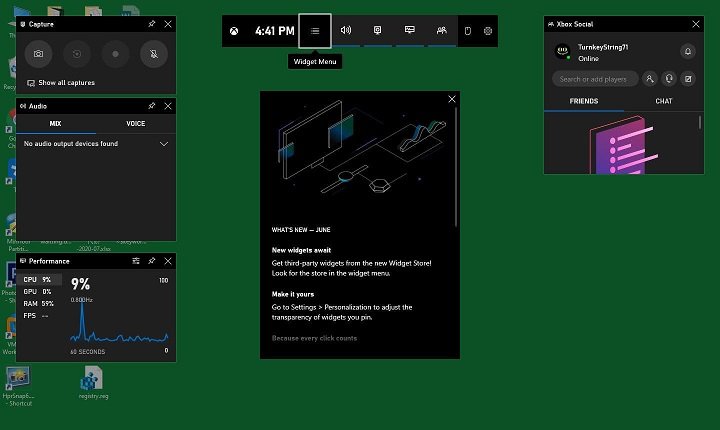
The Xbox Game Bar might not open due to disabled settings, conflicting applications, outdated drivers, or Windows operating system issues.
Frustration hits when you try to capture that epic gaming moment, but the Xbox Game Bar refuses to appear. Many gamers face the issue of ‘why wont xbox game bar open’, leaving them annoyed. This handy overlay should be accessible with a simple keyboard shortcut.
It’s a common problem, but it can stem from multiple causes. We will explore some typical reasons why it doesn’t function correctly. Hopefully, you’ll get it back up and running in no time!

Why Won’t Xbox Game Bar Open?
It’s super frustrating when you’re ready to jump into a game, record a sweet clip, or chat with your friends, and the Xbox Game Bar simply refuses to appear. That little overlay is designed to make gaming on Windows 10 and Windows 11 easier, but sometimes it acts up. Let’s explore why the Xbox Game Bar might be playing hide-and-seek and what you can do to fix it.
Common Culprits: Why is the Xbox Game Bar Not Working?
There are several reasons why your Xbox Game Bar might not be opening. It’s rarely one single issue, often a combination of things working against you. Let’s look at some of the usual suspects:
Incorrect Settings
Sometimes, the simplest explanation is the correct one. The Game Bar might be turned off in your settings. This seems basic, but it’s often overlooked.
- Game Bar Switch: Make sure the main toggle for the Game Bar is turned “On.” If it’s off, the Game Bar won’t open no matter what.
- Keyboard Shortcut: Sometimes the shortcut is changed. We will check to make sure it’s still set to Windows Key + G or a shortcut you are comfortable with.
- Capture settings: This is where the settings for recording games, taking screenshots, and other features are stored. Sometimes, an issue here can affect the overall function of the Game Bar.
Software Conflicts
Your computer has many programs working at once. Sometimes, other software or applications can interfere with how the Game Bar works. Here are some of the usual trouble makers:
- Overlays and screen recording software: Programs like Discord, OBS Studio, or even older game recording programs might conflict with the Xbox Game Bar. If they try to control the screen at the same time, then game bar might not be able to function properly.
- Antivirus programs: Some antivirus programs are very strict and could accidentally block the Game Bar from opening. We will see how to check if this is the case.
- Background apps: Even seemingly harmless programs running in the background could be causing a conflict.
System Issues
Sometimes the problem lies deep within the computer’s system:
- Outdated Windows Version: An old or corrupted version of Windows can cause problems with many features, not just the Game Bar. We want to always keep Windows up to date.
- Corrupt System Files: System files can sometimes get messed up, which can prevent the Game Bar from functioning.
- Graphics Driver problems: The Xbox Game Bar interacts with the graphics card to capture games and stream. If the graphics drivers are outdated, then we will see errors or game bar might stop working.
Game Compatibility
While the Xbox Game Bar is designed to work with most games, some games might have their own specific overlays or compatibility problems:
- Fullscreen Mode: Some older games running in exclusive fullscreen mode might not play well with overlays in general, including the Xbox Game Bar.
- Compatibility with Specific Game: Sometimes, a particular game has a known issue with the Xbox Game Bar, so that is something to check too.
Digging Deeper: Troubleshooting Steps
Now that we know the common reasons why the Xbox Game Bar won’t open, let’s move to the troubleshooting part. Here are steps to fix each problem.
Checking and Adjusting Game Bar Settings
First, let’s make sure your Game Bar settings are correct. Here’s how:
- Open Settings: Click the Start button (the Windows icon) and then click the gear icon to open Settings.
- Navigate to Gaming: Click on “Gaming.”
- Select Xbox Game Bar: In the left menu, click “Xbox Game Bar.”
- Turn it On: Make sure the switch at the top that says “Enable Xbox Game Bar” is turned on (it should be blue).
- Check Keyboard Shortcut: Under the switch, see the keyboard shortcut. It should be Windows Key + G. If not, you can change it by clicking on the field and pressing your new shortcut. Make sure you remember your shortcut.
After that, close the Settings app and try to open the Game Bar again by pressing your shortcut (Windows Key + G or your custom shortcut). If it still doesn’t open, proceed to the next steps.
Dealing with Software Conflicts
If you have programs running in the background, it is best to close them before playing your games, including the apps that have their own overlay capabilities. To do this, check the system tray (the small icons near the clock at the bottom right) and close applications that might interfere with the Game Bar.
If you are using any Antivirus, try to disable it temporarily and see if that fixes the issue. If it does, add the Xbox Game Bar to the list of trusted application on your antivirus program.
Try to close programs like Discord, OBS Studio, and any screen recording applications. If this resolves the problem, you can try running these one by one to see which program is causing the interference.
Fixing System Issues
Sometimes we need to dig deeper into the computer system to fix problems.
Updating Windows
Keeping Windows up-to-date can solve many problems, including Game Bar issues. Here’s how to update Windows:
- Open Settings: Go to Settings (click Start and then the gear icon).
- Navigate to Update & Security: Click on “Update & Security.”
- Check for Updates: Click “Check for Updates.” Windows will automatically check for and install updates.
- Restart Your Computer: After the updates are finished, restart your computer.
Running System File Checker (SFC)
If files are corrupt, System File Checker (SFC) can help. Here’s how to run it:
- Open Command Prompt as an Administrator: Click the Start button, type “cmd,” right-click on “Command Prompt,” and select “Run as administrator.”
- Type the Command: In the Command Prompt window, type “sfc /scannow” (make sure to put space between sfc and /) and press Enter.
- Wait for the Scan: The scan will take some time. Let it finish.
- Restart Your Computer: After the scan is done, restart your computer.
Updating Graphics Drivers
Old graphics drivers are often the culprit. Here is how to update them:
- Open Device Manager: Right-click the Start button and select “Device Manager.”
- Expand Display Adapters: Find “Display adapters” and click the arrow next to it.
- Update Driver: Right-click your graphics card and select “Update driver.”
- Select Automatic Search: Choose “Search automatically for drivers” and follow the steps.
- Restart Your Computer: Restart your computer after updating the driver.
Checking Game Compatibility
If the Game Bar is not working with a specific game, try to run the game in a windowed or borderless windowed mode. If the game has any settings for its own overlay, try to disable them. If the problem still occurs, there are chances that the game may be the problem, and not necessarily the Game Bar itself. Try to search on online forums if someone has encountered similar issue with that specific game.
Additional Tips and Tricks
Sometimes, there are other things you can try:
- Reinstall the Xbox App: If nothing else works, you can try uninstalling and reinstalling the Xbox app. This can fix errors.
- Create a new User Account: In rare cases, a problem with your current user account can cause this issue. Creating a new user account can help narrow down the issue.
- Check Windows Firewall: If the Windows Firewall is blocking the Xbox App or any of its components, the Game Bar might fail. You can review your firewall settings.
If none of these steps helped, consider visiting the Xbox support website or contacting Microsoft support for further help. They may have some solutions for your specific problem.
The Xbox Game Bar is a handy tool, and it can be frustrating when it doesn’t work correctly. Usually it’s one of the issues that we discussed above and by following these steps, you should be able to fix it. If one of the solutions doesn’t fix the problem, go to the next one. Troubleshooting is about systematically checking and fixing the possible issues one by one.
How To Fix Xbox Game Bar Not Opening Working in Windows 11
Final Thoughts
Xbox Game Bar may fail to open due to several reasons. Incorrect settings, outdated drivers, or conflicts with other programs are common culprits. Ensure the application is enabled in Windows settings.
A damaged installation or interfering software can also prevent it from launching. Check for Windows updates and consider reinstalling the game bar. The persistent question of “why wont xbox game bar open” can often be solved by these basic troubleshooting methods.

