
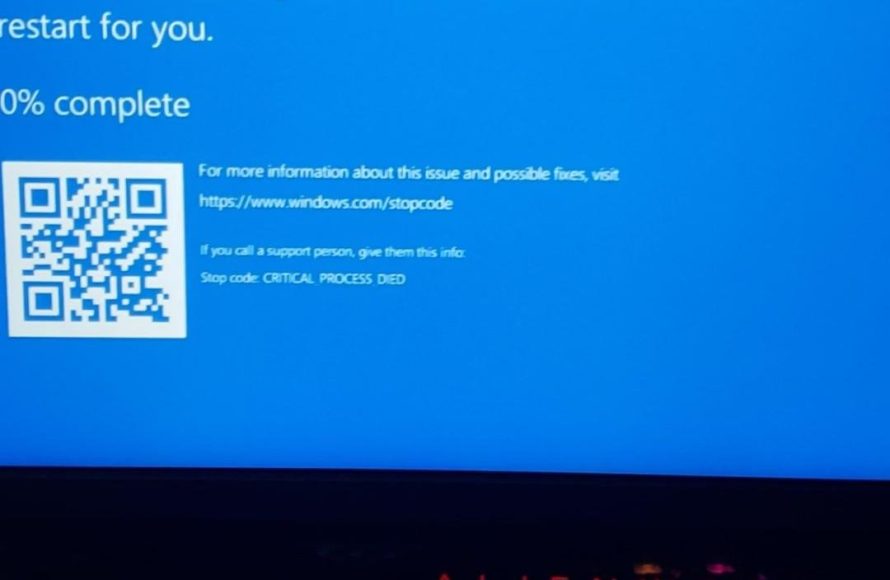
Yes, a factory reset can sometimes stop games from crashing by clearing software conflicts and corrupted data.
Frustrating, isn’t it? Your game is about to reach the climax, but then it crashes. You’re probably wondering if drastic steps are needed. The question on many gamers’ minds is, will factory reset stop games from crashing? That’s a very valid question.
Often, software issues or corrupted files interfere with game performance. A factory reset wipes your device clean, removing these problematic elements. Therefore, it can be an effective, albeit drastic, solution.

Will Factory Reset Stop Games From Crashing?
Okay, so your favorite game keeps crashing, and it’s driving you nuts! You’ve probably tried restarting your device, maybe even yelling at it a little (we’ve all been there). Now you’re wondering if a factory reset, that drastic measure, is the magic key to fix it all. Well, let’s dive deep into this question and explore all the angles. Will it work? Sometimes, yes. Sometimes, not so much. Let’s see why.
What Actually Happens During a Factory Reset?
Before we get into whether it fixes crashes, let’s make sure we’re all on the same page about what a factory reset does. Think of your phone or tablet like a messy room. You’ve got all your apps, pictures, files, and settings scattered everywhere. A factory reset is like hitting the reset button on that room. It wipes everything clean and puts your device back to the way it was when you first got it. This means:
All Your Apps Are Gone: Say goodbye to all the games, social media apps, and anything else you’ve installed.
Your Photos and Videos Disappear: Those precious memories will be deleted unless you backed them up somewhere safe.
Your Settings Go Back to Normal: Everything you customized, like your wallpaper or ringtone, is gone.
Data is deleted: All your login information, saved progress, and other data will be lost.
Essentially, it’s a digital spring cleaning of your device.
Why Might a Factory Reset Stop Game Crashes?
Now, with a clean slate in mind, let’s see how this might stop games from crashing. There are several reasons why this could work:
Corrupted Files
Sometimes, games crash because of corrupted files. These files are like puzzle pieces that aren’t fitting together right. This corruption can happen for a lot of different reasons. You might’ve downloaded something bad or your device might have had a hiccup while installing the game. A factory reset gets rid of these bad puzzle pieces and lets the game start fresh with new, clean ones.
Software Conflicts
Your device is a bustling city with all kinds of programs running at the same time. Sometimes, these programs might clash with each other, causing problems for your games. For instance, a background app might be hogging resources your game needs. Or, you may have installed an app that isn’t compatible with your game, leading to crashes. A factory reset removes all these extra apps and stops the conflicts. It is like having an empty stage, ready to host the star performer, which in this case, is your game.
Operating System Issues
Your operating system (like Android or iOS) is the boss of your device. If it has problems or outdated files, it can create trouble for your games. A factory reset refreshes this boss, making sure everything is running as it should. When your operating system is fresh and clean, it is better able to handle the demands of running your games smoothly.
Too Much Data
Sometimes, your device might be getting slow because it is overloaded with data. Think of a backpack that is overflowing with books. It becomes hard to carry. When your device is full, your games might not get the resources they need, causing crashes. A factory reset clears out this clutter. It makes space for your game to run properly.
Malware
Nasty software called malware can also cause games to crash. Malware is like a virus that messes with your device, making things go haywire. A factory reset gets rid of malware. It helps you get a clean start. When your device is free from such threats, your games will perform better.
When a Factory Reset Might Not Fix Game Crashes
Okay, so it sounds like a factory reset can fix anything, right? Not quite. There are times when it might not work, because the problem is coming from a different place.
Game Bugs
Sometimes, the game itself has bugs, which are like little errors in the game’s code. Even if you have a super clean device, the game might still crash. It’s like having a broken toy, and cleaning your room won’t fix the toy. Check game reviews or forums, and see if other players are having the same issues. If that’s the case, it might be a problem the game developers need to resolve.
Hardware Issues
Your device’s hardware can also be the problem. Your device’s hardware is like the building of your device, it includes things like the processor, the memory, the storage, etc. If these components are damaged or outdated, they can cause game crashes no matter what you do with the software. It is like having a car that has a damaged engine. Cleaning and painting your car will not fix the engine issues.
Server Problems
Some games connect to online servers to work. If those servers are having problems, your game might crash. This is especially common in online multiplayer games. You can’t do anything about server issues because they are not on your device. Think of it like trying to call someone when the phone lines are down. You may have a perfectly fine phone, but you still cannot connect.
Incompatible Game Version
Sometimes, a game might crash because you’re running an old version. Game developers often release updates to fix bugs and improve performance. If you don’t update your game, it may not run properly and might crash on your device. Ensure that your game is running on the latest available version.
Before You Hit the Reset Button: Troubleshooting Steps
Before doing a factory reset, which, like we mentioned, deletes everything, there are other steps you can try. These steps can help you figure out if the problem can be solved with something less drastic:
Restart Your Device
This may sound obvious, but sometimes a simple restart can fix minor issues. It’s like giving your device a fresh breath of air. Turn your device off completely, wait for a bit, and then turn it back on. This can clear out minor glitches that cause your game to crash.
Check Your Internet Connection
If your game needs the internet, make sure your connection is stable. You can try turning your Wi-Fi off and on again, or switching to a different network. Make sure you have good internet signal where you are playing.
Update Your Game
As we said before, game updates often include bug fixes. Check if there’s an update available for your game. Go to your app store and check if there are pending updates.
Clear Game Cache and Data
Your game may store temporary files, which can sometimes get corrupted and lead to crashes. You can go to your device’s settings, find the game in the apps section, and clear its cache and data.
Close Background Apps
Too many apps running at the same time can take up too many device resources and slow your game down. Close any apps you are not using before you start the game.
Free Up Storage
If your device is full, try deleting some old files and apps that you don’t need. Having enough free space on your device can help your games run more smoothly.
Check Game Settings
Sometimes, lowering the graphics settings in your game can reduce strain on your device. Try turning down the graphics quality settings of the game to see if it helps stop crashes.
Check Compatibility
Make sure that your device is powerful enough to run your game. Some games are very demanding and need a strong device. Look at the recommended specs of your game and ensure that your device can meet those specifications.
Backing Up Your Data Before a Factory Reset
If you’ve tried all the above steps and you’re still having issues, it may be time for that factory reset. But, before you do that, you must back up your data, so you don’t lose anything important. Here’s how to do it:
Cloud Storage
Most devices allow you to back up your data to cloud storage services like Google Drive, iCloud, or OneDrive. This method makes sure that all your photos, contacts, and other information are safe and you can easily access them after your device is reset.
Computer Backup
You can also back up your device to a computer. Connect your device to your computer using a USB cable and use the software on your computer to back up your device data.
Third-Party Backup Apps
There are also apps available that can help you back up your device. They can help back up your device’s data and settings.
Backup Your Game Progress
Some games have cloud saving built in, which means your progress is saved online, which you can restore later. Make sure your game saves are backed up online or somewhere safe if they are not saved online, otherwise you’ll lose all your game progress.
Steps to Perform a Factory Reset
Once you have done all the backups, you can proceed with the factory reset. Here’s how you can usually do it:
1. Go to your device’s settings.
2. Look for the “System”, “General Management” or similar option.
3. Find the option for “Reset” or “Backup and reset”.
4. Choose “Factory data reset”.
5. Follow the instructions on the screen.
6. Your device may restart a few times during the process.
After the Factory Reset
Once the factory reset is complete, it’s like having a brand new device. You’ll need to set it up again. This includes logging into your accounts, downloading your apps again, and restoring your data.
Restore Your Data: If you backed up your data, now is the time to restore it.
Reinstall Your Game: Download the game and see if it works without crashing. Make sure you download the game from an official app store.
Keep an Eye on Performance: If your game is running well, keep an eye out for any crashes.
Avoid Installing Unnecessary Apps: If the reset fixed the problem, avoid installing apps that you don’t really need, as they may interfere with your games.
So, will a factory reset stop games from crashing? It could. It’s not a guarantee, but it’s a helpful option when other things have failed. It’s like a last resort to try and give you a cleaner, better performing device.
Remember to always back up your data before you factory reset. Then, try other solutions first, like restarting your device, updating the game, and clearing cache. If a factory reset does fix the crashing, be sure to install games from official sources, and try to avoid downloading apps you don’t need. This way, your game will work well, and you can get back to having fun.
Windows security causing games or PC to crash FIX!
Final Thoughts
Ultimately, a factory reset can often fix underlying software issues causing game crashes. It clears out problematic settings or conflicting data. Therefore, many users find improved game stability after this process.
However, if hardware malfunctions cause the crashes, a factory reset won’t help. Also, the “will factory reset stop games from crashing” question often depends on the root cause of the problem, and this process isn’t guaranteed to fix all issues. It should be seen as a troubleshooting step, not a cure-all.

